
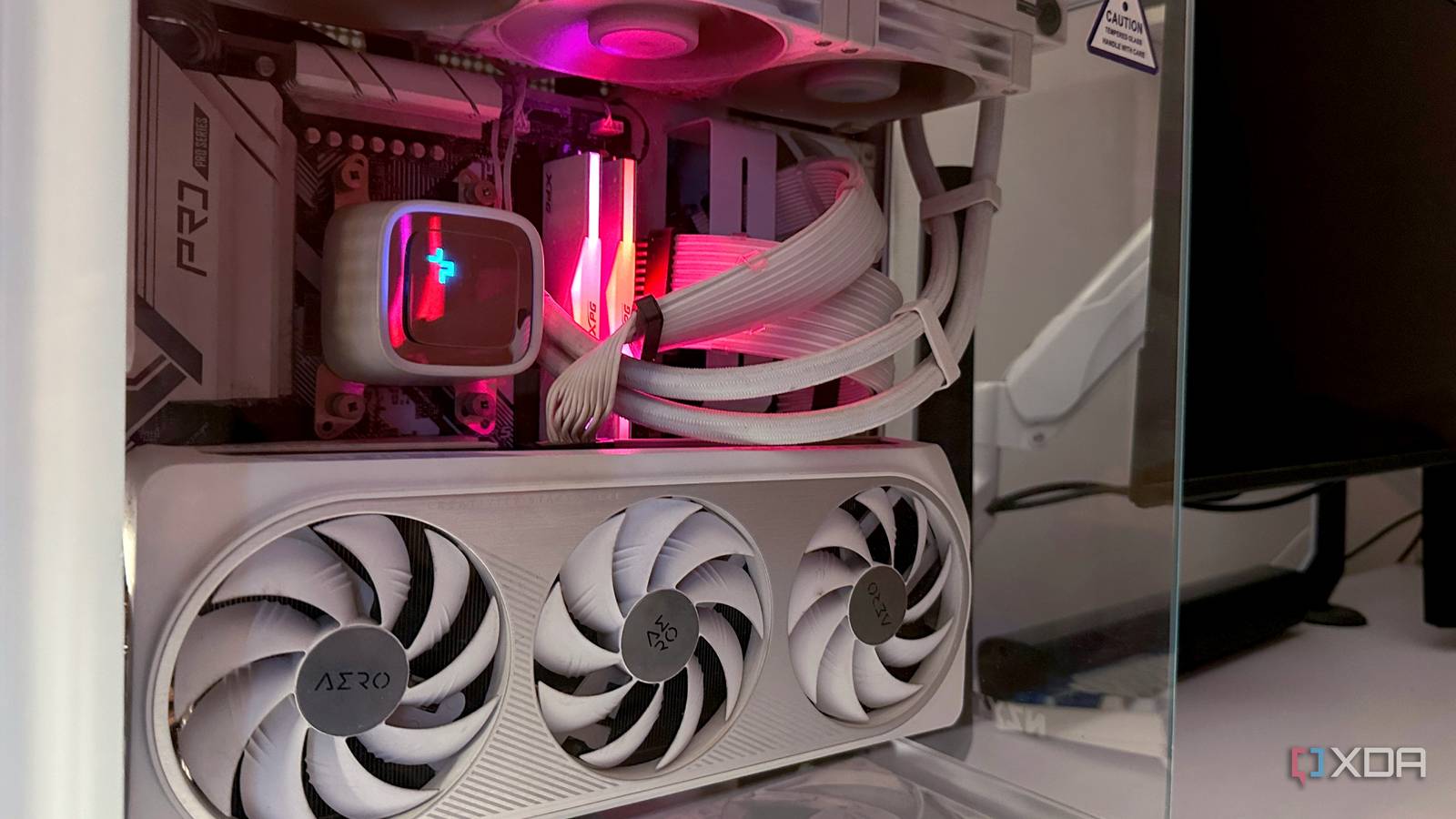
Published Nov 27, 2026, 7:00 AM EST Gaming has been Samarveer’s greatest passion, and the Literature graduate in him takes immense joy in dissecting games for their themes, messages, and impact. Samarveer holds a deep appreciation of gaming, and considers the platform to be the most immersive and impactful across all media. He can be found engaging with gaming communities online, always ready to debate the finer points of ray tracing or itching to write an 8-page collegiate thesis on any game that impacts him emotionally. It's easy to assume that shutting down your PC means everything inside it has stopped drawing power. The fans stop spinning, the display goes dark, and Windows disappears, so as far as you're concerned, the machine is off. And yet, your USB headset might still be charging, your controller might still be pulling power, and the RGB lighting inside your case can stubbornly refuse to go dark. This isn't actually a case of Windows misbehaving, though, or a problem with your PSU. Modern motherboards can deliberately keep parts of the system powered even when the rest of the machine is off. There's a good reason for that, too, although whether you actually want this behavior depends on how you use your PC. Your PC still has power after shutdown Standby power is doing more than you think When you shut down Windows, your motherboard doesn't completely die electrically. Instead, it enters a low-power state. In this state, the system is effectively off, but the PSU can still provide standby power to parts of the motherboard. When you press the power button to wake up the PC, this low-power state is why you don't have to flip the PSU switch. USB devices benefit the most from this sort of standby power. Depending on the motherboard, you can charge your controller, wireless headset, phone, or other accessories. Plus, you won't have to leave the entire PC running the entire time. Some boards even mark these ports specifically. This helps you know which ones remain powered. There are other practical benefits to this low-power state, too. This is what lets you use the Wake-on-LAN function, and keeps other components' RGB lights illuminated while the PC is "off." Yes, our desktop computers can do more while shut down than some laptops can do awake. This behavior isn't universal, though. Motherboards decide which components receive standby power and how you control them. That's why two PCs sitting side by side can behave differently after shutdown. The BIOS setting controls what stays powered Look for ErP, USB standby power, or something similarly cryptic In your motherboard's BIOS, look for a setting called Energy-related Products (ErP). If you have ErP enabled, it instructs the motherboard to reduce power consumption in the specified off states. Depending on the board and selected option, it can cut power to USB ports, disable some wake features, or turn off RGB lighting. If you want your USB ports to stay powered, you may need to disable ErP or adjust a separate USB power setting. This isn't universal, though, so check your BIOS settings carefully. Some motherboards expose separate controls for USB standby power, charging, or power delivery. They give you much finer control over your USB ports while the PC is shut down instead of a single ErP toggle. Finding it is where things get unnecessarily entertaining. ASUS boards typically put ErP Ready under APM Configuration. Meanwhile, MSI, Gigabyte, and ASRock can offer ErP alongside other USB or power-management options. BIOS layouts and names can change between generations, so copying a menu path from a five-year-old guide isn't always helpful. If you can't find ErP, search your BIOS for terms like "S5," "standby," "USB charging/power," "Deep Sleep," or "Always On USB." You can even look for this setting on your laptop, but be aware that laptops love proprietary names like USB PowerShare. In such cases, Googling your laptop model may be your best bet. It's also important to read what the setting actually controls before changing it. You may gain powered USB ports, but you can also affect wake functionality and standby power consumption. Should you leave this feature enabled? Convenience is useful, but your PC doesn't need to charge everything If you regularly charge a daily-use computer peripheral from your PC, leaving standby power enabled is genuinely useful. Your device will keep charging even after you shut down and walk away, without requiring you to leave a 700W gaming PC running. It's a tiny convenience, but it sure makes a desktop feel incredibly smarter. There is a trade-off, though. Standby power isn't free, even if the power your PC uses while shut down is tiny compared with what it uses while running. If that's the kind of idle power consumption that you care particularly about, then enabling ErP to cut off standby power can make sense. It can also finally kill that RGB glow that you've become used to using as a night light (or is that just me?). Conversely, there are plenty of good reasons to keep standby functionality, and why I have ErP disabled. Wake-on-LAN depends on parts of the system remaining ready to receive a wake signal. As such, anyone who uses remote access or network management relies on that. Disabling every form of standby power can therefore make your PC less convenient in ways you may not notice until you actually need them. If you regularly use charging or wake features, I'd leave standby power enabled; otherwise, I'd disable it. There’s little point obsessing over a few watts of standby power while deliberately giving up a feature you actually use. Having standby USB power depends on your needs A desktop PC has plenty of features that quietly work in the background until you need them. Standby power is easy to ignore until it suddenly becomes useful. Being able to charge a controller without thinking about it, wake a machine remotely, or stop your motherboard from behaving like a tiny nightclub can all be worthwhile, depending on your needs. The trick here is to not treat every BIOS option you come across as something that needs to be enabled or disabled on principle. Your PC is yours, and the best configuration is the one that fits how you actually use it. If a feature saves you a little hassle every day, those few watts are probably a reasonable price to pay. ASRock B650 Pro RS The ASRock B650 Pro RS is one of the most affordable B650 motherboards on the market. It doesn't have Wi-Fi, but you get Gen5 M.2 support, a total of 3 M.2 sockets, 2.5GbE LAN, and a 17-phase VRM design. The I/O is robust, and you can enjoy one of the lowest VRM temps on any B650 board.
Your PC's USB ports keep delivering power after shutdown, and one BIOS setting decides which ones
Full Article
Original Source
Read the full article at Xda-developers →KhanList aggregates and links to publicly available news content. We do not host full articles from third-party sources. Always verify important information with original sources.