
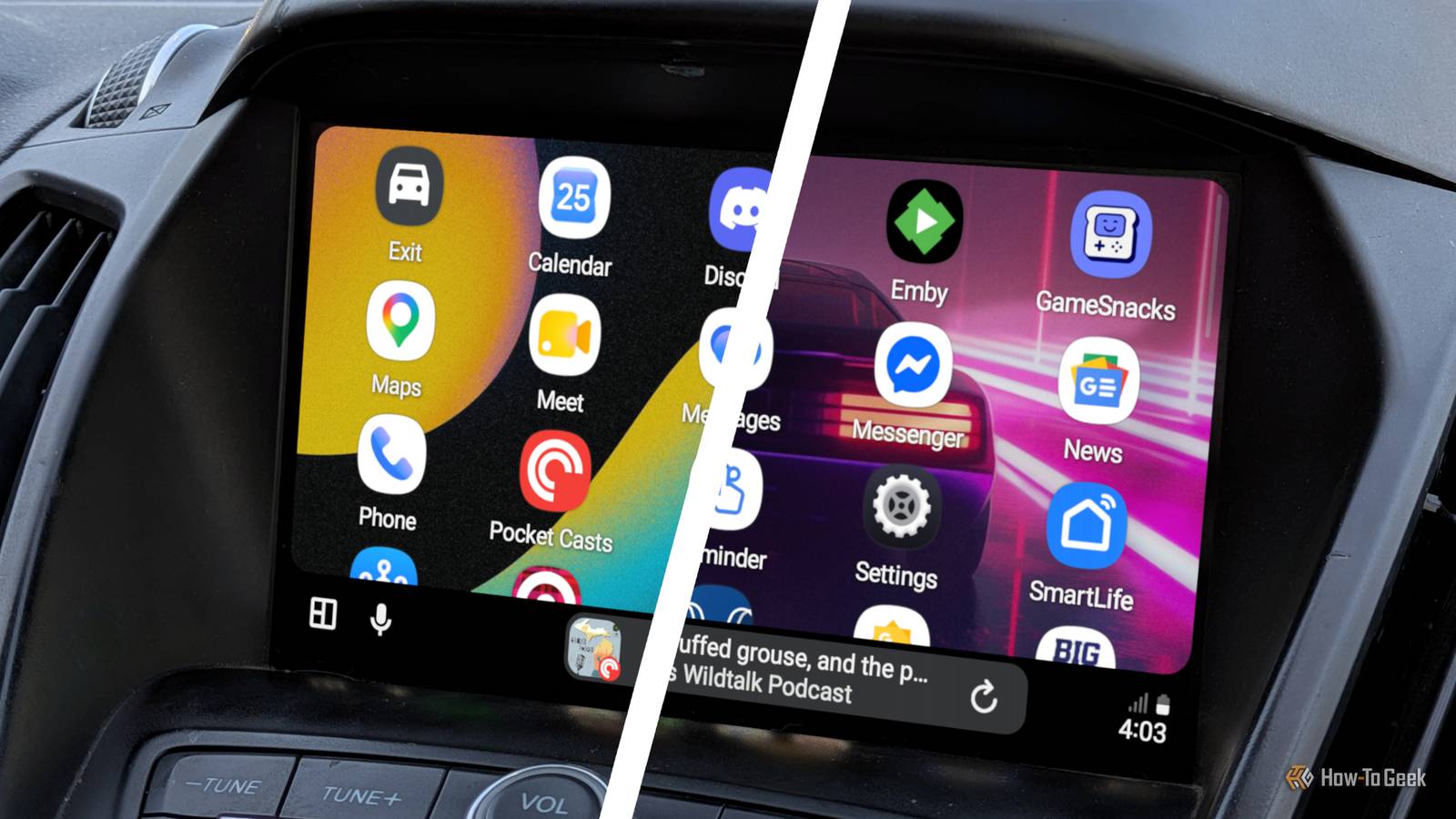
Published Nov 27, 2026, 6:30 AM EST Joe Fedewa has been writing about technology for over a decade. Android and the rest of the Google ecosystem have been a focus for years, as well as reviewing devices, hosting podcasts, filming videos, and writing tutorials. Joe loves all things technology and is also an avid DIYer and food blogger. He has written thousands of articles, hundreds of tutorials, and dozens of reviews. Before joining How-To Geek, Joe worked at XDA-Developers as Managing Editor and covered news from the Google ecosystem. He got his start in the industry covering Windows Phone on a small blog, and later moved to Phandroid where he covered Android news, reviewed devices, wrote tutorials, created YouTube videos, and hosted a podcast. From smartphones to Bluetooth earbuds to Z-Wave switches, Joe is interested in all kinds of technology. After several years of jailbreaking and heavily modifying an iPod Touch, he moved on to his first smartphone, the HTC DROID Eris. He's been hooked ever since. If you’re reading this, you’re likely thinking one of two things: “Android Auto has wallpaper?” or “Doesn’t it just use my phone’s wallpaper?” The answer to both questions is “yes,” but I’ll show you a clever way to customize it. In the early days of Android Auto, Google included a few pre-loaded wallpapers to choose from. That was removed (along with the ability to see the weather) a while ago in favor of using your phone’s wallpaper, but it may not be enabled by default. After we do that, we can get more creative. First, use your phone’s wallpaper It wasn’t enabled for me To get started, we need to make sure Android Auto is set up to use your phone’s wallpaper. I’m not exactly sure when this feature was added, but it wasn’t enabled for me. Weirdly, it also seems like Google removed the setting from the Android Auto phone settings at some point, because it can only be done from the head unit now. Open the app launcher on your Android Auto display and tap the “Settings” app. Scroll down and make sure “Use phone’s wallpaper in Android Auto” is toggled on. Now, when you’re viewing the app launcher, you’ll see your phone’s wallpaper in the background. Easy peasy. But maybe you don’t want your phone’s wallpaper to be the Android Auto wallpaper. The good news is you can change it with a very simple automation. Second, automate the switcheroo You might not even need to install an app Android Auto uses your phone’s wallpaper. So, all we need to do is change your phone’s wallpaper whenever Android Auto is connected. This is a very simple automation that may not even require an extra app. Samsung Modes and Routines If you use a Samsung Galaxy phone, the tool to set this up is already installed — it’s the excellent “Modes and Routines” app. There’s even a pre-made mode that’s perfect for this automation. Open the Modes and Routines app and select the “Driving” mode. Tap the “Turn on automatically” section. “Android Auto” may be suggested, but if it’s not, find it from the “Add condition” menu. Choose “Connected” as the condition. Now, in the “Change appearance section,” select the home screen. Choose the wallpaper that you’d like for Android Auto. Tap “Done” to finish. That’s all there is to it! When your phone connects to Android Auto, the wallpaper will automatically change. MacroDroid If you own a Google Pixel or some other Android device, you probably don’t have a built-in automation tool that can do this. I recommend using a free, open-source app called “MoodyRoutine.” It’s inspired by Samsung’s Modes and Routines tool. Install the app from F-Droid and grant the permissions. Select the “Driving” mode, then tap the pencil icon to edit it. Delete the pre-selected trigger, then tap “Add condition.” Choose “Specific Bluetooth device” and pick your Android Auto head unit. Now, select “Add action” (delete any you don’t want), and choose “Set wallpaper.” Make sure “Revert actions” is toggled on under “When mode ends.” Tap “Save” to finish. There you have it! Who needs Samsung’s special automation app? Well, if I’m being honest, I really would like a Pixel version, but that’s a different article. A simple trick for car customization I can already hear the comments asking why anyone would bother with this. After all, I fully admit I don’t usually keep the app launcher open while driving. It’s not a screen I see for more than a few seconds at a time. But who cares? I don’t see my lock screen for more than a few seconds at a time, and I like to customize that, too. Sometimes, like a good road trip, the fun is in the journey. We customize things because we can, and that’s a perfectly valid reason.
How to change the wallpaper on Android Auto
Full Article
Original Source
Read the full article at Howtogeek →KhanList aggregates and links to publicly available news content. We do not host full articles from third-party sources. Always verify important information with original sources.