
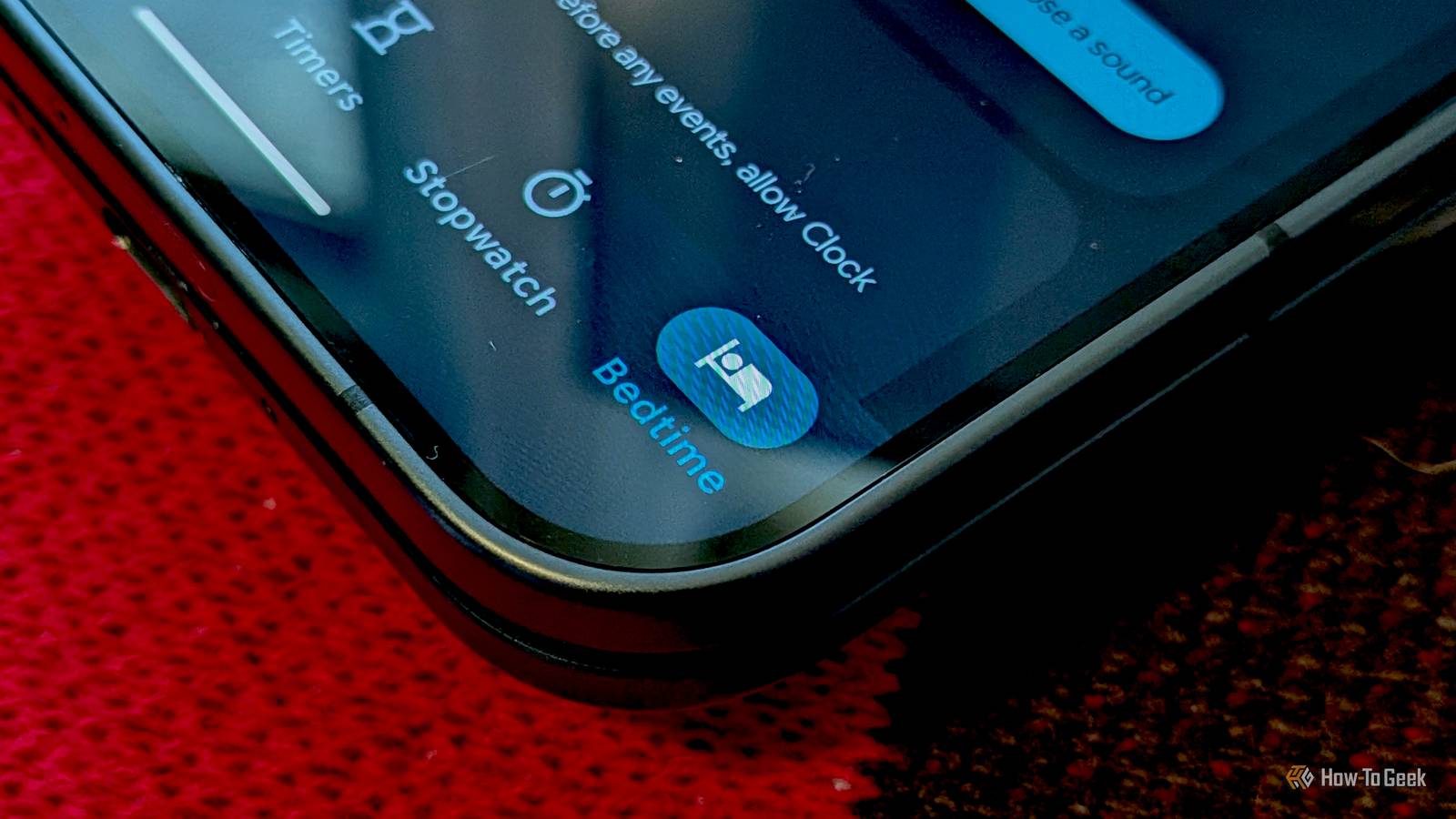
Published Nov 23, 2026, 4:30 PM EST Tyler is an journalist and content contributor at How-To Geek with over three years of experience covering the automotive and tech industries. His work focuses on delivering clear, well-researched, and engaging content that helps readers better understand the vehicles they drive and the technology that they use everyday. Before entering automotive media, he spent five years as an academic editor, developing a strong foundation in research methodology, factual accuracy, and structured analysis. This background informs his journalistic approach today, ensuring that every article balances technical insight with accessibility for a broad audience. The world that we live in is fast, loud, and full of distractions. As cool and innovative as our mobile devices are, they are often at the center of all this noise. One area where this has had a profound effect is the way we treat sleep. Unfortunately, getting into bed doesn't really mean switching off anymore. Battling the addiction that we have to our phones is difficult. Something that has really helped me in this struggle is a built-in Android tool called Bedtime Mode. It is a routine that helps reduce some of the negative effects of using your phone at night and makes sure your device distracts you as little as possible while you're sleeping, so you can actually get some solid rest. Your phone is affecting your sleep, whether you know it or not Your Android can minimize its nighttime impact, though The world is moving at an absurdly fast pace, and getting a good night's rest is becoming a luxury. Most people have heard that using your phone before bed can affect how well you sleep, but fewknow how large that impact is. Many of us are guilty of doomscrolling in bed, but that mental stimulation can make it harder for you to fall asleep. The blue light your phone's screen emits can also suppress melatonin production, which messes with your circadian rhythm, makes you want to stay up later, and hits you with morning grogginess. Almost as annoying, though, is getting woken up by a random notification in the middle of the night. Falling asleep and getting enough rest is something that I've always struggled with. All those late-night gaming sessions that bled into early mornings when I was younger didn't help much either. It is something that I'm actively working on. Thankfully, Android phones have a built-in tool called Bedtime Mode that can at least lessen my phone's impact on my sleep schedule, and it's helped me build a solid routine that's made me sleep a lot better. Bedtime Mode automatically changes your Android's settings at night Target all the problem areas Back in 2018, Google introduced a suite of tools to help manage the impact that your phone has on your life; they call it Digital Wellbeing. One of these tools was an early version of Bedtime Mode, which was called Wind Down back then. The feature has since evolved quite a lot and has been rolled out to a much broader base of Android devices. Essentially, it helps tackle the issues associated with using your device at night, allowing you to get a more restful night. The first thing that it does is activate Do Not Disturb during certain hours, meaning you won't get woken by late-night notifications. It also changes the way your screen looks to limit blue-light emissions. When your morning alarm goes off, it automatically switches off all those routines, putting your phone back how it was. Customize Bedtime Mode to fit your preferences Everyone has a different sleep schedule You can find your Bedtime Mode settings and manage them by navigating to the Digital Wellbeing section on your Android device. If you have the Google Clock app installed, you can also manage the routine there. Things are slightly different if you have a Samsung Galaxy device, but I'll get into that in the next section. Once in the Bedtime Mode settings menu, you should be met with a lot of options, allowing you to customize the feature to suit you. Here, you can set a schedule for when Bedtime Mode activates. You can also set it to activate when you put your phone on charge between certain hours, which is useful if your schedule varies. Turning on Do Not Disturb when the feature is active is also super useful, as is the ability to have the mode deactivate at your next alarm. There is also a section to change your screen settings when Bedtime Mode is active. You can have it turn off the always-on display, dim your wallpaper, and lower your brightness. You also have a grayscale option, which makes everything on your display black and white. Modes and Routines on Samsung Galaxy devices give you more control Near endless customization If you have a Samsung device, Bedtime Mode is slightly different. To start with, it is called Sleep Mode, and it is part of Samsung's Modes and Routines. It does all the same things as Bedtime Mode on other Android devices, but you have much deeper control over how and when it functions. In addition to scheduling when Sleep Mode activates, you can set a number of other conditions that need to be met. This includes only activating the mode when your phone is on charge. These other conditions can include opening another app, your location, and when media is playing, just to name a few. You can also have Sleep Mode restrict app usage on your Samsung Device, which is a good way to help you quit your nighttime doom-scrolling addiction. Sleep Mode can also alter more than just your display. In addition to dark mode, grayscale, and the eye comfort shield, you can also turn on power-saving mode or change your sound profile. Your Android can help you beat digital distractions I have made use of this built-in Android feature practically ever since it was introduced, and it is so much better today than when it launched. Building a routine has been essential to maintaining my mental health, and Bedtime Mode has helped me keep to that routine as much as possible. I can genuinely say that I am better rested because of it.
Your Android phone has a 'Bedtime Mode,' and it's better than you think
Full Article
Original Source
Read the full article at Howtogeek →KhanList aggregates and links to publicly available news content. We do not host full articles from third-party sources. Always verify important information with original sources.