
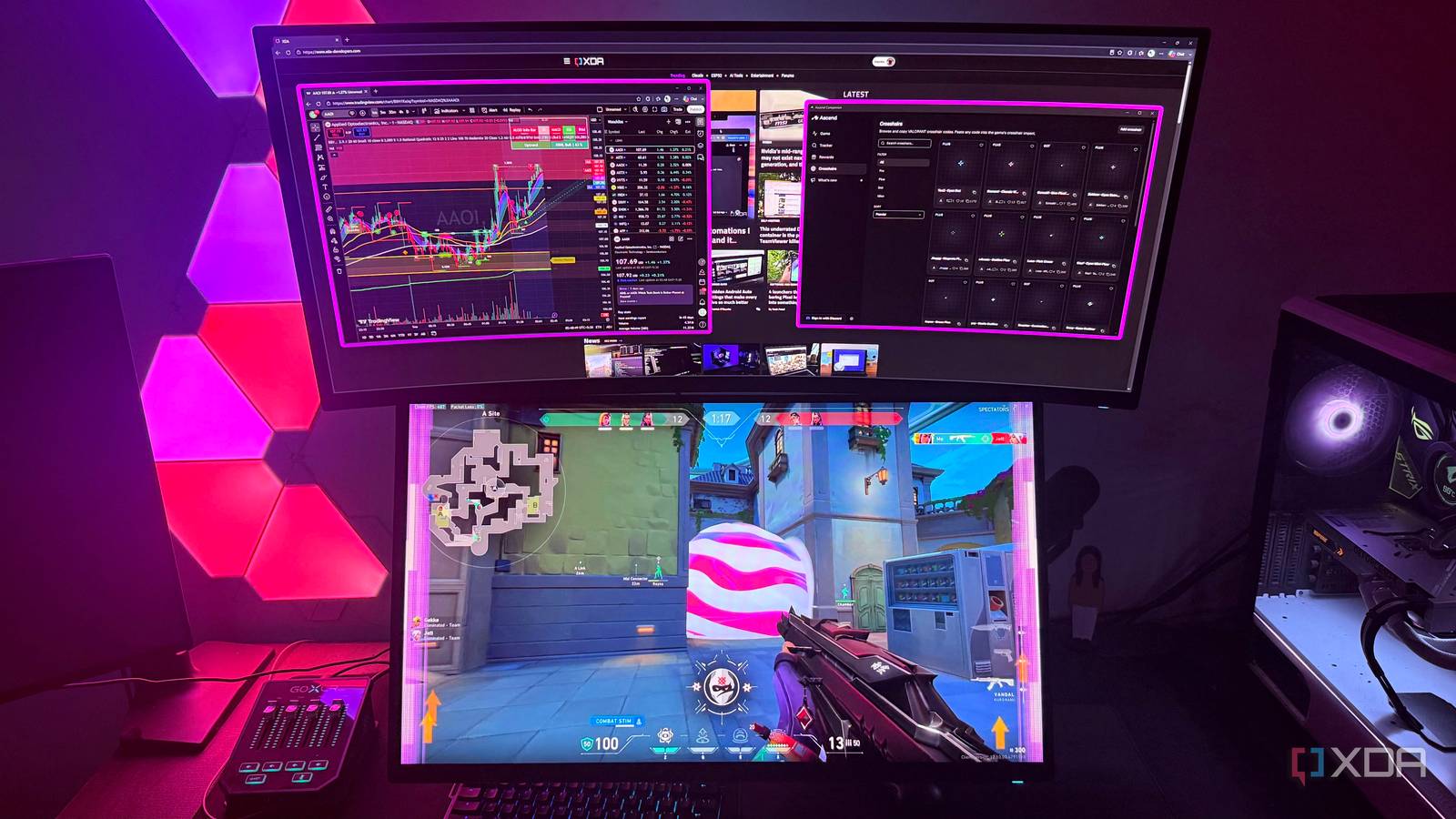
Published Sep 5, 2026, 10:30 AM EDT Hamlin has been in the tech field for over nine years. Since 2017, his work has appeared on MakeUseOf, Android Police, OSXDaily, Beebom, and more. He served as the Senior Editor at Valnet's MakeUseOf for over two years before joining XDA. He uses a high-end gaming rig for desktop use and a MacBook for traveling, but dislikes some of the quirks of macOS. You're more likely to catch him at the gym or on a flight than anywhere else. I've been using a triple-monitor setup for the last four years, and at this point, I can't imagine going back to two monitors, let alone just one. My current setup gives me plenty of screen space to work with, especially since one of them is ultrawide. Whether I'm writing for XDA, looking at stocks in TradingView, or just keeping a bunch of apps open while researching, I rarely feel like I'm running out of space. Still, that wasn't enough to address one of the main problems I face while multitasking in Windows. There are times when I want to keep a particular window visible while I'm working in another app, but the moment I click on that app, the window I wanted to stay visible gets buried behind it. Of course, with the amount of space I have, I can rearrange my windows, but that feels unnecessary when I only need it there temporarily. That's exactly why I started using Always On Top in PowerToys, and now multitasking is so much more convenient. Always On Top is the multitasking fix I needed One keyboard shortcut to stop windows from getting buried As the name already suggests, Always On Top lets you pin a window so that it stays above everything else on your screen. You can click on anything else around this window, and it won't budge. Once you've enabled it in PowerToys, click the window you want to keep visible and press its keyboard shortcut, which is Win + Ctrl + T by default. You'll see a colored border around this pinned window to let you know it's set to stay on top. And whenever you want to unpin it, select that window and press the same shortcut again. That's pretty much all you need to learn to get started with Always On Top. I personally use it for those short stretches where I need to reference something without repeatedly digging it back out of the taskbar. For example, if I need to compare specs while writing, I just open a separate window and keep it pinned in a corner. The same goes when I want to keep an eye on a stock in TradingView or do quick math in the Calculator app. It's such a simple feature, but it has become one of the main reasons why I still have PowerToys installed. This is better than rearranging my entire desktop The last thing I want is a temporary window to ruin my layout Since I have three monitors, you're probably thinking it's better to drag the window I need over to another screen. But here's the thing. I already have at least one window open on all three monitors most of the time, and I arrange them exactly how I like so I don't have to twist my head around. Making room for another window means resizing something or using FancyZones to reorganize my desktop. I find that a bit overkill when I only need that tiny window for a few minutes. Yes, using Always On Top does mean the pinned window will hide whatever is directly behind it, but that hasn't really bothered me so far. I usually move it to a corner on my ultrawide monitor, so it rarely ever gets in the way. If that's a dealbreaker for you, you can adjust the opacity of the pinned windows in Always On Top's settings. You can also reduce the border thickness or disable it completely. I've made it thinner just so I know it's active. And lastly, if you find the keyboard shortcut a bit awkward, you can enable the option to access Always On Top from the title bar's context menu as well. I'd avoid overusing it, though Having three or four windows pinned on top can get overwhelming When I first tried out this feature, I liked it so much that I started pinning pretty much every small window I opened. That quickly became overwhelming because I'd have three or four windows sitting above the main window at the same time. The problem here is that I'd have to unpin them one by one when I no longer need them, which feels like more work than simply dragging windows around. At that point, I'd argue Always On Top adds more clutter than it helps me multitask. However, when you use it sparingly and are selective about the windows you want to pin, Always On Top feels like a feature that should've been built into Windows from the start. These days, I stick to pinning one window at a time, and lean on FancyZones whenever I want several windows visible at once. This way, I still get the convenience without turning my desktop into a mess. All in all, Always On Top works incredibly well as long as you know when to avoid it. This is just scratching the surface of PowerToys Always On Top isn't even the standout feature of PowerToys. I first installed it for Command Palette and FancyZones, only to find myself using Always On Top almost every time I'm working or gaming on my PC. That's why I'd recommend checking everything else it has to offer instead of just using Always On Top and calling it a day. For me, this little tool fixed a problem three monitors couldn't, but for you, it might be something else entirely. Microsoft PowerToys is a collection of free, open-source tools that can improve Windows productivity.
This tiny PowerToys feature fixed one of my biggest Windows multitasking annoyances
Full Article
Original Source
Read the full article at Xda-developers →KhanList aggregates and links to publicly available news content. We do not host full articles from third-party sources. Always verify important information with original sources.