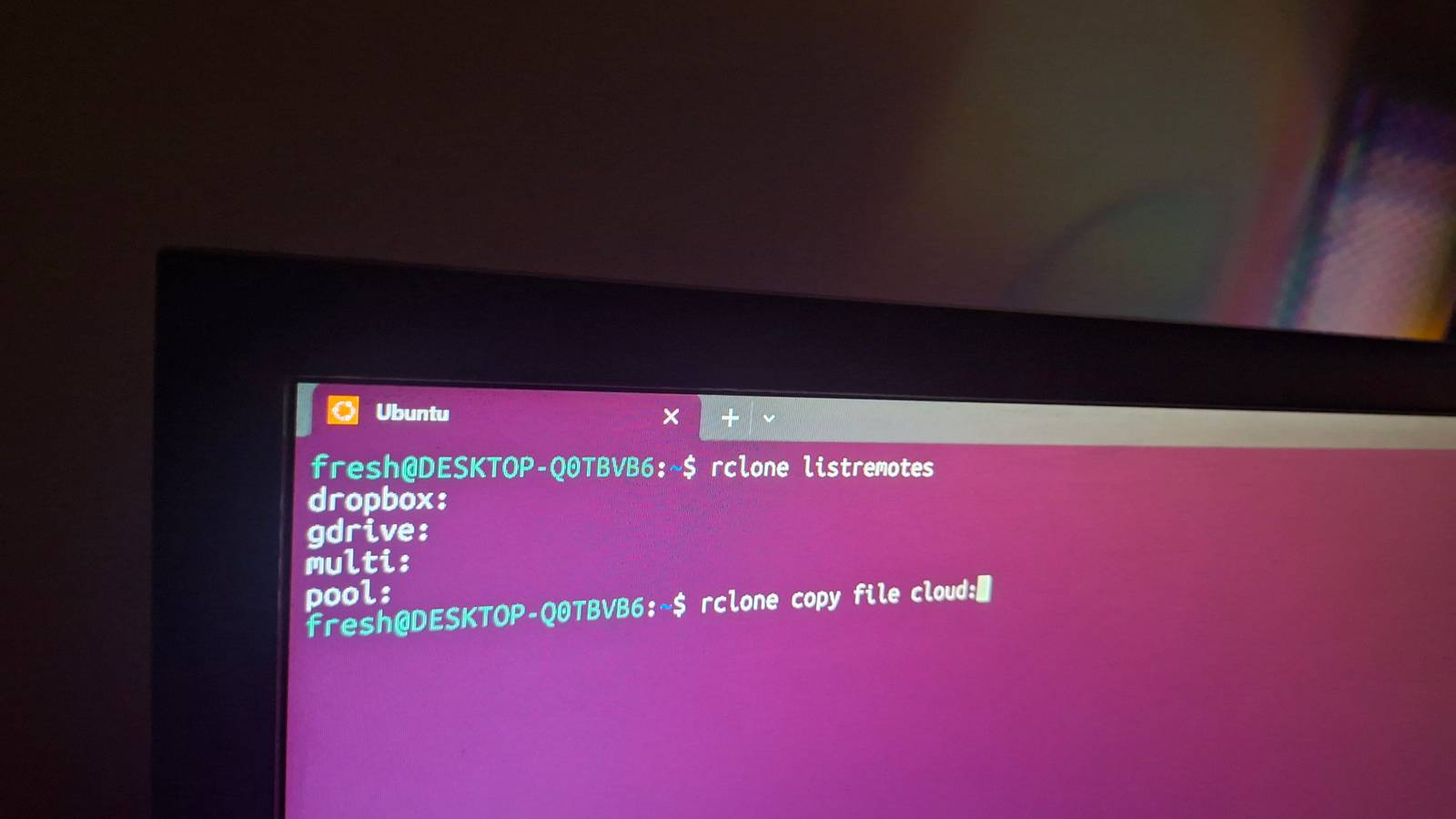
Published Aug 1, 2026, 1:30 PM EDT Faisal Rasool has been a feature writer at How-to Geek since early 2024. He brings years of professional experience in simplifying technology for his readers on topics like mobile devices, PCs, and online privacy. He tries to help people get the most out of their gadgets and software with the least effort. In his teenage years, he spent hours every day tinkering with Android phones and Linux builds. Faisal started his career at WhatMobile in 2019 (mostly out of his obsession with Android) where he published over 2,000 news stories. Currently, he contributes to the news section over at AndroidHeadlines. He also authored more than 100 feature articles for SlashGear, covering Android, iOS, Web, Chromebooks, online privacy/security, and PC content. Faisal has a Bachelor's in English literature, and loves to read and write. He also loves watercolors, retro video games, animation, and cats. Rclone is an app that lets you upload, download, sync, and delete files in the cloud. Let me show you why it's better than the official apps from your cloud providers. This simple command is all it takes to back up any folder or files from my local storage drives to all my cloud storage accounts in one go. By the end of this tutorial, you will know what that command does and how to use it to upload your files to two or more cloud accounts simultaneously. What's special about rclone How it beats the official cloud apps Rclone works as a command-line tool inside a terminal emulator. It might seem counter-intuitive that a command-line app can be better than the official version. But when it comes to power and efficiency, these command-line interface (CLI) tools are virtually unbeatable. Think about the time it takes to open a cloud website and click around to upload or download files. It seems minuscule, but the time adds up. Say, you have to create frequent backups between multiple folders, multiple machines, multiple cloud providers, and multiple accounts. Each layer of complexity makes it more and more annoying to handle manually. This is where tools like rclone shine. You need to connect rclone with your cloud account once. This is called setting up a "remote." After that, instead of opening browser tabs and logging into accounts, you can run simple commands to upload, download, and sync files with the cloud. In basic terms, the keyboard beats the mouse because it is faster to type. It's the same reason keyboard shortcuts are faster. The rclone tool is a keyboard shortcut for cloud management. Getting rclone Start by installing rclone on your computer. On Linux machines, you can install it directly using any package manager. The package name is usually rclone. sudo apt install rclonesudo dnf install rclone On Windows, winget will do it for you. Open a terminal and run this command. winget install rclone Readers on macOS can try brew. brew install rclone Check that it is installed correctly. rclone --version Simple enough. Now let's set up your first cloud remote. Open a terminal window and run: rclone config Type n and press Enter to create a new remote. Give it a name. Scroll through the list of cloud providers. The rclone tool supports some 50 odd providers, so chances are you will find your cloud in the list. Type the number of the provider and hit Enter again. I chose Google Drive. Then leave the rest of the settings as default by repeatedly pressing Enter until rclone generates a link for you to follow. This link will take me to my Google account where I can authorize rclone to manage the cloud files. Wait for the "Success" message. Back in the command-line terminal, press Enter two more times to keep the defaults until you see the remote in the list. At this point, you can either add another remote by pressing n or quit the setup wizard by entering q. I want to back up my data to two different cloud providers, so I'll have to add a remote for my Google Drive account as well. I can do that by running through the same six-step process. This command will show the remotes that have already been added to rclone. rclone listremotes Both remotes have been added. Merging multiple cloud accounts into one remote In order to manage these two remotes, rclone has a "union" feature which combines two or more cloud drives into one remote. Any changes made using this remote are duplicated across all the remotes merged into a union remote. Let's create one. rclone config Select n for a new remote and give it a name. Mine is called "multi." In the list, look for the "Union merges the contents of several upstream fs" option. Usually it's number 40. Type the two or more remote names when it asks for upstreams. gdrive: dropbox: Type all and hit Enter on the next three options to make sure the file changes are mirrored across all remotes. Leave the rest as default and quit the configuration wizard. We now have a remote called multi: and it's all we need to back up to multiple clouds simultaneously. Using rclone It's easier than you might think Pay close attention to this command. rclone copy awesome-stuff dropbox:backups I have already created a remote called dropbox which is connected to my Dropbox account. The rclone at the beginning invokes the program itself. There is a folder called "awesome-stuff" in the same directory where I have invoked the program. The copy creates a duplicate of the folder named "awesome-stuff" and uploads it to the "backups" folder inside my Dropbox drive. We will always add a colon : to the cloud remote name. This example can be generalized like this: rclone copy source remote:destination If I reverse the order of the source and the destination, the copy command will download the backup folder from my Dropbox and drop it into the "awesome-stuff" folder. rclone copy dropbox:backups awesome-stuff The source in our example is a folder called "awesome-stuff", but it doesn't have to be a folder. It can be a file or multiple files listed one by one. rclone copy send-this-file-to-the-cloud.txt dropbox:documents You can also move files and folders. rclone move awesome-stuff dropbox:backups Or list the contents of a directory using ls. rclone ls dropbox:backups List all the directories inside a cloud drive. rclone lsd dropbox: There are many more features (some pretty advanced), but you don't need to know all of them. The copy command will suffice most of the time. In fact, you can substitute the remote name with a union remote name like the one I created in the previous section. rclone copy awesome-stuff multi:backup This command will upload the "awesome-stuff" folder to both my Dropbox and Google Drive at the same time. You can add any number of remotes for cloud providers and manage them simultaneously. To make things even easier, you can create what's called a "command-line alias." An alias lets you assign keywords to trigger certain commands. The rclone tool has some other neat features too, like the ability to mount cloud drives as Network-Attached-Storage (NAS) drives which you can access in your computer's file explorer. Since rclone works entirely in the command-line, it's great for scripting automatic backups too. It may take a little bit to get used to it, but once you do, you will find it more pleasant than the proprietary apps and web apps these cloud companies offer.
This one free tool backs up my files to multiple cloud services at once
Full Article
Original Source
Read the full article at Howtogeek →KhanList aggregates and links to publicly available news content. We do not host full articles from third-party sources. Always verify important information with original sources.