
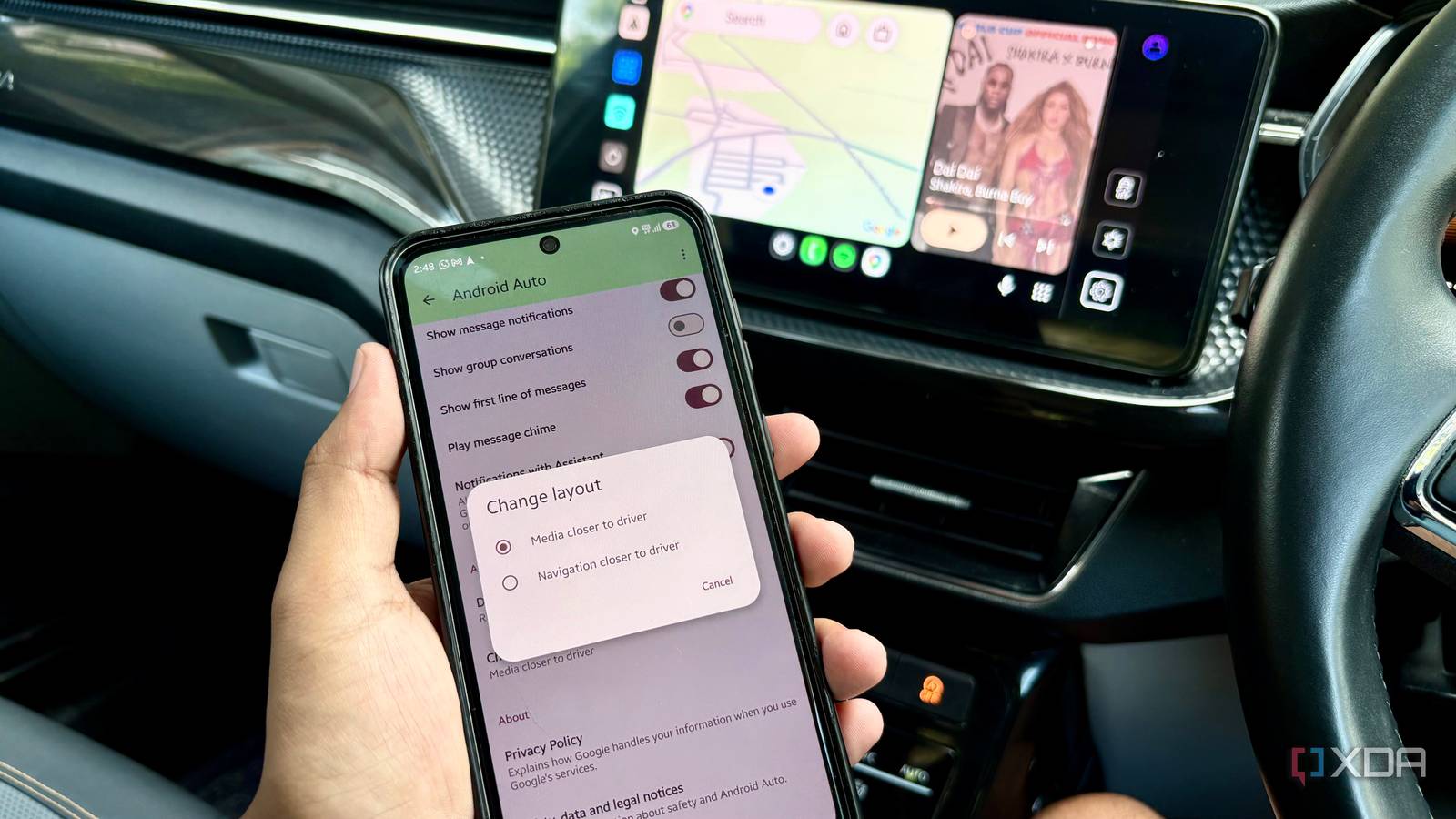
Published Nov 27, 2026, 8:30 AM EST After a 7-year corporate stint, Tanveer found his love for writing and tech too much to resist. An MBA in Marketing and the owner of a PC building business, he writes on PC hardware, technology, and Windows. When not scouring the web for ideas, he can be found building PCs, watching anime, or playing Smash Karts on his RTX 3080 (sigh). Android Auto remains one of the best infotainment platforms for your car, replacing your built-in system with Google's mirroring ecosystem. If you're a regular Android Auto user, you probably have your desired settings and apps configured on your phone. That said, you may have missed some of the app's less obvious features. Everyone has their Android Auto habits, but yours might be holding back your experience on every drive. The good news is that changing these habits isn't hard; you just need to set up a few things (just once) to get the most out of Android Auto. From using a wired connection on long drives and setting up split-screen to saving a handful of pinned commands, you could improve your driving experience considerably. Not downloading offline maps before a trip Mobile data might betray you We would all love universal connectivity on our drives, but that's rarely how it goes. The moment you leave your city, even on a slightly longer drive, there are bound to be areas with spotty signal. Losing connectivity when you're unprepared can be frustrating, as it can cut off navigation, music playback, and voice commands. This is where an age-old trick comes in: downloading offline maps. Before you leave for your destination, download an offline copy of the entire route in Google Maps. If you frequent the same locations a few times a year, you could save the corresponding map data permanently. This keeps your navigation going even if you don't have your favorite tunes to hum to — Poweramp can handle that even without a premium streaming subscription. While Google Maps can work offline, there are better options, such as Organic Maps, which is powered by a community-driven offline maps experience. You don't need to download any navigation data in advance, which makes it more convenient. Ignoring background activity and network switching settings Android Auto needs to be one of the exceptions Android Auto runs on your phone, which means it's subject to the same network and battery restrictions Android loves to implement for every other app. Well, that's unless you toggle a few settings beforehand. Android's intelligent network switching can disrupt the connection with your car as your phone tries to switch to better Wi-Fi. To stop this behavior, disable Switch to better Wi-Fi networks in your Wi-Fi settings. The other setting you should disable is background restrictions on Android Auto. Your phone automatically suspends some apps when they're in the background, but you don't want this to happen with Android Auto. It relies on background activity to keep navigation and media playback running without interruptions. You can add Android Auto to your list of unrestricted apps or find its battery usage settings and select Unrestricted after enabling background usage. Not using automatic startup You're missing out on one of the best features If you rely on wireless Android Auto more than wired mode, enable automatic startup if you haven't already. If you're still manually connecting Android Auto to your car every time you drive, you're not getting the full Android Auto experience. Toggling automatic startup connects as soon as you open the car door. To enable this, turn Start Android Auto automatically on under Connected devices or the connectivity settings on your phone. You can also turn on Start Android Auto while locked and Start music automatically for a truly hands-off start to your drive. Sticking to wireless even on long drives Convenience over reliability doesn't always work Android Auto is more convenient when you don't have your phone chained to the screen permanently. However, it remains the easier option only as long as it doesn't start acting up. Failure to connect to the car or frequent disconnections are still common problems with Android Auto. Longer drives make these problems more likely, so it's best to trust a wired connection when you want reliability. Android Auto won't connect to the car automatically, but it's a small price to pay for a satisfying long-drive experience. Wireless beats wired during short drives, but it isn't as universally convenient as some drivers might believe. Keep a high-quality USB data-and-charging cable, preferably under 3 feet in length, in your car at all times. Relying on voice commands for everything There's a limit to Gemini's intelligence With Gemini replacing Google Assistant in Android Auto, most people are probably relying more and more on voice commands. Controlling navigation, media playback, calls, and messages is definitely more convenient than fiddling with the screen when driving, but you can at least configure automations for some frequently used actions. Gemini Actions allows you to customize your Android Auto launcher by adding pinned actions. So, whenever you get into your car, you can simply tap a saved action on the launcher that sets your navigation to your office, checks your first calendar event, and starts your favorite playlist, all at once. This not only automates repetitive tasks but can also execute other actions when background noise interferes with Gemini voice commands. For instance, you could set up pinned actions to "Tell me the remaining items on my Google Tasks grocery list" or "Find the nearest rest stop." When you want to run these tasks without speaking a long voice command amid noise, these pinned actions can come in handy. Using the default screen layout You can choose your preference If you have a decently large screen, Android Auto's split-screen layout becomes one of its most impressive features. Most people only need two things on the screen during most drives: maps and music. With the split-screen layout, you don't need to constantly switch between Maps and YouTube Music—they're both on the screen at the same time. However, most users don't know that they can tweak the default layout. You can choose between Media Closer to Driver and Navigation Closer to Driver in Android Auto's Advanced settings. While you should always keep your eyes on the road, having your preferred app closer helps when you need to act quickly. Choosing your preferred layout makes this awfully simple. The default Android Auto experience isn't the best Many drivers never think to tweak the default settings on Android Auto, sticking with whatever appears on the screen. Often, the best features are hidden in settings you probably never touched. If you want Android Auto to work for you, tune it to your preferences. None of the changes above take too long, and the payoff is incredible.
These 6 Android Auto habits are quietly ruining your driving experience
Full Article
Original Source
Read the full article at Xda-developers →KhanList aggregates and links to publicly available news content. We do not host full articles from third-party sources. Always verify important information with original sources.