
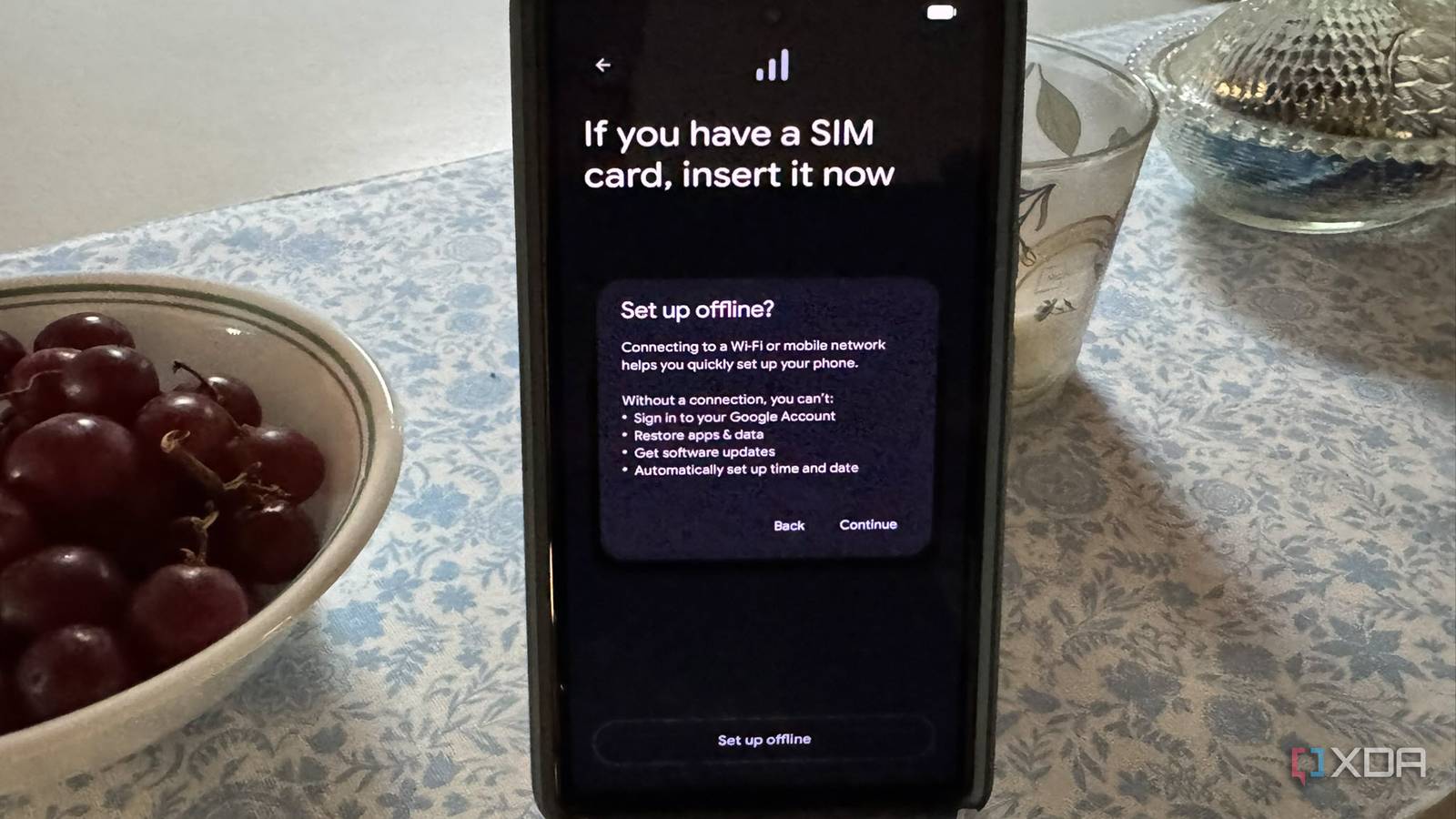
Published Aug 16, 2026, 6:00 AM EDT Based in rural Minnesota, Brian Burgess worked in IT for 10 years before finding his passion for writing about consumer technology. Brian earned his degree in computer and network technology in 2000. He held various IT positions, including help desk support, router installations for IBM, database administration, and other associate network administration roles. He's been a personal technology journalist for 18 years and has written thousands of articles about Microsoft products and services, Android, iOS, streaming, and more. He has written for notable tech sites including XDA, InformationWeek, How-To Geek, Byte, groovyPost, and others. When he is away from the keyboard, you will hear him playing guitar, working outdoors, and watching Star Trek. Hopping into your Google account might seem like the priority when getting a new Android phone. So many of the phone's functions and features are tied to the search giant. Gmail, Play Store, YouTube, and other apps all require signing in to use them fully. However, you don't need to sign in to a Google account to do some essential tasks to secure the phone and get it ready for first-time use. Before diving right into favorite videos, messages, or other media, I set it up offline first and without signing in. Lock screen security Set up PIN, fingerprint, Face ID Setting up security on your phone is one of the most important steps to take since our entire lives are on them. Before signing in to Wi-Fi or Google, I set up the phone offline. I then set up my lock screen PIN and biometric sign-in, like fingerprint or Face ID. This ensures the device is protected before I sign in to my Google account, install apps, sync passwords, and add payment options. Also, the PIN is the foundation of the phone's security, and biometrics are more of a convenience. It's stored locally, and being offline isn't required, but it gives me a good security baseline before the cloud touches my phone. I try to make the PIN longer than four digits, but I always set it up in case someone walks off with it before I finish getting it ready. Once I am signed in, I will set a PIN for the Google Play Store that is different from my lock screen for better security. Check privacy settings Audit Google's services I intentionally set my phone to offline mode for a number of reasons, one of which is to avoid Google's tracking mechanisms. Without being online or signed in, I can go through Google's list of services and turn off what I don't need, without distractions from other alerts or thoughts about the apps I want to install. I can peacefully disable location history, cloud backups, Gemini, or other voice assistants and review the phone's services. I pay extra attention to settings on a Samsung phone since there is far more to consider than with Google and Androidon a Galaxy. For instance, Bixby and other Samsung services seem to set their own agenda regarding privacy settings. Remove bloatware Uninstall unneeded apps Setting up an Android phone before signing in is also helpful for removing unwanted apps. Phones try to do too much for too many people and include a lot of apps that aren't needed or become redundant. Before I sign in to Google, I see what is already installed on the phone and remove what I can — some apps can't be uninstalled without rooting the phone and/or installing a custom ROM like Graphene OS. I try to keep it to the essentials — phone, photos, messages, etc. However, I will remove gimmick apps such as trialware, games, and other non-essential apps I don't use. I will often use this time to set up the core group of apps I need on the home screen. That way, they are just a tap away, and I can access all apps with a swipe, opening the ones I use occasionally. Check if the phone works Test it out first I still have a limited-functioning phone by setting it up offline and not signing in to Google. The camera will still work; I can see and modestly edit photos, check the display, and adjust other settings. I can also check that the built-in apps launch and work. Most Google apps won't be fully functional until you sign in, but they provide a good test of how things will look. It's like taking a makeshift "Google-lite phone" for a test drive before committing. Using this approach is especially good if I purchase a used phone on Swappa or eBay. I don't have to go back and re-wipe everything to factory settings before sending it back. Connect Wi-Fi and cellular Time to sign in Once I've made sure bloatware is gone, security and privacy settings are adequate, and the phone works. I connect to Wi-Fi and get the latest updates for the phone. Doing it over Wi-Fi allows me to avoid applicable data plan fees. Once the phone's software updates are complete, I insert the SIM card (if needed), verify the APN settings, make a test call, and double-check that the apps are fully functional. Once I'm confident that everything is working, I will sign in to Google and allow my data to sync to the new phone. I will then usually start configuring my productivity apps. Once that's complete, I dive into the fun things like connecting to my Android TV and Jellyfin server. Setting up an Android phone before signing in These are important things to verify on a new Android phone before signing in to Google. However, you can use an Android phone without signing in at all, but it will be more limiting. You can get many apps by sideloading F-Droid instead of the Play Store. Also, if you are really serious about it, install a custom ROM.
The first 5 things I do to every Android phone before I even sign in
Full Article
Original Source
Read the full article at Xda-developers →KhanList aggregates and links to publicly available news content. We do not host full articles from third-party sources. Always verify important information with original sources.