
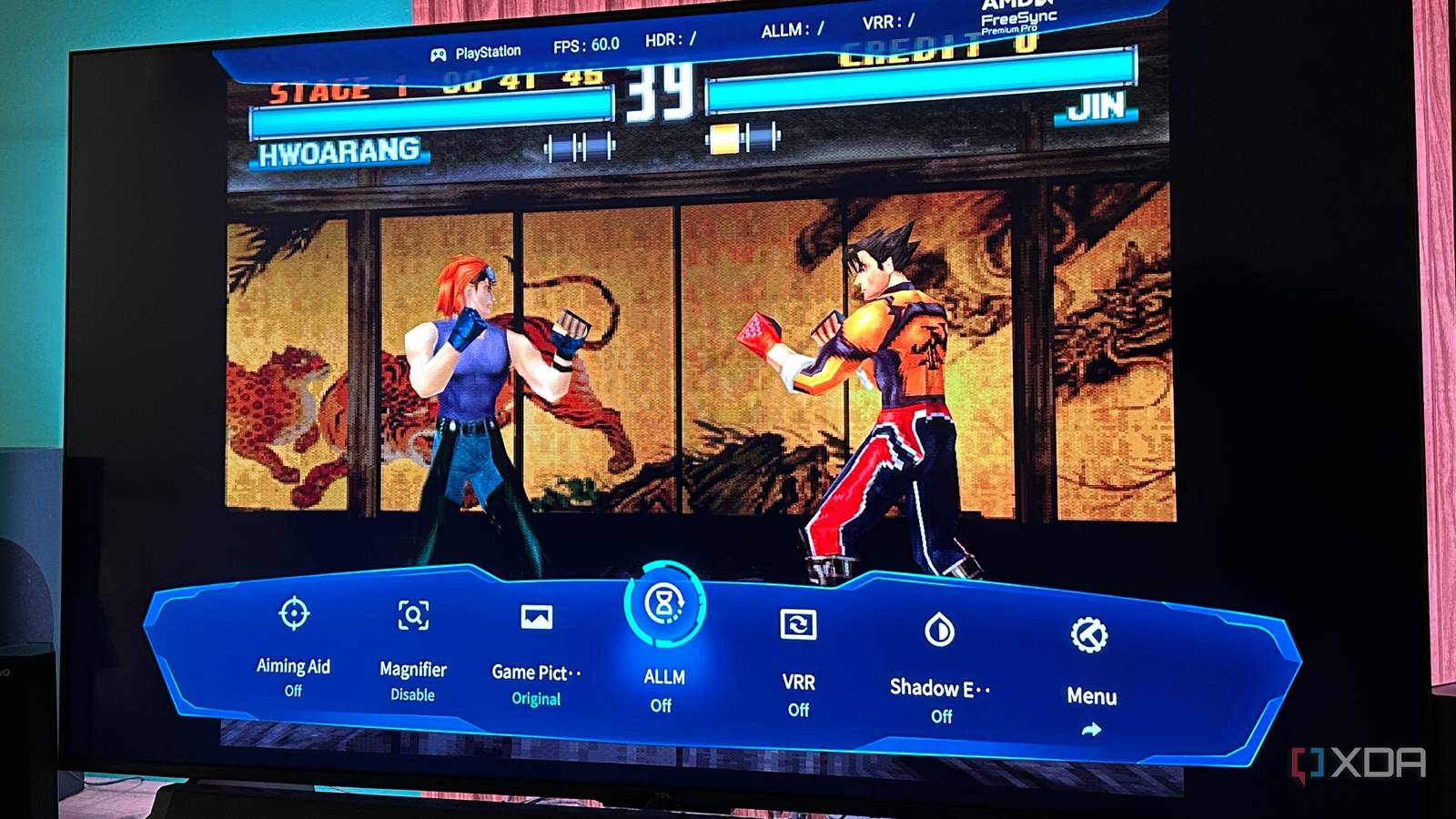
Published Oct 27, 2026, 11:30 AM EDT Gaming has been Samarveer’s greatest passion, and the Literature graduate in him takes immense joy in dissecting games for their themes, messages, and impact. Samarveer holds a deep appreciation of gaming, and considers the platform to be the most immersive and impactful across all media. He can be found engaging with gaming communities online, always ready to debate the finer points of ray tracing or itching to write an 8-page collegiate thesis on any game that impacts him emotionally. No matter how many AAA games you have loaded up in your Steam library, it's always more fun to revisit the games you grew up playing, especially on your modern TV. If you've got your childhood hardware lying around, like an SNES, an N64, or even a PS2, it's impossible not to connect it to your modern TV and enjoy a hefty dose of nostalgia. And yet, something always feels off when you plug that old console into your new TV. The picture doesn't look the way you remember it, and it's not because "you remembered it wrong." Now, this is where your modern smart TV tries to shove its "Game Mode" feature down your throat. Even if you turn it on and then proceed to turn off every image-enhancement option you can find, it won't quite fix everything. Thankfully, the explanation has nothing to do with your reflexes and everything to do with how retro hardware behaves on modern displays. Old games have a strange way of exposing your TV's shortcomings Boot up your PS2 games on a modern 4K TV, and the first thing you'll probably notice is how strange the entire experience looks in motion. Textures that seemed perfectly serviceable on an older display look rough on your modern TV, and that's before you hold down the right stick and a camera pan turns everything into an ugly mess. Part of the problem is that consoles like the NES, SNES, Sega Genesis, and PlayStation 1 and 2 were built around the televisions people actually owned at the time. Their output ranged from composite video (the yellow cable we all remember) and S-Video to component video, with resolutions and display modes that look considerably different from modern HD and 4K content. Some retro games rely on flickering sprites, interlaced output, or other visual tricks that worked really well on the displays they originally targeted. On a modern flat panel, those same tricks can produce distracting flicker, jagged edges, or an image that looks nothing like you remember. This is where you usually try using your TV's Game Mode feature and hope it fixes things. It can offer some respite, too, since it tries to fix what it can. Your own TV is getting in the way of the perfect retro experience Game Mode fixes the lag, but doesn't fix everything Modern TVs love processing images before displaying them. Motion interpolation, noise reduction, sharpening, and other picture-enhancement tricks can introduce additional delay between your controller registering an input and the corresponding action appearing on-screen. This is input lag, and it's a particularly unwelcome guest when you're trying to nail a jump in Super Mario Bros. or land the perfect juggling combo in Tekken 5. Thankfully, almost every single modern TV today ships with a Game Mode feature. It drastically reduces a TV's processing overhead by disabling or simplifying features that aren't useful when you're playing. This directly reduces input lag and makes controls feel noticeably more immediate. With Game Mode enabled, the difference can be substantial, especially if you've been playing with motion smoothing enabled. Your characters may finally respond when you expect them to, and your carefully timed inputs will start lining up. For many modern games, this is precisely the fix you need. Except, retro games can still feel strangely uncomfortable even after you've enabled Game Mode and eliminated unnecessary processing. Your inputs might register promptly, but moving objects may still look blurry. You've fixed the delay between input and display, but that doesn't mean you've fixed how the display presents motion. The lag you're feeling might not be lag at all Your TV holds each frame longer than your eyes would like Here's the bit that took me embarrassingly long to appreciate: modern TVs can display every frame on time and still make motion look blurry. The culprit is a display characteristic called sample-and-hold, where each frame remains visible until the next one replaces it. You can't even blame them, since the TVs are doing exactly what they were designed to do. The problem emerges when your eyes track a moving object across the screen. As your gaze follows it, the image stays fixed until the next frame arrives. Your eyes keep moving, but the displayed image doesn't, creating perceived motion blur. At 60Hz, each frame persists for approximately 16.7 milliseconds, which is plenty of time for this mismatch to become noticeable. Older CRT televisions behaved rather differently. A CRT draws each frame with a scanning beam that flashes every line for a fraction of a millisecond, then goes dark, so no image is ever held in place. Each frame arrives as a brief pulse rather than a static picture your eyes have to stare through. With nothing being held, there's nothing for your tracking gaze to smear, and motion stays sharp in a way a sample-and-hold panel simply can't replicate. It's the same reason these games felt crisp on the hardware they were born on, long before anyone was arguing about input lag. Game Mode fixed the lag, but here's how to fix the rest Plenty you can do to achieve the perfect retro experience Credit: RetroTINK / XDA Now that you've dealt with processing lag, the remaining problem is motion clarity and how your TV handles older console signals. Fortunately, you don't necessarily need to spend a fortune to improve things. Start by looking for Black Frame Insertion (BFI) in your TV's settings, sometimes hiding behind motion-clarity features. It inserts dark frames to reduce perceived motion blur, much like a CRT's brief illumination. There is a trade-off, though. You'd get a dimmer image and a potentially noticeable flicker with BFI enabled. A 120Hz TV panel can also improve motion clarity, but know that a 60fps game at 120Hz won't have its frame rate doubled. Of course, the real solution is to splurge on dedicated scalers like the OSSC and RetroTINK 4K, which can handle older console signals before they reach your TV. Other options include the MiSTer FPGA—an open-source project—which takes a different route by recreating classic hardware instead of scaling output from the original console. You might think buying an AV-to-HDMI converter will be enough, but that's not quite the case. Bargain-bin units have been known to introduce additional lag. At the end of the day, if you want the experience these games were built around, a CRT remains the gold standard. It's just not all that wall-mounted friendly, so be prepared to lose some floor space. Modern TVs are too smart for their own good sometimes Revisiting old favorites can feel disappointing sometimes, even when you've spent a small fortune sourcing old consoles, cartridges, and a big modern TV. Sadly, newer, better hardware doesn't automatically translate to a better experience, and retro gaming is a solid example of that. Personally, I find it fascinating that something as seemingly mundane as how a television displays an image can change our relationship with games we've known for decades. We're so accustomed to chasing sharper pictures, higher resolutions, and bigger numbers that we rarely stop to question what we've lost along the way. RetroTINK-5X Pro
Old games feel laggy on modern TVs for a reason nobody told me about, and Game Mode only fixes half of it
Full Article
Original Source
Read the full article at Xda-developers →KhanList aggregates and links to publicly available news content. We do not host full articles from third-party sources. Always verify important information with original sources.