
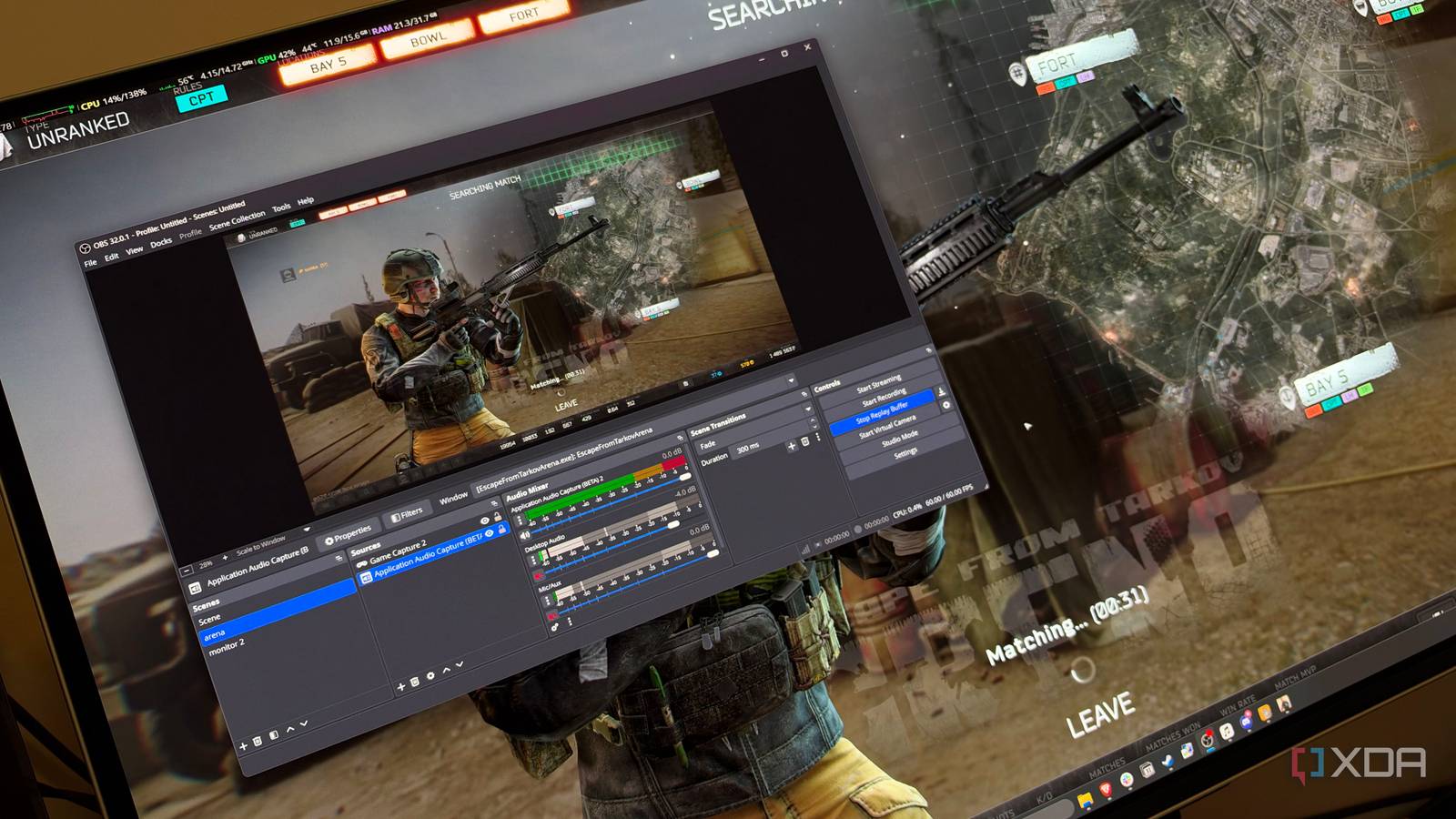
Published Nov 7, 2026, 2:00 PM EST His love of PCs and their components was born out of trying to squeeze every ounce of performance out of the family computer. Tinkering with his own build at age 10 turned into building PCs for friends and family, fostering a passion that would ultimately take shape as a career path. Besides being the first call for tech support for those close to him, Ty is a computer science student, with his focus being cloud computing and networking. He also competed in semi-pro Counter-Strike for 8 years, making him intimately familiar with everything to do with peripherals. For years I loved using Nvidia ShadowPlay, and I never thought I'd ever want to replace it. A keystroke saved whatever had just happened in a game and I could record my desktop just as easily, and the quality was decent enough for my use case. In my head, OBS Studio was software for streaming, not really for recording replays, but it's really the Swiss Army Knife of desktop capture software. OBS’s replay buffer does everything Instant Replay does and gives me the kind of control the Nvidia App never offered. With two launch parameters, it now starts with both Windows and Linux, buffers in the background, and saves clips with one hotkey. OBS's replay buffer does everything that ShadowPlay can And that's on top of everything else it can do The core functionality of OBS's replay buffer and GPU driver capture software is effectively the same: OBS keeps a rolling window of recent footage, and pressing a hotkey writes that window to the disk. You can set a maximum replay time and hotkey, but the one way it does differ in how it works technically is where it writes the temporary footage. OBS holds the buffer in RAM instead of writing it to a temp file the way ShadowPlay does. OBS pulls ahead on audio in a big way. ShadowPlay gives you either a mixed track or 2 separate tracks for system audio and microphone, while OBS allows you to add up to six audio tracks, with the ability to isolate a specific app's audio with its Application Audio Capture. The game, Discord, your microphone, music, and anything else you have playing can all land on different tracks if you want it. Encoder control is my favorite part of using OBS as a replay recorder. On my RTX 5080, OBS uses the same NVENC hardware encoder ShadowPlay does, but I choose the codec, rate control, and bitrate myself. I can record at a similar quality to ShadowPlay if I wish, but I can also record at close to lossless quality if I need to. Two launch parameters make it a one-click recorder Remembering to start it was the only friction, and it's gone now The true drag about using OBS for replays was that you had to remember to start it, but that's not a factor anymore thanks to a simple launch parameter. The --startreplaybuffer parameter starts the buffer as soon as OBS opens, and --minimize-to-tray keeps the window out of the way. To set it up, I copied my OBS shortcut, opened its Properties, and added both parameters to the end of the Target field, after the closing quotation mark around the path to obs64.exe. If you juggle more than one profile or scene collection, --profile and --collection pin the right ones so you're not recording a black screen by mistake. To make sure it launches at startup, you can hit Win+R and type shell:startup, and simply drop the shortcut in the folder that opens. OBS now launches at login, tucks itself into the tray, and starts buffering before you've opened a game. Do note that when the replay buffer is running, OBS will keep the display awake. To stop that from happening, you can run powercfg /requestsoverride process obs64.exe display in an elevated terminal, and that should allow your monitor to sleep properly. For the save hotkey, I use F10, but for those that want to use the same hotkey as ShadowPlay you absolutely can. After you set it to Alt+F10 in OBS's settings, be sure to turn off Instant Replay in the Nvidia App so that the two aren't recording their own buffers at the same time. This same setup works on Linux Can't be said for ShadowPlay Linux can't run the Nvidia App, but thankfully OBS behaves exactly the same way on Linux as it does on Windows, and you can set it up to boot on startup in the same fashion. Instead of the Startup folder, you add a .desktop file to ~/.config/autostart with an Exec line of obs --startreplaybuffer --minimize-to-tray. OBS has supported native NVENC on Linux since version 30.2, and AMD cards encode through VA-API, along with all the same quality options available on Windows. ShadowPlay is better for plug-and-play recording No setup required ShadowPlay isn't bad software at all, and in fact, it's probably better for the pure gamer who's just trying to make quick clips of their gameplay. It installs alongside the driver, detects games automatically, and sorts clips into per-game folders without any configuration, while OBS dumps everything into one folder of timestamped files by default. Getting OBS to this point takes an afternoon of settings, and most people would rather spend that afternoon playing. Performance isn't a valid reason to switch over either, because both rely on the GPU's hardware encoder, so the cost of running a buffer is similar. It's basically a trade-off between a RAM-based buffer and a storage-based one. It spares your SSD the constant writes of ShadowPlay’s temporary file, but long buffers at high bitrates consume memory that can affect performance on a system that doesn't have a lot of it. The OBS setup is still worth it to me The best clip I never saved happened because OBS wasn’t running, and that almost brought me right back to using a driver-level capture software. When I took the time to configure OBS properly and had it launch on boot, I haven't missed a moment since. If you edit your clips, talk over your gameplay, record your desktop for work, or split time between Windows and Linux, OBS is worth the afternoon. If you only save and share, ShadowPlay is fine. OBS Studio
OBS Studio is the screen recorder I should have used all along, and my setup now starts in one click
Full Article
Original Source
Read the full article at Xda-developers →KhanList aggregates and links to publicly available news content. We do not host full articles from third-party sources. Always verify important information with original sources.