
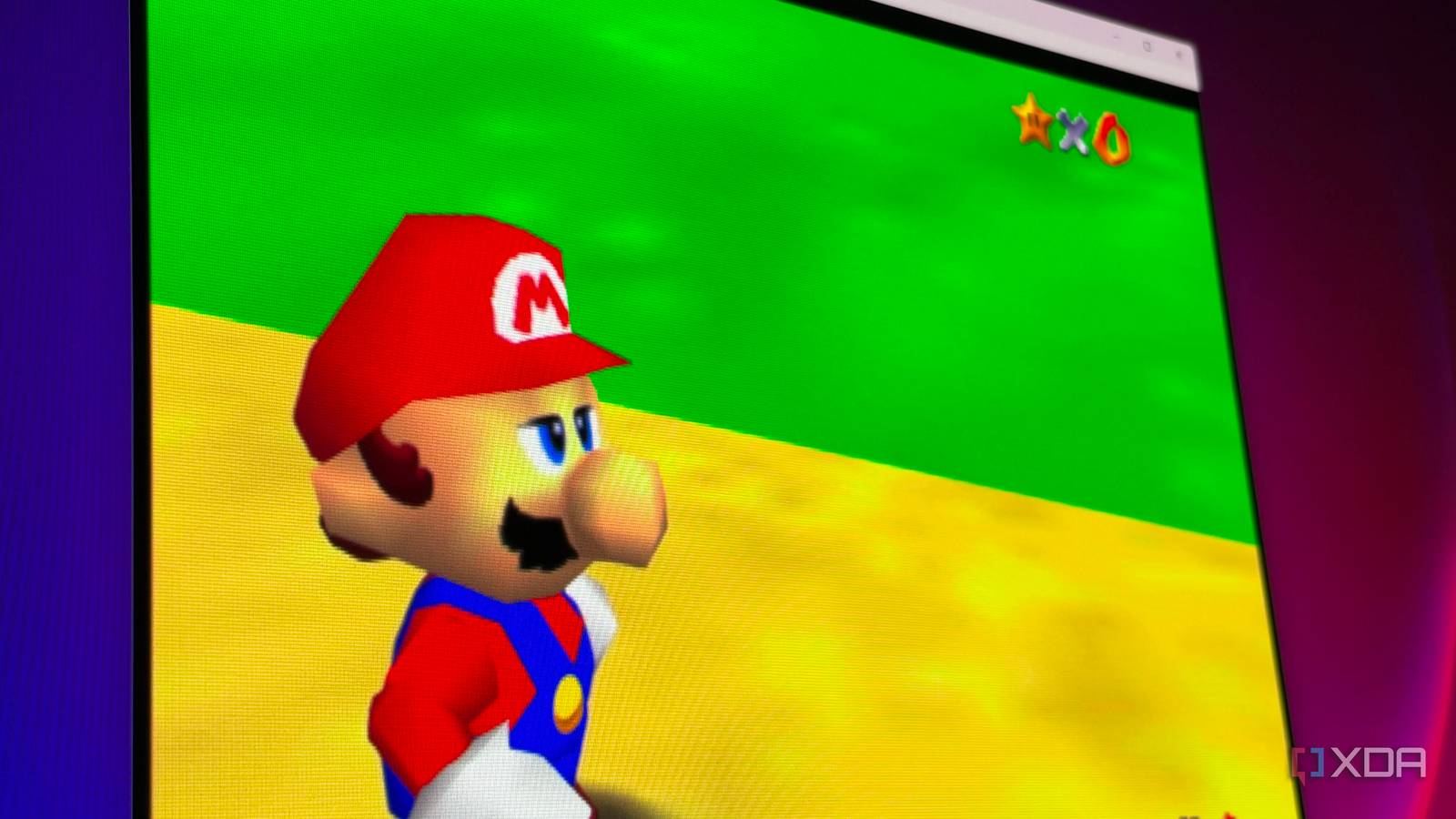
Published Nov 8, 2026, 11:30 AM EST His love of PCs and their components was born out of trying to squeeze every ounce of performance out of the family computer. Tinkering with his own build at age 10 turned into building PCs for friends and family, fostering a passion that would ultimately take shape as a career path. Besides being the first call for tech support for those close to him, Ty is a computer science student, with his focus being cloud computing and networking. He also competed in semi-pro Counter-Strike for 8 years, making him intimately familiar with everything to do with peripherals. Anyone who grew up with an N64 and a CRT would tell you that games like Super Mario 64 looked incredible, but loading the game into an emulator over two decades later just doesn't feel the same. The castle grounds look like they've been smeared with Vaseline, and it's tempting to blame the emulation itself, but the truth is, it's a pretty faithful representation of what the game actually looked like. The N64 ran games at a very low resolution by today's standards, and the screen you're playing on makes it look even worse. Thankfully, modern emulators have a fix for this, along with some extra bells and whistles that make the final image look closer to what you remember. The N64 was blurry before it reached your TV It just had a low resolution Most N64 games render at around 320x240, a quarter of the pixels in a 640x480 image, and that alone limits how much detail any frame can hold. A compounding factor was texture resolution. The N64’s Reality Display Processor could only work from 4KB of texture memory, called TMEM, at a time. With 16-bit color, the largest texture that fits in a single load is 64x32. Developers routinely stretched 32x32 or smaller textures across walls, floors, and character models. Stretching these textures over large surfaces leaves visible blocks, so the N64 smoothed every texture with its own blending method, adding a slight distortion to everything — a signature look it became known for. The video interface added even more smoothing, and depending on how the game developer configured it, it could apply antialiasing and further filtering to clean up the final image. Your CRT was hiding the worst of it Your memory isn't failing you None of these games looked as bad in the '90s because nobody saw them on a fixed grid of pixels. A CRT displays images in a fundamentally different way: it uses an electron beam to light up phosphors, and the glow, along with the dark gaps between scanlines, adds a smoothing effect to the final image. Most people also connected the N64 with composite or RF cables, which softened the signal further and blended dithering into solid color. The art was made with all of that in mind, and you can see it in the iconic visuals of the games released at that time. An LCD or OLED panel has none of those qualities. A 1080p or 4K screen has to scale a 240-line image up by a factor it was never designed around, which makes every soft edge and blurry texture plainly visible, and the edges as jagged as ever. The emulator settings that clear it up A resolution bump and some filtering RetroArch’s Mupen64Plus-Next core uses GLideN64 as its default video plugin, and it renders at the console’s native 320x240 out of the box, which is accurate, but on a modern display it's the worst possible option. Raising the internal resolution tells GLideN64 to render each frame at a higher resolution, instead of drawing at 320x240 and stretching the result to fit your screen. Changing the 4:3 Resolution to match my 4K display instantly made the game much sharper, and closer to what I remember seeing as a kid on my CRT. The edges of polygons became sharp, and distant geometry was no longer dissolving into a visual mush. Text also became as close to crystal clear as you could get for an N64 game. Pairing it with anti-aliasing and the right shader Leveling up the experience further Higher resolution makes stair-stepping and shimmering a bit more noticeable in motion, so the next stop is the MSAA setting in the same Core Options menu. 4x is a good balance, and higher levels give diminishing returns for a growing performance cost. FXAA is a cheaper alternative, but it softens the image slightly, which works against what you’re trying to do. If you want a little extra crispness, RetroArch’s adaptive-sharpen shader adds it without heavy haloing at modest strength. If you want a more authentic "CRT-like" image on your modern display, a CRT shader can accomplish that, but it's hard to run them at high resolutions like 4K and have the desired effect. Scanlines and anti-aliasing stacking can completely nullify the shader's visual impact, so dropping the resolution a bit can provide a good happy medium. If you want to stay at a higher resolution but don't like the more noticeable texture blur that comes with it, you can fix that with filters such as xBRZ, or replace the textures altogether with community HD texture packs, though results vary from game to game. N64 emulation can look great on a modern display, but it just takes some tweaks The blur you're experiencing in your N64 emulator was part and parcel of the experience, but your display is betraying what the final image could look like. For most people playing on a modern display, a higher internal resolution plus 4x MSAA is the right starting point. It fixes the problem you actually noticed, runs comfortably on most modern hardware, and takes about a minute to set up. Everything after that, from texture packs to full CRT emulation, is a matter of taste. RetroArch OS Windows, macOS, Linux, Android, iOS, Others
N64 games look blurry in most emulators because of how the console drew them, and one setting can fix it
Full Article
Original Source
Read the full article at Xda-developers →KhanList aggregates and links to publicly available news content. We do not host full articles from third-party sources. Always verify important information with original sources.