
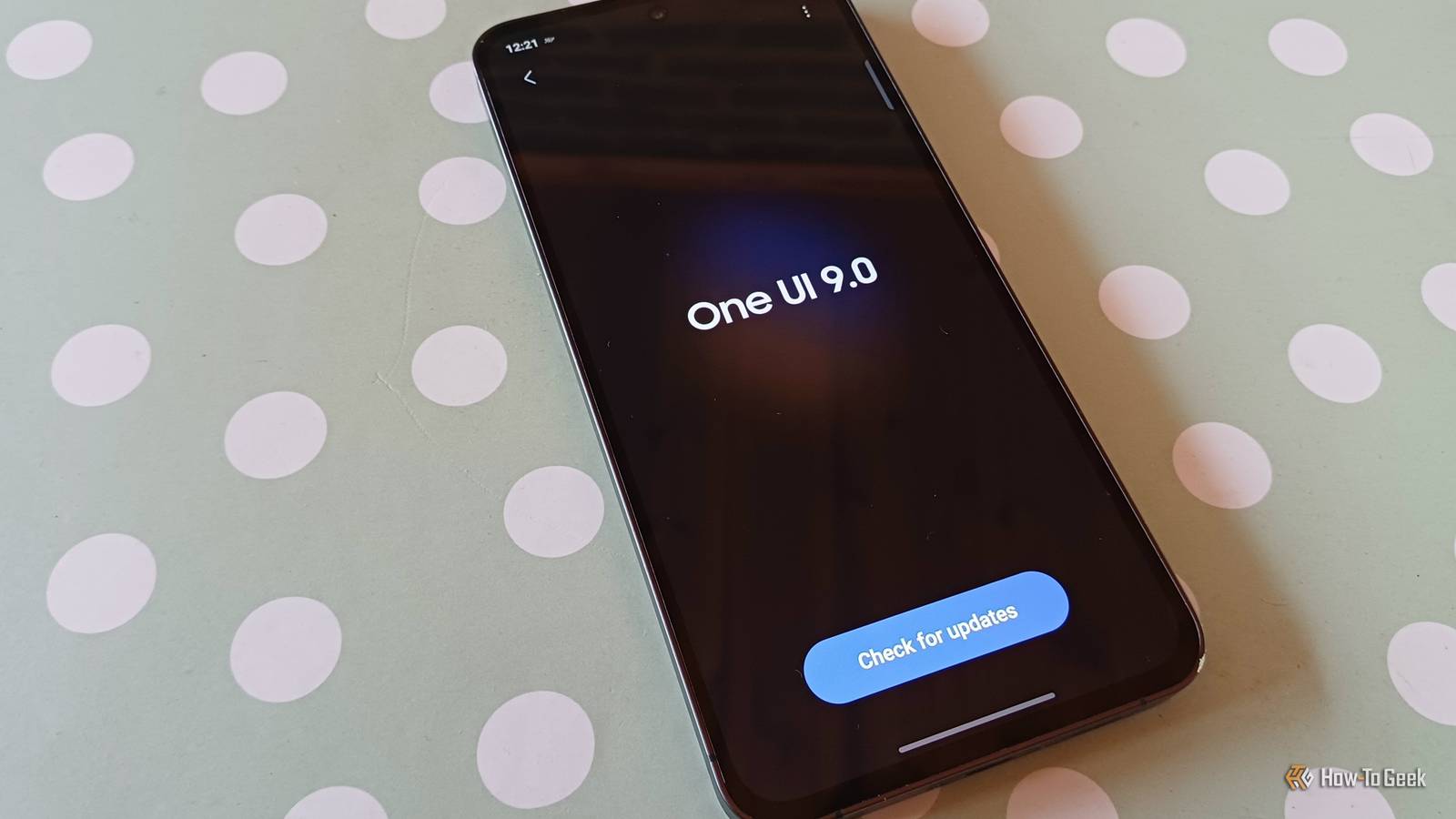
Published Nov 14, 2026, 3:00 PM EST Tyler is an journalist and content contributor at How-To Geek with over three years of experience covering the automotive and tech industries. His work focuses on delivering clear, well-researched, and engaging content that helps readers better understand the vehicles they drive and the technology that they use everyday. Before entering automotive media, he spent five years as an academic editor, developing a strong foundation in research methodology, factual accuracy, and structured analysis. This background informs his journalistic approach today, ensuring that every article balances technical insight with accessibility for a broad audience. It took some time, but One UI 9 has finally started to roll out to a swath of older devices. You don't have to have a brand-new flagship Galaxy device to get the update anymore, which is good news for me and my S24 FE. Even mid-range A-series devices and some tablets are now gaining access to the swath of new features. I've had quite a lot of time to read up on the coolest and most exciting changes to the One UI experience while I waited for the update, meaning that when I finally did get it, there were a couple of things I instantly wanted to try. This isn't a comprehensive list of new features, but rather a list of the things that have made the largest impact on my Galaxy experience since getting the update. I instantly customized my Quick Settings panel A feature loads of people have been waiting for While One UI 8.5 gave you the ability to customize the Quick Settings panel on your Samsung Galaxy device in a lot of new ways, One UI 9 takes it to another level. This is alongside Samsung giving the panel a design overhaul, giving it a sleeker design. I think it looks good, but I'm not a huge fan of the fact that Samsung has opted for more of an iOS-style, losing certain touches that set it apart visually. Looks aside, I absolutely love that you have more customization options now. Sizing caps are gone, and you can now resize and move tiles around to your heart's desire. You can also switch up the orientation of sliders, which is pretty cool as well. One small change that I really like is that your sound profile and your display profile are now their own buttons, separated from the volume and brightness sliders. I have loved messing around with my Quick Settings panel, exploring different layouts, and finding the setup that best suits me. AI Network Guard allows me to cut certain apps off from the internet I instantly made certain apps totally offline Privacy on my device is pretty important to me, which is why I'm a pretty big fan of this new feature on One UI 9. AI Network Guard essentially allows you to control what individual apps have access to the internet. It isn't the easiest setting to find, but I have a separate article covering where it is in your settings menu and how you can use it. It is a really practical setting that has more uses than you'd think. The most obvious is that it stops apps that shouldn't necessarily need an internet connection from sending out any of your data. If you use it to restrict the internet access of a game, you can also limit the game's ability to contact advertising servers, which is pretty neat. Because you need to set up a unique six-digit PIN to use the feature, you can also use it to restrict access to certain apps on your children's devices. I've used its advanced settings to automate downtime on my device, carving out bits of my day that are now internet-free. I have also permanently disconnected some ad-heavy games and local utilities that really shouldn't need internet access. Motion Assist has kept me from getting sick Honestly, pretty genius While you need One UI 9 and Android 17 to use this feature on your Samsung Galaxy, it isn't a Galaxy-exclusive feature. That being said, it was something I instantly turned on the second my phone updated. You can find it in the Google services menu in your device's settings. I love using my phone to kill time on a commute, but I get terrible motion sickness. Motion Assist is a Google services feature, new with Android 17, that is meant to reduce motion sickness. When turned on, moving shapes will appear at the edges of your device's screen, reacting dynamically to the movement of the vehicle. You can set this feature to automatically turn on when it detects you're in a car or a bus, or you can add a tile in your Quick Settings panel that allows you to manually toggle the feature. In my experience, it might not have completely eliminated motion sickness, but it has helped quite a lot. I also really like how much you can customize the experience, with it giving you the ability to change the color, shape, and opacity of the objects moving on the side of your screen. One UI 9 has a ton of really solid offerings These are just a few of the really impactful features and settings that have made it onto my Galaxy device with One UI 9. While these are the ones that I was most excited about, and the ones that have made the biggest difference in my life so far, there are tons of other new things that you might want to tinker with. Sanya Shah, another writer on How-To Geek, put together a list of some of the other cool One UI 9 features that you should definitely check out on your device.
My older Galaxy finally got One UI 9, and these 3 features were worth the wait
Full Article
Original Source
Read the full article at Howtogeek →KhanList aggregates and links to publicly available news content. We do not host full articles from third-party sources. Always verify important information with original sources.