
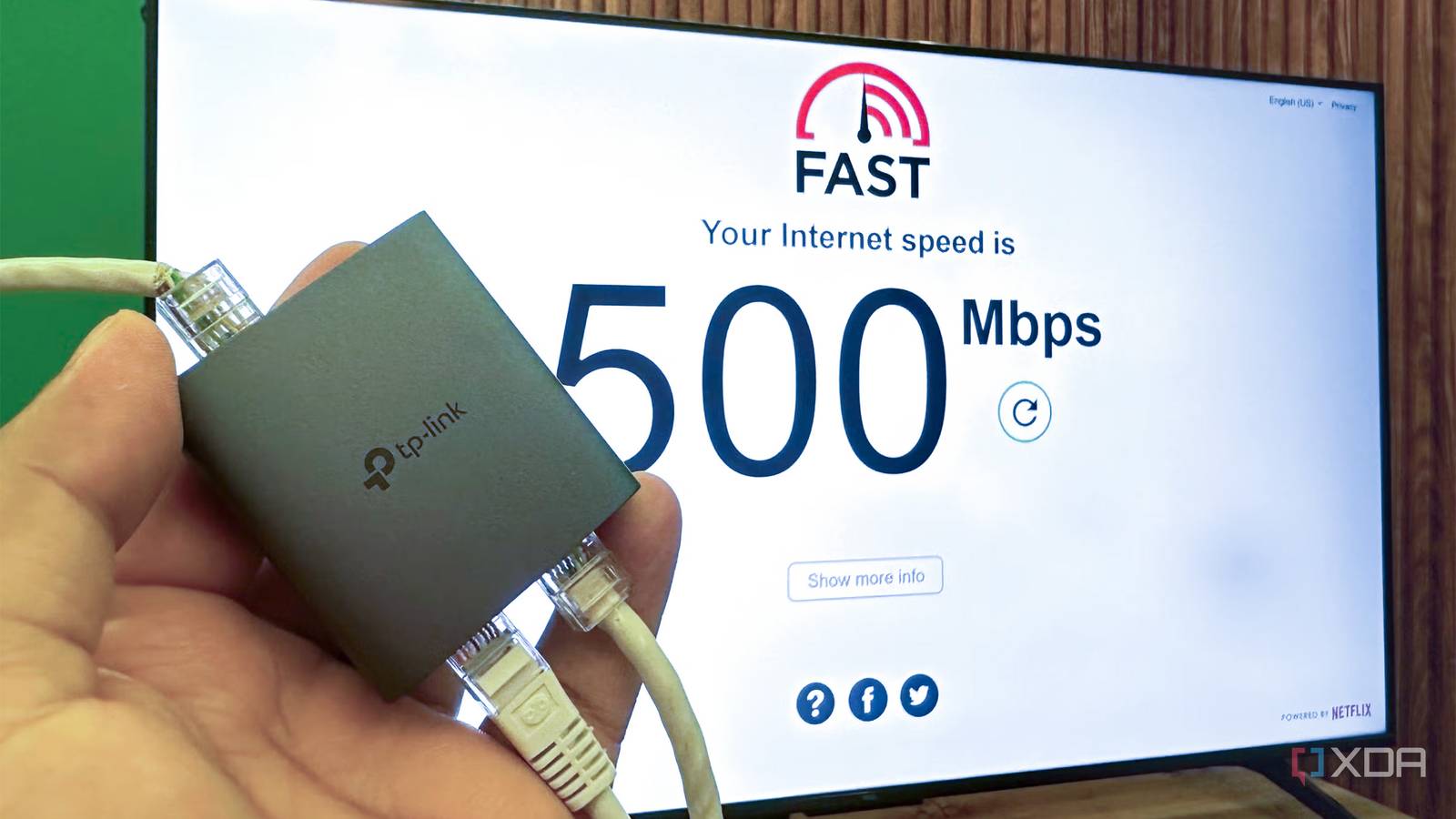
Published Nov 14, 2026, 3:00 PM EST Gaming has been Samarveer’s greatest passion, and the Literature graduate in him takes immense joy in dissecting games for their themes, messages, and impact. Samarveer holds a deep appreciation of gaming, and considers the platform to be the most immersive and impactful across all media. He can be found engaging with gaming communities online, always ready to debate the finer points of ray tracing or itching to write an 8-page collegiate thesis on any game that impacts him emotionally. I've spent enough time messing around with home networking to know that Wi-Fi isn't always the villain. Still, since I was trying to stream games from my PC and didn't want Wi-Fi getting in the way, running an Ethernet cable felt like the obvious solution. I can't be blamed for expecting the same internet connection I was already paying for, just without the occasional wireless hiccups. Ethernet has always been the boring, more dependable option, after all. However, after running an Ethernet cable through the house and into my TV, I found something I genuinely wasn't expecting. Sadly, my TV's spec sheet had given me absolutely no reason to expect it. My TV's Ethernet port was slower than Wi-Fi The spec sheet conveniently left out the important bit When I set up Moonlight to stream PC games to my TV, it turned out to be a terrible experience because of low speed, connection drops, and high latency. Naturally, I figured I needed to run Ethernet into the TV for a higher-speed experience. Instead, plugging the cable into my TV consistently gave me around 100Mbps on Fast.com, despite having a 500Mbps connection. Even the previous Wi-Fi connection gave me 110-120Mbps results. With the LAN cable, though, I did see improved stability for game streaming, but in terms of raw throughput, something was obviously limiting the connection. Sadly, my TCL 4K Mini-LED TV's specifications never warned me about this, which is perhaps my biggest gripe here. The product page on Amazon simply lists "Ethernet" in the connectivity options. Even in the detailed owner's manual, all I could find was a green check mark next to an "Ethernet LAN" category, with no clarification about whether it was a Fast Ethernet port cap (100Mbps) or a true Gigabit Ethernet port (1Gbps). I then checked the manual on my LG evo C5 4K TV, and it mentions Ethernet once, with a single "1 port" written next to it. Turns out, this is a pretty common problem even for expensive TV buyers. Most buyers largely depend on Wi-Fi for their TVs, since most TVs default to a wireless connection right out of the box. That's why manufacturers focus more on faster Wi-Fi and newer wireless standards, all while the Ethernet ports for even the pricier models remain stuck at 100Mbps. My TV's port was the bottleneck, not the cable The slower wired Ethernet was still better for game streaming, though Now, the 100Mbps Ethernet connection still made more sense for Moonlight than my faster Wi-Fi connection. Game streaming doesn't care nearly as much about headline bandwidth as it does about consistency, latency, and packet loss — all things that a stable wired connection does better than wireless, any day of the week. The port was slow, but it was slow in a reliable way. Another thing that absolutely confirmed the problem was when I connected my TV to the network switch I had just bought. It's a 1-to-2 Gigabit Ethernet splitter, and the moment I used it to plug twin LAN cables — one into my TV and another into my PS5 Pro — the latter got the full bandwidth of my 500Mbps plan. The TV, meanwhile, remained stubbornly stuck at 100Mbps. That made it impossible to blame my router, cable, or internet connection. The network could deliver Gigabit speeds, but the TV simply couldn't. The switch solved the problem for everything around it, while my TV continued happily living in the Fast Ethernet (100Mbps) era. The fix is simple, but your TV may have another bottleneck A Gigabit adapter can bypass the TV's ancient Ethernet port I went for the obvious fix — buying a $10 USB 3.0 to Gigabit Ethernet LAN network adapter. The adapter can give your TV a much faster wired connection, but there's a catch—the TV has to support networking over USB. Such an adapter can be a relatively inexpensive way to bypass outdated hardware, but it won't help if your TV lacks USB networking support. Most smart TV operating systems (Samsung's Tizen or LG's webOS) do not include kernel-level drivers to recognize standard USB-to-Ethernet adapters or USB wireless network cards as valid network interfaces. In fact, even if your TV supports USB-to-Ethernet adapters, there's an even bigger problem you might run into — the USB port itself matters, too. If your TV only has USB 2.0, plugging in a Gigabit adapter won't magically create Gigabit networking. USB 2.0 itself can become the next bottleneck, which is exactly the sort of cost-cutting nonsense that makes a seemingly simple upgrade less straightforward than it should be. Does every smart TV owner need a USB Ethernet adapter? For most people, none of this will matter. A 100Mbps Ethernet connection is more than enough for Netflix, YouTube, and virtually every conventional streaming service. Netflix recommends roughly 25Mbps for smoother 4K streaming, which leaves plenty of headroom on a connection that looks painfully slow next to modern Wi-Fi. For those who stream games locally, move large files to a Jellyfin or Plex server, and regularly watch high-bitrate remuxes on genuinely fast fiber, spending a small amount on a proper USB Ethernet adapter makes sense. Just check what your TV is actually capable of before assuming the Ethernet port is automatically the fastest option. Mine wasn't, and the spec sheet certainly wasn't going to volunteer that information. TP-Link USB to Ethernet Adapter
My smart TV's Ethernet port turned out to be slower than Wi-Fi, and the spec sheet never mentioned it
Full Article
Original Source
Read the full article at Xda-developers →KhanList aggregates and links to publicly available news content. We do not host full articles from third-party sources. Always verify important information with original sources.