
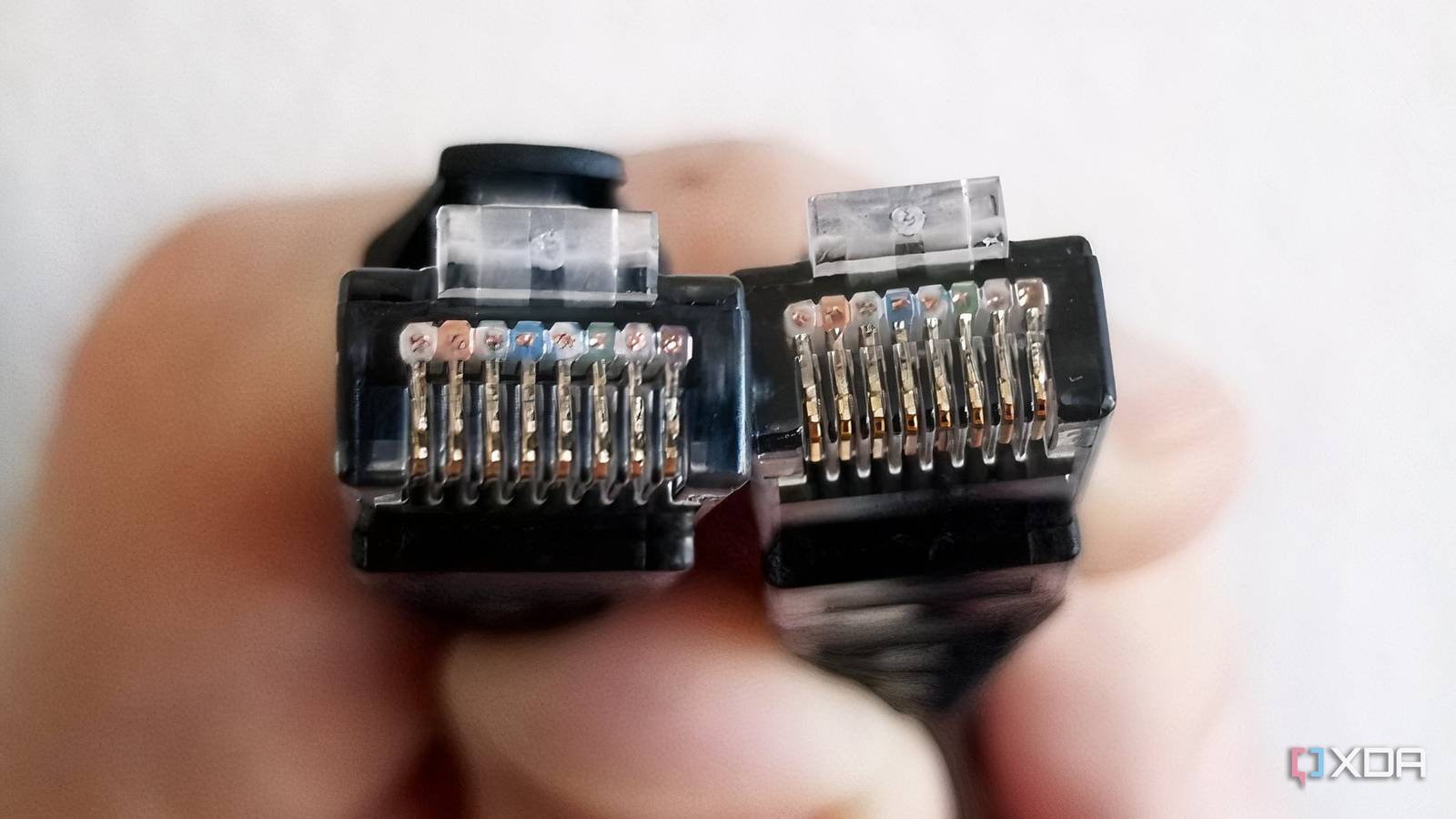
Published Nov 11, 2026, 5:30 PM EST Hamlin has been in the tech field for over nine years. Since 2017, his work has appeared on MakeUseOf, Android Police, OSXDaily, Beebom, and more. He served as the Senior Editor at Valnet's MakeUseOf for over two years before joining XDA. He uses a high-end gaming rig for desktop use and a MacBook for traveling, but dislikes some of the quirks of macOS. You're more likely to catch him at the gym or on a flight than anywhere else. Whenever I'm having trouble with my internet connection, especially speed- or latency-related issues, the first thing I usually do is restart my router. If that doesn't work, I'm quick to blame its aging hardware or complain to my ISP because what else could realistically be the problem? So when I noticed my Steam downloads struggling to break 100Mbps despite having a 500Mbps fiber connection, I started wondering whether it was time to ditch the D-Link DIR-882 that I've had for eight years. Except this time, the problem had nothing to do with my router or ISP. I was still getting the speeds I paid for on my iPhone and MacBook over Wi-Fi, so I knew the issue was specific to my wired connection. Even though I hadn't changed any network settings recently, I still suspected something was wrong with my PC. The confusing bit was that my Ethernet connection was otherwise stable, with no random disconnects. But then I checked the link speed in Windows, and that's when things started making sense. The link speed narrowed down the problem Windows was reporting 100Mbps instead of 1Gbps Let me walk you through my thought process while troubleshooting this. Since I was getting close to 500Mbps as per my plan over Wi-Fi, I was pretty sure my ISP wasn't responsible this time. But that didn't rule out my router because I knew a faulty LAN port could still affect my wired connection. That's what pushed me to go to Settings -> Network & internet -> Ethernet and check the Aggregated link speed, where I found Windows reporting 100Mbps instead of 1000Mbps. For context, this is the maximum negotiated connection rate between my PC and router over Ethernet, not my actual internet speed. At this point, I still wasn't sure what exactly was limiting the link speed because I knew my D-Link DIR-882 has Gigabit LAN ports and the cable was plugged into the 5GbE port on my X870E motherboard. And I clearly remembered using a Cat6 cable, which should have no trouble handling a Gigabit connection. At first, I tried different ports on both my router and motherboard, but that didn't change anything. That left the cable as my next suspect. So I grabbed a spare Cat6 cable, plugged it in, and checked the link speed again. Sure enough, Windows reported 1000Mbps, as it should. A faulty cable doesn't have to stop working It can still establish a connection, just at a lower speed Now you might be wondering, wouldn't a damaged cable just stop working completely? Not quite. You see, a standard copper Ethernet cable has eight wires arranged into four twisted pairs. Gigabit Ethernet over twisted-pair copper, also called 1000BASE-T, needs all four pairs to work properly. But Fast Ethernet (100BASE-TX), which operates at 100Mbps, only needs two of those pairs. So if one of the wires or contacts needed for Gigabit Ethernet is damaged, the connection can fall back to 100Mbps instead of dropping entirely. This is why it took me multiple other troubleshooting steps before I started suspecting the cable. As far as I was concerned, if the cable was faulty, I'd either have no internet connection or experience random disconnects. So, how did I damage mine, you ask? I don't know for sure because I didn't see any obvious physical damage, but repeated bending is enough to damage the copper wires inside. A bad crimp or a loose contact inside the connector can also affect the connection, even if the cable looks fine from the outside. But don't assume your cable's at fault It's still the easiest thing to replace, though In my case, replacing the Ethernet cable fixed the problem, but that doesn't mean yours is necessarily faulty if Windows shows a 100Mbps link speed. As I said earlier, a damaged LAN port on your router or motherboard can also lead to this exact issue. Apart from that, I also recommend checking your network adapter's Speed & Duplex setting in Device Manager. You'll find it under Property in the Advanced tab. If this is manually set to 100Mbps Full Duplex instead of Auto Negotiation, that could be your answer. That said, I still don't think replacing the Ethernet cable is a bad place to start, especially once you've ruled out your settings. There's a good chance you already have a spare lying around, and even if you don't, you can get a 25-foot cable for under $10. Sure, if you have a second LAN port on your motherboard as I do, you can try that first, but not everyone has that luxury. And spending money on a new router is probably the last thing you'd want to do, anyway. My router gets to live another day Considering I've been using this router since 2018, I was almost convinced it was finally time to upgrade when I ran into this issue. With all these Wi-Fi 6 and Wi-Fi 7 routers available today, it's really hard not to. But all I really needed was a different cable, and I already had a spare in the drawer. For now, my router handles my 500Mbps fiber connection just fine, so until I actually hit its limits, I don't see a reason to replace it. Maybe that'll change when I eventually upgrade to a Gigabit plan.
My Ethernet connection was running at a fraction of its rated speed, and the problem wasn't my router
Full Article
Original Source
Read the full article at Xda-developers →KhanList aggregates and links to publicly available news content. We do not host full articles from third-party sources. Always verify important information with original sources.