
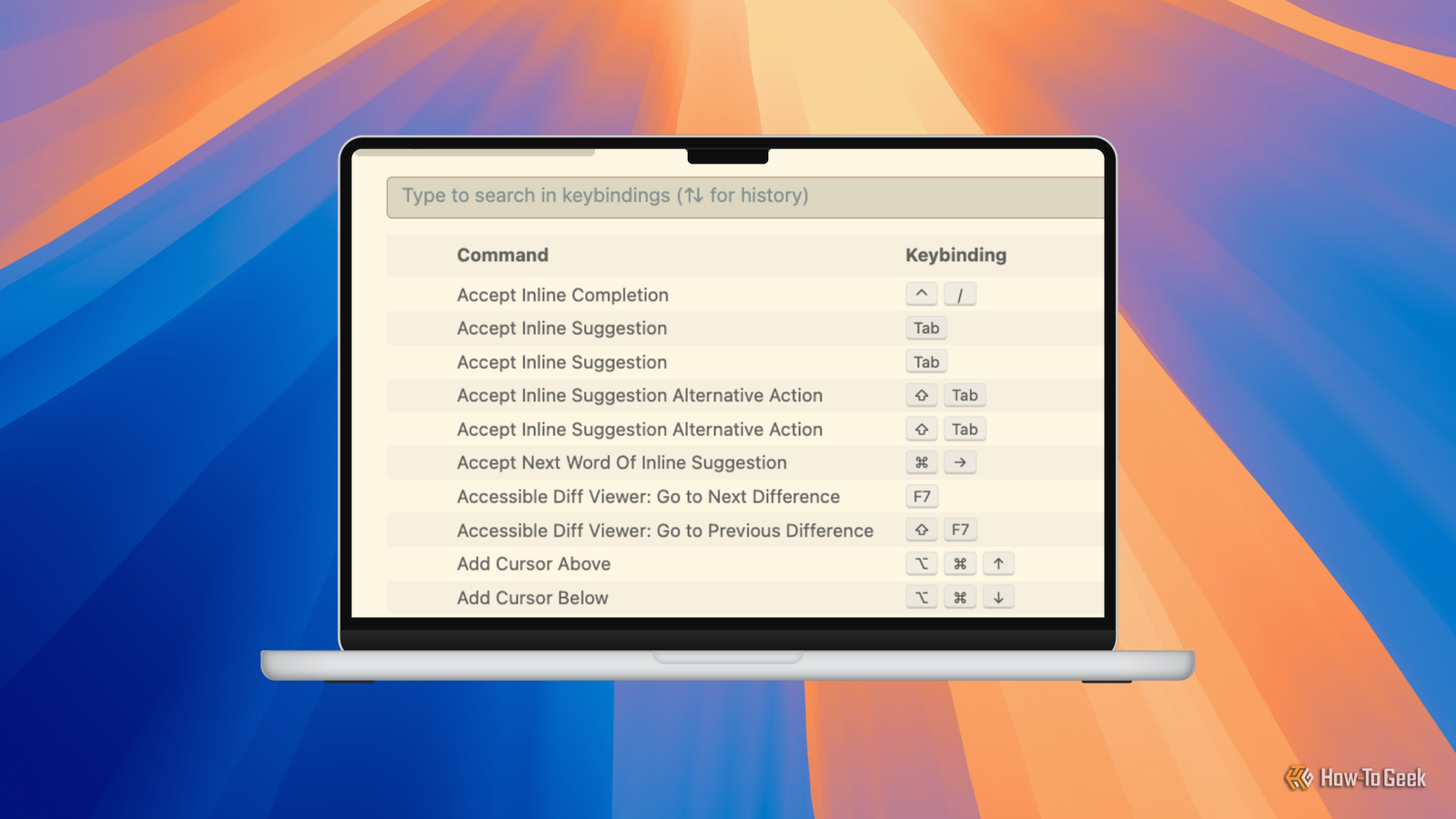
Published Sep 7, 2026, 5:30 PM EDT A technology enthusiast, Bobby studied Computer Science at the University of Southampton before working in a number of roles across industries, from the private sector to the charitable one, at multinationals and startups. He’s helped maintain backend Java servers, designed databases and front-end interfaces, and created a bespoke content management system. Bobby also enjoys video gaming, and has written for several outlets, including a stint as Editor-in-Chief at Switch Player Magazine and contributions to online magazine, SUPERJUMP. Bobby uses a Mac for day-to-day work and an Android phone for distractions. VS Code is a big deal. In Stack Overflow’s 2025 Developer Survey, a whopping 76% of respondents said they use it regularly. That towers over the 29% who report using its nearest competitor, Visual Studio. If you’re new to VS Code, it can be a bit overwhelming at first. Remember, though, this is an IDE, a much more complex tool than a standard text editor. By easing yourself in with a few simple keyboard shortcuts, you can learn the basics without too much effort. Open the command palette Use Ctrl + Shift + P for instant access to thousands of commands If you can only remember one keyboard shortcut, make it this one. The command palette hosts a huge number of commands, tailored to your current context. Start typing, and the list will filter down to a much more manageable set. You can use this to find forgotten commands, discover new ones, or simply save time if you haven’t got the right shortcut to hand. Unless stated, all shortcuts presented here work the same on macOS, with Cmd substituted for Ctrl. The concept of a command palette is fast becoming a standard, as is this specific keyboard shortcut to access it. Some of VS Code’s competitors, like Zed, have adopted it, meaning it’s a great one to commit to memory. View keyboard shortcuts Use Ctrl + K, Ctrl + S to jog your memory Let’s face it, you’ll never remember all the many keyboard shortcuts, and nor do you need to. With a simple two-step shortcut, you can pull up an enormous list of every command that’s available, along with its keyboard shortcut, if any. Ctrl + K means hold down the Ctrl key and press K. Ctrl + K Ctrl + S means do the same, then follow it by holding down Ctrl and pressing S. You can keep the Ctrl key held down or release it between pressing the others; it’s up to you. Fortunately, you can filter this list too, so type in any part of a command to narrow down the choice. You can even search for the name of a key, including special ones like Ctrl or Backspace, to list commands with a shortcut that involves it. Open any file in your project Use Ctrl + P to search for files and open them VS Code’s explorer panel shows a tree-based view of all the files in your current project. It’s a great way to navigate using the mouse, but it’s not so accessible with the keyboard — unless you set up your own shortcuts to access it, at least. While you can press Ctrl + O to bring up the standard file open dialog, a better way to open a file is by pressing Ctrl + P to summon the Quick Open palette. This contains a fuzzy-searchable set of your project files, minus any that are system files or dependencies, like .git/ or node_modules/. This list is also sorted with the most recently opened files at the top, so it’s very useful for navigating quickly back and forth among a small set. Jump to definition Use F12 to see how (and where) a function, variable, or class is defined Getting a bit less meta now, this shortcut really showcases VS Code’s central selling point as an IDE that helps you code more efficiently. With a thorough understanding of your files at a syntax level, VS Code can assist you in ways far beyond that of a standard text editor. One of the most valuable and easy to understand is the humble F12 shortcut, for “Go to Definition.” As if by magic, this shortcut will transport you from any mention of a variable, function, or class to its corresponding definition. Start with your cursor anywhere inside a name, then, press F12, and VS Code will switch to that symbol’s definition, opening its file if necessary: Fold or unfold a region Use Ctrl + Shift + [ or ] to focus on different parts of your codebase Another advantage of VS Code’s language awareness is its support for region folding. If you’re navigating large or complex code files, it can help to zone in on one function or class definition at a time by temporarily collapsing others. If you’re deprecating a function, it can be easier to fold it than comment it out or delete it altogether. On macOS, the equivalent shortcuts are Cmd + Alt + [ and Cmd+Alt+]. There are also shortcuts to fold and unfold all regions, so — with practice — you can quickly minimize distractions and focus on just the code that needs your current attention. Toggle the terminal panel Use Ctrl + ` to access a command line without leaving your editor Another great benefit that most IDE’s introduce beyond standard text editors is an integrated terminal. Many programming projects will require you to drop into a command line from time to time, for the occasions when even VS Code’s toolbox is left wanting. To open the terminal panel at any time, simply press Ctrl + `. You’ll have a full command line at your disposal, using your familiar shell and environment. The current working directory will be set to your project directory, and you can even have separate tabs and split terminals. When you’re done, just tap Ctrl + ` again to return to the file you were editing. This shortcut is a rare case that’s identical on macOS, using Ctrl, not Cmd. Just a tiny fraction of shortcuts reveal VS Code’s power These keyboard shortcuts are essential, and you’ll do well to pick them up as early as possible, once you start using VS Code. There are many other very useful, but more advanced shortcuts, like moving a line using Alt + Up/Down. You can also copy or cut a whole line by pressing the standard Ctrl+C/X with no text selected. For a full reference, consult the keyboard shortcut PDFs for Windows, macOS, and Linux.
I’ve programmed in VS Code for years and I’d recommend these shortcuts to every beginner
Full Article
Original Source
Read the full article at Howtogeek →KhanList aggregates and links to publicly available news content. We do not host full articles from third-party sources. Always verify important information with original sources.