
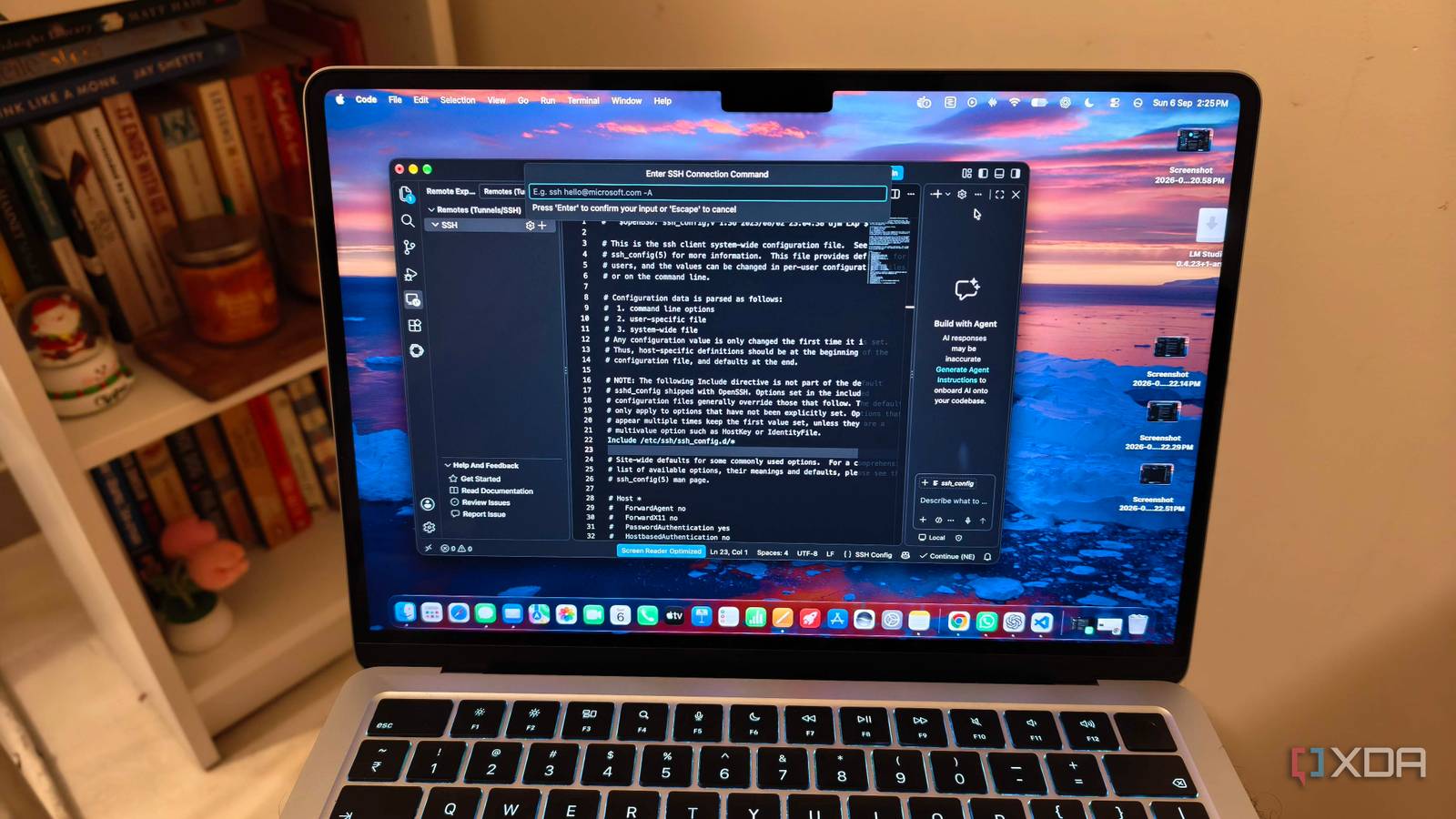
Published Sep 7, 2026, 5:30 PM EDT Anurag is an experienced journalist and author who’s been covering tech for the past 5 years, with a focus on Windows, Android, and Apple. He’s written for sites like Android Police, Neowin, Dexerto, and MakeTechEasier. Anurag’s always pumped about tech and loves getting his hands on the latest gadgets. When he's not procrastinating, you’ll probably find him catching the newest movies in theaters or scrolling through Twitter from his bed. I am a fan of VS Code for many reasons, but probably the biggest one is remote SSH. I remember when I used it for the first time I called it a miracle in modern software development. And why wouldn’t you I? With this feature, you can use VS Code on your system while the actual app runs somewhere far away on a remote machine inside a data center. However, you don’t need a remote machine tucked in a data center to be able to SSH. In fact, I recently tried turning my old Windows laptop into a remote coding terminal using this feature, and it worked just fine. Remote SSH is my favorite VS Code feature It's a game changer Remote SSH is arguably one of the best features in VS Code. It solves a pretty common problem in software development – your editor and your development environment don’t have to be on the same machine. With Remote SSH, you can run VS Code on your laptop while your code, terminal, and computing resources live on a remote server. That’s useful for a few reasons. First, you don’t have to worry as much about setting up the same environment on your local machine. There’s no need to clone the repo, reinstall dependencies, or match the exact runtime setup. You can just connect to a machine where everything is already configured. Second, it gives you access to hardware that your laptop probably doesn’t have. A basic Windows laptop, for example, can become the front end for a server with dozens of CPU cores, hundreds of gigabytes of RAM, GPUs, or access to private infrastructure. To use VS Code Remote SSH, you need an OpenSSH-compatible SSH client on your local machine and an SSH server running on the remote host. VS Code supports a pretty wide range of remote systems, including common Linux distributions, ARM devices like Raspberry Pi, Windows machines with OpenSSH Server enabled, and macOS systems with Remote Login turned on. The hardware requirements aren’t very demanding either. While 1 GB of RAM is the minimum, I’d recommend at least 2 GB of memory and a dual-core CPU for a smoother experience. My Windows laptop became a remote machine I can now use it as a coding terminal My setup was slightly different from the usual Remote SSH arrangement. I used an older Lenovo laptop with a Ryzen 5 processor as the remote development machine, while my M5 MacBook Air served as the interface. Windows already offers OpenSSH Server as an optional feature, so turning the Lenovo into an SSH host wasn’t particularly difficult. I installed OpenSSH Server, started the sshd service, and configured it to launch automatically with Windows. The installation also creates a Windows Firewall rule for incoming SSH connections over port 22. Once the service is running, the laptop becomes ready to accept connections from other devices on my network. On the MacBook Air, I installed the Remote - SSH extension in VS Code and added the Lenovo as a new SSH host using its Windows username and local IP address. VS Code opened a separate window for the remote connection and installed VS Code Server on the Lenovo. I will admit the choice of machines was backwards from a performance perspective. However, I just wanted to see whether an ordinary Windows laptop could work as a remote development machine without Linux, a virtual machine, or a server sitting in a data center. You still get the complete VS Code experience It doesn't get better than this Remote SSH doesn’t reduce VS Code to a basic text editor. Once I connected to the Lenovo, I could browse its folders, open files, search through the project, use the integrated terminal, and manage source control from the same interface running on my MacBook Air. Features such as IntelliSense, code navigation, and debugging are also available over the connection. When you start a debugging session, the app runs on the SSH host and VS Code attaches its debugger remotely. Also, any new terminal opened inside the remote VS Code window runs on the Lenovo, with access to the software, environment variables, and files installed there. Interface extensions, including themes and keymaps also continue running locally, while extensions that need access to the project run through VS Code Server on the remote machine. VS Code usually installs each extension in the correct location, although you may need to install some of your existing extensions on the SSH host the first time you connect. I have noticed a few extensions with platform-specific dependencies can also have compatibility problems, but most popular development extensions are designed to support remote work. VS Code even includes port forwarding for applications running on the remote machine. VS Code continues to be the best IDE VS Code has continued to evolve, and while I’m not a fan of Microsoft’s telemetry tracking, its features are on par with those of any other IDE. It now has a dedicated AI agent mode, so it can handle agentic workflows as well as any other tool while still giving you access to an ocean of extensions.
I used VS Code's remote development feature to turn my old laptop into a lightweight coding terminal
Full Article
Original Source
Read the full article at Xda-developers →KhanList aggregates and links to publicly available news content. We do not host full articles from third-party sources. Always verify important information with original sources.