
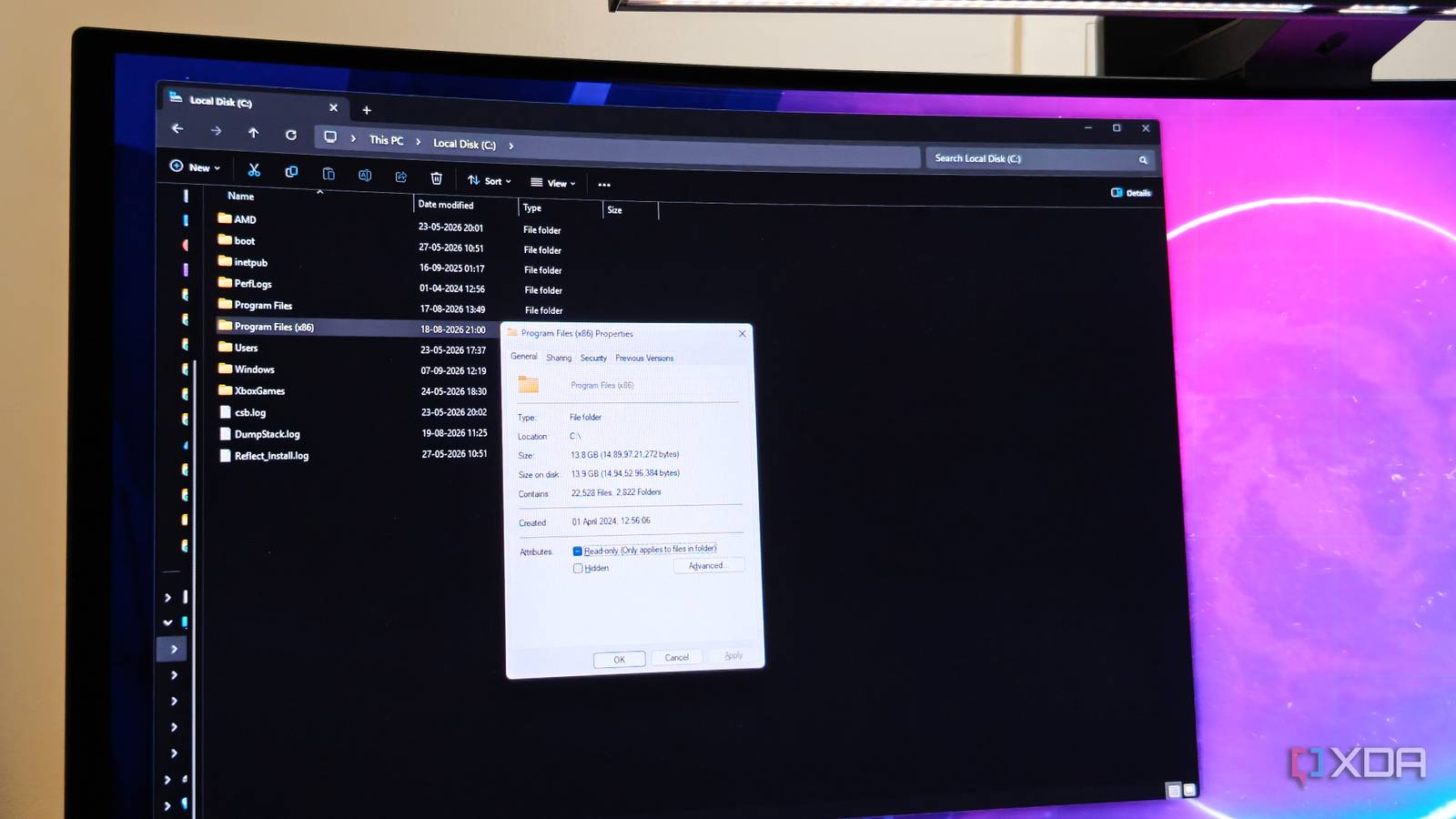
Published Sep 7, 2026, 12:30 PM EDT After a 7-year corporate stint, Tanveer found his love for writing and tech too much to resist. An MBA in Marketing and the owner of a PC building business, he writes on PC hardware, technology, and Windows. When not scouring the web for ideas, he can be found building PCs, watching anime, or playing Smash Karts on his RTX 3080 (sigh). I've used Windows Explorer for the entirety of the 26 years I've been a Windows user (I'm 34, for those wondering). It was renamed "File Explorer" when Windows 8 came out, but most people still know it by its older name. Windows Explorer is something we use without really thinking about it — it's what we use to navigate the system, access our files, and use the taskbar and Start menu. Still, many of us are unaware of its true potential. There are countless Windows Explorer shortcuts that can speed up a lot of the things people do every day on their Windows PC. It turns out I was using only a fraction of these shortcuts, and I especially regret now knowing about the ones on this list. Open a new File Explorer window Starting with the basics This is one of the most basic File Explorer shortcuts, but I'm embarrassed to admit I always opened a new window using the pinned icon on the taskbar. Opening a new File Explorer window is one of the things I do every day, so I would have saved a lot of hassle had I known about the Win + E shortcut earlier. If you don't want the new window to show the default "Home" folder, you can change it to "This PC" using the ellipsis button and selecting "Options." The respective dropdown is located right at the top of the dialog box that opens. Navigate within Windows Explorer The keyboard is all you need Often, when I'm going back and forth between several folders, going back to the start feels a bit tedious with the mouse. Pressing the Backspace key is useful for going to the previous page, but it ignores your viewing history and simply moves up to the previous level directly above. The Alt + Left Arrow shortcut helps you retrace your steps along the exact path you took to get to your current location, even when you jump between different drives. Similarly, Alt + Right Arrow takes you one step below or forward through the directory. A related shortcut is Alt + Up Arrow, which moves you one level up to the parent folder. Open file or folder properties This one comes in handy a lot This is one of my favorite shortcuts, now that I finally know about it. Right-clicking a file or folder to open the "Properties" window is simple enough, but when you can do it with a simple keyboard shortcut, it changes the game. I don't need to reach for the mouse anymore when I'm checking the size of a folder or file. I just press Alt + Enter with the respective file/folder selected, which I can do with the keyboard, too. Open a new instance of an app When you want things organized Suppose you already have a Chrome window open for work, and you want to open a new window for launching YouTube. Earlier, I used to achieve this by right-clicking the pinned Chrome icon on the taskbar and clicking "New window." Now, however, I can do it slightly faster by holding Shift as I click the Chrome icon on the taskbar. You can achieve the same result by clicking a taskbar icon with the scroll wheel. Open an app as administrator Simplify administrator access How many times have you launched a Command Prompt window only to realize you needed to use the "Run as administrator" option? If you have trouble remembering the right-click method, you can hold Ctrl + Shift before launching a particular application. This works both when double-clicking programs or single-clicking apps in the Start menu. Once you get used to this method, you stop forgetting to launch apps with administrator privileges. Peek at the desktop I want a quick glance sometimes When I'm saving screenshots or downloading images, I often need to know if I've already saved a file on the desktop. Stealing a glance at the desktop is useful in many situations, not all of which you can predict. Using the mouse to press the "Show desktop" button at the right edge of the taskbar is one way to do it. The easier way, if you don't want to leave the keyboard, is to hold Win + , to instantly show the desktop, with all your windows remaining as-is. Maximize the active window I've adopted this one pretty fast Working around too many windows can get annoying pretty fast, which is why I like to use the "Shake to Minimize" feature on the active window to minimize everything else. When I don't want to use the mouse, though, I now use the Win + Up Arrow shortcut to maximize the active window. It's not quite the same thing, but it's acceptable. I get to focus on what I'm working on, and everything else stays out of my view. You can never have enough keyboard shortcuts The crazy thing about learning new keyboard shortcuts is that you get used to them pretty fast, even if you haven't been too big on productivity in the past. When I got to know these Windows Explorer shortcuts, I was surprised by what I was missing out on. These shortcuts might be small individually, but taken together, their impact is hard to ignore.
I've been using Windows Explorer for years, and I wish I had known about these 7 shortcuts sooner
Full Article
Original Source
Read the full article at Xda-developers →KhanList aggregates and links to publicly available news content. We do not host full articles from third-party sources. Always verify important information with original sources.