
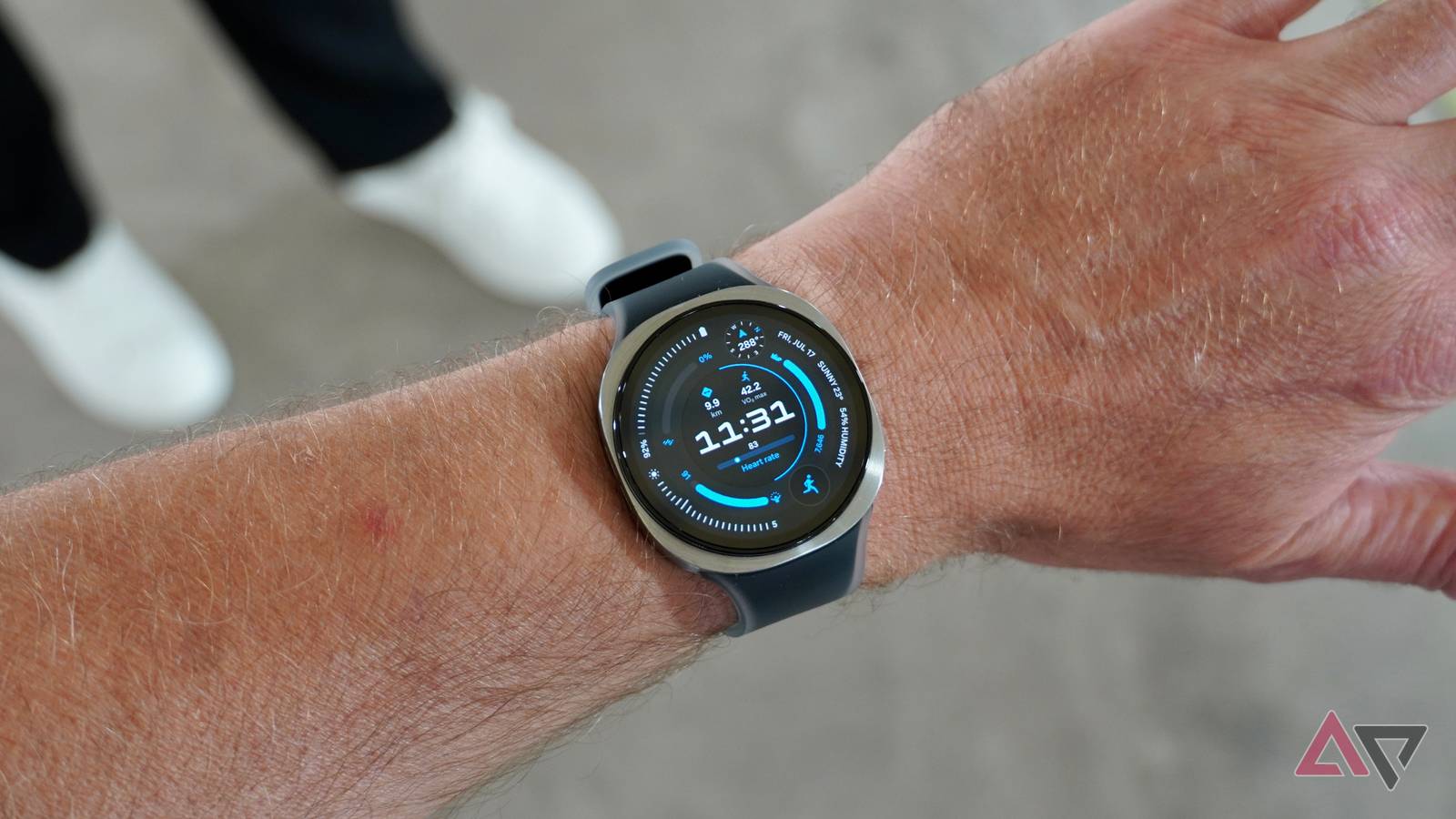
Published Oct 31, 2026, 12:00 PM EDT Parth is a technology analyst and writer specializing in the comprehensive review and feature exploration of the Android ecosystem. His work focus on productivity apps and flagship devices, particularly Google Pixel and Samsung mobile hardware and software. He provides expert guidance on productivity software, system optimization, and the advanced functionalities that allow users to maximize their device's potential. His analyses are crucial resources for readers seeking to master complex operating system features and streamline their digital workflows. When he is not busy with technical analysis and software evaluation, Parth dedicates his time to watching K-dramas, studying mobile technology trends and the role of artificial intelligence. I have been enjoying my Samsung Galaxy Watch 9 ever since I strapped it onto my wrist, but there is one thing that has consistently bothered me: battery life. I use the 40mm Bluetooth variant, and while I appreciate its compact design, the battery endurance leaves plenty to be desired. I was tired of constantly checking the battery percentage and planning my charging sessions around my daily routine. Then I turned off one feature as an experiment, and it gave me several additional hours of battery life without affecting any core functionality. The Always On Display was draining my battery A convenient feature with hidden costs One of the first things I did after setting up my Galaxy Watch 9 was enable Always On Display. After all, what's the point of having a beautiful AMOLED display if I can't glance at the time without raising my wrist? It looked elegant, made my smartwatch feel more like a traditional timepiece, and seemed like a feature worth keeping enabled. However, I soon realized that this convenience came at a cost. I use the 40mm Bluetooth variant, which packs a relatively small 390mAh battery. With AOD enabled, I was reaching for a charger by evening. I wanted to make it through a busy day so that I could track my sleep at night. I headed into the Galaxy Watch battery menu and saw Always On Display being the number one reason behind the usage. That's when I decided to target the display instead. After all, did I really need my watch face illuminated every minute of the day? One simple change made a difference After identifying Always On Display as a potential battery drain, I headed to Settings > Display > Always On Display on the Wearable app and turned it off. I just wanted to see how much difference this one change could make in my daily routine. The results were better than I expected. I easily gained around six to eight hours of battery life, which is a major improvement for my 40mm Bluetooth variant. Previously, I had to keep an eye on the battery percentage as the day progressed. Now, I can comfortably make it through a busy workday and continue wearing the watch at night without worrying about running out of juice. The biggest improvement has been in my charging routine. Instead of planning dedicated charging sessions, I place my Galaxy Watch 9 on its charger while I take a shower. That has become a convenient opportunity to top up the battery, and it's enough to keep my routine going. Raise wrist to wake replaced AOD A neat workaround After disabling Always On Display, my biggest concern was losing the convenience of checking the time at a glance. Thankfully, Samsung has a practical alternative built into One UI Watch. I went to Display settings and enabled Raise wrist to wake, which turns on the screen when I lift my wrist to check the watch. It sounds like a minor adjustment, but it has worked well in my daily routine. Whether I am checking the time during a meeting, glancing at my activity stats, or reading a notification, the display lights up with a simple wrist movement. I don't need to press any buttons or interact with the touchscreen. Sure, the gesture doesn't register perfectly every single time, but I can live with an occasional missed attempt. I have also enabled the Touch screen to wake toggle, and the combination has practically eliminated my need for Always On Display. When the wrist gesture isn't practical or fails to register, I tap the screen to wake it up. It's quick, intuitive, and requires minimal effort. Together, these two features give me nearly all the convenience I enjoyed with AOD, without keeping the display active throughout the day. I didn't compromise essential smartwatch features Everything works as expected When someone recommends improving smartwatch battery life, the usual advice involves disabling several features, turning off background monitoring, limiting notifications, or enabling Power saving mode. While these tricks can help, I don't see much point in owning a premium smartwatch if I have to compromise on the very features I purchased it for. Everything continues to work as expected. For me, that's what makes this battery-saving trick so effective. I am not turning my Galaxy Watch 9 into a glorified digital watch just to extend its endurance. All my Samsung Health tracking features work as expected as before. A simple fix with impressive results Sometimes, getting better battery life doesn't require digging through dozens of settings or sacrificing the features that make a smartwatch useful. My Galaxy Watch 9 is a perfect example. The watch still feels responsive, notifications remain accessible, and I can use all my favorite features without worrying as much about the battery percentage. The extra endurance is a much better trade-off than keeping the display constantly active. If you are new to Galaxy wearables, check out these watch faces to give it a personal touch.
I turned off one Galaxy Watch feature and gained 6 hours of battery life
Full Article
Original Source
Read the full article at Androidpolice →KhanList aggregates and links to publicly available news content. We do not host full articles from third-party sources. Always verify important information with original sources.