
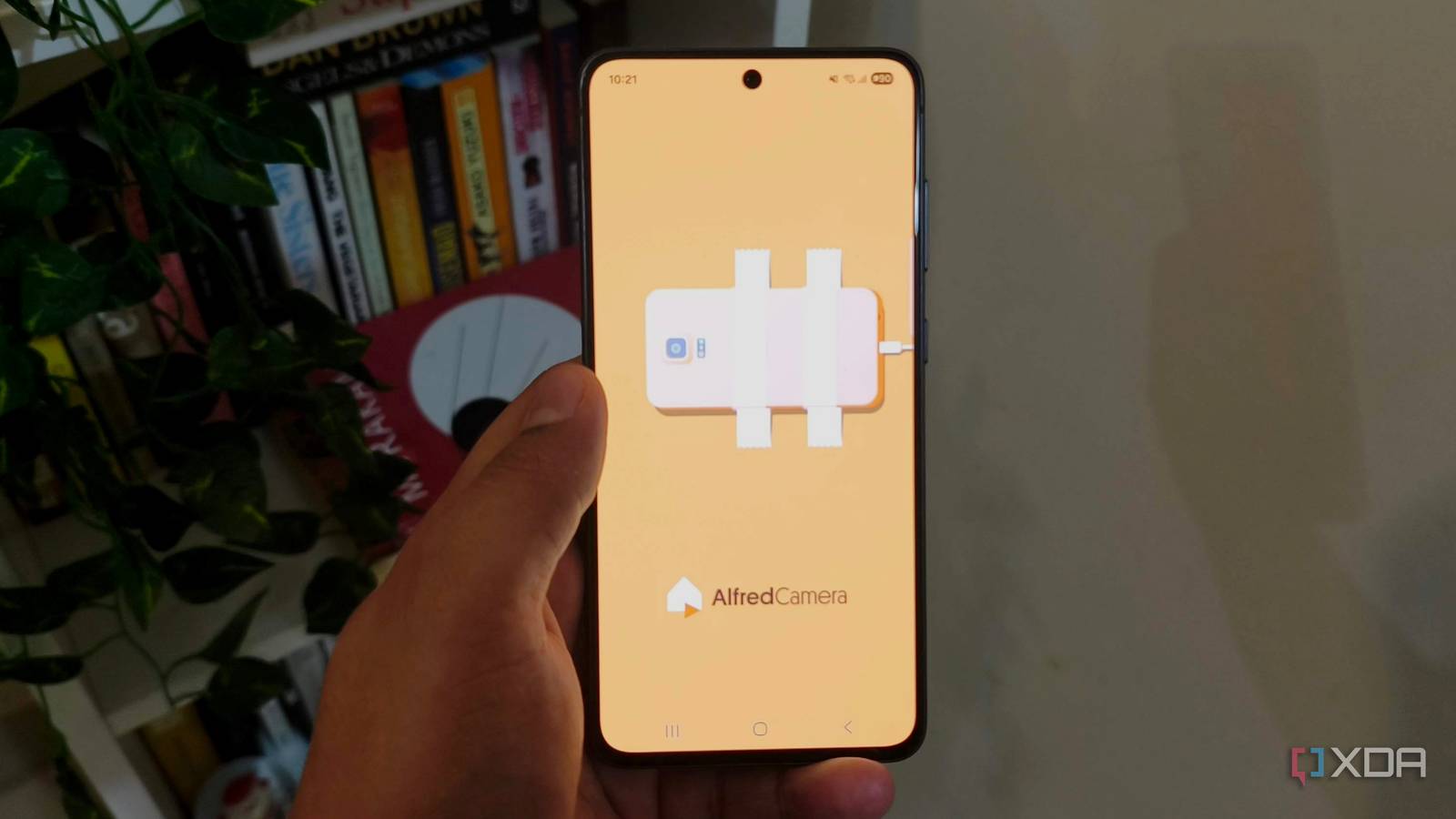
Published Oct 1, 2026, 3:31 PM EDT Anurag is an experienced journalist and author who’s been covering tech for the past 5 years, with a focus on Windows, Android, and Apple. He’s written for sites like Android Police, Neowin, Dexerto, and MakeTechEasier. Anurag’s always pumped about tech and loves getting his hands on the latest gadgets. When he's not procrastinating, you’ll probably find him catching the newest movies in theaters or scrolling through Twitter from his bed. In the name of doing something for the environment, most brands have gone ahead and gotten rid of the power bricks that used to ship with their phones and called it a day. Samsung had given me some hope with its Galaxy Upcycling announcement back in 2017, which promised to help turn old Galaxy phones into Linux computers, retro gaming consoles, and smart home devices. That original project never materialized, and Galaxy Upcycling at Home, which arrived in 2021, reduced the idea to sound and light sensing through SmartThings. It delivered very little of what Samsung originally promised, and today I can’t even download the app on my Galaxy S21 FE. Thankfully, there are other routes if you actually want to make an old smartphone useful, including SmartThings, AlfredCamera, and Home Assistant that, when combined, have let me turn the old Galaxy into $200 smart hub. Making use of the phone's display A separate screen for connected devices I have always wanted to get a smart display for managing my connected devices, but instead of spending on dedicated hardware, I decided to repurpose my old phone. My S21 FE already has the hardware for that and the SmartThings app provides the controls. You install SmartThings on the old phone and sign in to the Samsung account associated with your home. The app gives you access to the compatible devices registered to that account. You can keep frequently used lights and routines together for quick access, organize devices by room, and open individual controls to adjust brightness or manage a compatible TV. You can also set up a manually triggered routine that controls several devices with one tap. This is useful because I don’t need to hand my phone to anyone just for them to control the lights or other smart home devices. My family can use a spare Galaxy lying around to operate them. You would, however, need to keep the phone charged if you want to use it regularly as a smart home controller. It’s also a good idea to keep SmartThings on your primary phone so you still have access to the controls when the spare phone is unavailable. The spare phone just gives you another screen that you can dedicate to the house. The camera and microphone can monitor my dog AlfredCamera handles video and audio monitoring The touchscreen controller only uses the device’s display, and the phone has other hardware that can be useful. I have to leave my dog indoors for long hours, and I’ve been contemplating getting a pet monitor for him. The Galaxy already has a camera and microphone, so I tried using it for both video and audio monitoring before buying another device. I am using AlfredCamera app for this, which lets you use an old phone as the camera and your everyday phone as the viewer. You install the app on both devices and pair them through its mobile-device setup. The viewer app is available on Android and iOS, so the two phones don’t need to run the same operating system. The basic monitoring features include a live feed, motion detection, and two-way talk. I can check what the dog is doing and speak through the old phone. If you really want to make the most out of this setup, you can enable features like sound detection. You set a detection range, and the app can record an event and send an alert when it detects sound within that range. The light sensor can control your lights Home Assistant exposes the phone’s readings Phones already use ambient light sensors to adjust screen brightness. The Home Assistant Companion app for Android can expose the phone’s illuminance readings to Home Assistant, where you can use them in automations. This requires a running Home Assistant server, with the phone acting as the sensor and control screen. After connecting the Companion app to your server, you can enable the Light sensor under Settings > Companion App > Manage Sensors. Supported sensors then appear as entities in Home Assistant. You can use the phone’s reading in an automation that turns on a smart lamp when the room becomes dark enough. That’s useful because the room doesn’t get dark at exactly the same time every day. Cloud cover can leave you needing the lights earlier than usual, and a brightness-based automation responds to the reading rather than following a fixed schedule. You can also create an automation that turns the lights off when there is enough daylight. The readings update periodically. Home Assistant documents a normal interval of 15 minutes, with faster settings targeting one-minute updates either continuously or when charging. That is a delay I need to account for when testing how well the phone replaces a dedicated light sensor. Putting old phones to good use Phones bring together some of the best hardware, including sensors, RAM, and storage that would otherwise cost you a lot to buy separately. So just letting your old phones rot in a drawer is of no use. You can turn these devices into something a lot more useful. For example, if you don’t want to do something related to your smart home, you could turn your phone into a media server that runs Jellyfin, a Tailscale node, or just a device for running smaller apps. There are numerous possibilities.
I turned my old Samsung Galaxy into a $200 smart home hub, and it replaced three separate devices
Full Article
Original Source
Read the full article at Xda-developers →KhanList aggregates and links to publicly available news content. We do not host full articles from third-party sources. Always verify important information with original sources.