
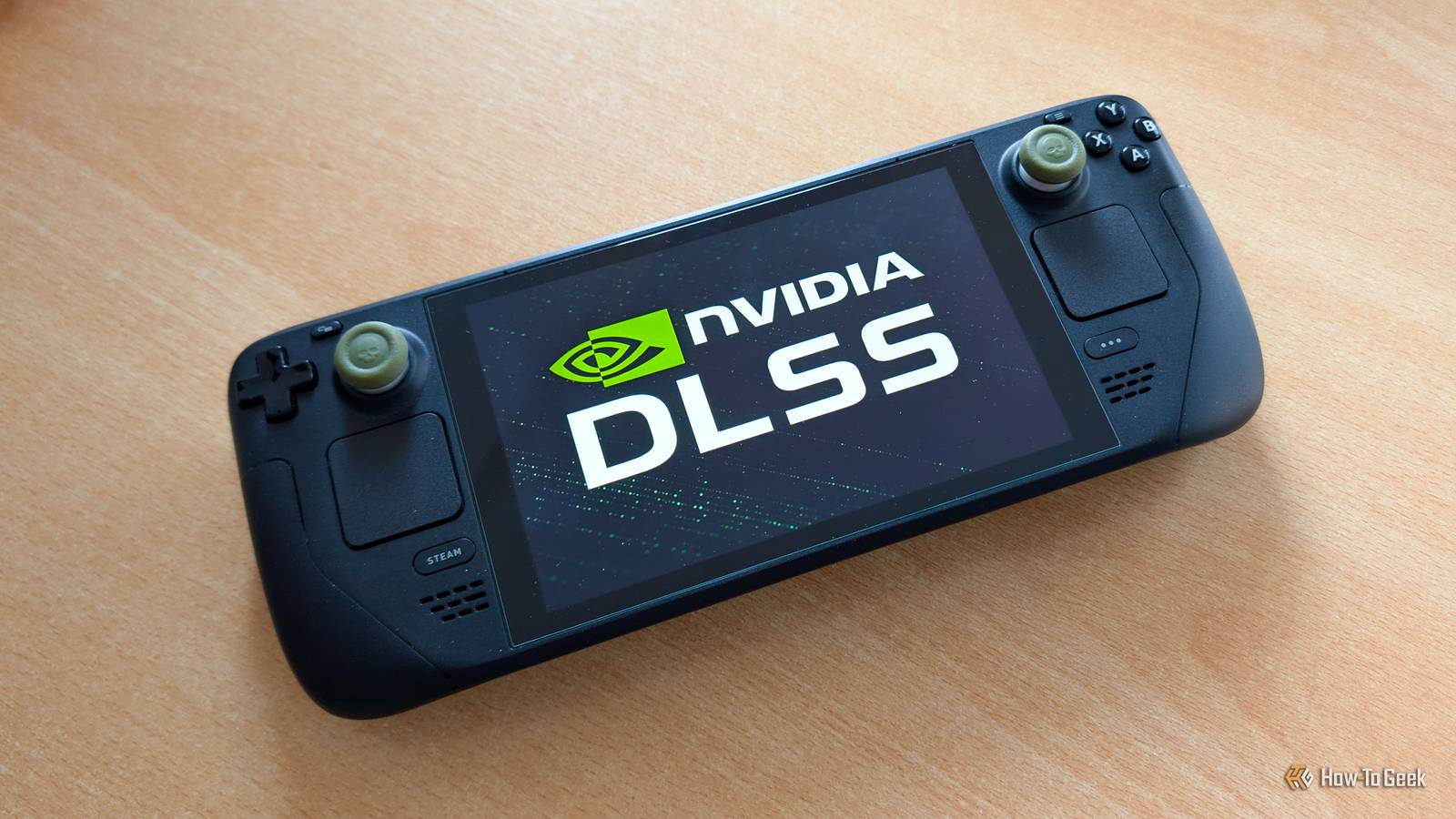
Published Nov 14, 2026, 7:00 PM EST Ever since he got his first smartphone, the legendary Nokia 6600, back in 2005, Goran became obsessed with technology. This obsession had only gotten worse after he received his first gaming PC a couple of months later. He fell in love with video games in the early '90s, shortly after embarking on his gaming journey with the Sega Master System II and SNES. Since then, he has built dozens of PCs, played thousands of games, and authored hundreds of articles about PC hardware, gaming hardware, and video games. He knows everything there is to know about the PC gaming and PC hardware space, and while his console gaming knowledge isn't as comprehensive, he considers himself a console veteran. Goran has almost a decade of experience writing about tech and video games for numerous web publications including TechSpot, TechPowerUp, and EsportsHeadlines. He has been writing for How-To Geek since December 2022. When he isn't gaming or deciding which component of his PC to upgrade next, you can find him strolling around Novi Sad while listening to music and contemplating what to play next. While the Steam Deck is getting a bit long in the tooth and can’t run the majority of recent AAA titles at playable frame rates, Valve’s handheld PC is still capable enough for a good chunk of AAA games released a few years ago and earlier. The biggest downside when playing those games is upscaling, since the handheld’s AMD GPU is limited to older FSR versions that look way worse than DLSS and FSR 4. The Deck may eventually get official FSR 4 support (AMD recently added it for RDNA 2 graphics cards on Windows, and the Deck’s GPU uses the same architecture), but I can do you one better. Thanks to a free and open-source app, you can use DLSS on your Steam Deck in most games that support it. Yes, that’s right, your Deck can now run DLSS, and let me tell you, I didn’t expect NVIDIA’s upscaler to work and run this well. HelixSR tricks games into using DLSS on AMD and Intel GPUs No Tensor Cores required! The app in question is HelixSR, which comes with its own version of the fan-favorite OptiScaler mod. HelixSR allows both DLSS and FSR 4 (including the lighter FSR 4 Lite version made for handhelds like the ROG Xbox Ally X) to run on GPUs that don’t have Tensor Cores or official support for DLSS and FSR 4. The app runs them as ordinary compute shaders, meaning the two machine learning-based upscalers run on regular GPU cores, similarly to how older versions of FSR, such as FSR 3, do. You don’t need any special driver, and you can run DLSS or FSR 4 on both AMD and Intel GPUs, on Windows and Linux alike, and that includes the Steam Deck. By default, HelixSR uses DLSS 3.7 (Model E), but you can also use DLSS 4 (Preset K) if you want, which I don’t recommend on the Steam Deck since it’s much more demanding on the hardware. You can also choose between FSR 4 Lite and the full version, with the same caveat that the full version of FSR 4 runs much slower than FSR 4 Lite. Before I share my testing results and impressions, I also want to make clear that, while most games work fine with DLSS via HelixSR, some will crash when you enable it, including Capcom titles made in the RE Engine, such as Resident Evil Requiem and Pragmata. If a game crashes with DLSS, you can use a fallback method that replaces FSR 3.1 with FSR 4, which only works with games that support FSR 3.1. I tested DLSS in two games, and it leaves FSR 3.1 in the dust DLSS looks leagues ahead of FSR 3.1 and performs almost the same I tested HelixSR in two titles: Kingdom Come: Deliverance II and Hogwarts Legacy. I chose these two because they support both DLSS and FSR 3.1 and feature urban and rural environments rich with foliage, allowing me to test how good of a job DLSS does at upscaling and retaining details on buildings, but also vegetation. Aside from DLSS and FSR 3.1, I also tested FSR 4 Lite, which I injected via HelixSR. I used the same quality preset — Balanced — with all three upscalers, along with the same amount of sharpening — 0.3 in both games — to keep things evenly matched. While I also benchmarked both games with all three upscalers, you should take the results with a grain of salt because both games are quite CPU-demanding and can induce a CPU bottleneck. This is, unfortunately, the case with many AAA games running on the Steam Deck due to the Deck’s aging quad-core CPU. DLSS screenshots are always on the right, with FSR 3.1 and FSR 4 Lite on the left. I first launched Kingdom Come: Deliverance II and, honestly, I was pleasantly surprised by how good FSR 3.1 looked on the Deck’s compact screen, even with the Balanced preset applied. But then I enabled DLSS, and the improvement was immediately noticeable. The world became much cleaner, like after putting on glasses, and I was impressed. I had thought I’d need to zoom in on the screenshots I took to spot the differences, but as you can see below, the difference between FSR 3.1 and DLSS is pretty clear. The DLSS image is cleaner, with textures having much more detail. You can notice the improvement in texture detail, especially on the rock slope on the left. The roof of the building is also much cleaner and more detailed. Again, this is with the same preset used and the same amount of sharpening. Compared to FSR 4 Lite, DLSS is still ahead, but not by much. The image resolve is cleaner and there’s more detail, especially on vegetation, with DLSS again taking a win, but this time FSR 4 Lite is putting up a good fight. The second KCD2 screenshot shows the same level of improvement DLSS brings over FSR 3.1. The grass detail saw the biggest improvement, but the textures are also much more detailed, as are the three buildings and the rest of the vegetation. While not as sharp as DLSS and with slightly less detailed textures, FSR 4 Lite is much closer in quality to DLSS in the second screenshot. The grass and trees look pretty solid, but the image is softer than when using DLSS even though the level of sharpening is the same, which results in some loss of fine texture detail. Moving on to Hogwarts Legacy, DLSS once again blows FSR 3.1 out of the water. Everything looks much sharper with DLSS despite the same amount of sharpening, and there’s much more texture detail. This time, though, FSR 4 Lite is very close to DLSS. The image is a bit softer, which will look better to some people, with pretty much the same amount of fine texture detail. You could call this a draw. The second screenshot, which features lots of vegetation, again sees DLSS as a clear winner over FSR 3.1. I don’t have to say anything. Just looking at the two screenshots clearly shows the difference. When pitted against FSR 4 Lite, DLSS takes a clear win this time, thanks to the better foliage upscaling. The softer look of FSR 4 Lite makes the grass and shrubbery less detailed, but they’re still far from the blobby mess FSR 3.1 turns them into. While even static screenshots clearly show just how much better DLSS and FSR 4 Lite are than FSR 3.1, the difference is even larger in motion. I couldn’t believe how much cleaner both games looked when running around and moving the camera left and right with DLSS applied, especially Kingdom Come: Deliverance II. Below you can see performance with FSR 3.1, DLSS, and FSR 4 Lite. The numbers are very similar, but again, this is likely because both games are CPU-heavy. That said, performance numbers shared by the HelixSR developer show that DLSS is heavier than FSR 3.1, but since you can run DLSS at lower presets and still get a better image, I think it is definitely worth using. Average 1% Low Kingdom Come: Deliverance 2 FSR 3.1 41.3 31.4 Kingdom Come: Deliverance 2 DLSS 40.6 31.7 Kingdom Come: Deliverance 2 FSR 4 Lite 38.5 29.9 Hogwarts Legacy FSR 3.1 32.3 19.1 Hogwarts Legacy DLSS 31.4 19.5 Hogwarts Legacy FSR 4 Lite 31.6 19.9 Installing HelixSR is a breeze You can even add it to Gaming Mode and use it there If this made you want to test HelixSR and DLSS on your Deck, I don’t blame you. I’d want to check it out too. Here’s how to install it. First of all, switch to Desktop Mode, go to HelixSR’s GitHub page, select the latest release, and then download the right file. Now locate the HelixSR AppImage file and open it. Once the app opens, tick the boxes and press the Set up button. Note that ticking the second box, which builds DLSS for Vulkan games, can slow down the build considerably. I had to wait more than 40 minutes for the build to complete, so if you don’t plan on playing any Vulkan games, you can skip this step. Even if you skip it, you’ll still be able to use DLSS in Vulkan games; it will just run slower. Once the setup is finished, right-click the AppImage and add it to Steam. You’ll now be able to use the app in Gaming Mode. Now switch to Gaming Mode and look for HelixSR in the Non-Steam tab of your Library if it doesn’t show up on the Home screen. Open it and let it scan the games you’ve got installed, and then install HelixSR in any game you want. In most games, the automatic installation will work fine. If the game in question has an online component, you should pick the FSR drop-in option. If the game fails to launch with the default installation, you should uninstall HelixSR from it and then use the FSR drop-in option as well. I strongly recommend HelixSR to every Steam Deck owner I still can’t believe not only that my Steam Deck can run DLSS, but also just how good DLSS looks. It’s a massive step up from FSR 3.1, and the performance penalty isn’t very drastic. Credit where credit's due: FSR 4 Lite looks mighty fine as well and breathes down DLSS's neck in both games I tested. If you need more frames, you can drop the DLSS (or FSR 4 Lite) preset a notch or two and still get better image quality than with FSR 3.1 or older FSR versions, with more or less the same performance. In the worst case, you’ll be limited to FSR 4 Lite, which is almost as good as DLSS, at least on Steam Deck. I wholeheartedly recommend HelixSR to every Steam Deck owner. Installing it is a breeze, so don’t just take my word for it. Download it and check it out yourself in your favorite games; I have a strong suspicion it will become a staple on your Deck.
I tested NVIDIA DLSS on my Steam Deck, and it’s a clear step up from FSR
Full Article
Original Source
Read the full article at Howtogeek →KhanList aggregates and links to publicly available news content. We do not host full articles from third-party sources. Always verify important information with original sources.