
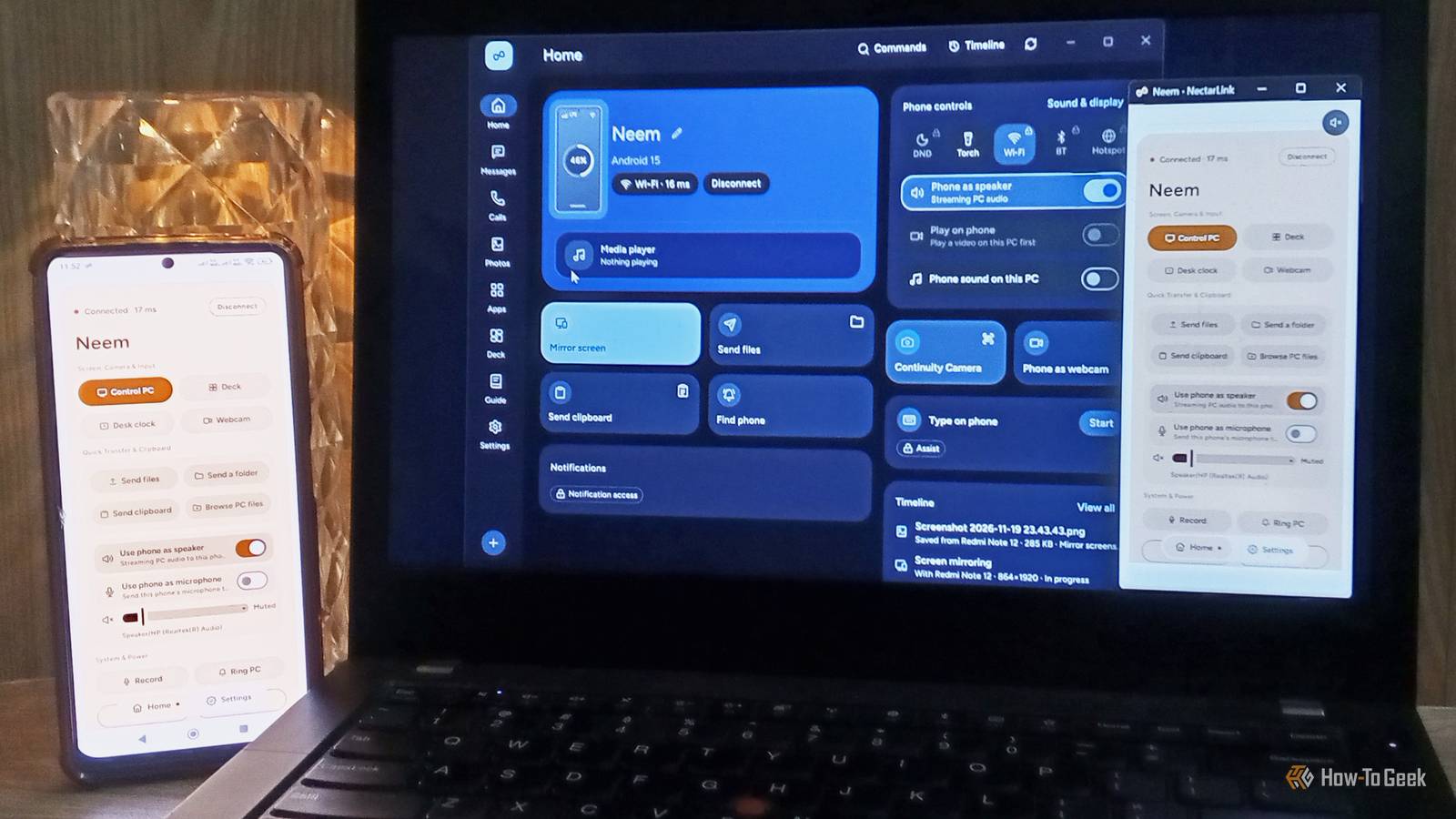
The most useful connection between my phone and PC isn't the ability to answer calls or read text messages. It's being able to send a file, copy a link, or move a snippet of text between devices without interrupting what I'm doing. I already handle messages through email and WhatsApp Web, so I rarely need a dedicated phone companion for that. I've tried Microsoft Phone Link and KDE Connect in the past, but LocalSend has gradually taken over my file-sharing needs. Now, with NectarLink entering the picture, I wanted to see whether there was a better way to connect my Android phone to Windows. I paired all four apps with my Android phone and Windows PC, tested their sharing features, and explored what else they could do. Revisiting familiar tools gave me a fresh perspective, while trying NectarLink introduced me to a different kind of experience. Phone Link and KDE Connect started feeling a little dated Phone Link still covers the basics Phone Link is Microsoft's built-in phone companion app for Windows. It connects your phone to your PC, letting you access notifications, messages, photos, and calls without constantly reaching for your phone. I've used it plenty of times, particularly during my university days, so I already knew what to expect. Supported platforms: Windows, Android, and iOS Installing the Android app took 32.85 MB. Pairing involved scanning a QR code, setting up Bluetooth, and entering a verification code sent through my Microsoft account. It wasn't particularly difficult, but it took longer than pairing with the other three apps. Once connected, I could send and receive files, view photos, read messages, and manage calls from my PC. I could also lock my PC from my phone. On the other hand, Phone Link lets me ring my phone, enable Do Not Disturb, control media playback, and adjust its volume. That's a decent collection of features, and it covers most basic phone-companion needs. However, using it again after trying NectarLink made the experience feel a little less polished. Nothing was particularly broken, but the pairing process and overall interaction didn't feel as immediate as I wanted. KDE Connect offers more control over your devices KDE Connect takes a slightly different approach. Instead of simply bringing your phone's notifications and messages to your PC, it offers several ways to interact with both devices. It's also open-source and doesn't require you to use the KDE desktop environment. Its Android app was the smallest of the four, taking just 5.27 MB. My Windows PC appeared automatically because both devices were connected to the same local network. I pressed the pairing button, accepted the request, and both devices connected almost instantly. Bluetooth pairing is also available, although its Windows implementation is still in beta. Supported platforms: Windows, Linux, macOS, Android, and iOS I could send and receive files, share clipboard content, control my PC's mouse from my phone, send SMS messages, locate my device, and lock my laptop. Its multimedia controls also worked in both directions. I did notice a couple of annoyances. When I received a file or clipboard content on Windows, KDE Connect didn't always provide a proper notification. The content was available, but I had to notice it myself. My phone, on the other hand, notified me when something arrived. I also couldn't see a video preview on my phone when controlling PC playback. KDE Connect provides playback controls, but NectarLink's implementation offers a more visual experience. There's also a Browse This Device option on Windows, but accessing your phone's storage requires a separate SFTP application. KDE Connect is incredibly capable, but revisiting it made me realize that having plenty of features doesn't necessarily make an application feel seamless. LocalSend became my go-to for everyday transfers I wanted one simple way to transfer files across all my devices I regularly switch between Windows, Linux, macOS, Android, and iPhone, and I don't want to follow a different, lengthy procedure every time I need to move a file between them. Setting up device-specific connections or relying on cloud storage for every transfer feels unnecessary when I just want to send a document or screenshot. That's where LocalSend has become my go-to solution. It's available across all these platforms and even offers a web interface, so I can transfer files between nearby devices without creating an account or relying on cloud storage. Its Android installation took 15.98 MB, and the interface was refreshingly straightforward. Supported platforms: Windows, Linux, macOS, Android, and iOS I can send individual files, folders, photos, videos, and text between devices. It doesn't come with calls, SMS integration, or notification mirroring, but that's not necessarily a disadvantage. I don't always want my phone notifications appearing on my PC, especially when I'm researching or writing. Sometimes, I just want to move something between devices and get back to work. LocalSend does that job well, and it's still one of the tools I'd happily keep installed or quickly access through its web interface whenever I need it. I wasn't expecting NectarLink to feel this polished It brings file sharing and device controls together NectarLink (launched in late October 2026) was the newest contender in my experiment, and it immediately made a good first impression. Its Android APK was 52.68 MB, making it considerably larger than those of the other three applications. However, the installation size wasn't what caught my attention. Pairing was incredibly straightforward. I opened NectarLink on my PC, scanned the QR code using my phone, and the devices connected without the additional verification steps I encountered with Phone Link. I didn't have to jump between multiple settings screens just to get started. The interface was another pleasant surprise. It looked modern, felt responsive, and made the available features easy to find. I could send and receive files, share clipboard content, and explore several other ways to connect my phone and PC. Supported platforms: Windows, Linux, macOS (preview), and Android One particularly interesting addition was its support for nearby LocalSend devices. The option was disabled by default, but enabling it meant NectarLink could also exchange files with devices running LocalSend. That's a useful touch if you already have other devices using the service. I also liked its multimedia experience. Unlike KDE Connect, NectarLink provides a video preview on both devices, making media controls feel more complete. Combined with its file-sharing and clipboard features, it offered the kind of smooth interaction I had been looking for. For the first time during this experiment, I wasn't thinking about the connection process or wondering whether something had arrived. Everything felt natural. NectarLink won me over, but I'm not ready to install it LocalSend is still the one I'll keep coming back to. It does exactly what I need when I want to move files or text between my devices, without getting in the way. But NectarLink gave me something I wasn't expecting. I was genuinely impressed by how natural the whole experience felt, and it was one of those rare app moments when I thought, Oh, this is what I've been missing. As much as I loved using it, I'm not ready to make the switch just yet. NectarLink asks for access to a lot of things on my phone (which is understandable for such an app), and installing an APK outside Google Play meant dealing with security warnings and disabling protections I normally wouldn't touch. As someone with a cybersecurity background, that's where I draw the line. I want to see Google Play Protect approval and official distribution through the Play Store and Microsoft Store before trusting it with that level of access. Until then, LocalSend stays my constant, and NectarLink stays the app I'm excited to see grow.
I tested NectarLink against Phone Link, KDE Connect, and LocalSend. Only one stayed.
Full Article
Original Source
Read the full article at Howtogeek →KhanList aggregates and links to publicly available news content. We do not host full articles from third-party sources. Always verify important information with original sources.