
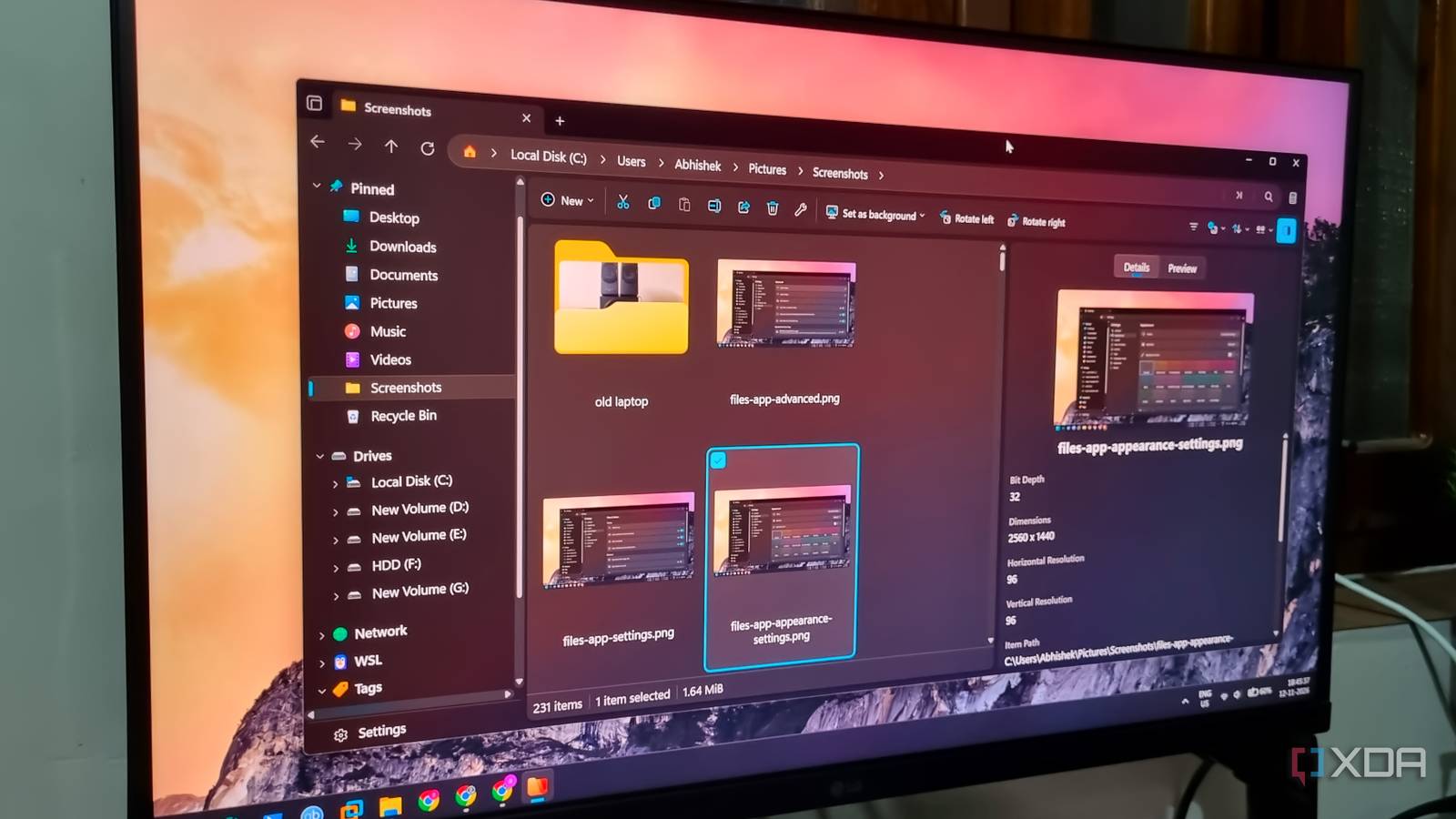
Published Nov 12, 2026, 4:30 PM EST Abhishek is an author at XDA who covers computing. He has loved computers since he got the Lenovo G570 in 2012. Abhishek holds a master's degree in computer applications and began his writing career in 2018. He loves writing how-to articles, listicles, and informational posts on popular operating systems and web services. He closely follows the Windows Insider program and tests new Insider builds to discover upcoming experimental features and upgrades. His past work includes long-term collaborations with reputed publications like Tom's Hardware, and Windows Latest. When not writing anything, he is busy watching new episodes of One Piece or searching for something binge-worthy. Native Windows 11 tools are still a work in progress. It would be wrong to lambast Microsoft’s efforts in improving tools like File Explorer, Snipping Tool, Paint, and Phone Link. These tools have shown slow but steady progress and added new features I've wanted for a long time. However, it becomes difficult to stick with something like File Explorer when the third-party segment is flooded with exciting options. But none of them can come close to the experience I got with an open-source File Manager called Files. I've been using it for quite some time now. Let's discuss the reasons why it's my new favorite over the built-in Windows File Explorer. Windows File Explorer is improving But Files is a better option As I said before, it would be wrong of me to disregard Microsoft's efforts in improving File Explorer. After its debut, the tool later got support for File Explorer tabs, a much-needed feature that third-party tools included for a long time. It also expanded its archive format support, improved the Details pane, context menu, and a few other things. You can even view your phone storage in File Explorer for all devices paired using Managed Devices. The intent seems to be going in the right direction, but there are still many lackluster areas. Files is a modern take on the native File Manager app that puts equal attention to design and usability. The first thing you’ll notice about the free app is the UI, which looks more like a Windows 11-themed tool than the native one. Its icons look distinctive, and the whole interface feels organized. The home page looks better, with each drive and library folder icon well-spaced and surrounded by individual borders. File Explorer has a more muted appearance, which makes it feel bland compared to the Files app. Even the text and labels are bigger and easier to read compared to the native tool. This design choice is present throughout the app, be it the Details pane, navigation pane, or even the properties window. Rather than cramming all the app options into a couple of menus like File Explorer, the app uses icons and avoids deep menus. Options to control icon size, layout, sorting, and other actions are all on the far right of the top bar. The biggest surprise for me was combining both the details and preview view into a single button. You can switch to either of them whenever necessary. In File Explorer, you can only keep one of them active at a time and must enable the other from the View menu. Features that actually matter Dual-pane view, tags, and filters It's been a long time since tabs became a part of File Explorer. You have to open fewer windows than you did before, and tabs make a great addition to it. However, the app still doesn't have a dual-pane or multi-pane view where you can open different locations simultaneously. Files supports a dual-pane view, and while it may not be as flexible as OneCommander or File Pilot’s multiple panes, it's still better than nothing. You don't need to open a new window and then snap each of them onto one side. It's necessary when you constantly need to compare or move files around. Files app also supports tags and has four predefined categories. It's something I hadn't tried before, and I genuinely found it helpful. I deal with important files related to scripts, invoices, and documents every day, and the tags help me isolate essential stuff from clutter. I can later revisit these tags using the navigation pane. You can also create new ones or delete existing ones if you want. There’s also a file filter feature that can help you quickly narrow your search to a folder location. Files app also has a solution for deeply nested folders called Column view. It splits the folder structure into columns, making it easy to navigate folder levels without getting confused. Supports keyboard-driven workflows Sensible customization options The GUI aspect of the Files app is good, but there are times when you prefer the keyboard more. You can use the Command Palette included with the tool to execute common actions using keyboard shortcuts. The shortcut to activate the Command Palette is Ctrl + Shift + P. You can search for shortcuts to remove files, close current tabs, and do more such actions. I tend to forget to empty the Recycle Bin most of the time, and I can easily remove everything from it using the Command Palette. Even if you don’t remember the shortcut to a particular action, the search function is fast enough to find and run it. You can also edit keyboard keys mapped to an action or add new actions from a predefined list. File Explorer could benefit from this simple feature, as it makes the overall process faster than clicking on UI elements. Customization is a core aspect of the Files app, as it tries to fix one of the most irritating things about File Explorer. You cannot tweak the UI, options, or interface beyond the bare minimum in File Explorer, but File lets you go wild with it. The app lets you play with backgrounds, accent colors, themes, and fonts to tune it to your liking. You can define folder layouts, remove UI elements, enable folder size view, and sync layout and sort preferences across multiple directories. The app has a dedicated settings page, and it's much better than the old Folder Options dialog that File Explorer offers. Switch to a better File Manager Windows 11 is trying its best to integrate File Explorer features that users want, but it’ll take time to implement them. The Files app is a great, open-source alternative that addresses some of my complaints about the native tool. It’s not the fastest, but it works great for users who want a feature-packed, easy-to-use file manager with no bloatware, confusing design, or ads. Files Files in an open-source file explorer for Windows that offers a customizable interface.
I replaced Windows File Explorer with a free open-source alternative, and Microsoft has some catching up to do
Full Article
Original Source
Read the full article at Xda-developers →KhanList aggregates and links to publicly available news content. We do not host full articles from third-party sources. Always verify important information with original sources.