
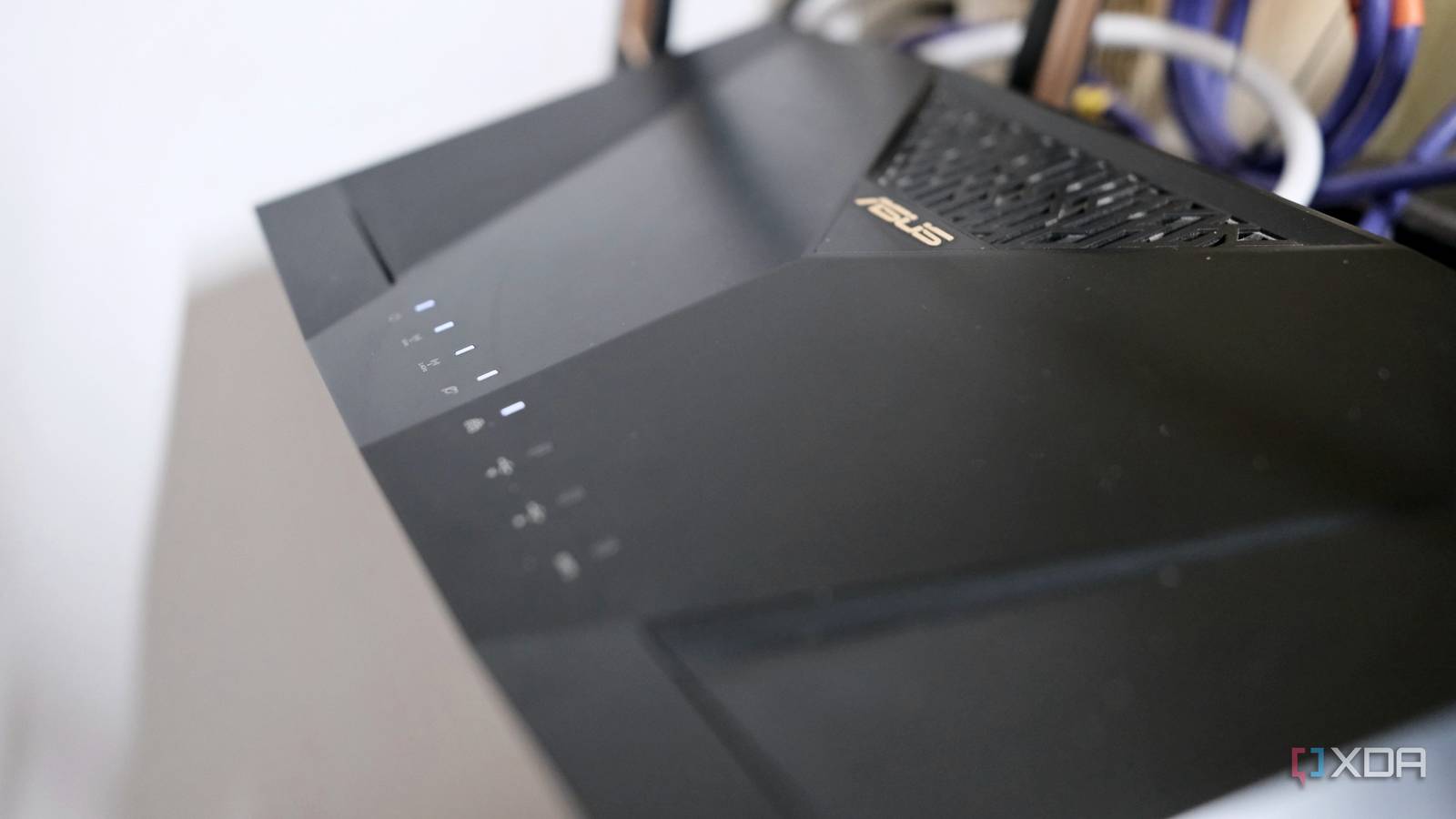
Published Nov 15, 2026, 8:00 AM EST Samir Makwana is a technology journalist and editor from India since past 18 years and his work appears on MakeUseOf, HowToGeek, GSMArena, BGR, GuidingTech, The Inquisitr, TechInAsia, TechWiser, and others. He has written news, features, and gadget reviews for national technology media publications. His passion is to help people with their technology problems and gadget purchases. For that, he has worked for some of the biggest international technology publications, covering news, explainers, how-to guides, listicles, and product-buying guides. He has worked as an editor and managed teams since 2015. His expertise broadly covers computers, smartphones, game consoles, headphones, smart home products, browsers, and apps. I assumed random stutters during video calls were because of others’ poor connectivity, until my colleagues pointed out it was my quarter-gigabit (250Mbps) internet connection. The call would freeze for a second, a page would hang, my voice would crackle, and then it would all snap back as if nothing had happened. Then I noticed that, besides the video call stuttering, Jellyfin started buffering, Home Assistant dashboards stalled, and my PS5 quietly downloaded a multi-gigabit patch. I called my ISP’s support a couple of times before taking a closer look at what else was running on my network. My TV and PS5 were quietly hogging the network meant for the entire house, pulling 4K streams and game updates at the same time and slowing everything else down. First, I moved them onto a dedicated network to tidy things up. But stutters didn’t go away. So I made my router prioritize the traffic, and that’s what finally calmed my home network down. The slowdowns only ever lined up with one thing The pattern was hard to miss When the ISP’s support tried to convince me everything was fine on their end, I started paying attention to my usage instead. Every time a video call stalled, or the Home Assistant dashboard took forever to load, I pulled up my router’s device list to see what else was active. The pattern was impossible to ignore. My TV would be streaming something in 4K HDR or my PS5 would quietly download a game update in the background, usually right when I needed my laptop to behave. I even caught my PS5 downloading a massive update in rest mode and quietly eating the bandwidth while I tried to join a call from my laptop right next to it. That was the moment it stopped feeling like a coincidence. Neither the TV nor the console was pulling bandwidth by themselves, but running a 4K HDR stream and PS5 quietly downloading a game update at the same time added things up fast. On paper, my internet plan has plenty of room, and yet none of those devices were anywhere close to maxing out my actual download speeds. I figured something else was going on, so I took a closer look. Giving TV and consoles their own network It took a few minutes My home network runs on an ASUS RT-AX88U with Asuswrt-Merlin firmware. I had always treated the guest network option as something for visitors only. It works as a dedicated lane for any device I would want off my main network, whether it belonged to a guest or not. Then I set up a guest network and moved my TV, PS5, and PS Vita to it. I made sure each device forgot the old network details before I joined it to the new one. My router’s interface was good enough for the change, with no cables or extra hardware. Once those devices moved, they stopped seeing anything from my main network. Even though that made things tidier, the stutters still appeared randomly. Adaptive QoS decided what mattered most Calls jumped the queue Separating my devices didn’t tell my router what to do when everything wanted the connection at once. So I turned to Adaptive QoS, or Quality of Service, a feature in the router’s dashboard that lets it allocate bandwidth based on each device’s needs. The idea of QoS is simple: when traffic piles up, the router checks a predefined priority list and lets the important stuff through first instead of treating every request the same way. With this customization, I ensured that work-from-home and web surfing categories ranked above gaming and video streaming. This way, my router prioritized my video calls over someone using streaming services in my home. The video calls stopped freezing mid-sentence immediately. However, the page loads still felt sluggish under heavy load, which told me prioritizing traffic alone wasn’t the whole fix. The bandwidth needed proper shaping One setting closed the gap Quality of Service (QoS) decides what goes first, but it doesn’t fix the pile-up itself. That happens because the modem holds far more data than it needs to before passing it along. That delay is called bufferbloat, and it is the actual reason a video call stutters when something else is eating the bandwidth. My router's Merlin firmware includes a built-in SQM (Smart Queue Management) option built for exactly this. It runs on CAKE (Common Applications Kept Enhanced), a queue management algorithm designed to eliminate bufferbloat by actively shaping traffic and keeping the buffer from backing up. Cake QoS only ships natively on high-end routers like mine, and turning it on disables NAT acceleration, which caps the real-world shaped speeds. After trying Adaptive QoS for a while, I switched the QoS Type to Cake and set the Download and Upload limits to 90 percent of the speeds I measured in a speed test. That small 10 percent gap gives the router enough wiggle room to manage traffic before my modem’s queue ever gets a chance to back up. The difference showed up the next time my PS5 downloaded a game update during a call, and nothing stuttered. The connection did its job quietly, with the router orchestrating things in the background. My network finally stopped surprising me It’s been a few weeks since I last had that familiar mid-call freeze or a page that took too long to load while something was streaming in the living room. The guest network kept my main devices out of the reach of the TV and console, which I feel was worth doing on its own. QoS and SQM were what actually stopped the slowdowns. By deciding what mattered, the router kept the queue from backing up. What I assumed was a connection or network problem turned out to be a traffic management problem instead. While it made me less suspicious of my internet provider, it certainly made me more curious about the optimization I’m still leaving unexplored on my home network.
I put my TV and consoles on their own network, and my video calls stopped freezing
Full Article
Original Source
Read the full article at Xda-developers →KhanList aggregates and links to publicly available news content. We do not host full articles from third-party sources. Always verify important information with original sources.