
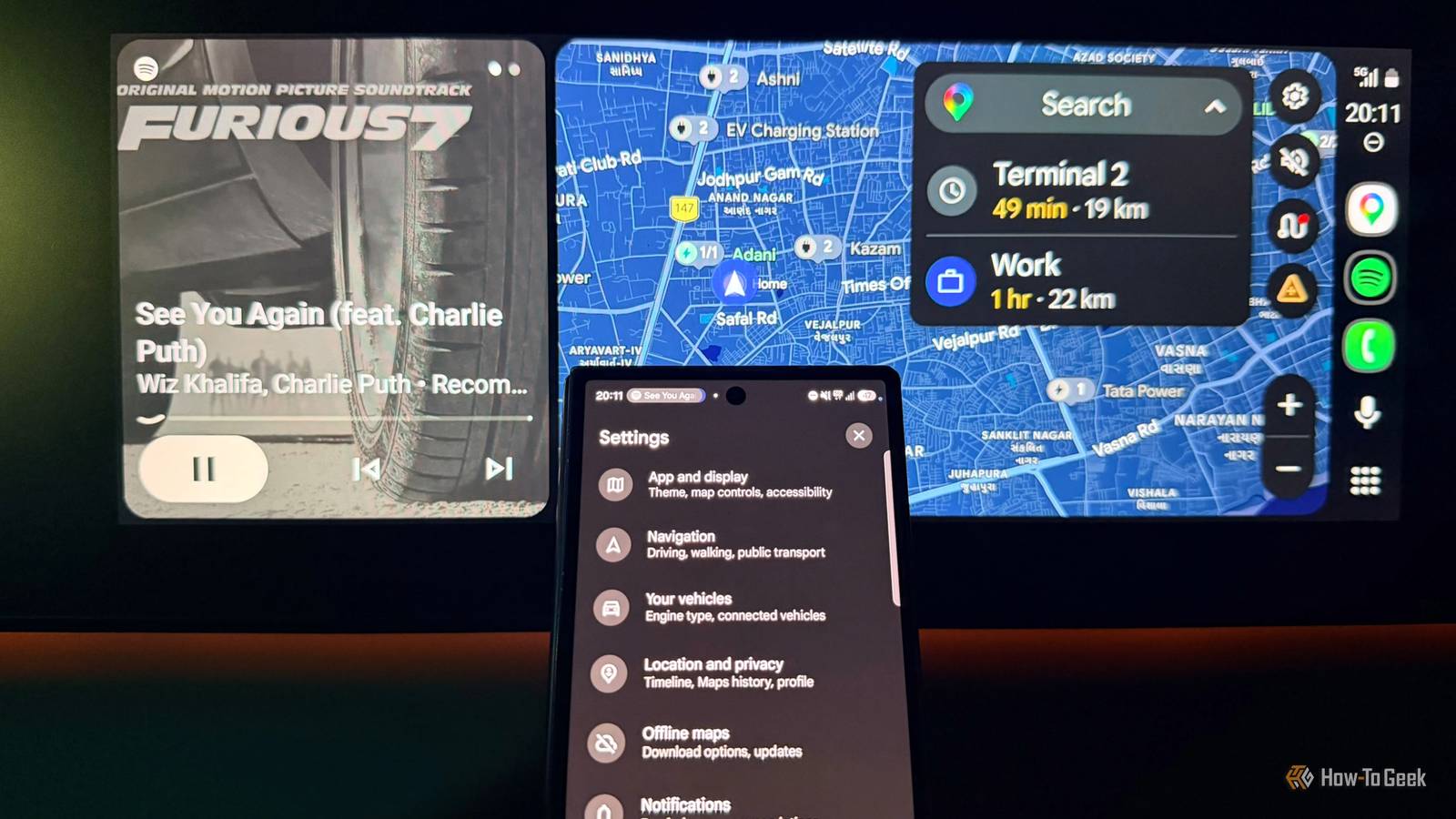
Published Nov 21, 2026, 9:00 AM EST A Computer Engineer turned tech-savvy. Sanya is part of the How to Geek team, and she covers Android, Samsung, Google, apps, and everyday technology, combining hands-on experience with thorough research. She helps readers understand technology without getting lost in technical jargon. My drive starts with Google Maps and Spotify running side by side on Android Auto. I’m not a fan of replacing these apps anymore. I like having navigation instructions in the background while Spotify handles the music, but the default settings don’t always give me the experience I want. Sometimes, the navigation voice is too loud, sometimes Spotify stops playing when my playlist ends, and I don’t always want it to decide how loud each song should sound. To make my drives easier, I’ve changed these four settings in both apps. Google’s latest Gemini Personal Intelligence rollout for Android Auto gives me another reason to revisit Google Maps. Change these settings, and you’ll feel the difference instantly. Make Google Maps navigation less annoying Adjust the guidance volume to suit your car I used to turn down the music when Google Maps started giving directions. When I’m driving in a new city, I don’t want to miss a turn because the navigation voice gets drowned out by Spotify. But turning up the guidance volume too much creates another problem. The instructions become unnecessarily loud, especially when I’m driving on familiar roads, such as the one to my daughter’s school, and don’t need Maps talking over every song. I finally adjusted the guidance volume to find a better balance. I changed it from Normal to Louder to make navigation instructions easier to hear over Spotify. Now, I can hear upcoming turns without constantly lowering the music volume. I know it’s a small change, but it makes a noticeable difference when I’m driving with Android Auto every single day. Let Gemini do some of the work while driving Ask Gemini about your plans, emails, and saved places Gmail in Android Auto I already use Gemini in the car to send messages, call family or friends, and find the nearest coffee spots. But Google’s latest Personal Intelligence rollout for Android Auto makes it more useful than just a voice assistant. It can now pull information from your connected Google apps, including Gmail, Calendar, and Google Maps. That means I don’t have to remember where I saved something or dig through my emails while getting ready to drive somewhere. Last week, I was driving to a hotel I’d booked. I asked Gemini for its address instead of searching through Gmail while driving. Gemini retrieved the address from the email and helped me find the location without making me switch between apps. I can also ask about upcoming dentist appointments in Google Calendar or revisit places I’ve saved in Maps. It’s a much more convenient way to access information when I’m behind the wheel. Make Spotify sound the way you want Turn off Normalize Volume Volume normalizer on in AA I cannot wait to start Spotify the moment I get into my car, but I used to get annoyed when some songs sounded noticeably quieter than others. I’d be listening to Coldplay at a comfortable volume, and then another track would suddenly sound much louder or softer. I initially thought it was just the difference between songs, but Spotify’s Normalize Volume setting was also affecting how I heard them. It automatically adjusts playback levels to make quieter and louder tracks sound more consistent. I turned off Normalize Volume, and now I have more control over how my music sounds. I no longer want Spotify adjusting the volume of every track to make them sound equally loud. I prefer controlling the volume myself, especially when I’m driving and want to enjoy my music. Keep Spotify playing even after your playlist ends Enable Autoplay for more music recommendations Autoplay on on Spotify I have so many Spotify playlists for my different moods, and one of my favorites is called Jollygood Bollywood. The problem is that it doesn’t have many songs, so I often run out of music before reaching my destination. I used to either pick another playlist or manually search for songs while parked. That got annoying, especially when I just wanted to enjoy the drive without worrying about what to play next. I enabled Autoplay in Spotify, so it automatically plays similar songs when my playlist or album ends. Now, when Jollygood Bollywood runs out of songs, Spotify keeps the music going with recommendations based on what I’ve been listening to. It’s a small setting, but one I appreciate on my everyday drives. I wouldn’t use Android Auto without these changes These are the first settings I change, but they aren’t the only ones worth exploring in Google Maps and Spotify. Since I drive an EV, I also use Google Maps to look for compatible charging stations when planning longer trips. Android Auto is part of my everyday routine now, and a few thoughtful changes make it much more convenient.
I never use Android Auto without changing these Google Maps and Spotify settings
Full Article
Original Source
Read the full article at Howtogeek →KhanList aggregates and links to publicly available news content. We do not host full articles from third-party sources. Always verify important information with original sources.