
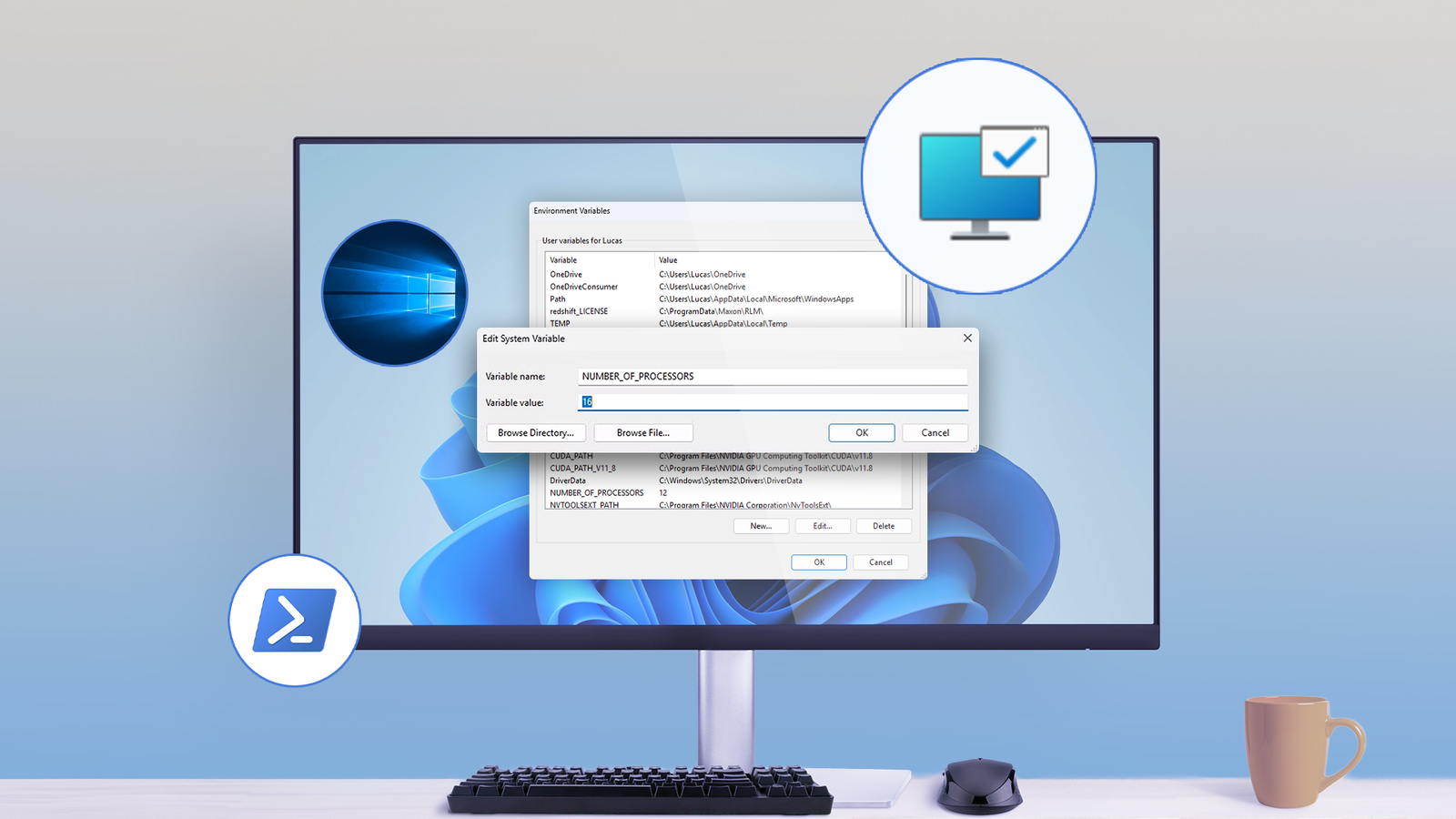
Updated Nov 2, 2026, 3:45 PM EST Nick Lewis is an editor at How-To Geek. He has been using computers for 20 years --- tinkering with everything from the UI to the Windows registry to device firmware. Before How-To Geek, he used Python and C++ as a freelance programmer. In college, Nick made extensive use of Fortran while pursuing a physics degree. Nick's love of tinkering with computers extends beyond work. He has been running video game servers from home for more than 10 years using Windows, Ubuntu, or Raspberry Pi OS. He also uses Proxmox to self-host a variety of services, including a Jellyfin Media Server, an Airsonic music server, a handful of game servers, NextCloud, and two Windows virtual machines. He enjoys DIY projects, especially if they involve technology. He regularly repairs and repurposes old computers and hardware for whatever new project is at hand. He has designed crossovers for homemade speakers all the way from the basic design to the PCB. Nick enjoys the outdoors. When he isn't working on a computer or DIY project, he is most likely to be found camping, backpacking, or canoeing. Editing your PC's environment variables can save you time in Command Prompt and make your scripts more concise. It also lets you customize where Windows stores certain files. This is what you need to know about getting started adding, editing, or removing entries from your Environment Variables on Windows. How environment variables work Environment variables can be used to point to or set important directories, like the location of the Windows Temp folder, or they can they relay important information about your PC, like the version of Windows it is running or the number of processor cores it has available. Environment variables can be read by any program or script that runs on your computer. Environment variables can be defined for individual user accounts, or on a system-wide basis. One environment variable of note is the Path variable. Path defines what folders are checked for executables when a command is run in a terminal or a script. Take Notepad as an example—you can type notepad into Command Prompt and it will launch immediately. If you type chrome, however, you'll get an error message. The error occurs because the Notepad executable is in a folder defined in the Path, but the Chrome executable is not. By default, Path only points to a few Windows folders, but you can easily add more. Changing environment variables can result in your PC malfunctioning. If you're going to add, edit, or delete an environment variable, be sure to double-check what it is you're doing. User variables vs. system variables Before you start adding paths, you need to understand the two distinct scopes where variables live. The Environment Variables window splits them into two sections, and choosing the wrong one is the most common reason changes fail to apply. User variables only apply to your current account. They are perfect for personal scripts, custom tools you install for yourself, or testing new paths without affecting other users. You can edit these freely without admin rights. System variables apply to every account on the PC. Editing these requires administrator privileges, and standard users will often see the fields greyed out or unable to modify them. Use this section for tools that multiple people need to access, like development kits or shared media converters. When a program looks for an executable, it checks paths in this specific priority order: Priority Level Scope Permanence 1 (Highest) Process-level Temporary (expires on close) 2 User variables Permanent (current account only) 3 (Lowest) System variables Permanent (global to PC) This means a User variable will always override a System variable if they point to the same executable name. Keep this hierarchy in mind when troubleshooting conflicts. How to add or edit environment variables There are some minor differences between the user interfaces of Windows 10 and Windows 11, but the basic process of editing environment variables is the same. To configure your environment variables, click the Start button, then type environment properties into the search bar and hit Enter. In the System Properties window, click "Environment Variables." Click on the variable you'd like to change, click "Edit." Many environment variables will simply take a name and value, like "Number of processors." All you have to do to edit them is to change the value, and click "OK." Adding an environment variable works the exact same way, except you must specify the variable name and value. The variable value can take multiple values if you want, but the values must be separated by semicolons. Once you've named your variable and assigned a value, click "OK." Some environment variables, like Path, look a little different, though they function in exactly the same way. The Path variable is given as a list from which you can add, edit, or delete entries. You can add another folder to the Path by clicking "New," and then specifying the folder. Add FFmpeg to your Windows Path FFmpeg is a popular (especially on Linux) command-line utility for converting one media type to another. Though most commonly used with video formats, it is also capable of converting images, if you want to use it that way. First, download FFmpeg and extract it to any location on your PC that you like. In my case, I put it in my C:\ directory just because it is convenient. The executable we need is actually in the bin subfolder. The specific path for this example is: C:\ffmpeg-2025-09-22-git-c9168717bf-full_build\bin With that path handy, head over to your Environment Variables window. I want ffmpeg to be accessible to all users on this PC, so I double-clicked "Path" in the System Variable section. If you want, you could also put it in the top section—user variables—which only makes it accessible to the current user. Once there, click "New," enter the directory into the empty field (which will always appear at the bottom of the list by default), then click "OK." Once that is done, you'll be able to just type FFmpeg in any directory without manually pointing at the executable every single time. The command-line method While the GUI works for one-time adjustments, developers and power users often need to automate variable changes or apply them quickly across multiple machines. Windows provides built-in CLI tools for this exact purpose. Using Command Prompt: Open CMD as an administrator and use the setx command. To add a folder to the system PATH, run the following, replacing the path with your actual directory: setx /M PATH "%PATH%;C:\Your\Custom\Path" Notice the /M flag, which targets System variables. Without it, setx modifies User variables. Be aware that setx has a strict 1024-character limit for the PATH variable. If your path is already near that limit, the command will silently truncate your entries. Using PowerShell: PowerShell offers a more robust environment for managing variables without the truncation risk. You can set a permanent system variable using the built-in .NET framework method: [Environment]::SetEnvironmentVariable("Path", "$env:Path;C:\Your\Custom\Path", "Machine") For temporary, process-level changes that only last for the current terminal session, you can simply assign the variable directly: $env:Path += ";C:\Your\Custom\Path" If you write a lot of batch or PowerShell scripts, or frequently use non-Windows command-line applications, it is probably worth the effort to customize your environment variables—you'll save a ton of time in the long run.
How to Edit Environment Variables on Windows 10 or 11
Full Article
Original Source
Read the full article at Howtogeek →KhanList aggregates and links to publicly available news content. We do not host full articles from third-party sources. Always verify important information with original sources.