
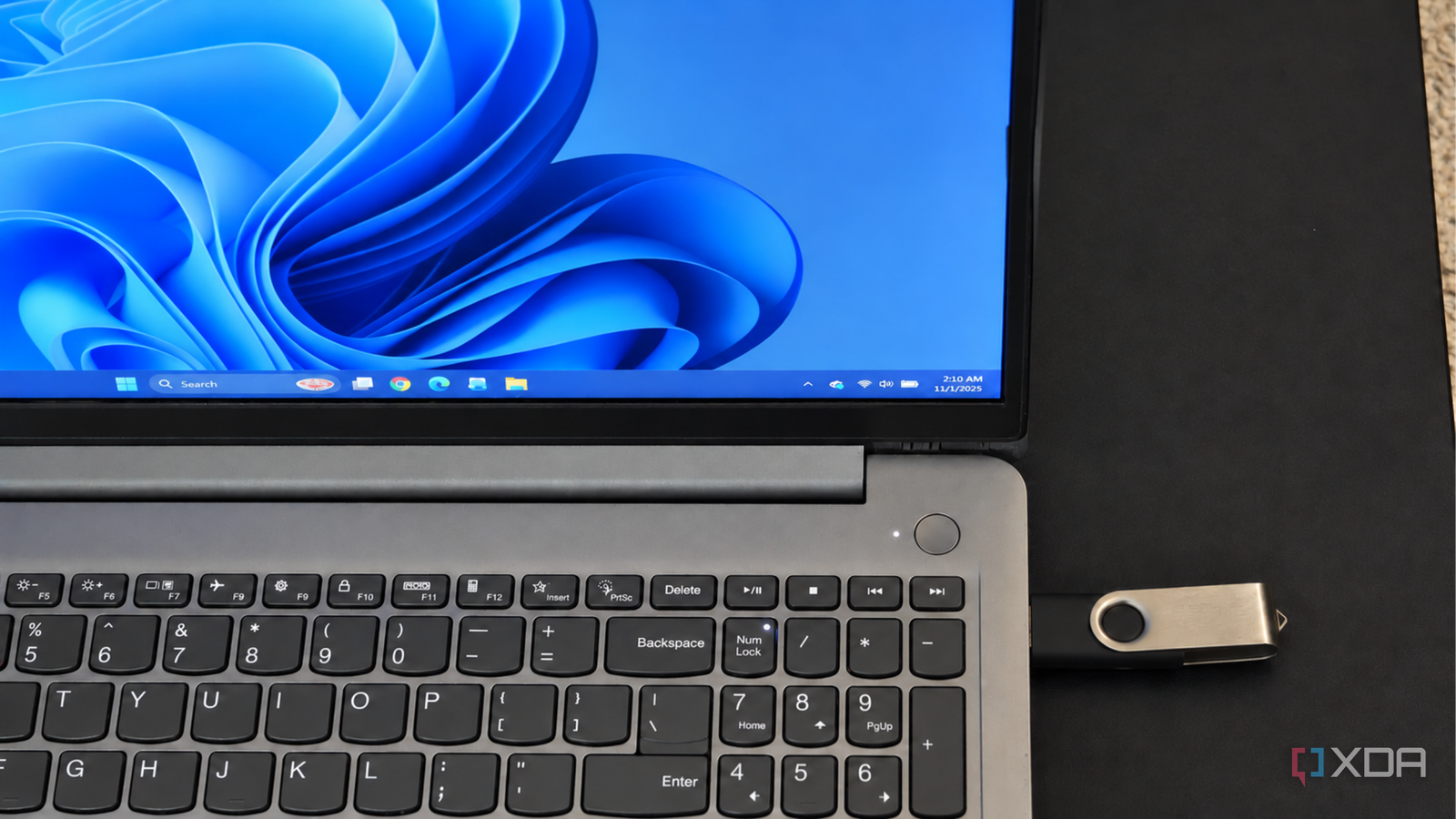
Published Nov 2, 2026, 7:01 PM EST Anurag is an experienced journalist and author who’s been covering tech for the past 5 years, with a focus on Windows, Android, and Apple. He’s written for sites like Android Police, Neowin, Dexerto, and MakeTechEasier. Anurag’s always pumped about tech and loves getting his hands on the latest gadgets. When he's not procrastinating, you’ll probably find him catching the newest movies in theaters or scrolling through Twitter from his bed. Bootable Linux USB drives are useful for getting into a PC when Windows refuses to start. You can inspect the internal drive, copy your files, and use recovery tools without loading the broken installation. I wanted to add something else to that setup – a chatbot that could help me understand what those tools were telling me, even without an internet connection. I put a small local AI model on the same USB as a Linux rescue environment, complete with a browser interface for chatting. The computer supplies the processing power, and the software and model live on the drive. Once I boot into Linux, I can give the chatbot diagnostic output and ask questions as I work through the problem. I put the entire setup on a USB Linux, recovery tools, and a chatbot I start with a 64GB USB 3 drive and install Ventoy on it. Ventoy lets me copy bootable ISO files onto the drive and choose which one to launch when the computer starts. The remaining space works as normal storage, where I keep the AI runtime and model files. Installing Ventoy erases the USB, so copy anything you need off it first. For Linux, I use SystemRescue. It already includes disk diagnostics, partitioning tools, file recovery utilities, and Firefox. Those are useful when you’re investigating a broken Windows installation, and having them included saves me from downloading tools during the rescue session. SystemRescue doesn’t support Secure Boot out of the box, so check your firmware settings and have your BitLocker recovery key available before changing them. The AI side uses llama.cpp with Qwen3-4B-Instruct-2507. I choose the Q4_K_M version, which takes up about 2.5GB, and set the context to 2,048 tokens to keep memory use manageable on my 8GB Lenovo. I also use CPU inference, so the chatbot doesn’t depend on getting GPU drivers working inside the live environment. I keep the Linux x86-64 runtime, its required libraries, and the GGUF model together on the USB. After booting SystemRescue, I mount the USB’s data partition and launch llama-server with the model’s local path. It includes a chat interface that I can open in Firefox. I give the chatbot actual diagnostic output Understanding what the diagnostic tools report Once the rescue desktop loads, establish what the computer can still detect and access. I usually start with lsblk -o NAME,SIZE,FSTYPE,MOUNTPOINTS, which lists the connected drives and their partitions. Once you have the output, paste that into the chatbot alongside a description of the problem. I also explain the environment before asking for advice. The installed operating system is Windows, but I’m currently running SystemRescue from a USB. My opening prompt looks something like this: Windows won’t start, and I’m running SystemRescue from USB. Here is my lsblk output. Help me identify the internal Windows drive, explain what this output establishes, and suggest the next diagnostic check without modifying the disk. From there, you can provide a drive-health report from smartctl or relevant storage messages from dmesg. These answer different questions. Seeing the SSD in the drive list establishes that Linux detects it. A health report provides information about the drive itself, and kernel messages can reveal errors encountered as Linux communicates with it. This gives the conversation something concrete to work with. You can ask what a particular field means, why a suggested check matters, or whether the available evidence supports a diagnosis. Back up files before repairing Windows Getting important files onto another drive Before making changes to the Windows installation, you’ll want to copy important files. SystemRescue already lets you access a Windows partition even when Windows itself won’t start, so you can use the same session to copy documents and other personal files to a separate external drive. This is where you can make use of the drive information from the previous checks. You can ask the chatbot to help identify the source partition and explain where it is mounted. Windows user folders usually sit under Users on the system partition, but the path you use in Linux also includes that partition’s mount location. Giving the model the actual mount information helps it provide paths that match the machine in front of you. You can connect another external drive for the backup. I keep the source partition mounted read-only and use the file manager to copy selected folders to the destination. If BitLocker protects the Windows volume, you’ll need to unlock it with the appropriate credentials before accessing its contents. Local LLMs deserve more credit I keep finding useful jobs for local LLMs, from organizing my browser history to helping me troubleshoot a PC. Plenty more are worth trying on hardware you already own. Don’t let anyone tell you local models are useless when you can put them to work on so much.
I put a local AI model on a bootable USB, so I can troubleshoot a dead PC with a chatbot that doesn't need the internet
Full Article
Original Source
Read the full article at Xda-developers →KhanList aggregates and links to publicly available news content. We do not host full articles from third-party sources. Always verify important information with original sources.