
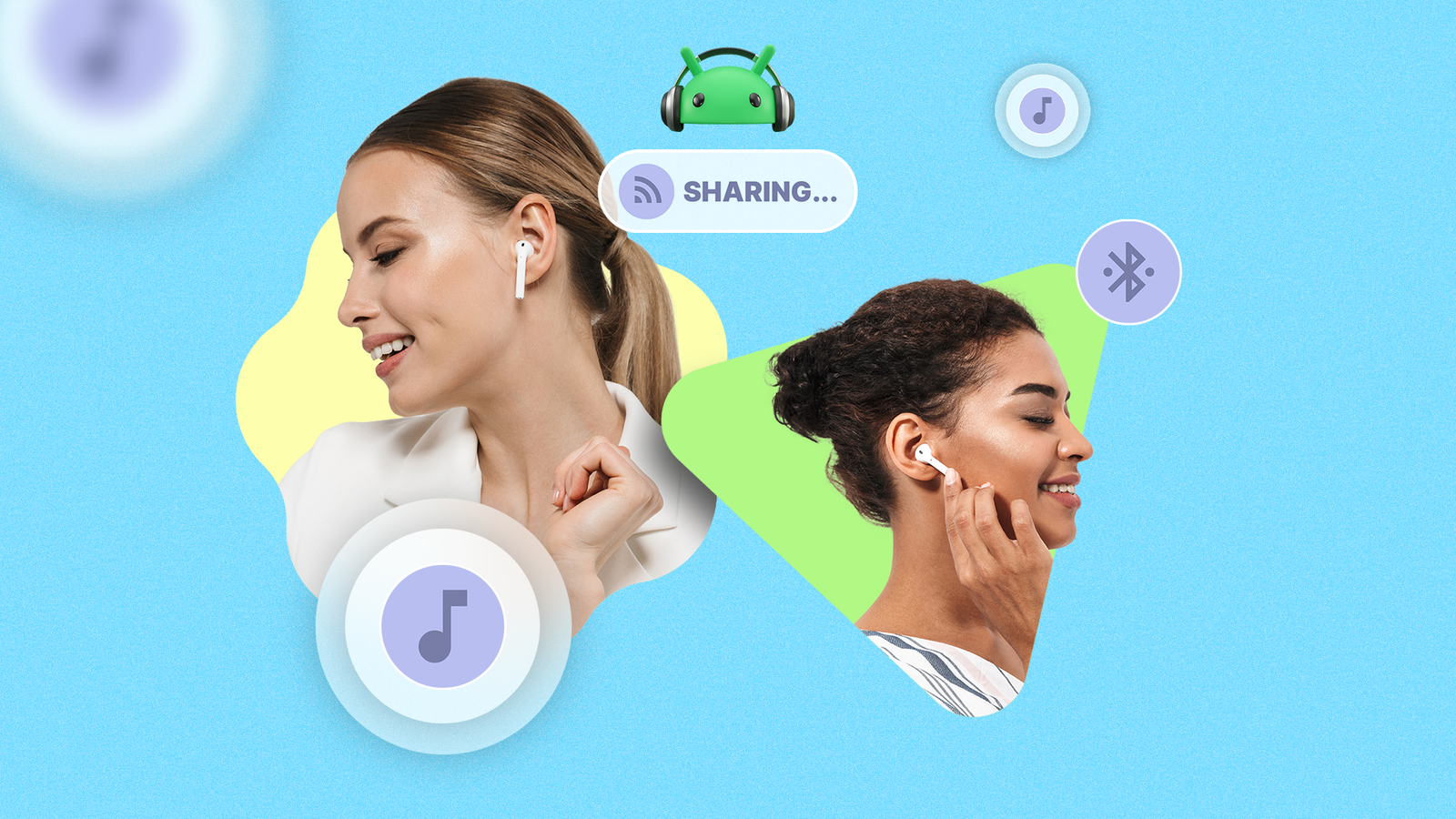
Published Nov 28, 2026, 3:00 PM EST I've been an Android user for my entire smartphone-using life. I've been writing for Android Police since 2021 with a focus on smartphones, tablets, and smart home technology. In addition to writing for Android Police, I have been the lead writer at Tech.co for the last five years, covering business software like CRM, website builders, project management tools, and security platforms. For Android Police, I have reviewed 10 phones, 10 smart home devices, three tablets, and three earbuds. Sharing a pair of headphones with your partner can be romantic. Whether you are watching a movie in silence so you don't wake the baby or swaying to Al Green on a spaceship to save the galaxy, this loving exchange brings people closer together, both literally and emotionally. It's 2026, though, and there are better ways to listen to music and movies without swapping earwax with that special someone. Android 16 introduced a new Audio Sharing feature that can make these moments even more special for everyone involved. That is, if you can get it to work. What is Audio Sharing? The feature that wants to make earbud sharing obsolete Audio Sharing makes earbud sharing obsolete. It lets users stream audio from one device to multiple Bluetooth-enabled devices. The feature works through Auracast and Bluetooth Low Energy (LE) Audio, which allows a single device to broadcast audio from music and streaming services to headphones, speakers, and hearing aids. What devices are compatible with Audio Sharing? You better be up-to-date on your headphone purchases This is a classic good-news, bad-news situation for Audio Sharing on Android. The good news is that most modern phones support Audio Sharing. If you have a smartphone newer than the Samsung Galaxy S23 or the Google Pixel 8 and it's updated to Android 16 or higher, you're good to go! The bad news is that headphone and earbud compatibility is not nearly as inclusive. Your headphones must be Bluetooth Low Energy (LE) Audio compatible, which is less common than you might hope. Flagship devices like the Google Pixel Buds, Samsung Galaxy Buds, and Sony WF-1000XM5 are compatible, but the first-generation Pixel Buds Pro won't allow for audio sharing, nor do older options like the Jabra 85h. To make matters worse, Audio Sharing does not work with Apple AirPods. This isn't surprising given Apple's notoriously closed ecosystem, but with Quick Share becoming operational between iPhones and Androids, I had high hopes. This is a notable sticking point for Audio Sharing in 2026. A feature like this needs broad compatibility, and that is not the case for Audio Sharing on Android. Does Audio Sharing actually work? It's not just easy enough My partner and I immediately ran into problems when trying to get Audio Sharing to work. The lack of compatible devices was a start, but even when we got earbuds that are supposed to be LE Audio compatible, we still ran into issues connecting them. We aren't alone either. Other users have reported serious connectivity issues, from LE Audio not being enabled by default to being unable to connect two allegedly LE Audio-compatible earbuds. Audio Sharing could use a better user experience. How to use Audio Sharing If you have an Audio Sharing-compatible smartphone and two LE Audio-compatible sets of earbuds, plus the luck required to get the feature to work, we walk you through how to do it yourself. First, connect both pairs of earbuds, headphones, speakers, or hearing aids to your device's Bluetooth network. Verify that LE Audio is toggled on in each paired earbud's Bluetooth device settings before starting Audio Sharing. After that, go to Settings and tap Connected devices. Under the list of your devices, tap Connection preferences, and you'll see the Audio sharing option at the top beneath Bluetooth. Samsung devices use a different One UI Auracast menu. Go to Settings > Bluetooth, tap the three-dot menu, and select Broadcast sound using Auracast. In the Audio sharing settings menu, you'll see a toggle to turn it on, an option to Improve compatibility (if only), and the name and password for your shared audio network. After you toggle on the Share audio button, you can pick the devices you want to connect and listen to shared audio from one device on both. Audio Sharing needs work The future is bright, though Audio Sharing is a convenient feature, but the functionality isn't quite there yet. Limited compatibility, combined with finicky network issues, means swaying to your favorite song with your partner may be less comfortable for now. As this feature improves and more devices become compatible, Audio Sharing could become one of the best features on Android devices for audiophiles of all walks of life.
Android's Audio Sharing lets two earbuds stream from one phone, but LE Audio bugs hold it back
Full Article
Original Source
Read the full article at Androidpolice →KhanList aggregates and links to publicly available news content. We do not host full articles from third-party sources. Always verify important information with original sources.