
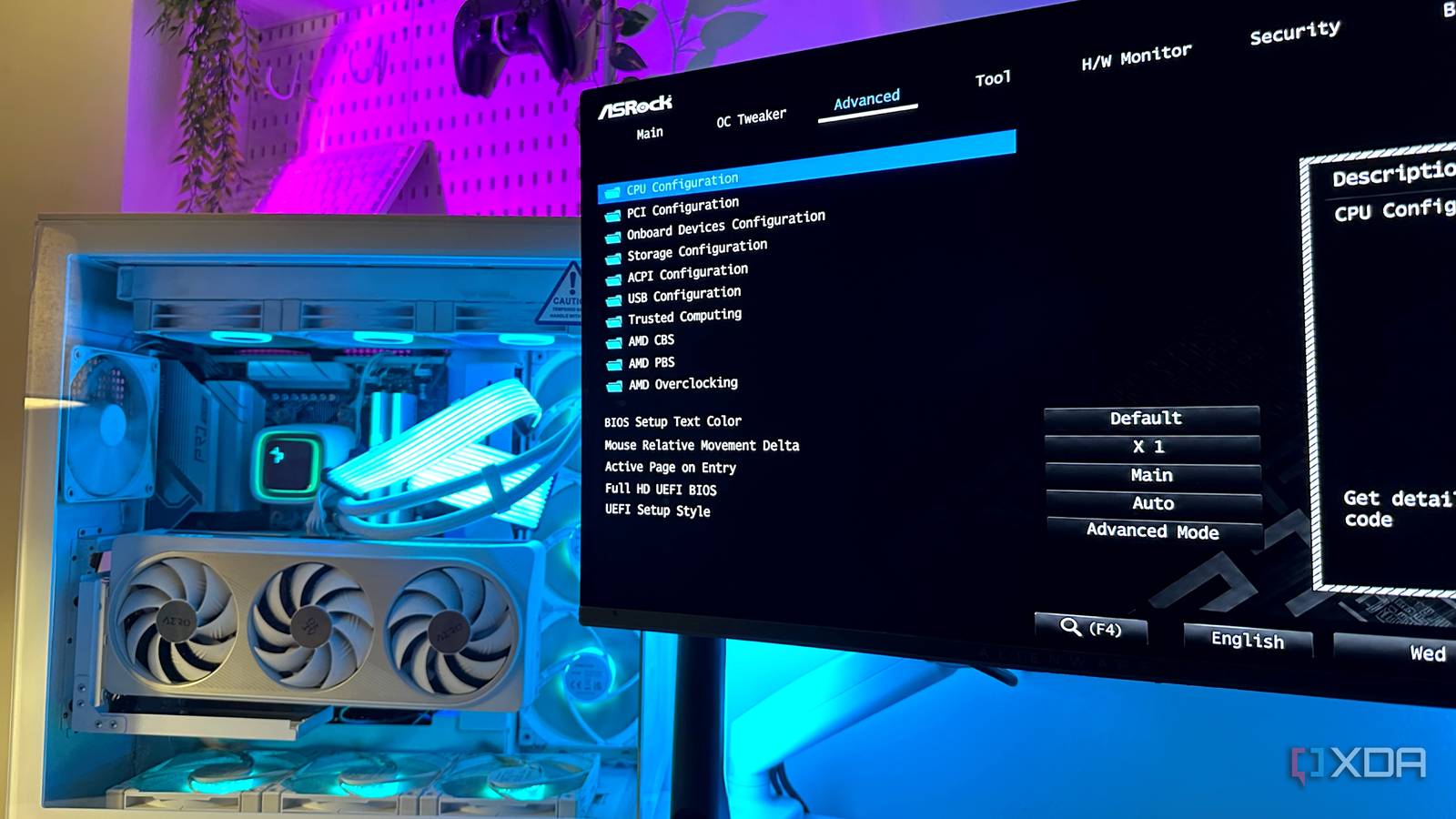
Published Nov 18, 2026, 12:00 PM EST Gaming has been Samarveer’s greatest passion, and the Literature graduate in him takes immense joy in dissecting games for their themes, messages, and impact. Samarveer holds a deep appreciation of gaming, and considers the platform to be the most immersive and impactful across all media. He can be found engaging with gaming communities online, always ready to debate the finer points of ray tracing or itching to write an 8-page collegiate thesis on any game that impacts him emotionally. Every time I build a new PC around an AM5 motherboard, I spend a few minutes in the BIOS before I even think about installing Windows. Motherboard manufacturers love shipping these boards with dozens of settings enabled, disabled, or configured in ways that technically work, but don't necessarily make sense for the way I use my PC. I don't always blindly change everything I see, nor would I recommend it, but there are a handful of settings I almost always touch. Some are obvious performance tweaks, while others are about convenience and security. One, however, reigns supreme, since it's the one that brought my own DDR5–AM5 desktop's minute-long boot to a flat ten seconds. Stop your motherboard from installing bloatware Your BIOS can install software into Windows One of the first BIOS settings I disable on a new motherboard has nothing to do with performance. ASUS calls it Armoury Crate Download & Install, MSI calls it Driver Utility Installer, and Gigabyte has its own implementation. Odds are, your motherboard manufacturer has a version of this bloatware as well, and you just have to find it. The names are different, but the idea is the same — it lets your motherboard effectively tell Windows to download the manufacturer's software as soon as you install the OS. This is made possible through the Windows Platform Binary Table (WPBT), which allows firmware to instruct Windows to execute software. Before you even reach the desktop for the first time, your motherboard could have something lined up to install, waiting in the wings to greet you. Since the whole point — at least for most of us — of building a PC from scratch is to exercise complete control, I'd rather install the drivers and utilities I actually need myself. So, before installing Windows, I disable this setting in the BIOS and let my fresh installation stay fresh. Make sure you always turn on ReBAR Let your CPU access more of the GPU's VRAM Resizable BAR is one setting I enable without even thinking twice on a new AM5 motherboard. It allows the CPU to access a larger portion of the GPU's VRAM at once without being restricted to smaller memory windows. This doesn't lead to an immediate free performance upgrade in every single game you play, but supported titles can squeeze out some extra performance. You'll usually find ReBAR alongside Above 4G Decoding, and both need to be enabled for it to work properly. Depending on the motherboard, ReBAR may also appear under a PCIe or GPU-related submenu rather than somewhere obvious. Because, naturally, motherboard BIOS menus couldn't agree on where anything belongs. Once enabled, Windows and your GPU driver should handle the rest. I wouldn't expect miracles, but ReBAR is effectively free performance and can improve GPU memory access in games that support it. If I'm building a new AM5 gaming system, there's simply no reason for me to leave it sitting unused. Two memory settings turned my AM5 boot into a five-second affair Memory Context Restore is the setting I refuse to leave disabled AM5 has a reputation for taking an eternity to boot, and memory training is usually the culprit. Every time the system starts, the motherboard can retrain the DDR5 memory instead of simply reusing settings it already knows work. Memory Context Restore (MCR) tells the firmware to retain that memory-training information, dramatically reducing how long the system spends doing its thing before POST. On my system, this turned a boot process that could take well over a minute into something closer to five seconds. I also enable Power Down Enable alongside MCR. This allows the memory to enter a lower-power state when it isn't being actively used, and on many AM5 boards it works alongside MCR as part of the memory configuration rather than being some unrelated power-saving toggle. However, this doesn't apply to every single AM5 machine out there. MCR can sometimes cause instability if your memory settings aren't completely happy, particularly after changing RAM or EXPO settings. If enabling it causes boot loops, instability, or failed memory training, disable it, let the system retrain, and troubleshoot the memory configuration first. EXPO lets your RAM actually use its full frequency Your DDR5 probably isn't running as fast as you paid for Credit: Source: XDA If there's one BIOS setting I consider mandatory on an AM5 gaming PC, it's EXPO. AMD's Extended Profiles for Overclocking lets your motherboard load the memory timings, voltage, and frequency your DDR5 kit was designed to run. Without it, your expensive 6000MT/s kit may happily sit at a much slower JEDEC speed because that's what the motherboard considers the safe default. Enabling EXPO is usually as simple as finding the memory overclocking section, selecting the EXPO profile, and saving your changes. Some boards offer multiple profiles, so I'd start with the manufacturer's recommended profile rather than immediately trying to squeeze every last megatransfer out of the kit. For AM5 builds, DDR5-6000 remains a particularly sensible target when the memory controller and kit play nicely together. EXPO isn't some dangerous, exotic overclock that requires hours of tuning, either. It just tells the motherboard to use the settings you actually bought the RAM for. Leaving it disabled is like buying a sports car and never taking it out of second gear. SVM Mode unlocks far more than just running virtual machines Some of my favorite Windows features depend on CPU virtualization There are plenty of features on Windows that I can't get enough of. WSL2 lets you run a Linux environment inside Windows, and Windows' own Sandbox feature gives you an isolated Windows desktop for testing shady software. Even Docker Desktop uses virtualization for Linux containers on Windows, and the one thing they all have in common? None of them can function without hardware virtualization enabled in the BIOS. On AM5 motherboards, that switch is SVM Mode, which exposes the processor's virtualization extensions to Windows. That makes SVM a setting I enable, even if I have no plans to use these features. Otherwise, the moment I need WSL2 for a project or Windows Sandbox to open something questionable, I'm heading back into the BIOS to find a setting I should have enabled during setup. If you're building an Intel system, the equivalent is Intel VT-x. The name changes, but the job doesn't: it gives virtualization software access to CPU features it needs. Enable it once and forget about it. PBO lets your Ryzen processor push its limits intelligently It is overclocking, but AMD is doing most of the thinking Precision Boost Overdrive (PBO) gives Ryzen processors permission to exceed AMD's conservative stock power and current limits when there's enough thermal and electrical headroom. Instead of locking the CPU to a higher clock speed, PBO lets Ryzen opportunistically boost harder when the workload, temperatures, motherboard, and cooler allow it. Truth be told, there's very little point in leaving performance on the table, especially when the processor can manage the extra headroom itself. That's pretty much why I enabled it on all my AM5 systems. PBO can improve performance in sustained workloads and the occasional game, although the gains vary heavily by CPU, cooling, and workload. AMD classifies PBO as an overclocking feature because it pushes the CPU beyond its official stock specifications and power limits, and enabling it can void your Ryzen CPU's warranty. The important distinction is that PBO isn't the same as manually overclocking every core. Ryzen still controls voltage and frequency dynamically, while PBO simply gives it more room to work with. If your cooler is already struggling, though, don't expect BIOS optimism to defeat thermodynamics. Your motherboard should work for you, not the other way around A new motherboard arrives with an absurd number of decisions already made on your behalf. Most are sensible defaults, but "works" and "works the way I want" are very different things. I would rather spend five minutes in a BIOS menu now than discover months later that my hardware has been quietly leaving features, performance, or convenience on the table. The BIOS isn't something I visit only when a PC refuses to boot. It is where I decide how that PC behaves. That is also why I don't blindly change every setting I come across. Some exist for very good reasons, and others can introduce instability when pushed beyond what the hardware can handle. The trick is knowing which switches actually matter to you. Once you do, setting up a new AM5 system becomes considerably less mysterious. ASRock B650 Pro RS The ASRock B650 Pro RS is one of the most affordable B650 motherboards on the market. It doesn't have Wi-Fi, but you get Gen5 M.2 support, a total of 3 M.2 sockets, 2.5GbE LAN, and a 17-phase VRM design. The I/O is robust, and you can enjoy one of the lowest VRM temps on any B650 board.
6 BIOS settings I always change on a new AM5 motherboard, and one cut my boot time from over a minute to ten seconds
Full Article
Original Source
Read the full article at Xda-developers →KhanList aggregates and links to publicly available news content. We do not host full articles from third-party sources. Always verify important information with original sources.