
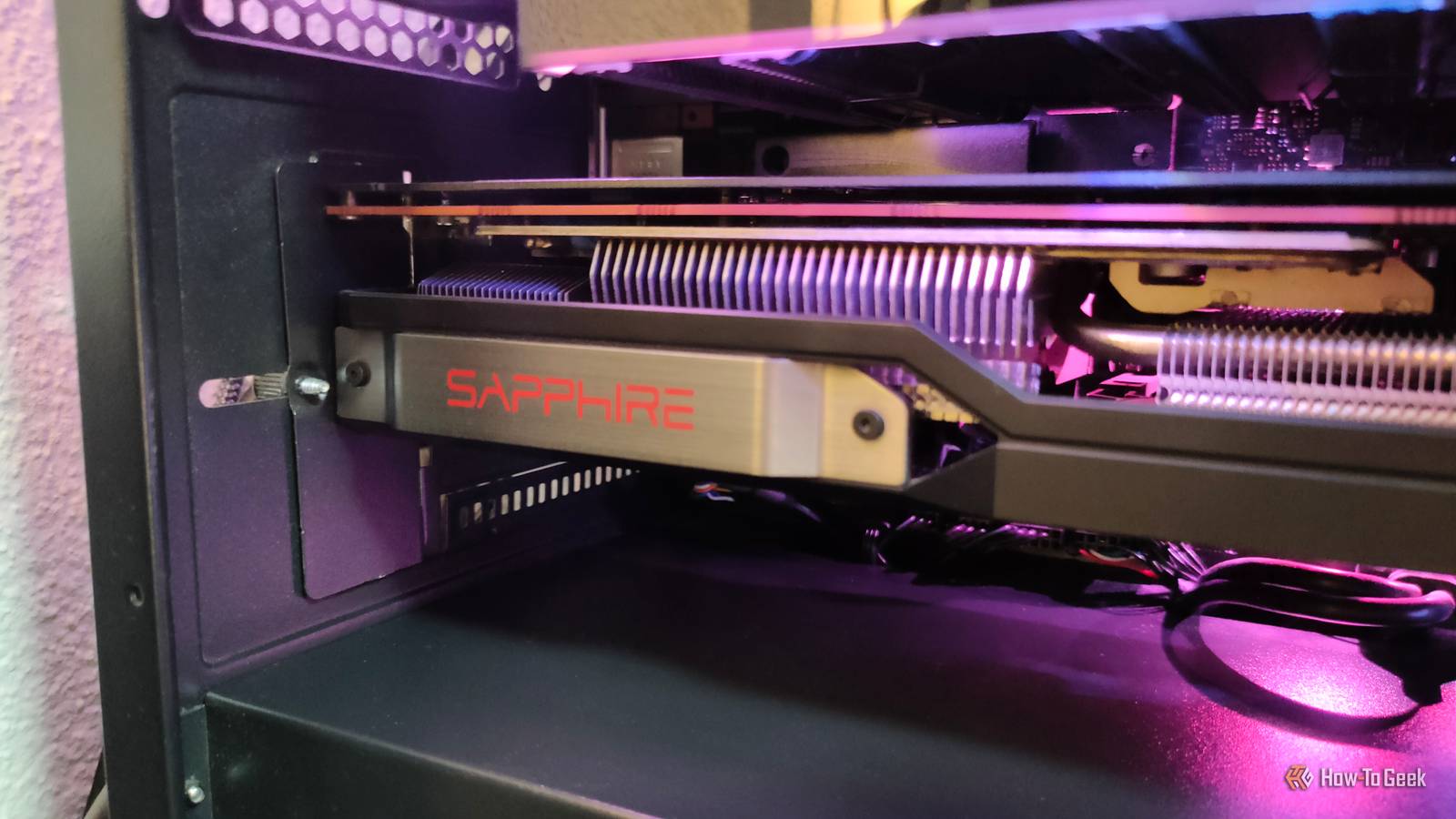
Published Sep 4, 2026, 3:00 PM EDT Monica J. White is a journalist with over a decade of experience in covering technology. She built her first PC nearly 20 years ago, and she has since built and tested dozens of PCs. PC hardware is her main beat, and graphics cards and the GPU market at large are her main area of interest, but she has written thousands of articles covering everything related to PCs, laptops, handhelds, and peripherals. From GPUs and CPUs to headsets and software, Monica's always willing to geek out over all things related to computing. Outside of her work with How-To Geek, Monica contributes to TechRadar, PC Gamer, Tom's Guide, Laptop Mag, SlashGear, Whop, and Digital Trends, among others. Her ultimate goal is to make PC gaming and computing approachable and fun to any audience. Monica spends a lot of time elbow-deep in her PC case, as she's always making upgrades, testing something, or plotting out her next build. She's the go-to tech support person in her immediate circle, so she's never out of things to do. Whenever she has spare time, you'll find her gaming until the early hours and hanging out with her dog. As I occasionally torture myself with checking GPU prices at various retailers, I'm well aware of the fact that GPUs are, indeed, still massively overpriced. Shocker. And if that's the case, why are you mistreating yours? You might be slowly killing your GPU in one of the following ways (without even realizing it). You're letting a heavy GPU sag GPUs are hefty beasts these days GPU sag is a big deal, and yet, it doesn't get talked about that much. Not everyone needs to worry about it, as some GPUs are still relatively light (the key word being "relatively"), but I'm of the opinion that it's always better to be safe than sorry. Even some relatively mainstream GPUs have ballooned in size. The RTX 5070 takes up between two and three slots, and the RTX 5090 is gigantic, with some cards taking up four (or close to it). Those larger coolers are super for temperatures, which, in turn, is handy for high-end cards. But they also put a lot more weight at the far end of the PCB, away from the PCIe slot and rear mounting screws. That's where the sag comes in. As the unsupported end of the card slowly droops downward, it puts constant stress on the GPU PCB and the motherboard's PCIe slot. A bit of sag is usually fine, but with a beefy card, I'd rather not leave it up to chance. If your GPU came with a support bracket, use it. If it didn't, you can buy one on the cheap. But many people just use pretty much whatever as a support bracket, so feel free to get creative if you want to. Acer GPU Support Bracket Acer's GPU support bracket is made out of aluminum alloy. It's durable and highly adjustable, with 0.5mm increments and a diameter of 14.7mm. You're transporting the PC with the GPU still installed A pothole turns that heavy card into a lever Credit: Ismar Hrnjicevic / How-To Geek Following up on the above point, your GPU shouldn't be left to its own devices when the PC is being transported. Carrying it to another room is obviously fine, but if you're packing it up and driving it somewhere, it's safer to remove the graphics card temporarily. The problem is that if you hit some bumps on the road, that heavy GPU may start acting like a lever. Every pothole or sudden stop can make the card flex against the PCIe slot and the rear mounting points. The heavier it is, the more force will be working against the PCB and the connector, and at that point, physical damage is very possible. I've seen cracked PCBs as a result of transporting the PC without proper precautions. If you have to move your PC, I'd recommend just removing the GPU and storing it in an anti-static bag as well as a box with padding. The disassembly is worth it—you won't have to worry about your expensive GPU. You're forcing the GPU cable into a sharp bend Give that connector some room to breathe Credit: Andrew Heinzman / How-To Geek At this point, we've all heard that some of the best GPUs may have problems related to their connector burning up. The 12VHPWR and the 12V-2x6 connector both suffer from these issues. While I know that this shouldn't be happening, the truth is that some of these problems can be self-inflicted. GPU makers have been pretty clear about the importance of proper alignment. A bent cable, or one that's not fully seated, makes issues much more likely to crop up. The fix is simple. Make sure the connector is fully seated and locked in place before you start arranging the rest of the cable. And when you shop for a case, don't be optimistic; be realistic. You need plenty of space to accommodate the humongous GPU as well as its hefty connector. You're reusing modular PSU cables because they fit Matching connectors can hide completely different pinouts Credit: Ismar Hrnjicevic / How-To Geek This is one specific, but dangerous way to damage your GPU or generally mess with your PC. If you happen to replace a modular power supply, you might notice that the old PCIe power cables still fit the unit. That's awesome—saves you a bit of time, doesn't it? Well, yeah. But don't do it. The problem is that modular PSU cables aren't universally wired the same way. While the GPU-facing connector may be standardized, the PSU-facing end can use a completely different pinout between different brands and models. The plugs may physically fit, but that doesn't mean you should use them. Reusing the wrong cable can send power to pins that were never supposed to receive it. You could end up damaging the PSU, but also the GPU, or both. It's rare, yes, but with GPU prices the way they are, I wouldn't want to risk it. You're turning the GPU fans into turbines when you clean it Hold the blades still before reaching for that compressed air Credit: Ismar Hrnjicevic / How-To Geek I don't clean my own PC often enough out of sheer laziness, but I know I should do it more often: it's a free upgrade, pretty much. However, once I do get around to cleaning it, the one thing I always look out for is making sure I'm not harming my components. Many people simply blow compressed air into their PC case, hoping for the best. Sure, it kicks some dust around, but it can also make your GPU's fans spin at a much faster rate than they were ever supposed to. All in all, a bad idea. To avoid this, hold down the fan blades when cleaning around the GPU. I do the same with all other fans in the case. GPUs can take some abuse, but try not to force them to I don't mean to paint GPUs as some fragile things that'll fall apart at the first sign of trouble. I've had lots of graphics cards over the last 20 years, and in all honesty, I've seen surprisingly few actual failures. But that's because I don't go out of my way to damage my GPU, and I recommend you do the same.
5 ways you're unwittingly killing your GPU
Full Article
Original Source
Read the full article at Howtogeek →KhanList aggregates and links to publicly available news content. We do not host full articles from third-party sources. Always verify important information with original sources.