
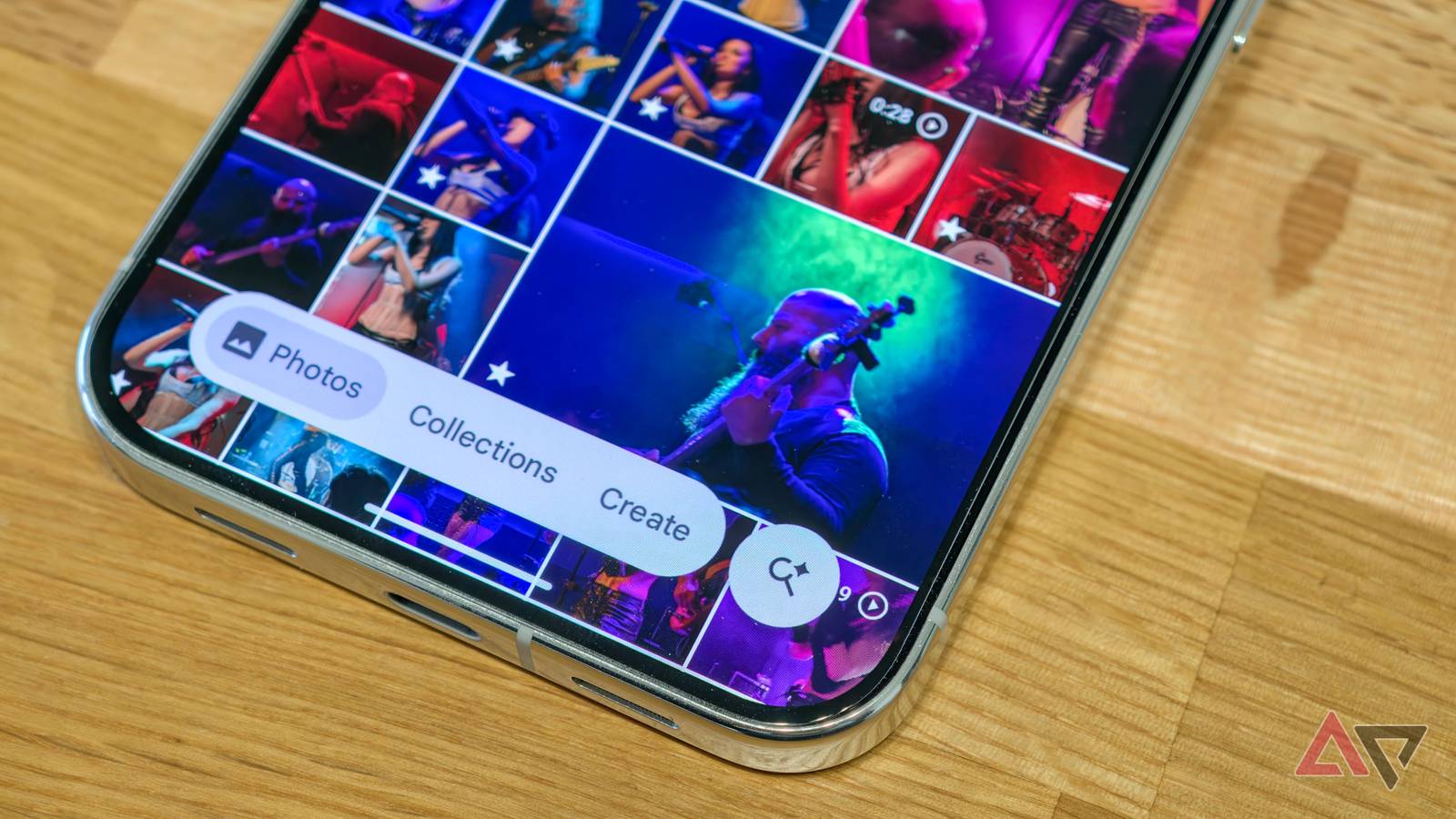
Published Nov 12, 2026, 6:30 AM EST Rita is a Senior Features Editor at Android Police. Her love story with Android started in 2010 and has been going stronger with every update, device, tip, app, and game. She's a huge Pixel fan and has spent an inordinate amount of time using and testing Google's ecosystem, apps, and services. She lives in France, speaks more than three languages, follows Real Madrid, and spends any free time she has traveling. Once upon a time, she was a pharmacist as well. Google Photos says I have more than 60,000 photos and videos in my library. I don't know if that's a lie and the app is counting duplicates, but what I do know is that I've taken an average of 4,000+ photos per year for the last five years and a lot less in the years prior. So, by my account, I should have at least 30,000 photos. What I also know is that it's nearly a full-time job to try to maintain such a massive library, and finding the right picture when I remember a moment or place is worse than searching for a needle in a haystack... ...Or it could've been if I didn't know several cool tricks to help me search my Google Photos library more efficiently and precisely. Here are my go-to tips for finding the right photo every single time after more than 10 years of digging into Google's Photos app. Use as many details as you can in your search Don't underestimate the power of a regular search When using Google Photos' built-in search, don't forget that you can type in more than a single word or a couple of words to start your query. It sounds obvious to recommend using the search function to search — ha! — but it's how you search that makes it powerful. You can be as specific as you want with your description, and the more details you add, the more likely you are to find the photo you're looking for. Location, time of day, colors, specific elements, people's names — the more you can tell Google, the better your chances are. A good example is "green trees and tall buildings at night in Lebanon," which includes two visual elements, a differentiator between day and night, and a more narrowed location. This kind of specific wording allows me to find the photo I'm looking for faster and more efficiently than if I'd just said "buildings at night." Here are examples of what you can use in your Google Photos' search wording: Names of people. Locations. Time of day. A specific month or day, or even "last month" or "last year." A visual element inside the photo, like a specific landmark, nature, animals, food, occasion, fashion, objects, etc. The type of photo, such as landscape, wide angle, or portrait. The phone or camera you shot the photo or video with, like "Google Pixel 4." (Yes, this works!) Start with a face and narrow it down with filters Use Google Photos' excellent smart filters If I'm looking for a photo featuring a friend, relative, or pet, and I know that Google Photos has already grouped all their pics, then instead of using the regular search function, I'll just head over to Collections > People & pets, find the face, and use that as a starting point. Google Photos will almost always suggest more filters to narrow these down. If this person or pet often appears with other faces in some photos, those will show up as extra filters. You may also select pics where they're alone with the "Only them" filter. Photos adds more sub-filters, too, all intelligently picked. For example, photos of my neighbor's cats can be narrowed down to only "Creations," which show the collages and animations I've saved. I can also narrow down my friend's dog pics by whether they were in a forest or a car. Photos of me or my husband, which are a much larger sample size, give me even more filters. I can filter by occasion (wedding, Easter), activity (hiking, dancing), photo detail (hugs, flowers), or only display favorites or videos or 360 shots. The location choices are limited, though, and this is why if I'm looking for a photo of someone taken in a specific place, I'll use the regular search bar in Photos instead of going through the face first. Remember these keywords for your searches One of my biggest gripes with Google Photos is the lack of a proper sorting method. Everything is displayed chronologically by the date the photo was taken. However, if I added older pics from a DSLR or another phone, I used to dig to try and find them to add them to an album or assign a specific location to them. Well, not anymore. I discovered that Photos has a hidden "Recently added" filter that only surfaces if you start typing those words in the search bar. This shows the most recent photos and videos you uploaded, no matter when they were taken. Other hidden search filters include these: Recently added Videos 360 Photos & videos Selfies Motion Photos Creations — or Animations, Collages, Cinematic Photos Document — or Receipts, Menus, Identity document, Notebook, Sticky notes, Book Cover, Posters, Business cards Screenshots Archive There are probably more smart filters, but since Google doesn't publicize these, you just have to stumble into them. After years of digging into Photos' search menus, these are the ones I've managed to find. Don't forget the Map view It's the best way to find photos taken at a specific location A year ago, I was looking for hourly car rental companies and I remembered I saw an ad for such a service on a car near Leroy Merlin in Nanterre. I could've used Photos' search to look for "car in Nanterre," but I thought I might have better luck using the map instead. Under Collections > Places, there's a View Map option that shows every photo you've ever taken on a map. You can pan, zoom in, and zoom out, so I narrowed down to the location where I'd seen that car. And look, there it was, the photo with the rental service's name and website. Google Photos' map is also invaluable if someone asks me for travel recommendations. I zoom in on the city or country, and scroll through the photos to remember what I did and enjoyed. Manual albums help, too, but they might require hopping between different albums to find the right recommendation. The map, instead, doesn't. Use emoji to search in Photos Yes, really, it works! One trick Google Photos search has had for several years is the ability to use emoji to narrow down your searches. I've often used the 😎 or 🍦 emoji to do a quick search instead of typing long words, and it works surprisingly well. You can also mix and match multiple emoji to narrow down the search to an exact photo. For example, "🐟 🏖️" surfaces the photos of aquarium fish I've taken, but also pics of fish meals I've had near the beach, and it also finds this photo of a seal beach sign in Oostende. And don't forget that you can always turn on or off the AI search with the toggle at the top left, so if one search doesn't yield the right results, the other might. In the case of emoji searches, I've found that disabling AI works better and gives me more relevant results. Google Photos is the story of my life, and it needs to be searchable We all have different relationships with photos. I grew up with my parents printing physical photos and family albums from every event and outing. When digital photography became widespread, I moved on and soon, Google Photos became a repository of my life. Besides displaying these pics on my Nest Hub and Chromecast, the ability to search and scroll through older pics on Google Photos is my way to revisit or reference interesting moments, places, and memories. It has to be fast, though, and these tricks have helped me make it more efficient.
5 tricks I use to search through my massive 60,000 Google Photos library
Full Article
Original Source
Read the full article at Androidpolice →KhanList aggregates and links to publicly available news content. We do not host full articles from third-party sources. Always verify important information with original sources.