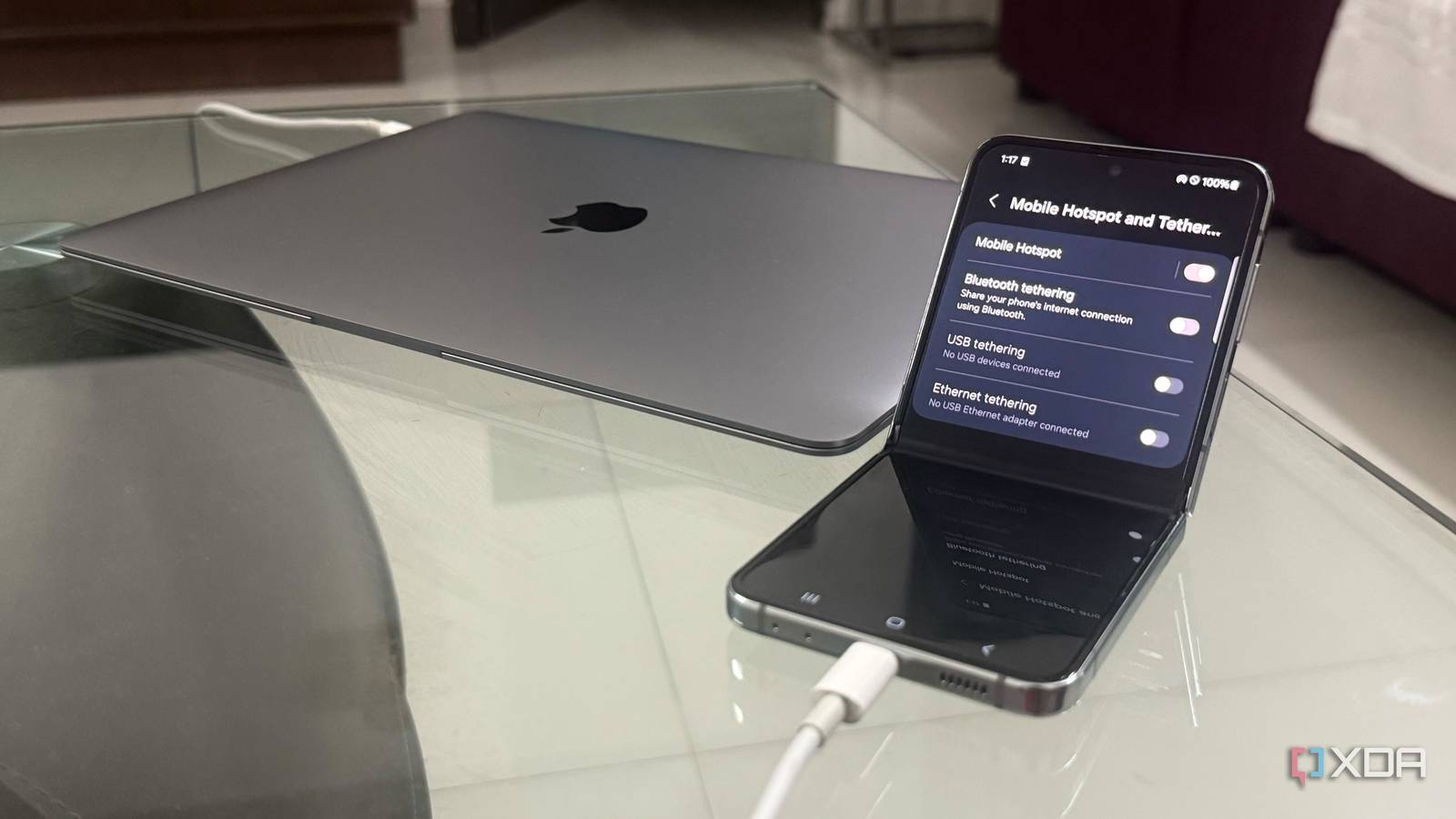
Published Jul 20, 2026, 10:00 AM EDT Hamlin has been in the tech field for over nine years. Since 2017, his work has appeared on MakeUseOf, Android Police, OSXDaily, Beebom, and more. He served as the Senior Editor at Valnet's MakeUseOf for over two years before joining XDA. He uses a high-end gaming rig for desktop use and a MacBook for traveling, but dislikes some of the quirks of macOS. You're more likely to catch him at the gym or on a flight than anywhere else. I've been using the Galaxy Z Flip 5 as my secondary phone since I bought it in 2023, but lately, especially after its flex cable broke and started causing it to shut down whenever I folded it, I've had to rethink how I use it. Spending hundreds of dollars on a repair didn't make much sense when I already use an iPhone 16 Pro Max as my daily driver. At the same time, I didn't want to throw away a phone that still worked perfectly fine as long as I left it unfolded. That's why I decided to use it as a dedicated hotspot device instead. I already had a SIM card in it and was paying for a mobile plan anyway, so there wasn't much point in letting it sit there doing nothing. You could argue that I can just use my iPhone, but I'd rather not drain its battery and charge it multiple times a day. Having a second phone that's always ready to keep my PC online has proven useful several times over the last year, especially since my ISP performs scheduled maintenance every month on top of the occasional outage. Wi-Fi hotspot I know most of you aren't surprised to find this at the top of my list because it's easily the quickest to get back online when there's a sudden outage or a scheduled maintenance window. I don't need to go looking for a cable, and since my phone is almost always on my desk, I just need to go to Settings -> Connections -> Mobile Hotspot and Tethering and toggle on Mobile Hotspot. A few seconds later, it appears in the list of available Wi-Fi networks on my PC, just like my home router would. I use it so often that I don't even need to enter the password manually anymore. That said, I've configured the hotspot to prioritize performance over compatibility, so it uses the 5GHz band instead of 2.4GHz. Since my phone sits right next to my PC, I don't need the extra range that 2.4GHz provides anyway. In fact, I also use this method to get my iPad and MacBook online whenever my fiber connection goes down. Being able to connect almost any device that supports Wi-Fi without plugging in anything is the real advantage here. USB tethering A cable doesn't hurt when I care about latency Although a wireless hotspot is unbeatable for convenience, there are times when I just want to avoid Wi-Fi. For instance, if my internet goes down when I'm playing Valorant, I'm not going to use the mobile hotspot feature on my phone. Sure, that'll still let me get back online and play the game, but I've noticed my ping is around 7-10ms higher compared to USB tethering. That's the last thing I want when I'm trying to rank up, because every millisecond counts when you're playing competitively. So I'd rather take an extra minute to grab a USB cable than deal with a higher ping for the entirety of the game. It's not like it's hard to set up in the first place. All I have to do is enable USB tethering under the same Mobile Hotspot and Tethering menu, and Windows recognizes it as a wired network connection almost instantly. If I'm only trying to get my desktop back online, plugging in a cable isn't really a trade-off. Plus, I can still use the Wi-Fi hotspot at the same time to get my iPad or MacBook online if I need to. Ethernet tethering An unconventional option most people don't know about I'll admit that I almost never use this method because it's no different from USB tethering, except for the fact that you need a USB-C to Ethernet adapter and an Ethernet cable. I know there's no need to complicate things when a single USB cable does the same job. But what if the device doesn't have a USB-C port or doesn't support USB tethering? Sure, I could just use a Wi-Fi hotspot, but if I'd rather stick with a wired connection, Ethernet tethering is a surprisingly handy alternative. For instance, my LG C8 OLED TV is one device where Ethernet tethering actually makes sense because USB tethering isn't an option. I can simply connect my phone to the TV's Ethernet port and continue streaming without relying on Wi-Fi. I don't remember the last time I used this method because it's so inconvenient, but I still like knowing I have an option. You can find USB-C to Ethernet adapters for as low as $10, so it's a pretty inexpensive accessory to keep around for those rare situations. TP-Link USB to Ethernet Adapter While its main purpose is to add an Ethernet port to devices without it, like modern laptops, you can also use it to connect your phone via Ethernet tethering for a more stable internet connection, especially on devices that can't use USB tethering. This is why I haven't traded in my old phone yet Until my Z Flip 5's flex cable started causing problems whenever I folded and unfolded it, I was mostly using it as an NFC wallet. Even after getting the iPhone, I never bothered trading it in because it was still perfectly functional besides the folding mechanism. I don't want it to collect dust when it can still do something useful, like helping me stay online when my ISP decides to ruin my evening. I'll probably keep using it as my dedicated hotspot device until its battery gives up.
3 simple ways I turned my old Android phone into a backup internet lifeline
Full Article
Original Source
Read the full article at Xda-developers →KhanList aggregates and links to publicly available news content. We do not host full articles from third-party sources. Always verify important information with original sources.