
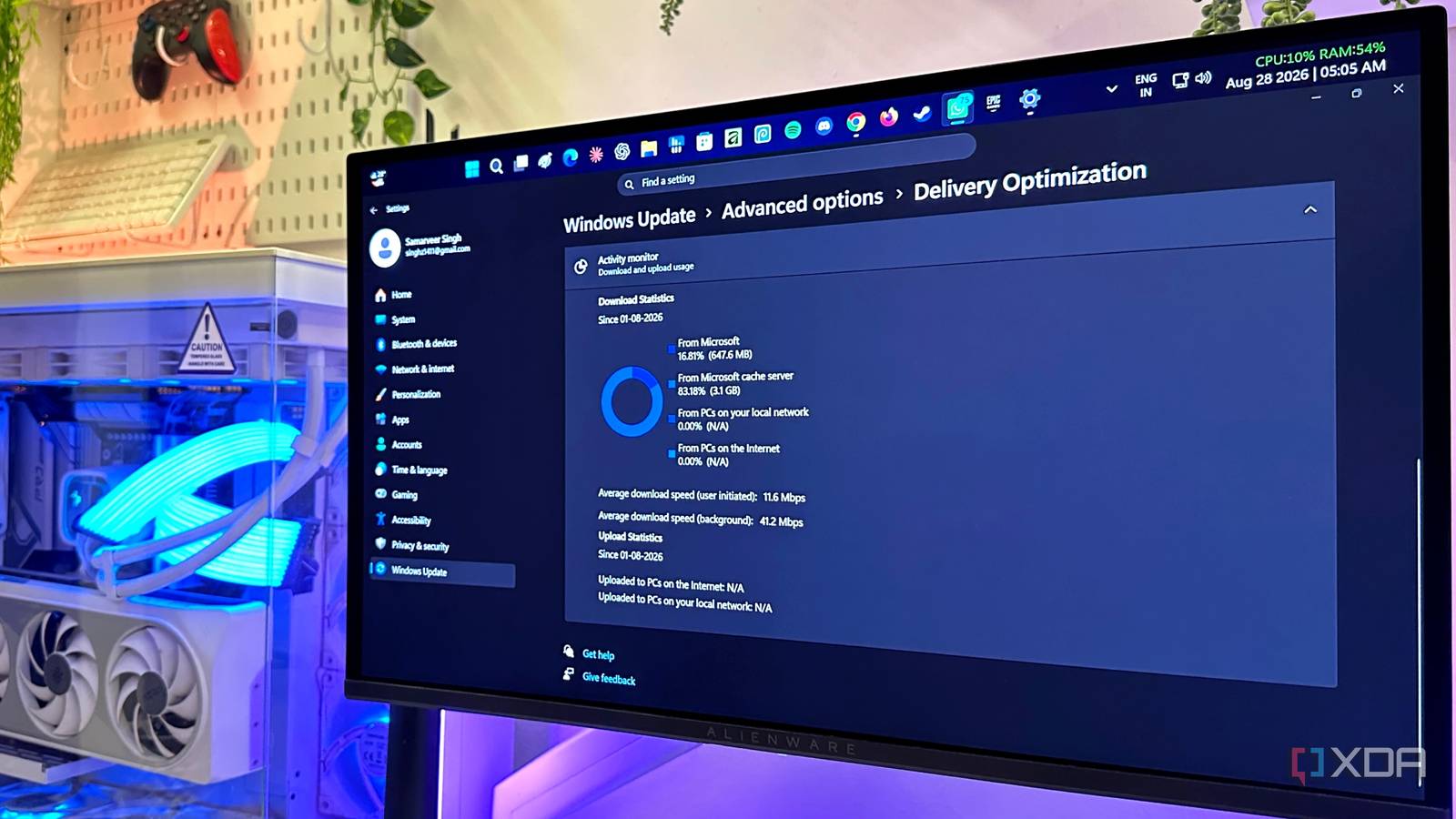
Published Sep 3, 2026, 8:00 PM EDT Gaming has been Samarveer’s greatest passion, and the Literature graduate in him takes immense joy in dissecting games for their themes, messages, and impact. Samarveer holds a deep appreciation of gaming, and considers the platform to be the most immersive and impactful across all media. He can be found engaging with gaming communities online, always ready to debate the finer points of ray tracing or itching to write an 8-page collegiate thesis on any game that impacts him emotionally. For all the things it does right, Windows 11 also has a pesky habit of making decisions for you that you don't necessarily remember agreeing to. Some are harmless enough, while others quietly change how your PC behaves in the background. Somewhere in the middle of these two areas falls Delivery Optimization. Microsoft designed it to make Windows updates faster and more efficient by allowing your PC to get update files from other computers instead of relying entirely on Microsoft's servers. The catch, however, is that this works both ways. Peer-to-peer sharing is enabled by default. On current versions of Windows, it means that your PC can share update data with other devices on your local network. It won't, by default, upload Microsoft's updates to random PCs on the internet, but there's a separate setting that allows it to do exactly that. Microsoft doesn't get to rummage through your personal files, but this feature does use your bandwidth to help deliver its updates to someone else. Delivery Optimization isn't quite what you think Your PC isn't sharing your personal files Delivery Optimization is Microsoft's peer-to-peer system for getting Windows updates onto PCs without making every machine pull everything directly from Microsoft's servers. Windows can download pieces of an update from Microsoft's CDN (content delivery network) and other eligible peers at the same time. That is particularly useful when millions of PCs are all trying to update at once. On paper, this means fewer trips to Microsoft's own servers, leading to less congestion and potentially faster downloads — "potentially" being the operative word here. Almost a decade ago, Microsoft had automatically made it so that your updates could be shared with peers on the internet on Windows 10 Home and Pro versions, but that is no longer the case. On Windows 11, this is an entirely opt-in feature, and even then, it doesn't mean that your OS becomes a mini torrent client for your hard drive. Delivery Optimization deals with update content, and not documents, photos, games, or that folder named "Study Material." The downloaded pieces are also vetted before Windows uses them, so a corrupted or tampered-with chunk isn't accepted just because another PC sent it. So far, this sounds fairly sensible — and it is. The interesting bit is who Windows considers an "eligible peer" because "other devices" can mean something considerably narrower than the internet at large. That's where the setting most people never touch becomes important. The setting, by default, is a lot less dramatic than you might think On current versions of Windows, Delivery Optimization's peer-to-peer functionality is enabled by default, but there's an important catch: the default is LAN-only. In other words, your PC can exchange update data with eligible devices on your local network, not random computers belonging to strangers somewhere on the internet. The setting Microsoft documents as the default is "Devices on my local network." Now, Windows does offer a "Devices on the internet and my local network" option, and that is what can expand peer sharing beyond your network. This is the setting you should check if you don't want your PC to participate in Microsoft's wider peer-to-peer network. Even if you might not have turned this on by default, it's possible for organizational policies or an older configuration to change this default behavior and turn it on. Still, there is a solid reason to turn peer sharing off entirely, even if it's restricted to the local network. A single-PC household has little to gain from sharing updates with other devices on the same network, while anyone with a restrictive upload allowance may prefer not to donate bandwidth they could otherwise be using. How to take control of Delivery Optimization Check the setting before you blame your bandwidth Firstly, head to Settings > Windows Update > Advanced options > Delivery Optimization. Here, look for "Allow downloads from other devices." If you want peer-to-peer sharing gone entirely, turn it off completely. But if you don't mind sharing with PCs on your own local network, you can leave it enabled. Just make sure that "Devices on my local network" is the option you've selected. The internet option is the one to avoid if you don't want your PC exchanging update data with machines outside your network. For anyone who prefers numbers to reassuring toggles, Microsoft's underlying modes make the distinction clearer. 0 means Microsoft only, 1 means local network, 2 means a local Group, and 3 means internet plus local network. Current Windows installations use Mode 1 by default, so seeing the toggle enabled doesn't automatically mean your PC is uploading to the internet. Group Policy Editor is only available if you are running a Windows Pro, Enterprise, or Education edition. You can also control the Delivery Optimization settings of your version of Windows through Group Policy, where the DownloadMode registry value exposes the same underlying setting. That's useful if you want the choice enforced rather than trusting that nobody will change it later. Search for "group policy" in the Windows Start menu, and click on "Edit group policy." Head to Computer Configuration > Administrative Templates > Windows Components > Delivery Optimization > Download Mode to see what yours is set to. And there's a simple way to see what Windows is actually doing: open Delivery Optimization > Activity Monitor. It shows download and upload activity, including peer traffic. If the internet upload figures are empty, you have nothing to worry about, since it means that your PC is sitting comfortably in the LAN-only default. Windows 11 Pro A USB installation drive and license key for Windows 11 Pro, with additional features like Hyper-V and Windows Sandbox support. The default definitely deserves a second look sometimes It's always a good idea to know where these settings and their toggles are on your PC. Settings like these aren't necessarily malicious, invasive, or unreasonable. They are just decisions made on your behalf until you have a reason to wonder what your PC is actually doing. They're easy to ignore, and especially so when everything appears to work exactly as it should. This, in no way, means that you need to hunt down and disable every Windows background feature immediately, either. However, it's always a good idea to know what these switches control and where they are on your PC. And when a setting involves your network, your bandwidth, or your hardware doing work you didn't realize it was doing, having the choice to turn it off is definitely worth the few seconds it takes to check.
Your Windows 11 PC uploads your update files by default, but one setting controls where they go
Full Article
Original Source
Read the full article at Xda-developers →KhanList aggregates and links to publicly available news content. We do not host full articles from third-party sources. Always verify important information with original sources.