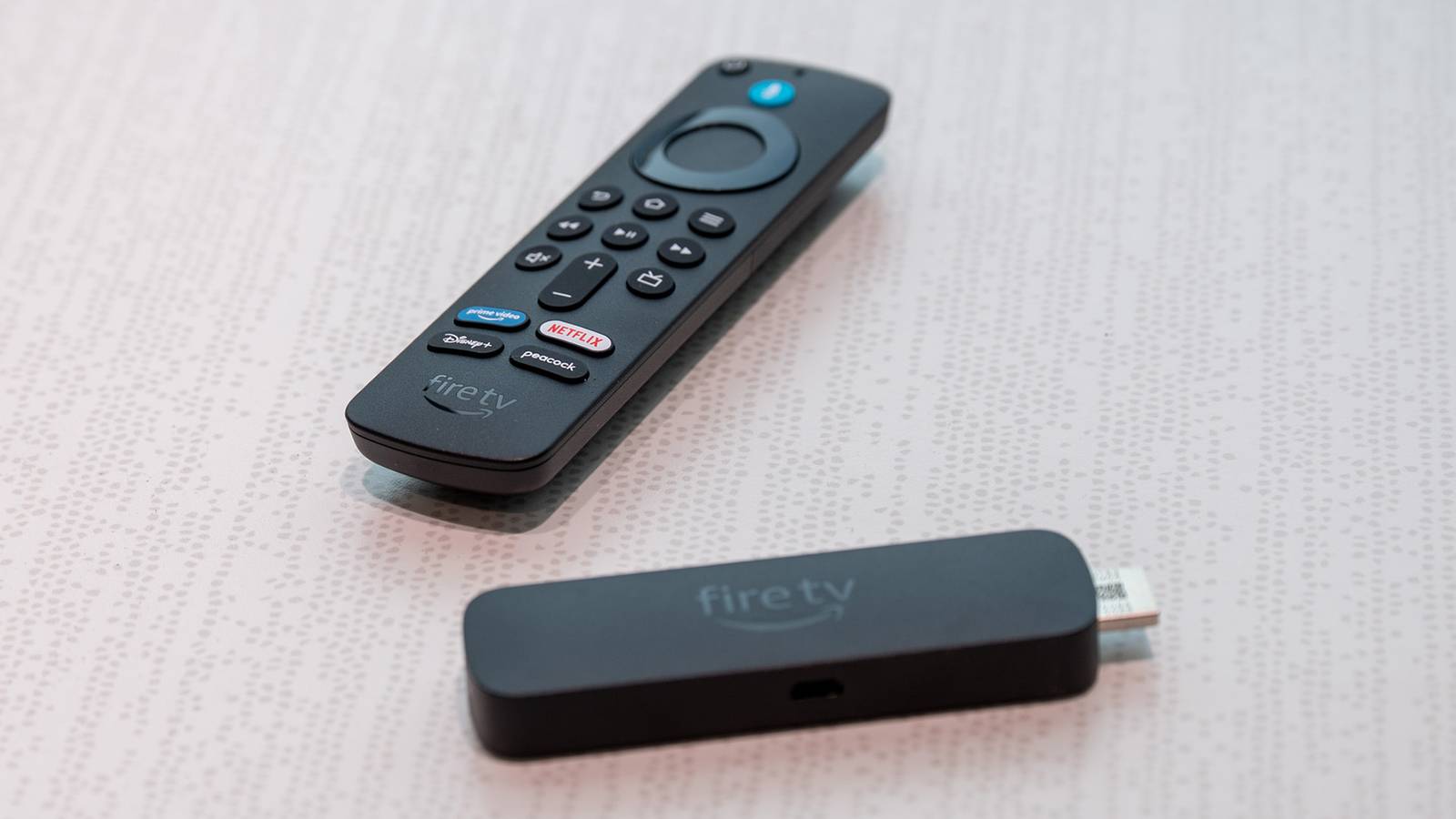
Published Aug 2, 2026, 8:00 AM EDT Arol is a tech journalist who currently works as a contributor at How-To Geek since 2022. He first began writing online for the short-lived portal of Spanish-language gaming forum Emudesc in 2013. Years later, in 2017, he got his true start in tech journalism working for a small Google-focused site called Pixel Spot. He transitioned to a news and feature writer role at XDA Developers that same year, where he worked until 2021 before making the jump to other websites. Arol brings nearly a decade of writing experience, and the occasional hot take, to his writings. While he's a technology lover at heart, he holds computer hardware and smartphones particularly close to heart. You'll normally find him covering news, although he has also written the occasional deal, buyer's guide, how-to post, and round-up. He's also written for Android Police and MakeUseOf. He's also a Political Science student. When he's not writing, you'll probably find him hitting the gym, trying to ace a new hobby, reading his textbooks, or traveling. You can reach him at me@arolwright.com. Streaming 4K HDR content through a browser on your PC almost never delivers what you're paying for. Here's why moving playback to a dedicated streaming device fixes the problem entirely. How DRM works Why your browser keeps losing the security handshake Every major streaming service relies on digital rights management to control how its video content gets decoded and displayed, and the DRM system is the root of the browser problem. Netflix, Amazon Prime Video, and Disney+ all use Widevine or PlayReady DRM schemes, which assign different security tiers depending on the hardware and software decoding the stream. On Windows, browsers like Chrome and Edge typically only qualify for Widevine L3, the lowest security tier, which caps playback at 1080p regardless of your monitor, internet speed, or subscription plan. To unlock 4K and HDR, a device needs to support Widevine L1, which requires hardware-level decryption rather than software-based decoding. This is where things get messy on PC, since L1 support depends on a tightly controlled combination of CPU, GPU drivers, and operating system features like Microsoft's PlayReady hardware DRM, and even when all the pieces are technically present, browsers frequently fail to negotiate the handshake correctly. Streaming services also actively probe for screen recording software, virtual machines, or unsigned drivers and will silently downgrade quality rather than display an error, leaving most people unaware they're watching a degraded picture. Dedicated streaming devices sidestep all of these issues because their entire software and hardware stack is built and certified by the manufacturer specifically to satisfy L1 requirements. There's no patchwork of browser extensions, GPU drivers, or OS updates to keep aligned, so the DRM handshake succeeds consistently. Why it's better on a Fire TV Stick A closed, certified stack that just works every time A Fire Stick, or similar dedicated streaming hardware like a Chromecast or Apple TV, ships with a fixed, certified software environment that's purpose-built to handle DRM and video decoding correctly every time. Amazon's Fire TV OS runs on hardware specifically validated for Widevine L1, meaning 4K HDR content plays at full quality the moment you open Netflix or Prime Video, with no configuration required on your part. This consistency comes from the device's closed nature. Unlike a PC, where Windows updates, browser updates, and GPU driver updates all move independently and can break DRM compatibility without warning, a Fire Stick's entire stack is controlled by Amazon and updated as a single, tested package. Quiz8 Questions · Test Your KnowledgeAmazon Fire TV StickTrivia challengeThink you know your streaming stick inside and out? Put your Fire TV knowledge to the test.SetupFeaturesHardwareAppsHistoryBeginIn what year did Amazon first release the original Fire TV Stick?A2012B2013C2014D2015Correct! Amazon launched the first Fire TV Stick in November 2014, offering a more affordable alternative to the full-sized Fire TV box. It plugged directly into an HDMI port and quickly became one of Amazon's best-selling devices.Not quite. The original Fire TV Stick was released in November 2014. It came out about seven months after the original Fire TV box and was positioned as a budget-friendly streaming option for cord-cutters.ContinueHow does the Amazon Fire TV Stick connect to your television?AUSB-A portBDisplayPortCComposite AV portDHDMI portCorrect! The Fire TV Stick plugs directly into an HDMI port on your TV. This is what gives it its distinctive stick shape, and it draws power via a separate Micro-USB or USB-C cable depending on the model.Not quite. The Fire TV Stick connects via HDMI, which is why it has that signature dongle shape. It also requires a power cable — either Micro-USB or USB-C — to function, as HDMI alone doesn't supply enough power.ContinueWhich voice assistant is built into the Amazon Fire TV Stick remote?AGoogle AssistantBSiriCAlexaDCortanaCorrect! Amazon's own voice assistant, Alexa, is integrated into the Fire TV Stick remote. You can use it to search for content, control playback, check the weather, and even control smart home devices.Not quite. The Fire TV Stick uses Alexa, Amazon's proprietary voice assistant. Pressing and holding the microphone button on the remote lets you speak commands, making it easy to find shows or control compatible smart home gadgets.ContinueWhat type of network connection does the standard Fire TV Stick use to stream content?AEthernet (wired)BBluetooth onlyCWi-FiDCellular LTECorrect! The standard Fire TV Stick relies on Wi-Fi to stream content. Unlike some competitors and the Fire TV Cube, the basic stick does not include a built-in Ethernet port, though adapters are available.Not quite. The standard Fire TV Stick uses Wi-Fi for its internet connection. If you need a wired Ethernet connection for a more stable signal, you would need a separate Ethernet adapter or consider upgrading to the Fire TV Cube.ContinueWhat is the maximum streaming resolution supported by the Fire TV Stick 4K Max?A1080p Full HDB2K (1440p)C4K Ultra HDD8K Ultra HDCorrect! The Fire TV Stick 4K Max supports streaming up to 4K Ultra HD resolution. It also supports HDR formats including Dolby Vision, HDR10+, and HLG, delivering excellent picture quality on compatible TVs.Not quite. The Fire TV Stick 4K Max tops out at 4K Ultra HD resolution. It also supports advanced HDR formats like Dolby Vision and HDR10+, making it one of the most capable streaming sticks in Amazon's lineup.ContinueWhich app store is used to download streaming apps on a Fire TV Stick?AGoogle Play StoreBApple App StoreCAmazon AppstoreDSamsung Galaxy StoreCorrect! Fire TV Stick uses the Amazon Appstore to download apps and games. Because it runs a forked version of Android, the Google Play Store is not available, though many popular streaming apps like Netflix and Disney+ are still offered.Not quite. The Fire TV Stick uses the Amazon Appstore, not the Google Play Store. While the device runs a modified version of Android, Amazon's ecosystem replaces Google's, so you browse and install apps through Amazon's own storefront.ContinueWhich of the following audio formats is supported by the Fire TV Stick 4K for enhanced surround sound?ADolby AtmosBDTS:X ProCTHX Spatial AudioDSony 360 Reality AudioCorrect! The Fire TV Stick 4K supports Dolby Atmos, which delivers immersive three-dimensional surround sound. You'll need a compatible soundbar or AV receiver to experience the full effect, but it's a significant audio upgrade over standard surround sound.Not quite. The Fire TV Stick 4K supports Dolby Atmos for immersive audio. While the other options are real audio technologies, Dolby Atmos is the surround sound format officially supported and promoted by Amazon on its 4K Fire TV devices.ContinueWhat feature introduced in the Fire TV Stick 4K Max (2nd generation) allows for faster app switching and smoother performance?ATurbo ModeBWi-Fi 6E supportCDual-core processingDCloud Boost technologyCorrect! The second-generation Fire TV Stick 4K Max introduced Wi-Fi 6E support, which provides faster wireless speeds and reduced interference compared to older Wi-Fi standards. This results in smoother streaming and quicker load times when your router also supports Wi-Fi 6E.Not quite. The headline new feature of the second-generation Fire TV Stick 4K Max was Wi-Fi 6E support. This next-generation wireless standard operates on the 6 GHz band, reducing congestion and enabling faster, more reliable streaming performance than previous models.See My ScoreChallenge CompleteYour Score/ 8Thanks for playing!Try Again There's also a meaningful difference in how video decoding gets handled at the hardware level. Fire Sticks use dedicated media decoder chips designed specifically for tasks like HEVC and AV1 decoding, the codecs most 4K HDR content relies on, while a general-purpose PC depends on its GPU correctly offloading that work, which doesn't always happen inside a browser tab. The practical result is that audio passthrough for formats like Dolby Atmos works reliably, HDR tone mapping is handled correctly by the TV or monitor instead of being flattened by the browser, and there's no risk of a streaming service silently downgrading your resolution because it detected an unapproved environment. Setup is also simpler, as a bonus. Most monitor owners will find the upgrade genuinely worthwhile Credit: Goran Damnjanovic / How-To Geek For anyone who regularly watches 4K HDR content on a monitor rather than a smart TV, adding a Fire Stick is a small investment that solves a frustrating and often invisible problem. The device itself costs relatively little, and setup takes only a few minutes, which makes the trade-off heavily favor people who already own a 4K monitor and have been unknowingly watching downgraded streams through a browser. That said, it isn't a universal recommendation. If you're primarily watching 1080p content, or if your monitor doesn't support HDR in the first place, the benefits shrink considerably, since there's no quality ceiling being hit in the browser to begin with. It's also worth noting that some PC configurations, particularly those using Intel CPUs with integrated graphics and a fully updated Windows installation, can achieve proper L1 DRM playback through apps like the Netflix or Prime Video Windows apps rather than a browser, which may be a viable middle ground for people who want to avoid extra hardware entirely. Fire TV Stick 4K Operating System FireOS Resolution 4K RAM/storage 8GB Connectivity Wi-Fi 6, Bluetooth 5.2 Dimensions 108 mm x 30 mm x 14 mm Integrations Amazon Alexa A step up from the Fire Stick TV Lite is the Fire Stick TV 4K. It offers a Dolby Vision upgrade and TV controls on the Alexa remote. But this path requires more troubleshooting and isn't guaranteed to work consistently across every service. For most people, the simplicity of a dedicated streaming device outweighs the effort of chasing proper hardware decoding configurations on a PC. An extra HDMI input and a few feet of cable are a small price for consistently getting the resolution and HDR quality you're already paying your streaming subscriptions for. Stop blaming your browser for 4K limits The real culprit behind blurry streams isn't your internet or monitor—it's DRM certification gaps in browsers. A Fire Stick sidesteps the issue entirely, delivering the 4K HDR quality you're already paying for.
Your web browser is ruining 4K movies: Why I plugged a Fire TV Stick into my monitor instead
Full Article
Original Source
Read the full article at Howtogeek →KhanList aggregates and links to publicly available news content. We do not host full articles from third-party sources. Always verify important information with original sources.