
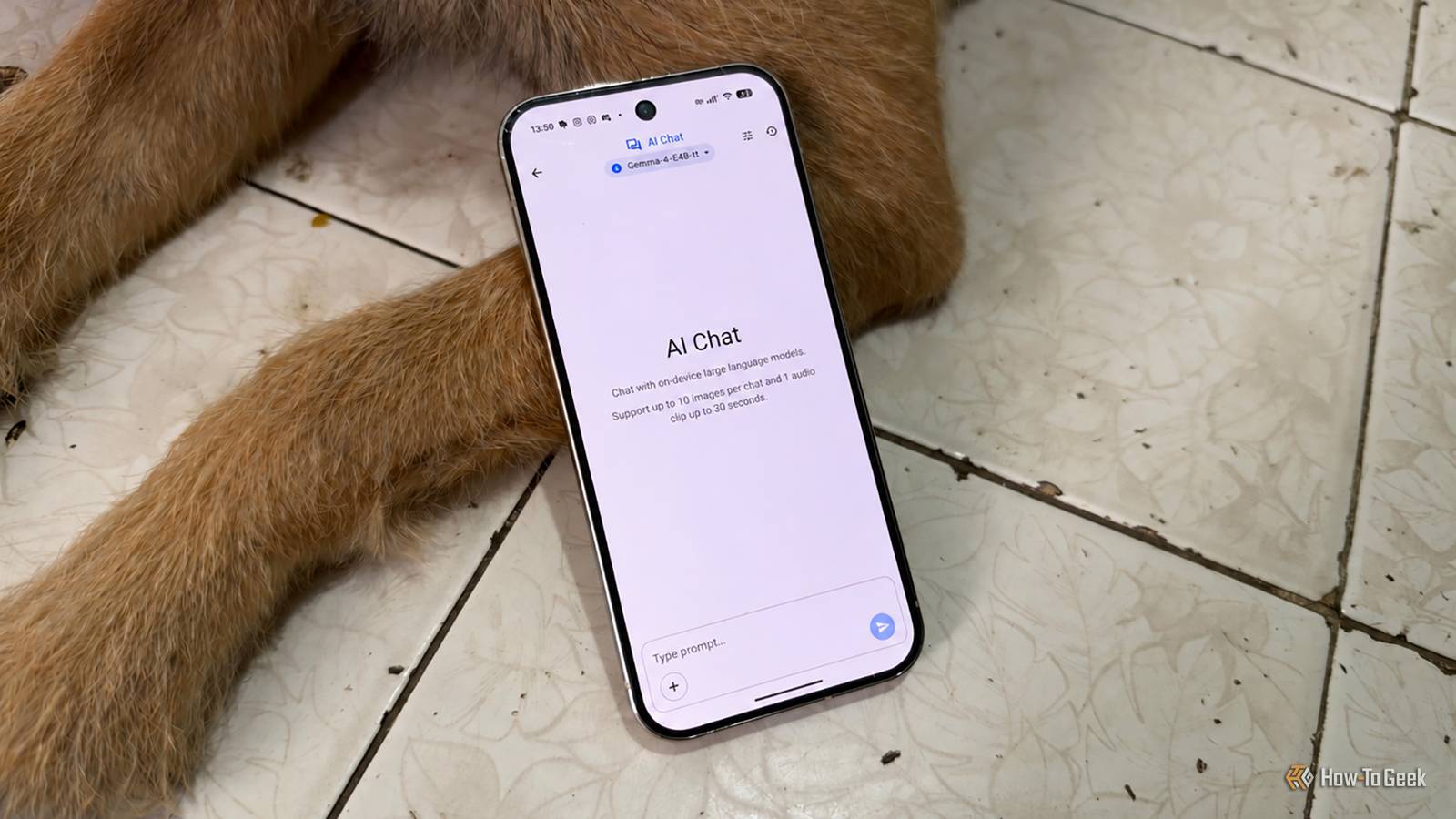
Published Oct 29, 2026, 9:01 AM EDT Arol is a tech journalist who currently works as a contributor at How-To Geek since 2022. He first began writing online for the short-lived portal of Spanish-language gaming forum Emudesc in 2013. Years later, in 2017, he got his true start in tech journalism working for a small Google-focused site called Pixel Spot. He transitioned to a news and feature writer role at XDA Developers that same year, where he worked until 2021 before making the jump to other websites. Arol brings nearly a decade of writing experience, and the occasional hot take, to his writings. While he's a technology lover at heart, he holds computer hardware and smartphones particularly close to heart. You'll normally find him covering news, although he has also written the occasional deal, buyer's guide, how-to post, and round-up. He's also written for Android Police and MakeUseOf. He's also a Political Science student at the Central University of Venezuela, and a proud member of student movement Àgora UCV. When he's not writing, you'll probably find him hitting the gym, trying to ace a new hobby, reading his textbooks, or traveling. You can reach him at me@arolwright.com. Running a capable language model entirely offline used to mean owning a powerful desktop. That assumption no longer holds. On my hardware, a phone app from Google runs the same model noticeably faster than Ollama does on my PC, and the reasons are more interesting than you might expect. Using a local LLM on my smartphone Google’s experimental app makes offline AI genuinely practical Google AI Edge Gallery is the app that changed my mind about on-device AI. It’s a free, open-source project from Google, released under the Apache 2.0 license, and it’s available on both the Play Store and the App Store. It began life as a sideloaded APK on GitHub, and while it still carries an experimental label, it has matured into something you can actually use day to day rather than a tech demo you open once and forget. The premise is simple. You browse a list of open models, including Google’s own Gemma 4 family, download the ones your phone can handle, and run them locally on the device’s CPU or GPU. Some models are hosted on Hugging Face and ask you to sign in and accept a license before downloading, but once a model is on your phone, you don’t need a connection at all. Your prompts never leave the device, which is the whole point for anyone who cares about privacy. On both my Google Pixel 9 Pro and my iPhone 18 Pro Max, I’ve been running Gemma 4 E4B for a few tasks here and there, and the experience is far smoother than I expected. Responses start appearing almost immediately, and the text streams at a pace that feels close to a cloud chatbot, sometimes even faster. Beyond plain chat, the app can describe images, transcribe and translate audio recordings, and, with supported models, show its step-by-step reasoning before giving an answer. It isn’t flawless. Larger models eat storage. Each download runs into the gigabytes, and the app occasionally stalls while loading a model. Phones with less RAM are limited to the smaller options. Still, the first time I asked a question in airplane mode and got a coherent, fast answer, it was clear that the phone in my pocket was doing something my PC was struggling with. Why the same LLM on Ollama is much, much slower Memory bandwidth and GPU support decide the outcome Ollama is the go-to tool for running local models on a computer, and it does it well. Installing it takes minutes, pulling a model is a single command, and it works across Windows, macOS, and Linux. Yet when I loaded the same exact Gemma 4 E4B model on my PC, which has a Ryzen 9 5900X, an Nvidia RTX 3070 GPU, and 32GB of RAM, generation crawled and took several seconds longer, and in some cases even minutes longer, than on my phone. The gap wasn’t subtle. The biggest factor is memory bandwidth. Generating text is less about raw processing power than about how quickly the hardware can shuttle model weights from memory to the chip doing the math. Every token requires reading through a large chunk of the model, so the speed of that pipe sets the ceiling. Modern flagship phones use fast LPDDR5X memory that’s shared between the CPU, GPU, and neural hardware on a single chip, which keeps that pipe short and wide. An older desktop running dual-channel DDR4 can end up with less usable bandwidth than a current phone. GPU support is the second factor. Ollama officially supports Nvidia cards with CUDA compute capability 5.0 or newer, and AMD cards through ROCm, which doesn’t cover every Radeon model. Other GPUs can fall back to Vulkan support, but when Ollama can’t use the graphics card properly, or when the model doesn’t fit entirely in video memory, the work spills over to the CPU. That’s when performance falls off a cliff, because a desktop processor working through system RAM simply can’t keep up. There’s also the software itself. The models in AI Edge Gallery are packaged for Google’s LiteRT runtime and tuned specifically for mobile chips, with aggressive quantization that keeps memory demands low. Ollama is built to run on almost anything, and that flexibility comes with less hardware-specific tuning. A model optimized for the exact silicon it’s running on will usually beat a general-purpose setup on aging hardware. Your mileage may vary A modern GPU easily flips the result back None of this means phones have overtaken PCs as AI machines. My experience says more about the age of my computer than about the limits of desktops in general. If you have a recent graphics card with plenty of video memory, Ollama will almost certainly run the same model much faster than any phone can, and it will let you run far larger models that would never fit on a handset. A current Nvidia card with 12GB or more of VRAM can hold a mid-sized model entirely in its own memory, and dedicated graphics memory offers bandwidth that phone chips can’t match. Apple Silicon Macs are another strong case, since Ollama uses the Metal API for GPU acceleration and those machines share fast unified memory between the CPU and GPU, much like a phone but on a larger scale. In either scenario, the bottlenecks I ran into largely disappear. The comparison also depends heavily on which phone you own. A recent flagship with a top-tier chip and lots of RAM is a very different proposition from a midrange model or a phone that’s several years old. Results reported for AI Edge Gallery vary widely between devices, even among current high-end phones, and the app’s built-in benchmark is the easiest way to see where yours lands before drawing any conclusions. It’s worth checking your setup before blaming Ollama. Running ollama ps shows whether a loaded model is sitting on the GPU, the CPU, or split across both. If you see CPU in that output, a driver update, a smaller model, or a more aggressive quantization may close much of the gap. Testing both on your own hardware is the only way to know which wins for you, and the answer may surprise you. Older PCs lose this race to modern phones On aging desktops, a flagship phone running Google AI Edge Gallery can outpace Ollama thanks to fast unified memory and mobile-tuned models. Newer PCs with capable GPUs still win comfortably, so the real lesson is to benchmark your own hardware before assuming the desktop is faster.
Your smartphone might be better at running local LLMs than your PC—mine certainly is
Full Article
Original Source
Read the full article at Howtogeek →KhanList aggregates and links to publicly available news content. We do not host full articles from third-party sources. Always verify important information with original sources.