
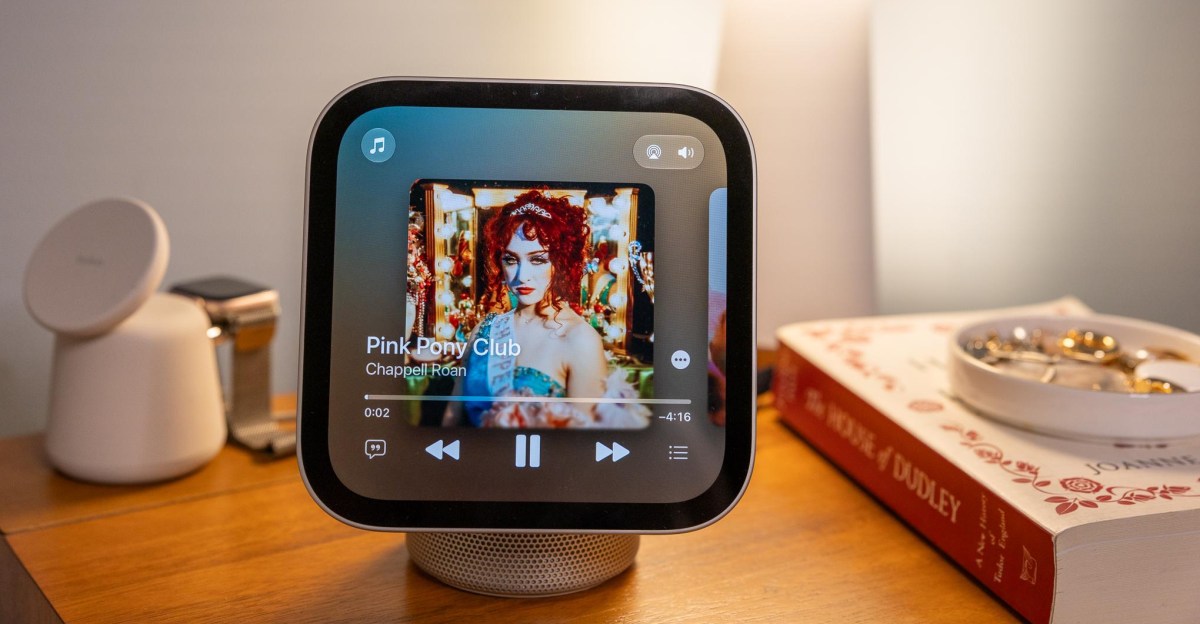
After I published my review of the HomeView, Apple’s first smart display, y’all still had a ton of questions about how it works as a smart speaker. So, I spent a bunch more time testing its audio capabilities and support for third-party music apps — and found a few more frustrations along the way. Here are the answers to all your burning questions. Have more? I’ll answer them in the comments.How does the HomeView sound compared to the HomePod Mini, Sonos One, and HomePod?The HomeView isn’t a replacement for a Sonos One, a full-size HomePod, or a similar-size speaker. Those are much better speakers. In size and sound, the HomeView is closer to the HomePod Mini. I tested it alongside the Mini 2 (which sounds marginally better than the first-gen Mini) and found the tabletop HomeView mostly comparable, with these caveats: The HomeView has better bass and is slightly louder, but it’s not as clear and is less room-filling.You can hear them both in action in this video, alongside the full-size HomePod, the Sonos One, and the wall-mounted HomeView:The difference comes down to the hardware. The Mini 2 has a single full-range driver and two passive radiators, whereas the tabletop HomeView has two drivers in the display, plus a woofer and two passive radiators in its base. While the woofer adds some oomph, the HomeView’s display, which sits over the speaker base, partly covers it, affecting the sound compared to the Mini. Apple added an accelerometer to the display because tilting it changes the sound, so HomeView adjusts its EQ in real time based on the angle. Still, the Mini, while not as loud, fills a room better, thanks partly to its 360-degree sound. (The HomeView supports Spatial Audio with Dolby Atmos, which the Mini 2 doesn’t.)The wall-mounted HomeView has only two drivers, with computational audio Apple says is “tuned specifically for on-wall placement.” It sounds fine but is noticeably thinner than the tabletop version, and bass is basically non-existent. I wouldn’t recommend it for its sound quality, but it’s great for talking to a visitor through your video doorbell.Can you pair two HomeViews for stereo sound?Two HomeViews can’t be paired for stereo sound, as the HomePod Minis can. I use a stereo pair in my office, and they pack a decent punch in the small space.No. While you can group HomeViews with any other AirPlay speakers to play music out of them all at once, you can’t pair two for a stereo setup or pair a HomeView with a HomePod or Mini. I like the sound of two Minis paired in stereo and use this setup in my office and my bedroom. They also work as speakers for my Apple TVs in those rooms.If you have $300 to spend on a good-sounding smart speaker setup, go with two Minis over a HomeView. The HomeView’s real benefit is the screen. I cover its uses extensively in my full review, but for audio in particular, I like that the screen acts like a jukebox, making it easy to change songs, select new music, and scroll through your podcasts or audiobooks — without needing to find a quarter! With a HomePod, you rely on Siri voice control or your Apple device to select content.Can you AirPlay music/podcasts to the HomeView, and does audio handoff work?You can AirPlay to the HomeView as with any other AirPlay speaker, and audio handoff works the same as it does on HomePods. Tap your phone to the HomeView, and whatever is playing transfers to the speakers and the screen. Handoff also works in reverse, letting you send any content back to your phone. One addition with the HomeView: You can now hand off video.In testing, handoff worked for Apple TV, Apple Music, Apple Podcasts, Spotify, Pocket Casts, YouTube Music, FaceTime, and phone calls — although phone calls sometimes dropped. YouTube and YouTube TV videos also handed off, even though they don’t have an app on the HomeView. But Netflix and Amazon Prime Video only played audio, though both played video in the Safari browser.One word of caution: Handoff is aggressive. As with HomePods, if you’re holding your phone within a few inches, the HomeView will try to hand off content.Can you set a default speaker for the HomeView?HomeView doesn’t let you set a default speaker to permanently route audio to instead of using the built-in speaker. However, you can play audio to any AirPlay speaker or group of speakers. I tested this on HomePods, Sonos speakers, and a Samsung TV, and it worked smoothly.For native apps (Apple Music, Podcasts, and Safari), the HomeView remembers the last speaker or speaker pair you used and automatically plays content through those when you return. If it’s been a while since you opened the app, it pops up the option to choose the last-used speakers.Spotify has no search box because you’re not supposed to type while driving — only I’m not driving; I’m in my kitchen!Things get messier with third-party audio apps such as Spotify and Audible, and with Apple apps that use the CarPlay interface, such as Apple News and Apple TV. The HomeView only automatically uses the last speakers if you choose content from the HomeView screen. If you use Siri voice control, it defaults to the HomeView speaker.So, “Hey Siri, play ‘Femininomenon’ by Chappell Roan from Spotify” played music from HomeView’s speaker and not the stereo pair of Minis in my office I’d last been listening to Spotify on. I could direct it to play music there by adding “on Office,” but that’s more of a mouthful than just “Hey Siri, play ‘Femininomenon’ by Chappell Roan,” which is all you need to say if you use Apple Music.Which brings me to another one of your most-asked questions — and my biggest complaint about this device as a smart speaker: How does it support third-party audio apps? Like second-class citizens.Does Spotify work on the HomeView?Spotify works on the HomeView, but with limitations that apply to all non-native and third-party apps: they only show up when your phone is connected to the HomeView via your profile, so only you can use them.Apple has taken a shortcut here: Rather than building a dedicated HomeView experience for app developers, the HomeView uses Apple’s existing CarPlay platform. This makes it easier for developers to put their apps on the HomeView — if an audio or video app supports CarPlay, it already works on the HomeView (there’s no support for other types of CarPlay apps).In practice, this creates frustrating limitations, including no search function, requiring a user profile on the HomeView, and your phone on the same Wi-Fi network. It also results in slower performance and a laggy, inconsistent experience compared to the native apps.I tried several apps: Pocket Casts, Amazon Music, YouTube Music, Spotify, and Audible. They all appeared in my HomeView app drawer, and I could access them, choose content via streamlined interfaces, and then play audio on the HomeView or AirPlay from it to any speakers.But CarPlay apps don’t work as well as the built-in audio apps — Music, Podcasts, and Safari. They take longer to load and respond more slowly. You also can’t type a search query in any of them, as you can in the native apps, because they don’t have a search field or keyboard. Instead, you have to scroll through content to find what you want or use Siri voice search.Me: “Siri, resume my Audible book.” Siri: “Shuffling latest songs from Apple Music.”There’s no search box because you’re not supposed to type while driving; only I’m not driving — I’m in my kitchen! This shows how much of a CarPlay port the apps are; they haven’t been updated to account for the fact that this device is stationary and in your home. Case in point, when I first pulled up the Apple TV app (the only CarPlay video app currently supported), a warning popped up telling me to make sure I was stationary before watching any video.Playing audio through CarPlay apps is also buggy. It didn’t always bring up the music control screen, so I had to use my iPhone to control it. Plus, the Audible app often refused to load at all, and didn’t work with Siri voice search. Me: “Siri, resume my Audible book.” Siri: “Shuffling latest songs from Apple Music.”CarPlay support feels like a stopgap, and Apple needs to work with developers to refine the software and add HomeView-specific controls for a better, more integrated experience.Should you buy a HomeView as a smart speaker?Much of the confusion around the HomeView stems from treating it like a smart speaker when it’s really a smart display. I get it; I’ve spent the last decade frustrated by smart displays from Google and Amazon that promise a lot but rarely do it all well.If you don’t care about the other features of a smart display and just want a smart speaker, then the reason to buy a HomeView over a HomePod is if you have a use for it as a touchscreen music controller. This lets anyone in the household easily browse and control what’s playing. Bear in mind, though, Apple Music (with a subscription) is the only app anyone can use to play music on the HomeView, as CarPlay apps require a user profile.If you want a smart speaker primarily to play music and are happy using your voice or phone to control it, go for a HomePod. If you use Spotify or other third-party music services, consider an Echo Dot or Google Home smart speaker; both let you set a default speaker and a default music provider — such as Spotify.If you already own HomePods and use Apple Music, the HomeView’s touchscreen will fit in nicely as a simple way to control audio. Just don’t buy one expecting it to fully replace a dedicated smart speaker.Follow topics and authors from this story to see more like this in your personalized homepage feed and to receive email updates.Jennifer Pattison Tuohy
Your questions about Apple HomeView’s audio, answered
Full Article
Original Source
Read the full article at Theverge →KhanList aggregates and links to publicly available news content. We do not host full articles from third-party sources. Always verify important information with original sources.