
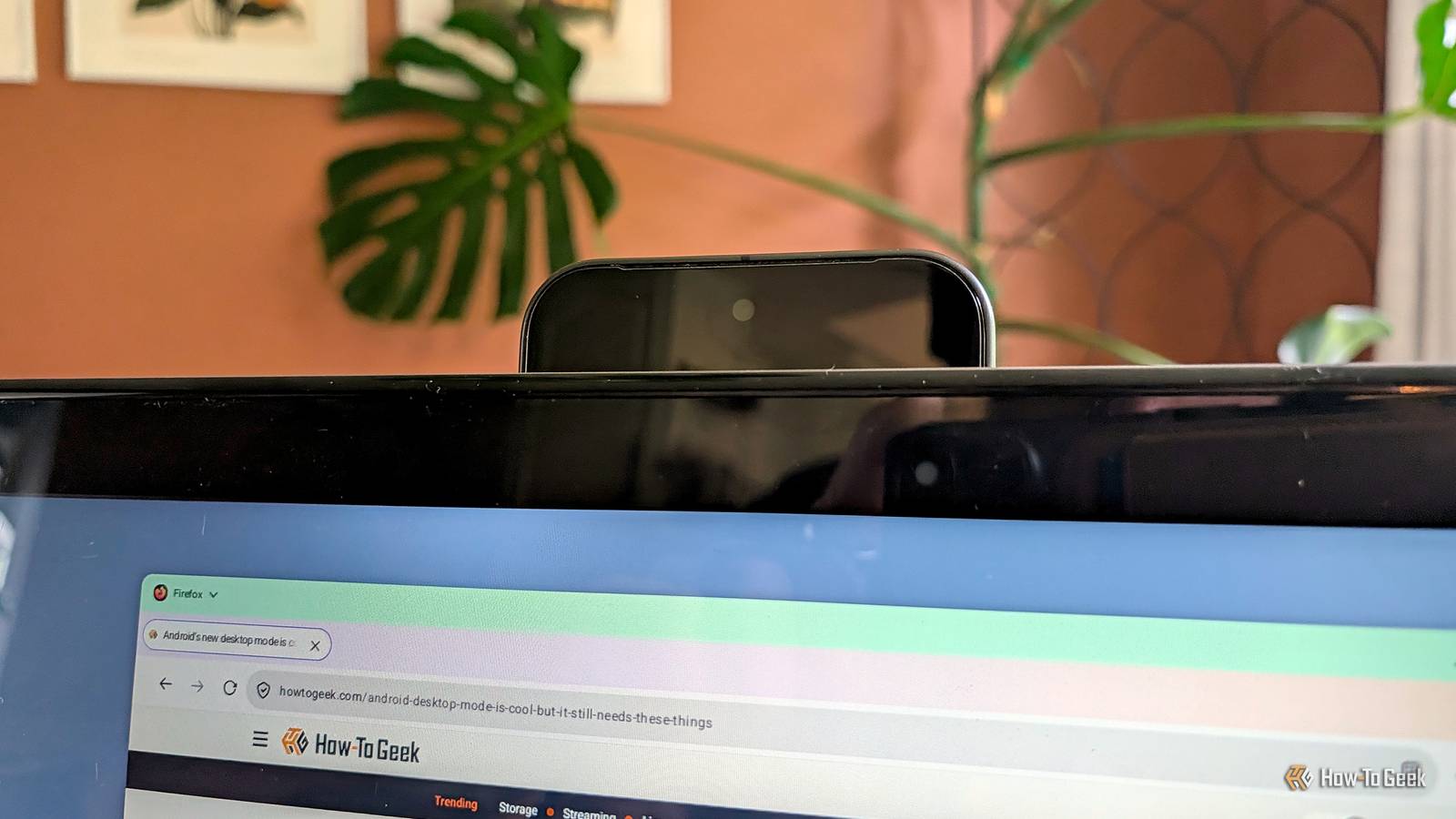
Published Nov 1, 2026, 1:00 PM EST Ever since he got his first smartphone, the legendary Nokia 6600, back in 2005, Goran became obsessed with technology. This obsession had only gotten worse after he received his first gaming PC a couple of months later. He fell in love with video games in the early '90s, shortly after embarking on his gaming journey with the Sega Master System II and SNES. Since then, he has built dozens of PCs, played thousands of games, and authored hundreds of articles about PC hardware, gaming hardware, and video games. He knows everything there is to know about the PC gaming and PC hardware space, and while his console gaming knowledge isn't as comprehensive, he considers himself a console veteran. Goran has almost a decade of experience writing about tech and video games for numerous web publications including TechSpot, TechPowerUp, and EsportsHeadlines. He has been writing for How-To Geek since December 2022. When he isn't gaming or deciding which component of his PC to upgrade next, you can find him strolling around Novi Sad while listening to music and contemplating what to play next. If you own a Pixel phone running Android 14 or newer, there’s a neat feature that allows you to turn it into a webcam for your computer anytime you need one, using only a USB-C cable. The setup is seamless; you can do it in seconds, and the feature works on all three major desktop platforms — Windows, macOS, and Linux. You can turn your Pixel into a webcam for your computer in just a few seconds All you need is a USB-C cable, and most cables will suffice It’s funny that while I have 10 computers in my apartment, none of them has a webcam, and I’ve also never owned a standalone webcam. That’s fine by me because I very rarely need one, and when I do, I can use most video conferencing apps on my phone. But since I got a Pixel 10 Pro, I can at least connect the phone to my Windows PC or Mac mini and turn it into a webcam in seconds if the situation demands it. All it takes is a decent USB-C cable, and I’m off to the races. This is a native Android feature Google introduced with Android 14. The phones that support it have a built-in service dubbed DeviceAsWebcam that exposes the phone as a standard USB Video Class (UVC) device after you connect it to a computer with a USB cable. All three major desktop platforms (Windows, Linux, and macOS) support it, and you don’t need any special software to use it. I tested the feature with the USB-C cable that came with my Pixel, along with two other USB-C charging cables that are capped at USB 2.0 speeds (480Mbps), and all three worked, although one of the charging cables did have a bunch of artifacts. In other words, you should be able to do this with most USB-C cables, with the camera feed looking more than decent even with those that only support USB 2.0 data rates. I tested the feature on my Windows desktop, Mac mini, and Steam Deck, and it worked seamlessly on all three devices. The only extra step you need to perform on the Steam Deck is to switch to Desktop mode beforehand. To enable the webcam feed, connect the phone to your computer with a USB-C cable, tap the charging notification, and then tap Tap for more options. Once in the new menu, make sure that the USB controlled by option is set to This device (for some reason, on the Steam Deck, the Connected device option was turned on by default), and then scroll down until you see the Webcam button. Tap it, and that’s it! Now, you can open your go-to video conferencing app and test the webcam feed, or test it directly in Windows Settings if you're using Windows. I tested the feed in Google Meet on Windows and macOS, Windows Settings on my Windows desktop, and in an app called Kamoso on SteamOS. The feed worked great, aside from that one USB-C cable that caused artifacts. You can also adjust which camera is used by opening the Webcam Service notification on your phone. There, you can switch between the main, ultrawide, and selfie cameras (you can’t use the telephoto lens), as well as activate High Quality Mode, which notifies you that prolonged use can heat up the phone. For what it’s worth, I didn’t notice any major difference between the regular and high-quality modes, with the regular mode being more than enough for video conferencing. Some Galaxy phones support this feature as well Samsung’s late to the party, so you need a phone from the Galaxy S26, Fold8, or Flip8 series From what I’ve managed to gather, the Galaxy S26, Fold8, and Flip8 models are the only Samsung phones that support this feature. I tested my partner’s Galaxy S25, which received One UI 9 about a week ago, and I didn’t find the Webcam option when I connected the phone to my Windows PC. As far as I know, no other Android phone aside from Pixels running Android 14 or newer and the aforementioned Galaxy phones supports the feature. Motorola phones that support Smart Connect do offer a similar feature that also works via USB, but you need the Smart Connect companion app on your Windows PC to use it. If you’re on Windows 11, you can use your phone as a webcam wirelessly with Link to Windows Or you can opt for a third-party app If you’re using Windows 11, you can install Microsoft’s Link to Windows app on your Android phone, link the phone to your Windows PC, and then use it as a wireless webcam. While not as straightforward as just plugging it in with a USB-C cable, and while it requires a Microsoft account, it’s better than nothing. Once you install the Link to Windows app and link your phone to your PC, open Windows Settings, go to Bluetooth & devices -> Mobile devices, select your phone, and turn on Use as a connected camera. Then, go to Bluetooth & devices -> Cameras, locate your phone’s virtual camera, click it, and you should see your camera feed. Samsung phones support a similar feature called Camera Share, but it only works with Galaxy tablets and Galaxy laptops and requires a Galaxy phone running One UI 6.1 or newer. Last but not least, if you don’t want to use a Microsoft app, you can get a similar result with an app such as DroidCam, which requires a companion app to be installed on your PC (it’s available for Windows and Linux). Whichever you end up using, you’ll probably need a phone camera mount. The one below supports MagSafe, so it will work with Pixel 10 phones and newer (except the Pixel 10a), but you could also get a classic clamp mount if your Android phone doesn’t pack magnets inside it. Stouchi Continuity Camera Mount $18 $23 Save $5 Seamlessly integrate your magnetically-compatible phone with your laptop or monitor using the Stouchi Aluminum Continuity Camera Mount. This alloy mount provides secure, hands-free attachment for high-quality video conferencing, supporting vertical orientation and adjustable viewing angles up to 30 degrees downward. It’s a shame more Android phones don’t support this Using my Pixel phone as a webcam was effortless, and I’m stumped as to why more Android vendors don’t support it, considering it’s been a native Android feature for years. While Samsung deserves some praise for enabling this on its latest high-end phones, it’s a crying shame older Galaxy phones haven’t received it, not even the S25 series. There are other methods that give you the same feature, but none is as simple and straightforward as this one. You don’t need an app, just a decent USB-C cable. The feature also works on all three major desktop platforms, and you can enable it in seconds. How this hasn’t become a staple on every Android phone by now is beyond me.
Your Pixel can double as a webcam with a USB-C cable you already own
Full Article
Original Source
Read the full article at Howtogeek →KhanList aggregates and links to publicly available news content. We do not host full articles from third-party sources. Always verify important information with original sources.