
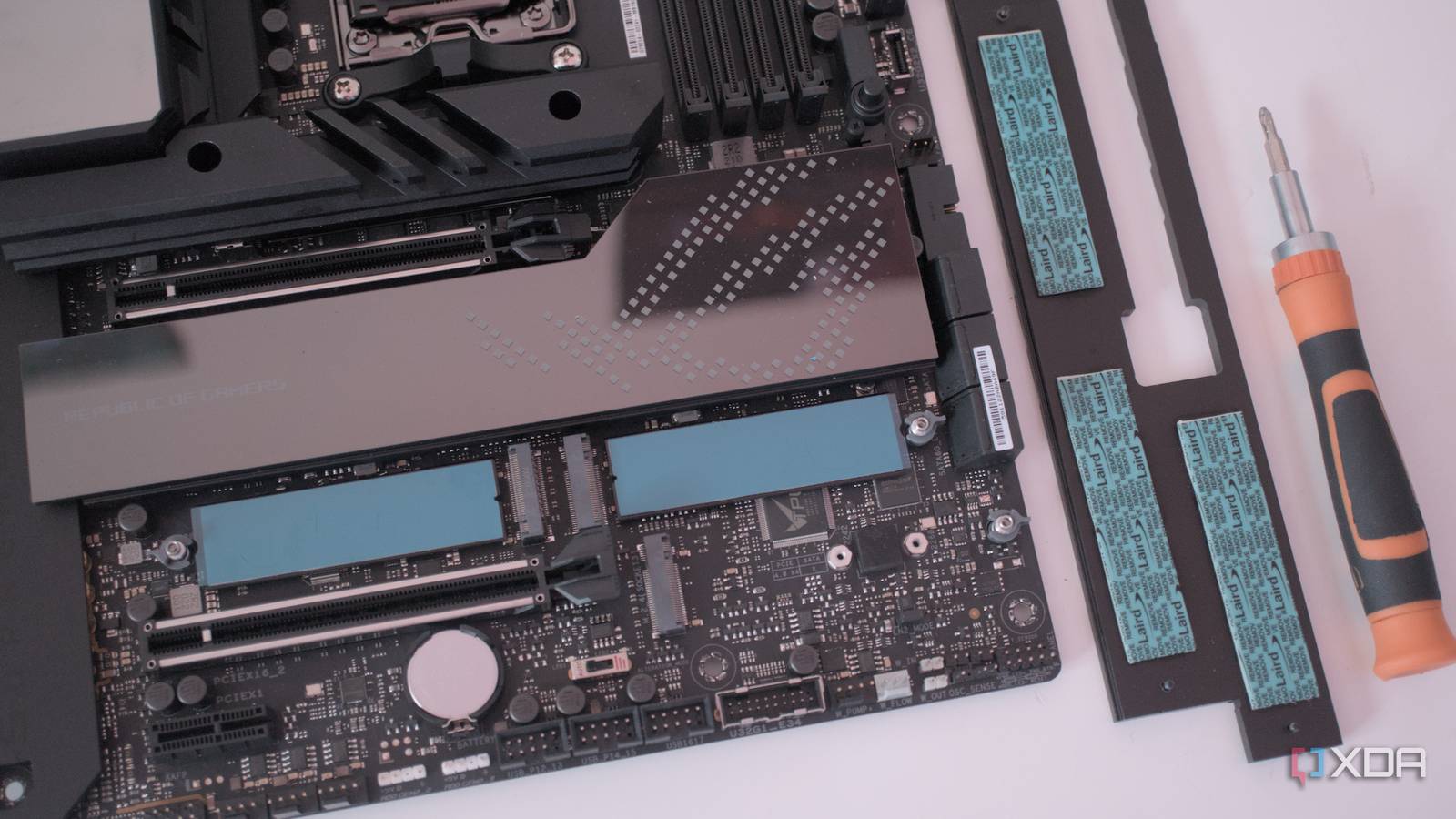
Published Sep 22, 2026, 7:00 AM EDT Jasmine is Software and PC Hardware Author at XDA with years of tech reporting experience ranging from AI chatbots right down to gaming hardware, she's covered just about everything. Whether it's breaking news about the latest AMD NPUs or creating video tutorials on social media platforms, Jasmine has contributed to the world of AI and tech in a variety of ways including interviewing the CEO of Razer, AMD's Director of Product Marketing and the VP of Lenovo. Passionate about gaming and PC technology, she has built countless computers, keyboards and other peripherals - knowing them inside and out. When building a PC, it's easy to leave a second or sometimes even third M.2 NVMe slot sitting completely empty. You can actually use this spare slot to upgrade and give yourself some modern features like faster local networking (Wi-Fi 7/6e) or even extra utility ports. M.2 slots aren't just narrow storage trays; they are direct physical breakouts of high-speed PCIe lanes and USB pathways coming straight off of your CPU and chipset. The vacant secondary M.2 slot on your motherboard is a hidden expansion goldmine. By utilizing inexpensive specialized M.2 conversion and interface cards, you can actually transform a dormant slot on your motherboard into a multi-gigabit Ethernet port, wireless upgrade, or extra connectivity hub for essentially pocket change. M.2 slots are capable of so much more You don't have to be limited to storage Understanding what an M.2 slot actually is may help you find out how this is possible. The underlying bus architecture makes these M.2 slots so versatile. They're not just storage slots; they're actually PCIe lanes in disguise. NVMe SSDs don't use a magical proprietary bus; they communicate directly over standard PCIe lanes, typically PCIe 3.0, 4.0, or 5.0 x4, and these are mapped straight to the motherboard. This means there are a range of different things that you can put into your spare M.2 slot: alternative expansion cards and adapters that give you access to a range of non-storage utilities. Let's say your motherboard came with a legacy 1 GbE network port, but your home NAS and local network have moved to multi-gigabit speeds. You can actually upgrade to a multi-gigabit Ethernet port, like 2.5 GbE or even 10 GbE, with a spare M.2 slot by using a compact M.2 to Ethernet network interface card. This injects blazing-fast local speed transfers directly into the system without burning a precious full-size PCIe slot meant for a GPU. You can also pick up modern Wi-Fi and Bluetooth modules. If you buy a non-Wi-Fi motherboard variant to save a couple of dollars at checkout, a spare M.2 A+E key slot or an adapter card lets you drop in an Intel AX210 module to instantly provision Wi-Fi 6E as well as Bluetooth 5.3. And of course you can get expanded connectivity as well as specialized adapters, repurposing idle slots into alternative headers (such as adding specialized USB-C controllers or internal USB-E headers for front panel chassis integration when the motherboard lacks native connections). Don't stuff your PC case You might cause issues with your airflow Unfortunately, something to keep in mind is that there are some real-world physical and electrical constraints behind upgrading a spare M.2 slot. Make sure that your motherboard is completely compatible before getting started. The first thing to look out for is lane sharing and bandwidth conflicts. This is because, on some consumer chipsets, populating secondary M.2 slots can disable certain SATA ports or share bandwidth with PCIe expansion slots. You can check your motherboard's manual's block diagram for more information about whether or not this is the case for your specific model. If you're not using your SATA ports, then of course it's a no-brainer to go ahead with an M.2 expansion. But if you are, then it might not be worth disabling a load of your other SSDs just so you can get faster network speeds. Another big issue can actually be the physical limitations, thanks to clearance constraints. Installing adapter cards or non-standard modules in a cramped mid-tower or small form factor case can require measuring clearances very carefully beneath large graphics cards or CPU air coolers. Poor placement can obstruct airflow or leave a high-power adapter with inadequate cooling, potentially raising component temperatures or causing thermal throttling. How to make use of your secondary M.2 slot Identify your key type If you're considering making use of your secondary M.2 slots, here's how to get started. The first thing you want to do is actually audit your motherboard. You can have a look at it physically within your PC case to see if you see a secondary M.2 slot. If you do, then it might be time to look up your motherboard's digital manual and look specifically at the lane sharing matrix for your secondary M.2 slots (so you know whether or not it's worth investing in upgrades to implement). Next, identify your key type. Determining whether your spare slot is an M key (for storage and PCIe x4) or an A/E key for wireless features will allow you to buy the correct adapter or module. For example, if you want to install Wi-Fi and Bluetooth capabilities but you only have an M key, then you need to ensure that you have the correct adapters in place; by simply installing the module itself, it will not work. Lastly, secure and test. Install the hardware module that you have and make sure you're securing it with proper standoffs. This will prevent any damage happening to your components inside your case, especially if you ever move it around. Make sure that you're verifying the driver recognition in Device Manager or Linux kernel logs. If there's an issue with the device recognition in your Device Manager, then consult the module's handbook, but this might be down to the fact that it's purely not compatible with the slot you've installed it in. Don't let your M.2 slot go to waste You can add so many modern features to your PC Stop letting motherboard real estate sit idle. PC builders often suffer from a narrow mindset when looking at motherboard layouts. If a slot isn't holding a graphics card or a primary boot drive, we write it off as useless, but a lot of modern buses are remarkably flexible. If you've got unused M.2 slots, then you might be leaving high-speed lanes sitting completely idle. For the price of a takeout lunch you can upgrade your PC's capabilities and squeeze every drop of value out of your hardware.
Your PC's second M.2 slot can do more than you think, and it costs almost nothing
Full Article
Original Source
Read the full article at Xda-developers →KhanList aggregates and links to publicly available news content. We do not host full articles from third-party sources. Always verify important information with original sources.