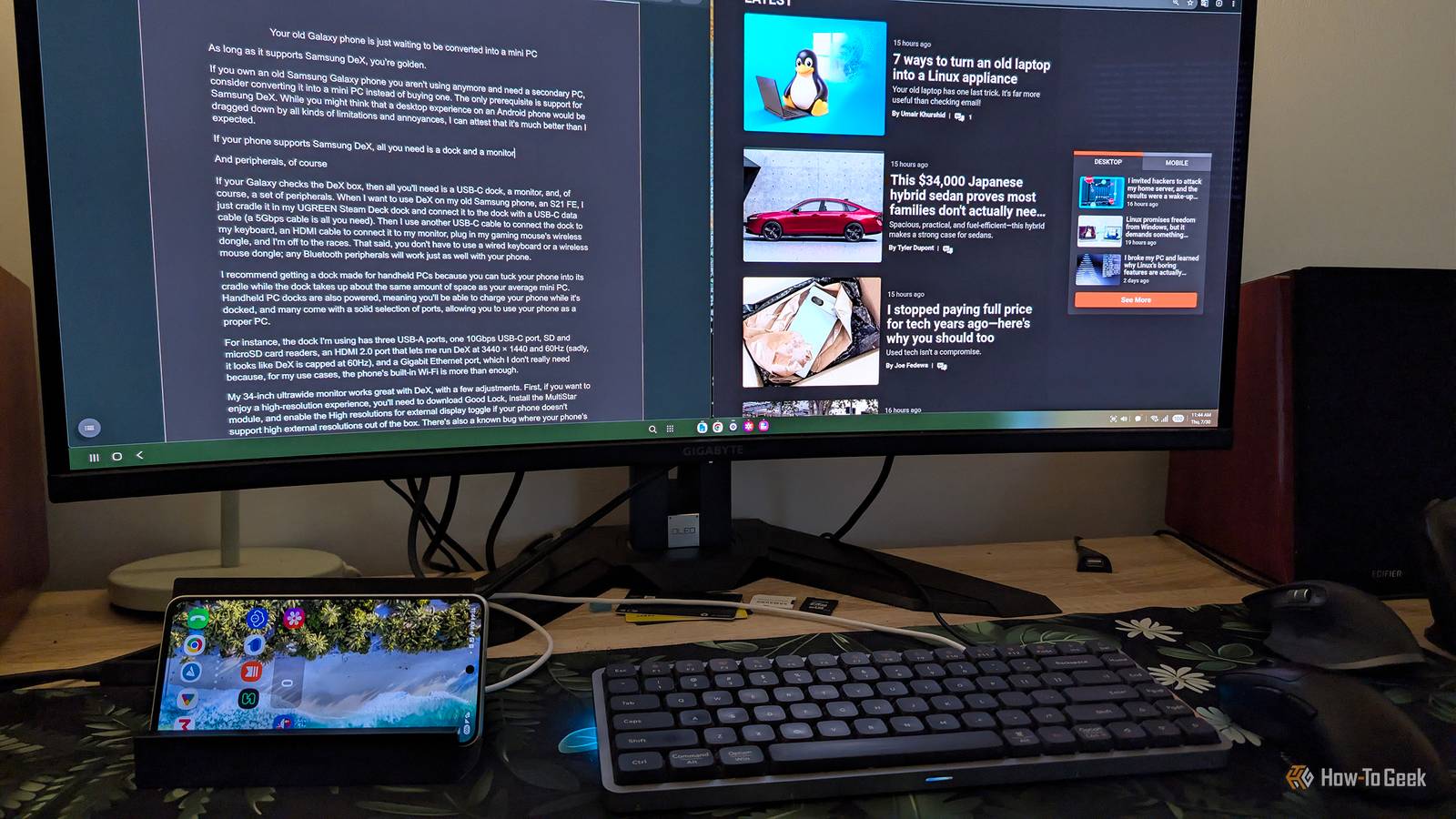
Published Jul 30, 2026, 2:20 PM EDT Ever since he got his first smartphone, the legendary Nokia 6600, back in 2005, Goran became obsessed with technology. This obsession had only gotten worse after he received his first gaming PC a couple of months later. He fell in love with video games in the early '90s, shortly after embarking on his gaming journey with the Sega Master System II and SNES. Since then, he has built dozens of PCs, played thousands of games, and authored hundreds of articles about PC hardware, gaming hardware, and video games. He knows everything there is to know about the PC gaming and PC hardware space, and while his console gaming knowledge isn't as comprehensive, he considers himself a console veteran. Goran has almost a decade of experience writing about tech and video games for numerous web publications including TechSpot, TechPowerUp, and EsportsHeadlines. He has been writing for How-To Geek since December 2022. When he isn't gaming or deciding which component of his PC to upgrade next, you can find him strolling around Novi Sad while listening to music and contemplating what to play next. If you own an old Samsung Galaxy phone you aren't using anymore and need a secondary PC, consider converting it into a mini PC instead of buying one. The only prerequisite is support for Samsung DeX. While you might think that a desktop experience on an Android phone would be dragged down by all kinds of limitations and annoyances, I can attest that it's much better than I expected. Samsung Galaxy S26+ $1025 $1300 Save $275 SoC Snapdragon 8 Elite Gen 5 The Samsung Galaxy S26+ strikes a sweet spot between the compact Galaxy S26 and the feature-packed Galaxy S26 Ultra. It pairs a large, vibrant AMOLED display with flagship performance, excellent cameras, and long battery life. If your phone supports Samsung DeX, all you need is a dock and a monitor And peripherals, of course If your Galaxy checks the DeX box, then all you'll need is a USB-C dock, a monitor, and, of course, a set of peripherals. When I want to use DeX on my Galaxy S21 FE, I just cradle it in my UGREEN Steam Deck dock and connect it to the dock with a USB-C data cable (the cable should support at least 5Gbps data transfer). Then I use another USB-C cable to connect the dock to my keyboard, an HDMI cable to connect it to my monitor, plug in my gaming mouse's wireless dongle, and I'm off to the races. That said, you don't have to use a wired keyboard or a wireless mouse dongle; any Bluetooth peripherals will work just as well with your phone. I recommend getting a dock made for handheld PCs because you can tuck your phone into its cradle with the dock taking up about the same amount of space as your average mini PC. Handheld PC docks are powered (they need to be plugged into a charger to work), meaning you'll be able to charge your phone while it's docked. Many also come with a solid selection of ports, allowing you to use your phone as a proper PC. For instance, the dock I'm using has three USB-A ports, one 10Gbps USB-C port, SD and microSD card readers, an HDMI port that lets me run DeX at 3440 × 1440 and 60Hz (Samsung DeX is capped at 60Hz), and a Gigabit Ethernet port, which I don't really need because, for my use cases, the phone's built-in Wi-Fi is more than enough. My 34-inch ultrawide monitor works great with DeX, with a few adjustments. First, if you want to enjoy a high-resolution experience, you'll need to download Good Lock, install the MultiStar module, and enable the High resolutions for external display toggle if your phone doesn't support them out of the box. There's also a known bug where your phone's screen keeps turning on, which appears to be related to the on-screen keyboard. This isn't just a nuisance because the screen being constantly on can heat up the phone considerably. To prevent the phone's screen from turning on while using DeX, open your phone's Settings, go to Connected devices > Samsung DeX > Keyboard, and change the on-screen keyboard location from Phone to TV or monitor. Once you've done all that, you're ready for the DeX desktop experience, and let me tell you, it's not that shabby at all. UGREEN Steam Deck Dock $40 $60 Save $20 This compact and versatile dock provides multiple ports, including USB, HDMI, and Ethernet, for enhanced connectivity and performance. My old Galaxy S21 FE has enough oomph to use it for work I actually wrote this article on it Credit: Goran Damnjanovic / How-To Geek Even though my Galaxy S21 FE is getting a bit long in the tooth, it's still capable of delivering a surprisingly responsive DeX experience. I can multitask without a hitch, use two full-screen apps side by side, like on a Windows PC or a Mac, edit photos with the mobile versions of Photoshop and Lightroom, and write this very article in the Google Docs mobile app. While my two main app windows are always up-to-date, apps open in the background do take a few moments to reload once I switch back to them, and the same goes for inactive browser tabs. That isn't too surprising, considering the phone has only 8GB of RAM and a Snapdragon 888, which hasn't been a performance champion for years now. But the overall experience is snappy enough that I can use the phone for my everyday workflow, which includes typing in Google Docs, doing some light photo editing, keeping a bunch of browser tabs open, and having Slack and Microsoft Teams running in the background. While I'm only an occasional user of Android desktop modes, my colleague Bertel is a proper connoisseur who used his Moto Edge+ and later his Galaxy Z Fold as his workhorse for years before switching to a desktop PC. He didn't last long on a regular desktop, though, so he switched back to an Android desktop experience—this time using Motorola's Smart Connect on his Motorola Razr Fold—and he's pretty happy with it. As for me, I'm also quite happy with the overall experience, all things considered, especially given my phone's limited hardware. I can definitely see myself using the Galaxy S21 FE as a secondary or tertiary PC in a pinch, but I'd rather stick to my Mac mini and Windows desktop as my main work machines. Converting your old Galaxy into a mini PC sure beats throwing it into the junk drawer If you're looking for a budget mini PC for browsing, watching videos, some light work, and gaming, try using your old Galaxy phone as one before you go out and spend your hard-earned cash on a proper mini PC. Instead of spending hundreds on a new PC, you can invest about $50 and get a pretty solid desktop experience on a device you already own, as long as you have a spare monitor lying around. At the end of the day, transforming your old Galaxy into a PC sure beats spending money on one when that same Galaxy phone can do almost everything a regular PC can, albeit a bit more slowly and with less panache. Sure, there will be some limitations, but Samsung DeX and Android are a good enough combination for most people, as long as you don't plan to use the phone as your main PC.
Your old Galaxy phone is just waiting to be converted into a mini PC
Full Article
Original Source
Read the full article at Howtogeek →KhanList aggregates and links to publicly available news content. We do not host full articles from third-party sources. Always verify important information with original sources.