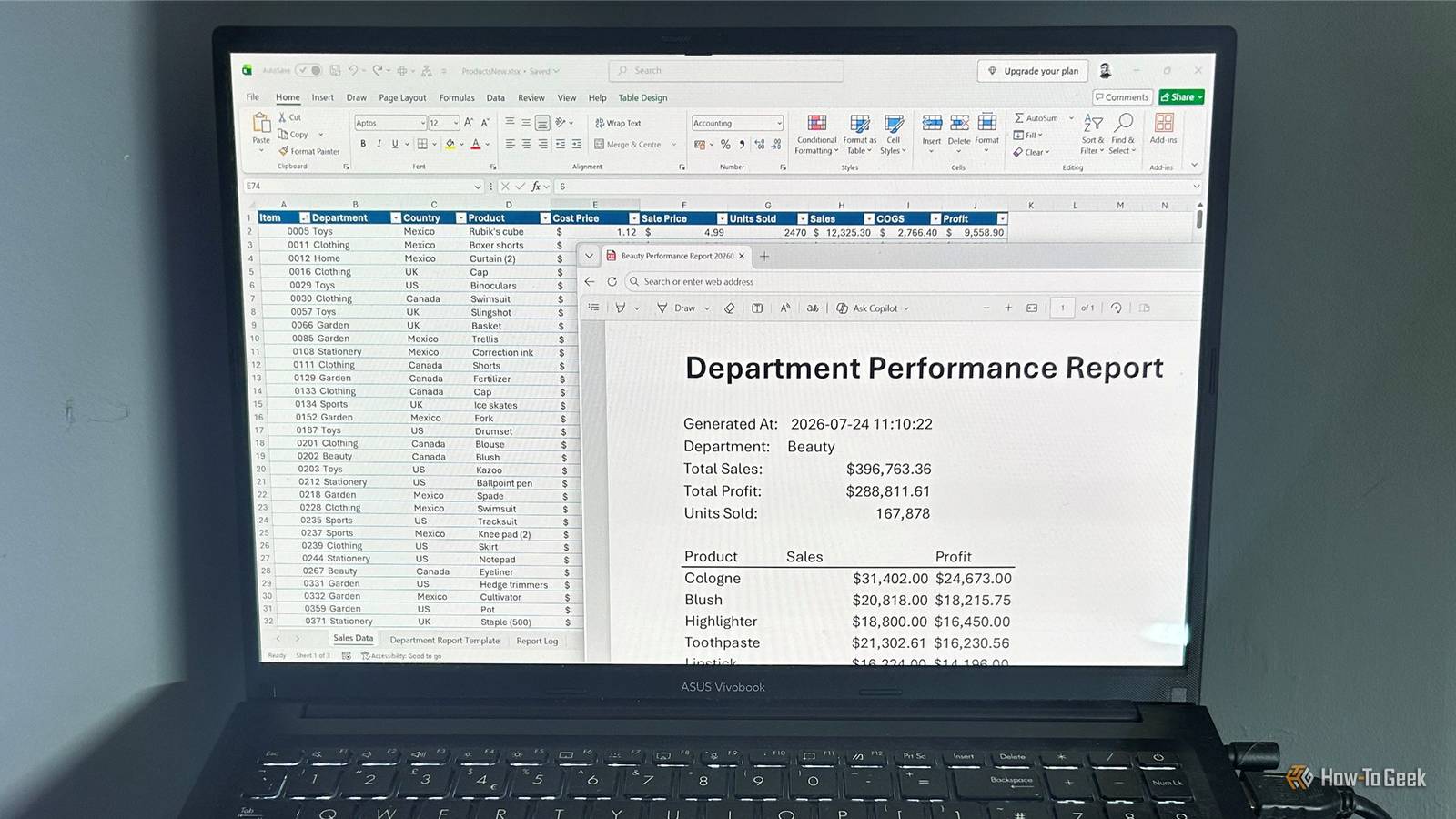
Published Jul 30, 2026, 3:30 PM EDT Tony Phillips is an experienced Microsoft Office user with a dual-honors degree in Linguistics and Hispanic Studies. Prior to starting with How-to Geek in January 2024, he worked as a document producer, data manager, and content creator for over ten years, and loves making spreadsheets and documents in his spare time. Tony is also an academic proofreader, experienced in reading, editing, and formatting over 3 million words of personal statements, resumes, reference letters, research proposals, and dissertations. Before joining How-To Geek, Tony formatted and wrote documents for legal firms, including contracts, Wills, and Powers of Attorney. Tony is obsessed with Microsoft Office! He will find any reason to create a spreadsheet, exploring ways to add complex formulas and discover new ways to make data tick. He also takes pride in producing Word documents that look the part. He has worked as a data manager in a secondary school in the UK and has years of experience in the classroom with Microsoft PowerPoint. He loves to encounter problems in Microsoft Office and use his expertise and legal-level training to find solutions. Outside of the Microsoft world, Tony is a keen dog owner and lover, football fan, astrophotographer, gardener, and golfer. I've used Gemini to answer Excel questions for a while, but I wanted to see whether it could handle a real workflow. When I asked it to automate a tedious reporting task, I ended up with a reusable VBA tool that could run in any XLSX workbook—but only after testing, refining, and improving the result. For this experiment, I used Gemini 3.6 Flash through my Google Workspace account. The exact features available can vary depending on your account type and the Gemini model available to you. I planned the workflow first Small details prevent big headaches The task sounded simple: build a reusable VBA macro that would take sales data, split it by department, create individual performance reports, and save each one as a PDF. However, I've made the mistake before of asking AI to simply "write some VBA," so to create something I could actually use in my everyday Excel workflow, I described the workbook structure in detail and did what I could to address any problems before they actually cropped up. The workbook itself had a straightforward structure: The Sales Data worksheet contained a table with item names, departments, countries, products, costs, sales prices, units sold, sales, COGS, and profit. The Department Report Template worksheet contained the layout for each PDF, including the title, summary figures, and a product table that would be populated with department-specific data. I wanted this template to remain unchanged so it could be reused for future reports, rather than having the macro permanently alter the original layout. I also included a Report Log worksheet so every generated file would be recorded with its creation date, department name, filename, and status. I told Gemini the worksheet names, the columns in my data table, where each value should appear in the report template, and how the report log should work. I decided not to upload the workbook itself to Gemini. I've used AI tools with uploaded files before and had good results, but I wanted to see whether a detailed written specification was enough. If it worked, it would give me another option for future projects where I don't want to upload a workbook containing private information. One thing I wanted to avoid was saving files in unpredictable locations. From a previous Excel automation experiment using Claude, I had learned that saving the output in the same folder as the workbook can become complicated when cloud storage such as OneDrive is involved. Instead, I instructed Gemini to save all generated PDFs into a dedicated folder on my Desktop. This macro needed to work like a proper tool rather than a one-off script, so I told Gemini I wanted to save it in my PERSONAL.XLSB workbook and add it to my Quick Access Toolbar, making it available whenever I opened Excel. Even with those precautions in place, I created a copy of my workbook before testing anything just to be safe. The final part of my prompt told Gemini to turn my instructions into a set of workbook assumptions before generating the VBA. It confirmed the exact worksheet names, the columns it needed to use, and the cells where the department name, summary figures, and product table should appear. This was a useful check because it told me how Gemini had interpreted the structure I wanted before it started writing code. Testing exposed the limits AI can fix problems, but it can also chase them The first version was a good starting point, but it needed more work. This was where the benefit of using AI conversationally became clear. Instead of starting from scratch each time something went wrong, I could explain the problem, share the error, and let Gemini suggest the next step. The first issue appeared when Excel highlighted a syntax error in the VBA. When I sent the Excel error text and the problematic line of code to Gemini, it explained that the line contained an extra variable name that VBA could not interpret. It then provided a corrected version of the line that allowed the macro to run without errors. The bigger problem came when I opened one of the exported PDFs and found it was completely blank. The macro was running, but the final report was not being produced correctly. Gemini helped me investigate the issue and suggested that the problem was linked to the macro's print-area and PageSetup logic when exporting the worksheet as a PDF. It offered several changes, but the workflow started falling into a patch spiral, where solving one issue introduced new formatting problems and made the overall solution more complicated. Eventually, I decided the better solution was not another patch. Instead, I simplified the report template by removing some of the metrics. I also told Gemini to produce a macro that would create a copy of the report template, populate that sheet, export it directly as a PDF, and then remove the temporary version—rather than trying to control every part of the export process. This was probably the biggest lesson from the experiment. Gemini was extremely useful for troubleshooting because I could explain what happened and work through possible causes with it. But the best results came when I combined those suggestions with my own understanding of the workflow and recognized when the approach itself needed to change. The simpler workflow finally worked Small changes made the macro more reliable Once I refined the workflow, it became clear that Gemini was much better at refining a working foundation than trying to build every part of the automation at once. With the report sheet simplified and the task broken down into smaller steps, Gemini produced a much cleaner result. I could then start adding back some of the features I had removed earlier, along with a few new improvements. I asked Gemini to add a "Generated At" timestamp to each report, restore additional summary information where it made sense, sort the product table by profit instead of sales, and include the date and time in each filename so new reports would never overwrite previous ones. These smaller requests were much easier to test and refine because each change had a clear purpose. Instead of building the entire system in one attempt, I used Gemini to build on top of the existing working macro. The final macro was something I could reuse whenever I had a workbook following the same structure. By keeping the VBA in my PERSONAL.XLSB workbook and adding it to my Quick Access Toolbar, I turned a one-off experiment into a repeatable, one-click Excel workflow. Microsoft 365 Personal OS Windows, macOS, iPhone, iPad, Android Brand Microsoft Price $100/year Developer(s) Microsoft Free trial 1 month Microsoft 365 includes access to Office apps like Word, Excel, and PowerPoint on up to five devices, 1 TB of OneDrive storage, and more. The best results came from working together This test changed how I think about using AI in Excel. I no longer expect a perfect answer from a single prompt—instead, I treat tools like Gemini as a way to explore ideas, troubleshoot problems, and gradually improve a solution. I saw a similar pattern when I tested ChatGPT, Claude, and Gemini for writing Excel formulas: the tools could all produce suggestions, but I still needed enough Excel knowledge to judge the results, choose the right approach, and know what I wanted the final outcome to look like.
I asked Gemini to automate an Excel reporting task—now a single click does all the work
Full Article
Original Source
Read the full article at Howtogeek →KhanList aggregates and links to publicly available news content. We do not host full articles from third-party sources. Always verify important information with original sources.