
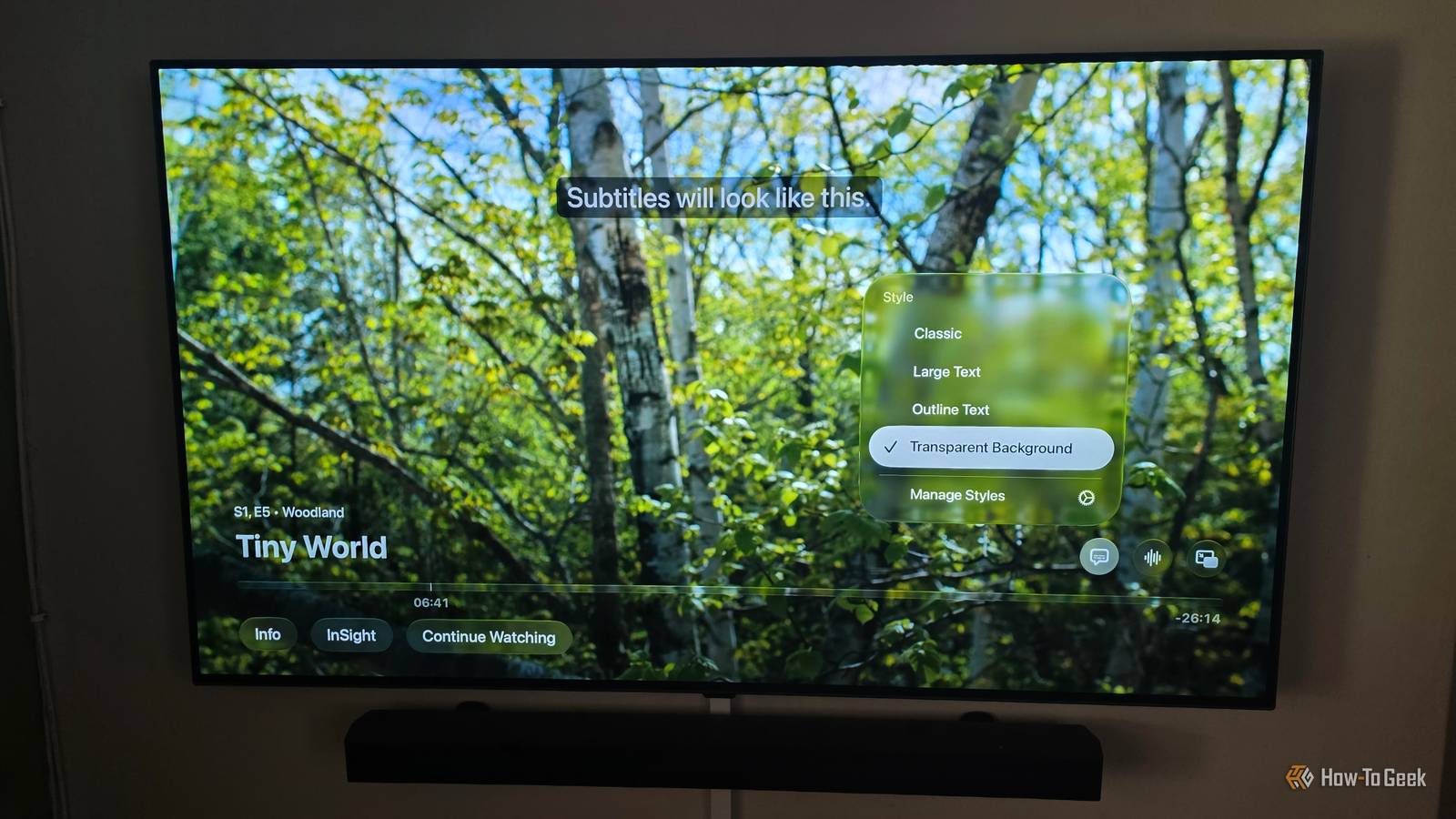
Published Oct 28, 2026, 4:16 PM EDT Sydney Butler is a technology writer with over 20 years of experience as a freelance PC technician and system builder and over a decade as a professional writer. He's worked for more than a decade in user education. On How-To Geek, he writes commerce content, guides, opinions, and specializes in editing hardware and cutting edge technology articles. Sydney started working as a freelance computer technician around the age of 13, before which he was in charge of running the computer center for his school. (He also ran LAN gaming tournaments when the teachers weren't looking!) His interests include VR, PC, Mac, gaming, 3D printing, consumer electronics, the web, and privacy. He holds a Master of Arts degree in Research Psychology with a minor in media and technology studies. His masters dissertation examined the potential for social media to spread misinformation. Outside of How-To Geek, he hosts the Online Tech Tips YouTube Channel, and writes for Online Tech Tips, Switching to Mac, and Helpdesk Geek. Sydney also writes for Expert Reviews UK. He also has bylines at 9to5Mac, 9to5Google, 9to5Toys, Tom's Hardware, MakeTechEasier, and Laptop Mag. If you're like me, you like to have subtitles on when you're watching movies and shows. One reason is because I watch quite a lot of foreign-language content, like anime, and the other is that no one can hear anything the actors are saying anymore, thanks to modern audio mixing. Both of my current TVs (a TCL mini-LED and LG OLED) have decent HDR performance, but I have noticed that in some streaming apps the subtitles are so bright that it can actually hurt my eyes. It's not a huge deal in a brightly lit room, but if we're watching TV with the lights dimmed in the evenings, it can legitimately ruin the experience. If you're just now realizing you've been squinting at subtitles for all the wrong reasons, the good news is that there's often a fix. HDR subtitles can be the brightest thing in the room The words are burned into your soul Credit: Netflix There are two issues at play. Either your TV is capable of extreme brightness, and so white subtitles are being coded at the maximum brightness that set can produce, or you have an OLED where the extreme contrast still makes those subtitles a strain on your eyes. If you have a mini-LED TV or a TV with another form of local dimming, you can also get a completely different but just as annoying issue in the form of "bloom." While modern mini-LEDs are great at controlling bloom, bright white subtitles on a dark background are essentially the worst-case scenario for this technology. Your subtitles aren't necessarily following the movie's brightness They're just locked in Credit: Vasyl Shulga/Shutterstock Most of the time, subtitles aren't "burned in" to the video itself but are a separate graphic overlay. In other words, they just stay at a constant brightness level regardless of how dark or bright the scene is. This is an issue that streaming app developers can address, of course. Using data pulled from the video feed to adapt subtitle brightness, but if your subs are too white and too bright, that's clearly not happening. In Suggested guidance for operational practices in high dynamic range television production, it describes exactly the sorts of things television content producers need to do so that graphics don't blow out, so it's a known consideration. Your streaming apps may already have the solution They just don't advertise it As you might already have realized, the trick here is to make the subtitles something other than high-contrast pure white. The issue exists because the subs aren't burned into the video, but at the same time this means you can potentially change how subtitles are rendered. It's an essential accessibility feature, and subtitle modification settings don't exist to reduce HDR glare or mini-LED bloom, but some of the options end up being useful for this anyway. So, what can you do? If you can adjust the subtitle size to be smaller, and it doesn't bother you, then that will also reduce the total bright area. It's not a complete fix, but subtitle size might be the only thing you can tweak in some cases. Paradoxically, making the subs bigger can also reduce their brightness, as your TV's brightness limiter might kick in if too much of the screen is super-bright. The best settings are ones that change the color or opacity of the subtitles. Making the subtitles opaque means they take on the color of the frame behind them and effectively cludge an integration together. However, if they are too see-through, that can make them harder to read in some scenes. Not good. Changing the color to yellow or gray, for example, will drop the brightness as well, since only pure white is going to trigger that maximum white-hot glare. You may also have the option to give your subs a background. So you could put black subtitles on a light grey box. This blocks a little more of the picture, but it might be a good consistent solution visually. Each streaming app has different menus and options for subtitle modification, and the same streaming platform might offer it on one TV, but not another. So your best bet is to open up the app's settings and explore what's available. Sometimes, as with Amazon Prime Video, you can even modify what subs look like while the video is playing, which I personally think is the best solution. Your TV or streaming box might control subtitles instead In case you're out of luck looking for subtitle options in the settings or accessibility options of each specific app, you should also check out the device-level settings of your streaming box. If an app relies on an OS feature to render subtitles, the controls might actually be in the device's own settings.
Your HDR movies have a subtitle problem
Full Article
Original Source
Read the full article at Howtogeek →KhanList aggregates and links to publicly available news content. We do not host full articles from third-party sources. Always verify important information with original sources.