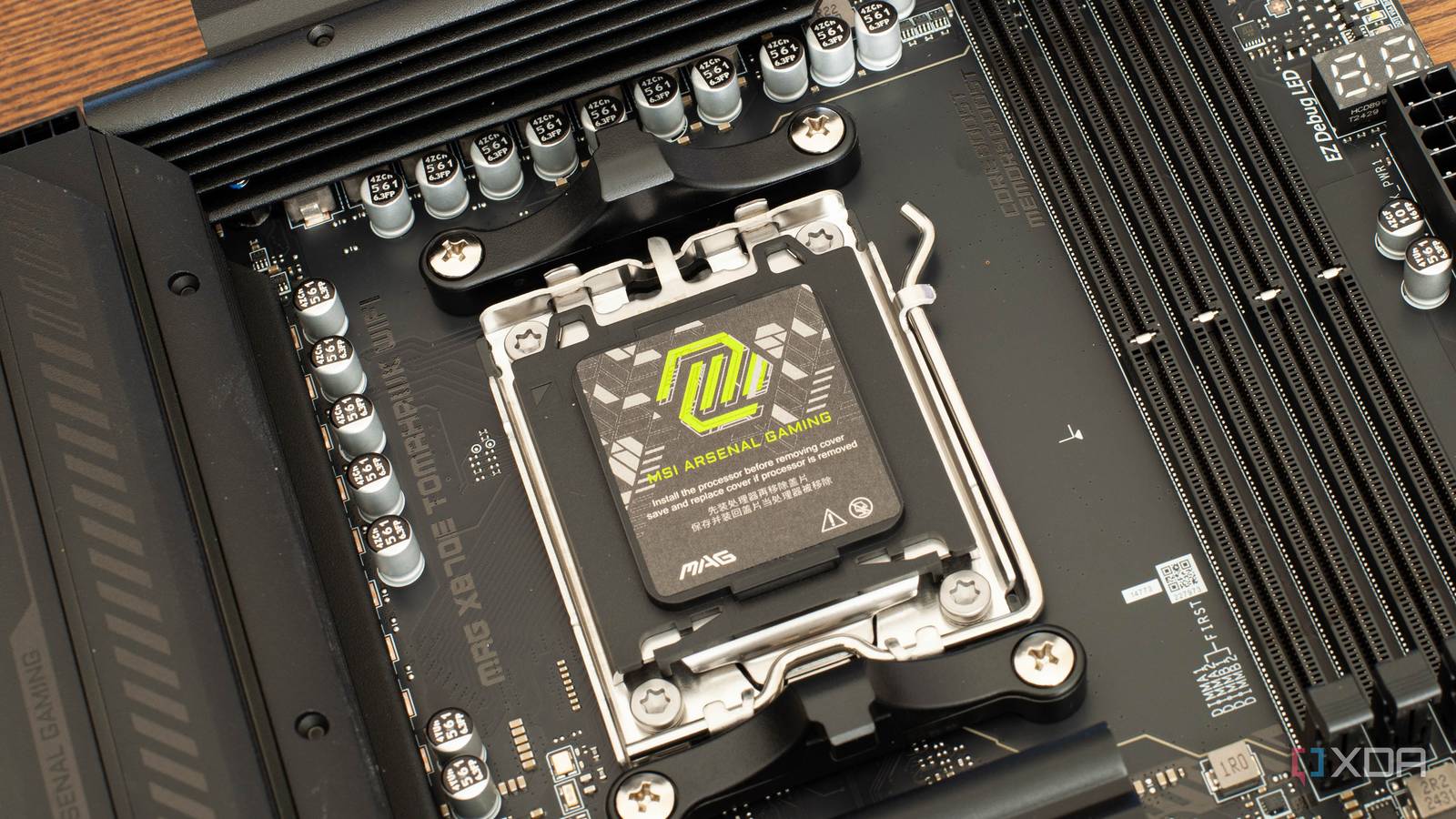
Published Jul 16, 2026, 5:30 PM EDT After a 7-year corporate stint, Tanveer found his love for writing and tech too much to resist. An MBA in Marketing and the owner of a PC building business, he writes on PC hardware, technology, and Windows. When not scouring the web for ideas, he can be found building PCs, watching anime, or playing Smash Karts on his RTX 3080 (sigh). Having long boot times might seem trivial, but when you're used to 15–30 seconds, even a minute can seem annoying. If your PC takes too long to reach the desktop after you press the power button, you'll naturally question the behavior. The problem is that many people still don't know where to look for the fix. They blame their CPU, motherboard, BIOS version, or other unrelated components instead of checking their memory settings. Your DDR5 RAM is the single biggest culprit behind arduously long boot times. This is one of the few downsides of running DDR5 memory, and it's something you can't eliminate. You can, however, minimize the problem by tweaking a few BIOS settings and slightly changing your PC usage. Your DDR5 RAM is to blame for long boot times DDR5 topology is way more complex Credit: Source: XDA In the DDR4 era, it was fairly easy for your motherboard and CPU's memory controller to calibrate the RAM settings on every boot. Dialing in the precise voltage, power, and timings is necessary to ensure stable operation after each power cycle. DDR4 speeds topped out at around 4,000 MT/s, and RAM capacity used to be lower, so memory training was quicker, leading to a faster hand-off to the operating system. When DDR5 memory brought blazing-fast speeds, more complex signal pathways, dual 32-bit sub-channels per stick, and on-die power management, it completely changed the game for memory training. Not only that, larger capacities like 64GB and higher became more common, which further increased the memory training time for the motherboard and memory controller. DDR5 memory, on the whole, is more susceptible to minor changes in temperature, voltage, and signal integrity during the boot cycle. This makes it more prone to instability in the absence of precise voltage and power parameters. Of course, your motherboard brand and the associated firmware also play a part in the boot time, but memory is the overwhelming determinant. Memory Context Restore can help, but it's probably disabled in the BIOS Slash your boot time with a simple toggle Fortunately, there's a workaround to speeding up your boot time by shortening the memory training phase during the boot. Memory Context Restore (MCR) doesn't directly reduce the memory training time, but allows your motherboard to use previously stable memory settings so that it doesn't have to compute them from scratch. If no major changes have occurred since the last successful boot, the previous settings should work just fine. In most cases, enabling MCR in the BIOS/UEFI does exactly that. Your system skips memory training and boots into Windows much faster. MCR can be extremely powerful for some users, slashing the boot time by approximately a minute. MCR has become a recommended setting on DDR5 systems, and you should check your UEFI if you're experiencing particularly long boot times. Note that MCR only comes into play when you're waking from standby mode. If you turn your PC off and go through a cold boot, the memory has no retained power to remember the older settings and needs to go through memory training again, skipping MCR altogether. So, if you're used to turning your PC off, it might be time to adapt to using the Sleep or Hibernate modes. MCR isn't always the right pick You could be trading time for stability MCR sounds like a godsend for AM5 users plagued by long boot times, but it's not foolproof. Every power cycle, whether you're waking from standby or going through a cold boot, is prone to minute power, voltage, and temperature changes. On high-speed DDR5 kits, these changes can often conflict with the saved memory parameters, resulting in unstable operation. Since MCR assumes your DIMMs have not changed in any way since the last boot, it's inherently not a universally stable workaround. Some users report boot failures and blue screens after enabling MCR, forcing them to disable it and revert to the longer boot times. If you're in the same boat, it might be worth doing the same. Alternatively, you could turn on "Power Down Enable" in the UEFI/BIOS to allow the RAM to power down during idle states. This setting, in combination with MCR, reportedly keeps your system stable without losing the benefits of the reduced boot times. You can also enable Fast Boot in the firmware, if you haven't already, to further speed up the boot process. DDR5 brought more performance with longer boot times For all the benefits of DDR5 RAM, it's more prone to unstable operation and longer boot times. AM5 users noticed it long ago, and many of them simply made their peace with it. Thanks to Memory Context Restore, users can slash their boot times significantly, as long as it doesn't result in unstable operation.
Your AM5 boot time is slower than it should be, and it's probably not your CPU
Full Article
Original Source
Read the full article at Xda-developers →KhanList aggregates and links to publicly available news content. We do not host full articles from third-party sources. Always verify important information with original sources.