
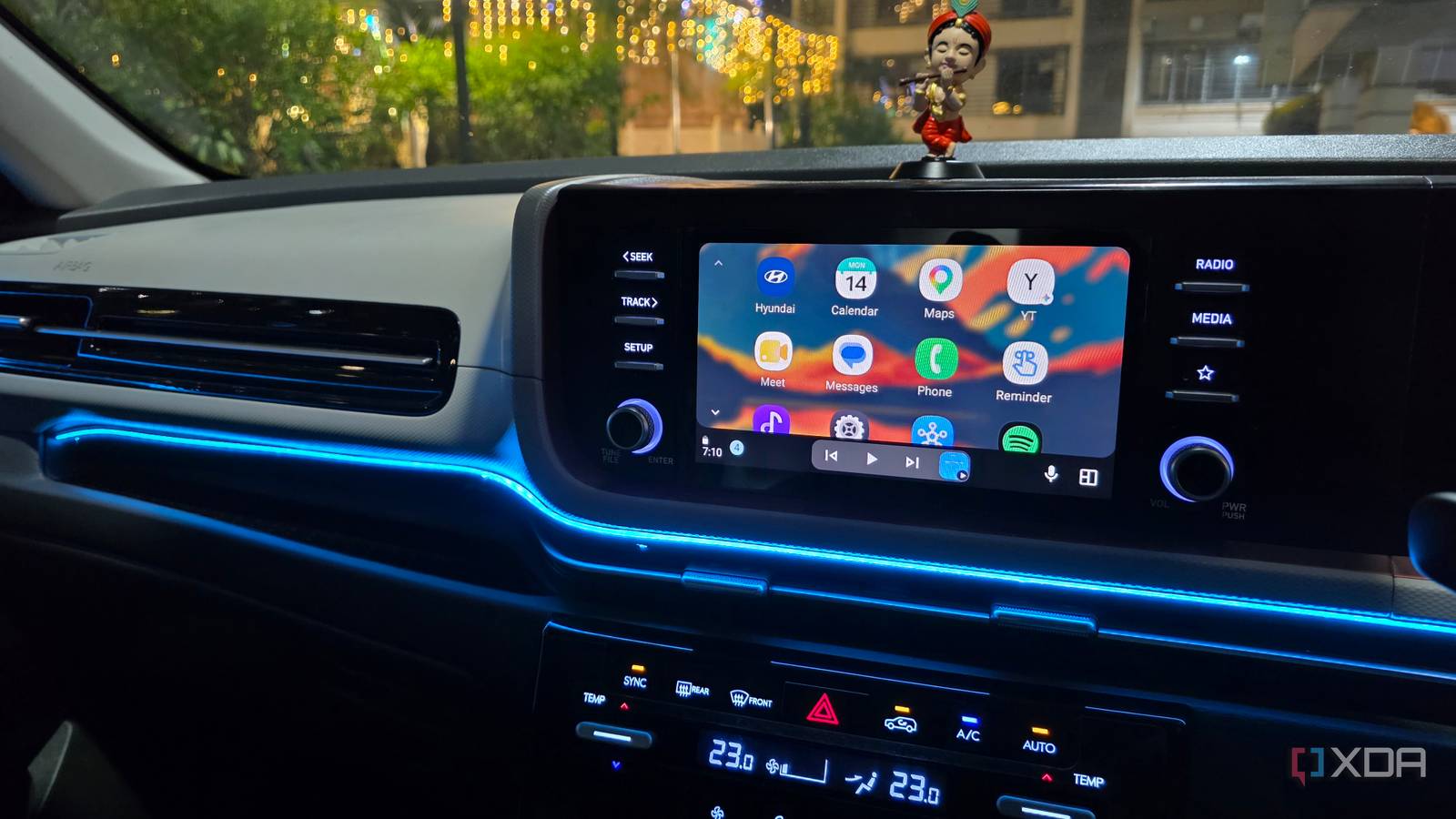
Published Sep 25, 2026, 12:30 PM EDT Parth, a seasoned tech writer, wields the keyboard (or pen) with finesse to unravel the intricacies of both Windows and Mac operating systems. He has covered evergreen content on mobile devices and computers for multiple publications over the last six years. You can find his work on AndroidPolice, GuidingTech and TechWiser. Whether it’s demystifying system updates, deciphering error codes, or exploring hidden features, Parth’s prose guides readers through the binary maze. When not immersed in tech jargon, you’ll find him sipping chai, pondering the next software review, and occasionally indulging in a friendly debate about mechanical keyboards. Android Auto is one of those tools that can feel complete the moment you plug in your phone. You get Google Maps, music, calls, messages, and that is usually enough to get through a daily commute. That is how I used it for a long time, too. But after digging through its settings and paying more attention to the smaller features Google has added over time, I realized I was barely scratching the surface. Use Gemini for more than navigation Make sure to give it access to your favorite apps first I used to treat Gemini in Android Auto as little more than a hands-free shortcut for Google Maps. I would ask it to navigate somewhere, check the weather, or call a contact. Gemini becomes far more useful once you connect it to the apps you already use on your phone. I went through Gemini settings on my phone, found the Connected Apps menu, and connected it to my preferred services, including Google Workspace, WhatsApp, YouTube Music, and Messages. That changed how I use voice commands while driving. I can say something like, ‘Add pick up groceries to my Tasks,’ and Gemini does the job in no time. I can even ask Gemini to create a specific note just via a voice command in my car. Messaging is another big one for me. I can ask, ‘Message Rachel saying I will be home in 20 minutes and ask if she wants me to grab anything from the route?’ Gemini supports sending WhatsApp messages and regular text pings. I can also ask it to play a specific artist, playlist, or define a movie scene, and Gemini understands my request and brings up the song in no time. For instance, when I asked it to play that rooftop song in the Suits series, it understood that I was talking about the ‘Whatever it takes’ song and played the same. These may sound like small conveniences individually, but together they make Gemini a powerful copilot (not the Microsoft one) for your long, tiring trips. Change how message notifications behave Turn off distractions Message notifications were one of those small Android Auto annoyances I ignored for too long. Every incoming message would make a chime, and Android Auto would also show the first line of the message on the screen. They are not distracting, but when I am driving through traffic, even that small interruption is enough to pull my attention away for a second. I eventually went through Android Auto settings and disabled Play message chime and Show first line of messages toggles. The difference was immediate. Messages can still arrive, but my dashboard feels much quieter and less demanding now. I no longer hear a notification sound every time someone texts me, and I am tempted to glance at a message preview just because a few words suddenly appear on the screen. I still have access to my messages when I actually need them. If something looks important, I can use Gemini to read aloud or reply using my voice. That gives me the best of both worlds. Try Waze instead of blindly sticking with Maps Explore offline music players, too Google Maps is the obvious default on Android Auto, and I used it almost automatically for a long time. But once I started trying other apps, I realized the default option isn't always the best for every drive. Waze, for example, works better for me on shorter city routes because the interface feels cleaner and its real-time reports for traffic, hazards, and road conditions are easier to notice at a glance. I still prefer Google Maps for longer trips and offline navigation, but I no longer use it for everything. I took the same approach with music. Instead of always relying on a streaming app like YouTube Music, I tried Poweramp with my local music library. It turned out to be a much better option when I want to tweak the audio output or prefer a solid experience in offline areas. Android Auto becomes much more useful once I stop treating Google’s default apps as the only options. Explore Gemini Actions And pin them on the dashboard One Android Auto feature I started using a lot is Gemini Actions. Instead of repeating the same voice command every time I get into the car, I can create an action for something I do frequently and pin it directly to the Android Auto dashboard. I have a few of these set up around my normal driving routine. One action sends my ETA to my wife, another starts playing downloaded music, and another finds nearby restaurants. Check out my dedicated post to learn more about Gemini actions in Android Auto. Use Android Auto beyond the basics Android Auto works perfectly fine with its default setup, but that does not mean you should leave it that way. Once I started making these changes, the whole experience became much better suited to how I actually drive. If you use Android Auto regularly, it is worth spending a few minutes exploring beyond Maps and music.
You are using Android Auto wrong if you haven't tried these features
Full Article
Original Source
Read the full article at Xda-developers →KhanList aggregates and links to publicly available news content. We do not host full articles from third-party sources. Always verify important information with original sources.