
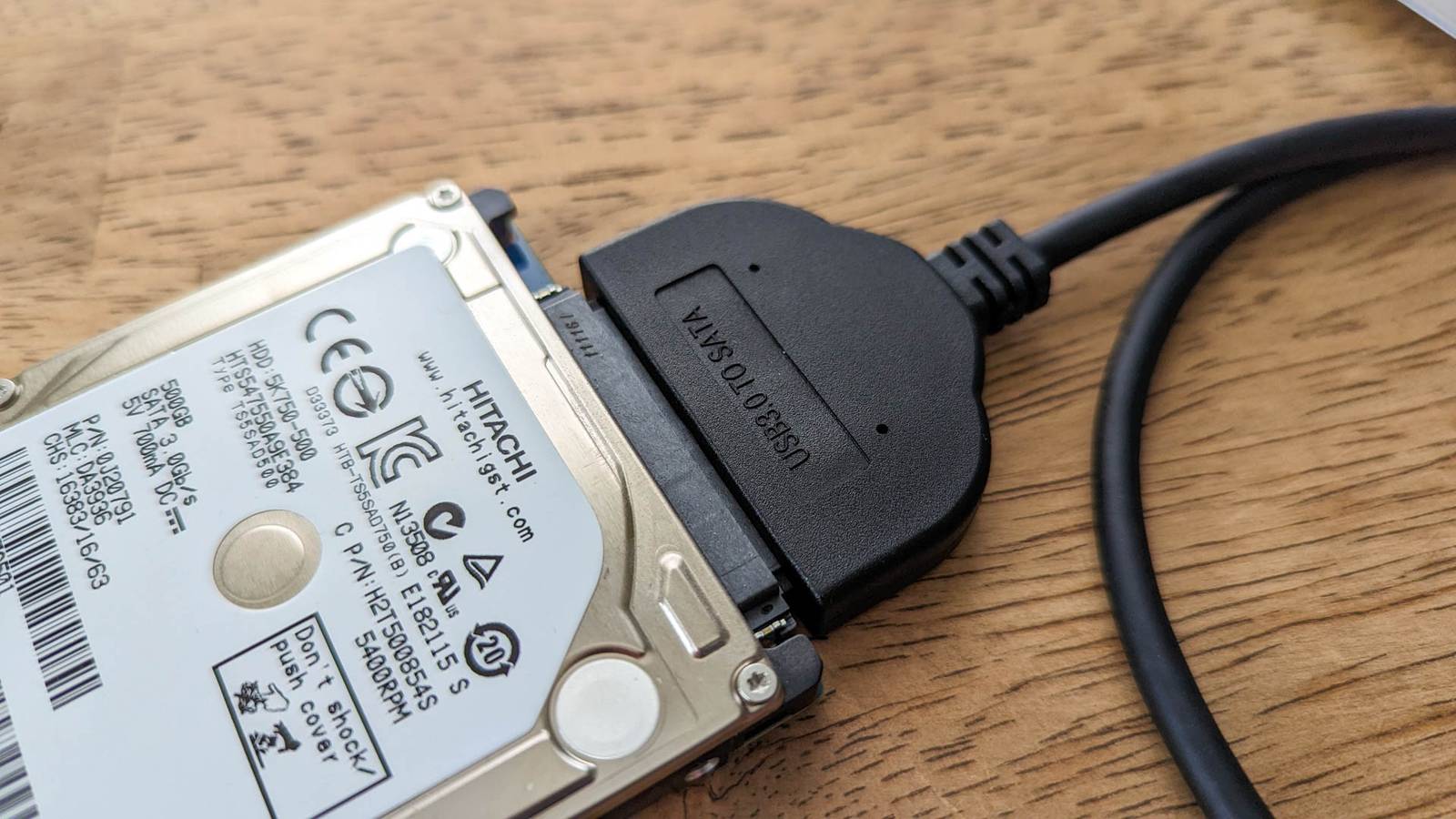
Credit: Jordan Gloor / How-To Geek Published Aug 21, 2026, 9:15 AM EDT Ismar is a Senior Author at How-To Geek. He previously worked as a writer, editor, and general manager at a content agency before joining the team in 2023. He began his writing career in 2021 after completing a BA in English Language and Literature. Beyond How-To Geek, Ismar has contributed to Red Stag Fulfillment and Authority Hacker. He has also worked on various SEO projects to help clients improve their search visibility. Ismar has been around Windows PCs since the age of three, so friends and family naturally chose him as the resident tech support. His projects often involve tinkering, such as disassembling mechanical keyboards and gaming mice to mod his beloved gear. He also enjoys pushing hardware to the max through overclocking while staying on a reasonable budget. An avid gamer, Ismar has logged thousands of hours across various genres, including first-person shooters, RPGs, racing games, and roguelites. When he is not at his desk, he is probably exploring other people’s phones to discover their quirks and features or experimenting with the latest AI tools. In his free time, Ismar enjoys spending time with his wife, working out at the gym, playing guitar and bass, cooking gourmet meals, and traveling. Above all else, he’s a proud cat owner. Sign in to your How-To Geek account Have you ever installed a new drive or bought a new phone, only to find that you're missing a few gigabytes from your storage. Granted, it's only a few gigabytes—you'll get 476GB out of the 512GB you're supposed to have. But it's an important enough difference to just ignore it. So, what's up with that? Decimal vs. Binary It's all a matter of how you count Credit: Jason Fitzpatrick / How-To Geek The difference is actually not because whoever made your SSD or hard drive is evil and wants to scam you, but rather, a technicality in how storage is actually calculated vs. how it's marketed. Humans naturally count in a decimal system, also known as Base 10, which relies on powers of ten. In this system, prefixes like "kilo" strictly represent one thousand. Therefore, to a hard drive manufacturer adhering to the International System of Units (SI), one kilobyte is exactly 1,000 bytes, one megabyte is 1,000,000 bytes, and one terabyte is a whopping 1,000,000,000,000 bytes. When you buy a 2TB drive, the manufacturer has physically provided you with two trillion bytes of storage space, which makes their labeling technically correct from a physics and engineering standpoint. However, computers do not operate in Base 10. They function using binary code, or Base 2, where data is processed in powers of two. In the early days of computing, it was convenient to map the binary 2 to the power of 10 (which equals 1,024) to the metric prefix "kilo" because 1,024 is relatively close to 1,000. This convention stuck, meaning that to your computer's operating system—particularly Windows—one kilobyte is actually 1,024 bytes. This seemingly small difference of 24 bytes compounds exponentially as you move up the scale to gigabytes and terabytes. By the time you reach the terabyte tier, the operating system calculates a terabyte not as one trillion bytes, but as 1,099,511,627,776 bytes (1024 to the power of 4). Because the computer uses this larger divisor to calculate the total count, the final number appears smaller. When the two trillion bytes provided by the manufacturer are divided by the computer’s definition of a gigabyte, the result is approximately 1,862 gigabytes, or roughly 1.81 terabytes, creating the illusion of missing space. Why does it matter? Things need to align While the math behind the conversion is straightforward, the implications for the consumer are significant and often frustrating. Granted, the fact that for many, this is pretty confusing. Because it is. In almost every other industry, standardized units are absolute; a kilogram of flour is the same weight regardless of who weighs it. In the storage industry, however, the same terminology describes two distinctly different values depending on the context. This ambiguity allows manufacturers to market their products using the decimal system, which produces larger, more attractive numbers, while the software that utilizes the hardware reports a lower capacity. As storage needs have grown from megabytes to petabytes, this gap has widened from a negligible margin of error to a substantial deficit. On a 2TB drive, the "missing" space amounts to roughly 186 gigabytes—enough capacity to hold several modern high-definition video games, tens of thousands of photos, or a complete backup of a standard laptop. This discrepancy becomes a practical logistical problem for IT professionals and data archivists who must plan for storage capacity. If a system administrator calculates backup requirements based on the decimal 2TB figure but the server operating system reads the volume as 1.8TB, the resulting overflow can cause backup failures or data corruption. Furthermore, this naming convention creates a legal and ethical gray area. While manufacturers often include disclaimers on packaging stating that "actual formatted capacity may be less," the average consumer rarely understands that this is due to a mathematical definition rather than the drive's software overhead. Quiz 8 Questions · Test Your KnowledgeSSDs, NAND memory, and interfacesTrivia challengeFrom flash cells to PCIe lanes — see how much you really know about modern solid-state storage.NANDInterfacesHardwarePerformanceStandardsBegin Which type of NAND flash stores exactly one bit of data per cell?AMLCBTLCCSLCDQLCCorrect! SLC stands for Single-Level Cell, meaning each cell holds just one bit — either a 0 or a 1. This makes SLC the fastest and most durable NAND type, but also the most expensive per gigabyte, so it's mainly found in enterprise and industrial storage.Not quite — the answer is SLC, which stands for Single-Level Cell. MLC stores 2 bits, TLC stores 3, and QLC stores 4 bits per cell. The more bits per cell, the cheaper but slower and less durable the NAND becomes.Continue What does NVMe stand for in the context of SSDs?ANon-Volatile Memory ExpressBNetwork Virtual Memory ExtensionCNext-gen Volatile Memory EngineDNon-Volatile Module ExtenderCorrect! NVMe stands for Non-Volatile Memory Express, a communication protocol designed specifically for flash-based storage. Unlike AHCI, which was built for spinning hard drives, NVMe takes full advantage of PCIe's parallel lanes to deliver dramatically lower latency and higher throughput.Not quite — NVMe stands for Non-Volatile Memory Express. It's a host controller interface protocol designed to replace the older AHCI standard, which was originally built with spinning hard disk drives in mind rather than fast flash storage.Continue Which physical form factor is most commonly used for NVMe SSDs in modern laptops and desktops?A2.5-inch SATABmSATACM.2DU.2Correct! The M.2 form factor has become the dominant standard for NVMe SSDs in consumer devices. It's a compact, card-style connector that fits directly onto the motherboard, eliminating the need for data and power cables and saving space inside the chassis.The correct answer is M.2. While 2.5-inch SATA and mSATA were common in older systems, M.2 has taken over as the go-to slot for NVMe drives. U.2 is also used for NVMe but is mostly found in enterprise servers rather than consumer hardware.Continue Approximately how fast can a high-end PCIe 4.0 NVMe SSD read data sequentially?A550 MB/sB1,200 MB/sC7,000 MB/sD20,000 MB/sCorrect! Top-tier PCIe 4.0 NVMe SSDs can achieve sequential read speeds of around 7,000 MB/s. This is a massive leap over SATA SSDs, which are capped near 550 MB/s due to interface bandwidth limitations, and even outpaces many PCIe 3.0 drives significantly.Not quite — the answer is approximately 7,000 MB/s. Around 550 MB/s is the ceiling for SATA-based SSDs, while 1,200 MB/s is typical for older PCIe 3.0 drives. 20,000 MB/s exceeds even PCIe 5.0 NVMe drives available at time of writing.Continue What does 3D NAND refer to in modern SSD manufacturing?ANAND chips shaped into a three-dimensional cube for faster accessBStacking memory cells vertically in multiple layersCUsing three separate dies wired together on one chipDA three-bit-per-cell design that improves enduranceCorrect! 3D NAND, sometimes called V-NAND by Samsung, stacks memory cells vertically in dozens or even hundreds of layers rather than spreading them flat across a wafer. This dramatically increases storage density without shrinking individual cell sizes, which also helps preserve endurance and reliability.The correct answer is that 3D NAND stacks memory cells vertically in multiple layers. Planar (2D) NAND arranges cells flat on a single layer, but manufacturers hit physical scaling limits, so the industry moved to vertical stacking to keep increasing capacity without sacrificing cell quality.Continue Which interface protocol were most SATA SSDs designed to use before NVMe became mainstream?ANVMeBAHCICSCSIDIDECorrect! AHCI (Advanced Host Controller Interface) is the protocol that SATA SSDs communicate over. It was originally designed for mechanical hard drives and supports a single command queue of 32 commands — a major bottleneck compared to NVMe, which supports 65,535 queues each holding 65,535 commands.The answer is AHCI, which stands for Advanced Host Controller Interface. SCSI and IDE are much older standards largely retired from consumer use, while NVMe is the newer protocol used by PCIe-based drives. AHCI's single command queue made it a poor fit for the parallelism flash storage can deliver.Continue Which NAND type offers the highest storage density per chip but typically has the lowest endurance?ASLCBMLCCTLCDQLCCorrect! QLC, or Quad-Level Cell NAND, packs four bits into every cell, giving it the highest density of common consumer NAND types. The trade-off is significantly reduced endurance — QLC cells wear out faster because of the precision needed to distinguish between 16 different voltage states per cell.The answer is QLC (Quad-Level Cell). It stores 4 bits per cell, making it the densest and most affordable NAND type, but it also has the lowest P/E (program/erase) cycle endurance. SLC sits at the opposite end — fewest bits per cell but the longest lifespan.Continue Which PCIe generation, first adopted widely in consumer SSDs around 2020, doubled the bandwidth of its predecessor?APCIe 2.0BPCIe 3.0CPCIe 4.0DPCIe 6.0Correct! PCIe 4.0 arrived in consumer platforms around 2020, starting with AMD's Ryzen 3000 series and X570 motherboards. It doubles the per-lane bandwidth compared to PCIe 3.0, pushing NVMe SSD sequential speeds from roughly 3,500 MB/s up to around 7,000 MB/s.The correct answer is PCIe 4.0, which first appeared broadly in consumer hardware around 2020 with AMD's Zen 2 platform. PCIe 3.0 was the previous mainstream standard, while PCIe 6.0 is a more recent enterprise-focused generation not yet common in everyday consumer motherboards.See My Score Challenge CompleteYour Score/ 8Thanks for playing!Try Again How do we fix this? Standardization Credit: Patrick Campanale / How-To Geek The solution here lies in trying to explain to users properly that Base 2 is not the same as Base 10. The most scientifically accurate solution is the wider adoption of the International Electrotechnical Commission (IEC) standards, which were introduced to eliminate this ambiguity. The IEC created binary-specific prefixes to distinguish Base 2 calculations from Base 10. Under this system, the familiar "kilobyte" (KB) remains 1,000 bytes, while 1,024 bytes is renamed a "kibibyte" (KiB). Similarly, a "megabyte" (MB) differs from a "mebibyte" (MiB), and a "terabyte" (TB) is distinct from a "tebibyte" (TiB). If operating systems like Windows adopted these units, your screen would correctly show that you have roughly 1.81 TiB of space, matching the mathematical reality without contradicting the manufacturer's claim of 2 TB. Alternatively, software developers can choose to align their reporting with the decimal system used by manufacturers. Apple made this change starting with macOS Snow Leopard (version 10.6). On a modern Mac, a file that is 1,000 bytes is reported as 1 KB, and a 2TB drive is displayed as having a full 2TB of capacity. This approach prioritizes user-friendliness and consistency with physical labeling over the traditional binary calculation favored by computer scientists. Just keep your eyes peeled I you're stuck in the middle of these warring standards, the immediate fix is awareness and buffer planning. When purchasing storage, one must instinctively calculate that the usable binary capacity will be approximately 93% of the advertised decimal capacity. Until the industry unifies under a single standard—either by universally adopting binary prefixes or switching software reporting to decimal—consumers must treat drive labels as estimates rather than absolutes.
Windows is lying to you: Why your '2TB' drive only shows 1.8TB
Full Article
Original Source
Read the full article at Howtogeek →KhanList aggregates and links to publicly available news content. We do not host full articles from third-party sources. Always verify important information with original sources.