
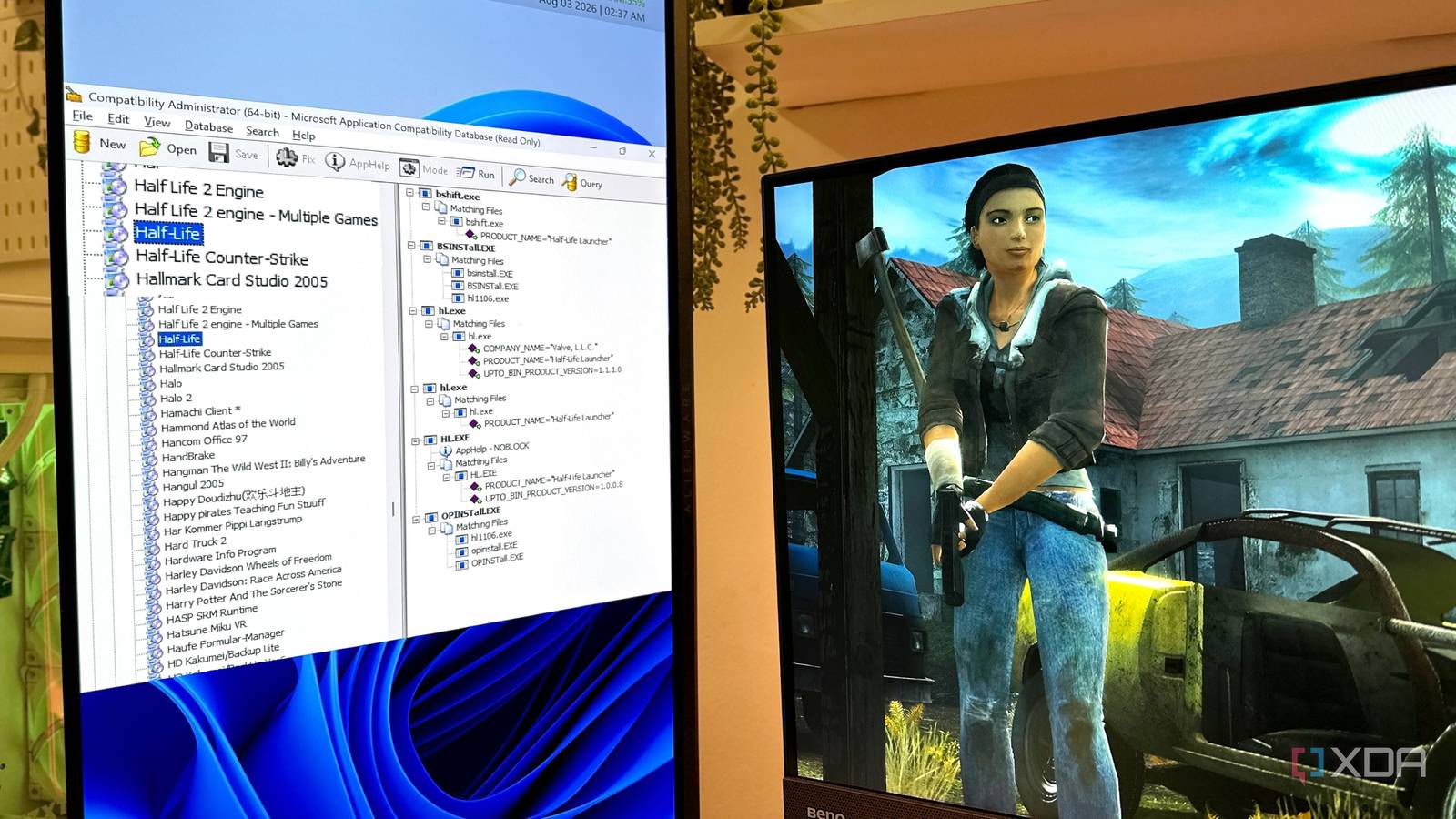
Published Aug 14, 2026, 12:30 PM EDT Gaming has been Samarveer’s greatest passion, and the Literature graduate in him takes immense joy in dissecting games for their themes, messages, and impact. Samarveer holds a deep appreciation of gaming, and considers the platform to be the most immersive and impactful across all media. He can be found engaging with gaming communities online, always ready to debate the finer points of ray tracing or itching to write an 8-page collegiate thesis on any game that impacts him emotionally. Say what you will about gaming on Windows, but Microsoft's OS has, for years, been doing a ton of work behind the scenes to ensure that every time you try to run a decades-old game, it simply works. Games that were built on now-ancient Windows versions still run because Windows remembers exactly what the game needs and silently changes its behavior to accommodate it in real-time. Microsoft's compatibility database, automatic shims, and user-applied compatibility fixes form a remarkably deep layer of Windows that most users will never see, let alone understand. Together, though, they make sure that every game that has ever run on any version of Windows runs on the latest version, too, whether by using automatic or manual shims. Windows has been fixing your old games for decades The compatibility database works overtime behind the curtain If an old game launches on Windows 11 without throwing a tantrum, don't assume it simply survived the journey intact. Windows has spent decades maintaining application compatibility databases that let it recognize software with known problems and apply specific fixes when that executable runs. These fixes are called shims, and they are essentially tiny pieces of compatibility logic that sit between an application and Windows. They don't try to fix a game's executable, and instead intercept certain Windows API calls and alter how the OS responds. Et voilà, the game gets the behavior it expects, while Windows gets to remain the modern operating system it actually is. Thankfully, all this happens behind the scenes, without you ever needing to put in any manual effort for the same. Windows identifies the apps using info associated with its executable and matches it against compatibility entries containing known fixes. If and when it finds a match, those fixes can be applied automatically at launch, completely invisible to the user. As such, ancient games from before the 2000s, for example, don't actually co-operate with Windows nearly as well as you might think. Windows may simply be bending a few rules behind its back, specifically because Microsoft already knows that particular game needs them. Windows also lets you apply those fixes yourself Compatibility Mode is the manual side of the same trick If Windows doesn't automatically know how to deal with an old game, you can always give it a little help yourself. We've all done it before — right-clicking an executable, selecting Properties and heading into Compatibility settings. There's always a collection of options designed to make modern Windows behave a little more like the environment that the game remembers. Compatibility modes can tell Windows to emulate certain behaviors associated with older versions of the operating system, while other settings tackle specific problems. You can force reduced color modes, lower resolutions, change high-DPI behavior, disable fullscreen optimizations, or make an application run with administrator privileges. The important distinction is that this isn't Windows installing an entire copy of Windows XP inside your PC. These options apply compatibility fixes and flags to that particular executable, effectively changing how Windows interacts with it without rewriting the game itself. It is less time machine, more carefully placed duct tape. This comes in pretty handy when an obscure game slips through Microsoft's database. The manual fixes can sometimes be the difference between a relic that refuses to launch and one that suddenly behaves. There are so many more compatibility hacks where they come from The fixes go far beyond pretending to be Windows XP Compatibility shims are not limited to convincing a stubborn game that it has somehow traveled back to Windows XP. Windows can apply remarkably specific fixes for applications that depend on behaviors Microsoft changed, removed, or simply stopped tolerating over the years. Some shims can alter how applications interact with APIs, files, the registry, system privileges, display scaling, or other parts of Windows. Others can work around assumptions about how the operating system reports its version or handles particular system operations. The goal isn't to make modern Windows ancient; it is to selectively recreate the behavior an application expects. Instead of rewriting history, Windows just keeps the important bits around to trick yesterday's software into running today. A compatibility database might not mean that Microsoft found a way to make a game run. Some entries provide AppHelp, which warns users that an application is known to have compatibility problems, while other entries apply actual fixes. That's how Windows manages to recognize problems before it begins solving them. One executable might need a version check bypassed, another might need different file handling, and another might need an entirely different collection of fixes. Thankfully, instead of rewriting history, Windows keeps enough of it around to trick yesterday's software whenever it needs to. The database is sitting on your PC right now If you want to see just how much Windows is doing behind the scenes, don't take my word for it, or Microsoft's. Open C:\Windows\AppPatch. This is where you'll find sysmain.sdb, a multi-megabyte compatibility database packed with the fixes Windows can apply to software. While you're at it, you can also run regedit to open the Registry Editor and head to HKEY_LOCAL_MACHINE > SOFTWARE > Microsoft > Windows NT > CurrentVersion > AppCompatFlags > Layers. Here, you'll see all the compatibility settings that are explicitly associated with the apps on your PC. Please ensure you resist the urge to create and register your own fixes unless you know what you're doing. If you want to make sense of the entire database, there's another tool you'll need. Grab Microsoft's free Windows ADK and install only the Application Compatibility Tools component. This gives you control over the Compatibility Administrator, which opens the System Database as a browsable tree of thousands of games and apps. Just click on any entry to see the exact shims Windows applies in the background. Windows 11 Pro A USB installation drive and license key for Windows 11 Pro, with additional features like Hyper-V and Windows Sandbox support. The best compatibility work is the work you never notice There is something wonderfully stubborn about an operating system that refuses to let its past become someone else's problem. Windows has accumulated decades of baggage, but instead of discarding it whenever the platform moves forward, Microsoft has built layers of engineering around the mess. It is not glamorous work, and most users will never know it exists, which is probably the highest compliment this kind of engineering can receive. We tend to measure operating systems by what they add, what they make faster, or how dramatically they change the desktop. Compatibility is different. Its achievement is making yesterday's software feel unremarkable on tomorrow's hardware.
Windows has a secret database that makes your old games "just work," and it's sitting on your PC right now
Full Article
Original Source
Read the full article at Xda-developers →KhanList aggregates and links to publicly available news content. We do not host full articles from third-party sources. Always verify important information with original sources.