
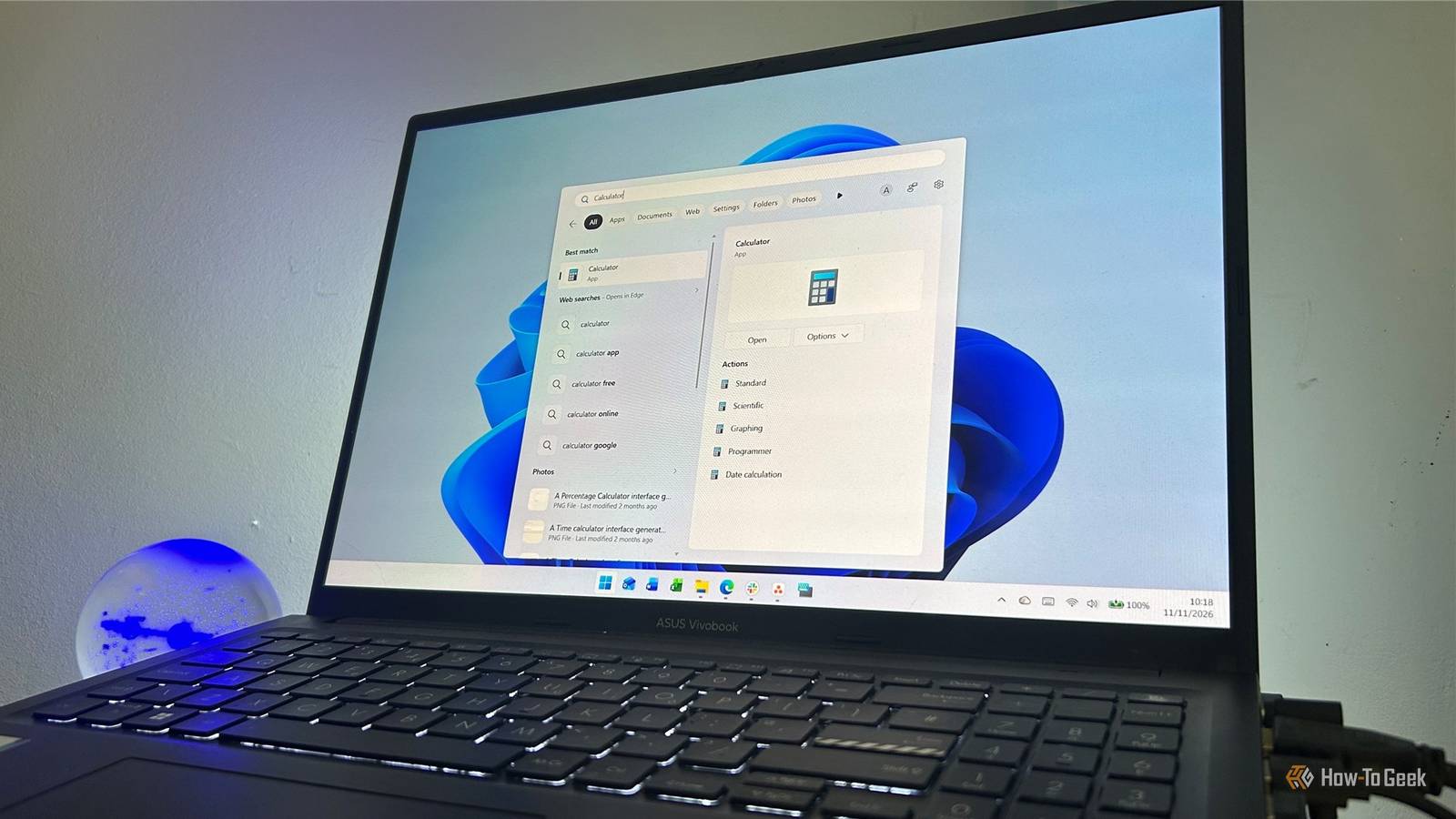
Published Nov 11, 2026, 12:30 PM EST Tony Phillips is a senior author at How-To Geek with over a decade of experience working with documents, data, and digital productivity tools. Holding a dual-honors degree in Linguistics and Hispanic Studies, he combines technical expertise with a passion for making complex topics easy to understand. Before joining How-To Geek in 2024, Tony worked as a document producer, data manager, legal document specialist, and content creator. He has also proofread and edited more than 3 million words of academic and professional writing. While Tony specializes in Microsoft 365, particularly Excel, his interests extend far beyond Office. He enjoys testing software, exploring open-source projects, discovering useful companion apps, and finding ways to customize and optimize Windows. Whether he's building spreadsheets, evaluating new tools, or uncovering hidden features, Tony enjoys helping readers get more from their technology. Outside of tech, he enjoys spending time with his dog, watching football, astrophotography, gardening, and golf. Windows Search is one of the features I use most in Windows 11. Most of the time, I'm looking for something simple: an app, a file, or a setting. That's why I've never been particularly keen on Search trying to do other jobs at the same time. Microsoft now lets you turn off web and Microsoft Store suggestions in Settings. After trying both options, I've found Search noticeably cleaner and easier to navigate. I want Search to focus on my PC first One thing I sometimes miss about Windows 7 is how straightforward Search felt. You'd open the Start menu, type a few letters, find the program or file you wanted, and move on. That was it. Windows Search is much more capable today, but it's also trying to do more. Alongside apps, files, and settings stored locally, Search can surface web results and Microsoft Store suggestions. I get why Microsoft added those extras. If you often search the web through Search, or use Search to discover apps in the Microsoft Store, those suggestions are genuinely useful. The problem is that many people still use Search in the same way they always have: as a quick way to find something that's already on their PC. When that's your goal, the extra results can make Search feel more cluttered than it needs to be. Instead of spotting what you're after right away, you're scanning through a mix of local and web content. When I open Windows Search, my expectation is fairly simple: I want Search to search my PC first. These two settings make Search more focused Turn off web searches and Microsoft Store suggestions Before you start, there's one important note: Microsoft is rolling these controls out gradually, so you might not see them yet even if Windows is fully up to date. If they're missing, check again later. To find the settings, right-click the Start button and select Settings. Then head to Privacy & security > Search. Expand the section called Show suggested search results. Inside, you'll find two toggles: Web Searches Microsoft Store One thing I like is that the two settings work independently. You can switch off web searches while keeping Microsoft Store suggestions, keep web searches while disabling Store results, or disable both entirely. The Web Searches toggle is the more important of the two for me. Turning it off removes web suggestions from Search results, making Search feel more like a desktop search tool and less like a miniature search engine. If your primary goal is finding local content, that change alone can make the results panel easier to scan. The Microsoft Store toggle does exactly what its name suggests. Turn it off, and Search stops suggesting apps from the Store. I rarely install software that way, so removing those suggestions helped keep Search focused on content that's already on my machine. It's worth being clear about what these settings don't do. They don't turn Search off, and they don't stop it from finding local content. You can still use Search to find installed apps, Windows settings, and files. You're just removing two categories of suggested results. The difference was particularly obvious when I searched for "VS Code." With both toggles on, Search showed the installed app alongside a Microsoft Store result and a whole section of web suggestions. After disabling Web Searches and Microsoft Store suggestions, those extra results disappeared, leaving the installed app as the clear focus. Searching for "Night light" was a similar story. With web suggestions on, Search showed a Web searches section beneath the best local settings match. After turning the suggestions off, those results disappeared, leaving only the Windows settings results. Dedicated tools such as Everything are great for finding files. But improving the built-in Windows Search experience doesn't require installing another utility, and that's what makes these settings so appealing. Microsoft wants Windows Search to be more focused A cleaner experience is part of a wider redesign Credit: Microsoft Microsoft's broader plans for Search suggest the company is thinking more carefully about how people use it. In a recent Windows Insider post, Microsoft said users want Search to be "fast, focused, and help you find what you need without friction." It's currently testing a redesigned Search with a simpler single-pane layout, improved matching for typos and similar terms, and inline actions that let you do things like turn on dark mode or enable Bluetooth from Search. The redesign is rolling out to Windows Insiders first, so don't expect to see it on every PC yet. In the meantime, the Web Searches and Microsoft Store toggles already give you a simple way to trim some of the clutter from today's version of Search. Sometimes less really is more Search doesn't need to do less for everyone, and plenty of people will happily keep web results and Store suggestions switched on. But if, like me, you primarily use Search to find apps, files, and settings that are already on your PC, turning those two options off is an easy tweak worth trying. It's a small change, but one that makes Search feel cleaner, less distracting, and more focused on the things already on my PC. It won't turn Windows 11 into Windows 7, but it does bring back a little of the simplicity that made earlier versions of Windows Search so useful.
Windows 11 Search works better when you disable these two settings
Full Article
Original Source
Read the full article at Howtogeek →KhanList aggregates and links to publicly available news content. We do not host full articles from third-party sources. Always verify important information with original sources.