
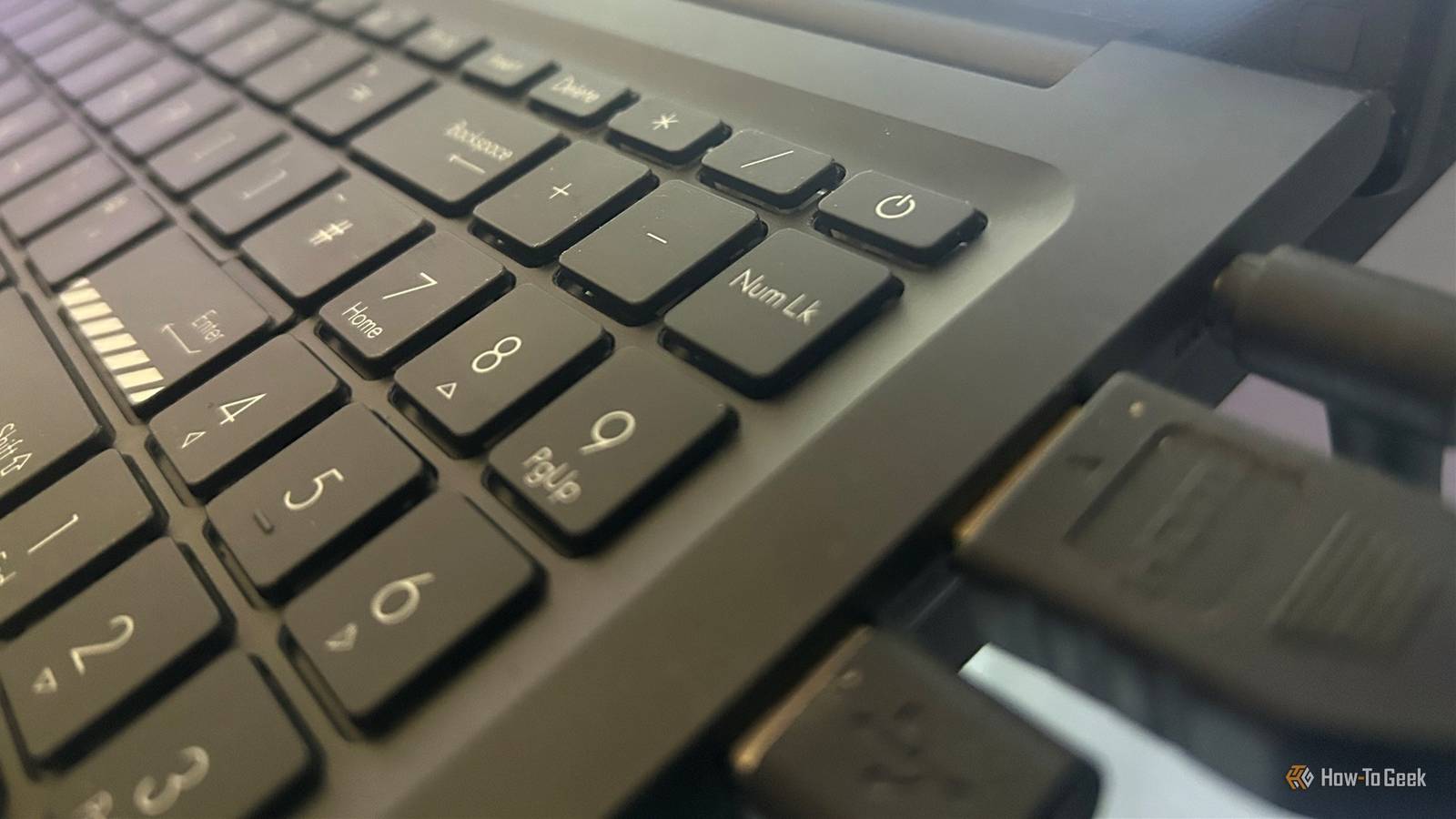
Published Sep 22, 2026, 8:00 AM EDT Tony Phillips is an experienced Microsoft Office user with a dual-honors degree in Linguistics and Hispanic Studies. Prior to starting with How-to Geek in January 2024, he worked as a document producer, data manager, and content creator for over ten years, and loves making spreadsheets and documents in his spare time. Tony is also an academic proofreader, experienced in reading, editing, and formatting over 3 million words of personal statements, resumes, reference letters, research proposals, and dissertations. Before joining How-To Geek, Tony formatted and wrote documents for legal firms, including contracts, Wills, and Powers of Attorney. Tony is obsessed with Microsoft Office! He will find any reason to create a spreadsheet, exploring ways to add complex formulas and discover new ways to make data tick. He also takes pride in producing Word documents that look the part. He has worked as a data manager in a secondary school in the UK and has years of experience in the classroom with Microsoft PowerPoint. He loves to encounter problems in Microsoft Office and use his expertise and legal-level training to find solutions. Outside of the Microsoft world, Tony is a keen dog owner and lover, football fan, astrophotographer, gardener, and golfer. I've always thought a PC's power button should be fairly self-explanatory. Press it, and the computer shuts down safely. But Windows 11 is never that straightforward. It gives you several choices for what that button actually does, including one that makes shutting down your PC much simpler. Power button: the clue is in its name When Sleep isn't what you want Credit: Patrick Campanale/How-To Geek When I'm finished using my laptop, I want to shut it down. I could open the Start menu, click the Power button, and select Shut down, but there's already a perfectly good physical button sitting on my laptop. For me, the main appeal is convenience. Pressing one physical button is much simpler than navigating through Windows to do something that the button seems designed for in the first place. Windows often configures the power button to put a PC to Sleep by default. That's useful if you're stepping away for a while and want to get straight back to where you were. But if you want the button to shut down your PC instead, you can change what it does. There is one downside to consider. If you accidentally press the power button, Sleep is usually a fairly harmless mistake: your PC goes to sleep, and you can wake it up again. If you've configured the button to Shut-down, though, you've started the normal shutdown process. Windows may give you a chance to cancel when an application needs attention, but I'd still think twice if your power button is somewhere you're likely to hit accidentally. For me, the convenience outweighs that risk. Here's how to change it. How to make your power button shut down your PC Windows gives you several options Open Settings by pressing Win+I, then go to System > Power & battery. If you're using a laptop, click Lid, power & sleep button controls, and on a desktop PC, it's Power button controls. Whichever route you use, the setting you're interested in here is Pressing the power button will make my PC. Windows gives you several choices, although the options you see can vary depending on your PC: Setting What happens Useful if Do nothing Pressing the button has no effect. You often find yourself pressing the power button accidentally. Sleep Your screen goes off, and your PC enters a low-power state. Your apps and work remain available, so you can quickly wake the PC and carry on where you left off. You take short breaks and want to get back to your work quickly. Hibernate Windows saves your current session before shutting down the PC completely. When you start it again, you can continue where you left off, although resuming takes longer than from Sleep. Hibernate isn't available on every PC, and on some PCs it may be hidden until you enable it in Windows' power settings. You won't use your PC for an extended period and want to preserve your session while using very little battery. Shut-down Windows closes your apps and performs a normal shutdown, turning off the PC. You've finished using your PC and want to turn it off completely. Turn off display Your screen goes off, but your PC stays running and your apps and tasks continue in the background. Move your mouse or press a key to turn the display back on. You want to blank your monitor without putting your PC to Sleep. If you want your PC to shut down normally when you press the power button, Shut-down is the option you want. Windows gives you separate settings for Plugged in and On battery if you're using a laptop. This means you can make the power button behave differently depending on whether your laptop is connected to the mains. For example, you could choose Sleep when you're running on battery, so you can quickly get back to your work, and Shut-down when you're plugged in at your desk. You don't have to make them different, though. I choose Shut-down for both because I want the power button to do the same thing regardless of whether my laptop is plugged in. The same page also has Pressing the sleep button will make my PC. You might not have a dedicated sleep button—some keyboards have one marked with a crescent moon or a Zzz symbol, while many don't—so if yours doesn't, you can simply ignore that setting. Laptop users will also see an option for Closing the lid will make my PC, with separate options for when you're On battery and Plugged in. So, for example, you could have your laptop go to Sleep when you close the lid while you're out and about, while choosing a different action when you're working at your desk. Once you've selected Shut-down for the power button, there's nothing else to configure. Press the physical button once, and Windows will begin its normal shutdown process. Is shutting down with the power button bad? A normal press is still a normal Windows shutdown There's a difference between configuring the power button to shut down your PC and forcibly switching it off with the power button. When you press the button once after setting it to Shut-down, Windows handles the shutdown process normally. It closes your apps and shuts down the PC just as it would if you selected Start > Power > Shut down. The problem comes when you press and hold the power button to force the PC to turn off. That's a different operation, intended for situations where Windows has stopped responding. Because it doesn't give Windows and your apps the same opportunity to finish cleanly, you're more likely to lose unsaved work. So, think of a quick press as a shortcut to the normal Windows shutdown command. Don't hold the button down unless you actually need to force the PC off. One press, and you're done If you prefer to shut down your PC when you're finished using it, changing the power button is a small tweak that removes an unnecessary trip through the Start menu. Press it once, and Windows handles the normal shutdown process. It's also worth knowing that Windows has other power settings that affect things like performance and battery life. If you've never looked beyond the power button, it's worth checking which power mode Windows is using and whether its power-saving settings are actually helping you.
Windows 11 handles your power button all wrong—here's how to make shutdowns easier
Full Article
Original Source
Read the full article at Howtogeek →KhanList aggregates and links to publicly available news content. We do not host full articles from third-party sources. Always verify important information with original sources.