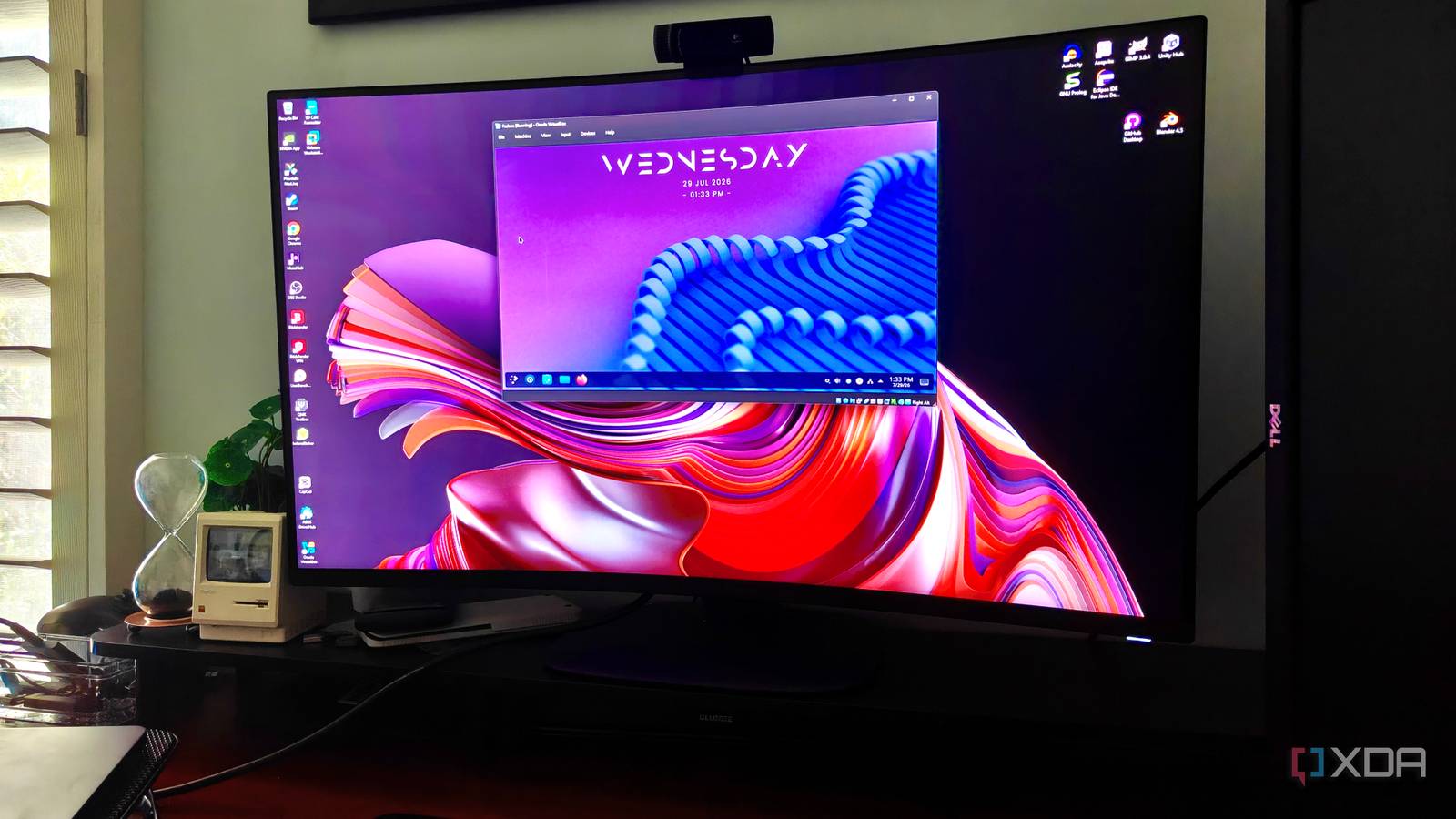
Published Aug 5, 2026, 8:00 AM EDT Ethan enjoys programming, math, and problem solving. He started off as a self taught programmer, and is proficient in multiple programming languages. He has a wide variety of programming projects in his portfolio, ranging from games published on itch.io to open source GitHub projects that anyone can collaborate on. He loves computers and is fascinated by all things tech. The itch to try out Linux is universal. Almost everyone who is into technology has heard of it, and having another operating system option besides Windows and macOS sounds pretty appealing. However, there are many ways to run Linux and so many different distributions that it can be super overwhelming. Having felt this itch, I started to dip my toes into the world of Linux over a year ago. However, while booting from an external USB drive quickly became my favorite way to run Linux, a lot of headaches (I almost bricked one of my laptops) and wasted time could have been avoided if I instead started my Linux journey with a virtual machine. Why use a virtual machine? There are other ways to run Linux, so why this one? Linux can be hard to get a hang of. For some, having to memorize specific terminal commands (with each distribution having different commands for the same thing) can be overwhelming, and even installing packages from the terminal can feel like a foreign concept. Plus, there are so many Linux distributions and desktop environments that even choosing which "version" of Linux to use can be a tedious task. Rather than making things even more complicated by making a separate disk partition or learning how to boot from an external USB drive, a virtual machine allows you to easily test out Linux without making things more difficult for yourself. Using a virtual machine allows you to try out different Linux distributions quickly. For example, if you don't like Arch Linux and think it's overhyped, you can quickly download Fedora and boot it up on a virtual machine in minutes. Backing up and restoring virtual machines is also pretty simple, so you can tinker away to your heart's content without worrying about breaking things permanently. Setting up your virtual machine So, you want to use a virtual machine, huh? Before you set up your virtual machine, you need to choose your Linux distribution and download its ISO image. Most people recommend Linux Mint as a good jumping-off point when it comes to Linux, but since there are so many other options, you should also do some more research to find a distro that appeals to you. Once you have downloaded your chosen distribution's ISO, you need to pick a hypervisor. For the uninitiated, a hypervisor is what lets you spin up a distro within a virtual machine. Windows 11 Professional and Enterprise editions actually come with one built-in called Hyper-V, though you can use some workarounds to get it to run on the Home variant of Microsoft's flagship OS. Alternatively, if you want something easier to work with than Hyper-V, Oracle VirtualBox is a decent option for beginners. Personally, I prefer using VMware Workstation Pro (or VMware Fusion for Mac users), as it offers more features on top of delivering better performance in virtualized tasks. After you choose a hypervisor, all you need to do is create a virtual machine. When setting up your VM, you will be prompted to assign it some memory, v-cores, and storage provisions. As a general rule of thumb, you shouldn't allocate ungodly amounts of system resources to your virtual machines, otherwise, you might encounter performance and stability issues on the host. Going with 2 v-cores and 2–4 GB of RAM works for my VMs (including those with GUI elements), but I recommend giving your virtualized environment a good amount of storage provisions if you don't want it to run out of space right after installing the distro. I often allocate 30GB+ to virtual machines with desktop environments and half as much to those featuring command-line interfaces. If your virtual machine fails to start, double-check that Hyper-V is disabled. If that doesn't work, make sure virtualization is enabled in the BIOS. Alright, what next? After testing different Linux distributions, you may feel more comfortable with Linux and want to try different ways of running it. My personal favorite way to run Linux is by booting from a personal USB drive. I currently do this by installing the Linux Operating System directly onto my drive, but since I recently learned that this could potentially damage it, any future Linux endeavors will be run on a Live USB with persistence. Or, you can double down on virtualization experiments by going down the home lab route by turning an old system into a VM-hosting server node. Proxmox is pretty much the golden standard for VM-heavy projects, and it meshes incredibly well with outdated machines. However, Canonical MicroCloud is also worth checking out if you want something that's a little less complex, while XCP-ng is better for folks who want something other than good ol' KVM for their virtualization projects. VirtualBox If you want to get started with Linux, using a virtual machine like VirtualBox is a great way to do so.
Virtual machines are the easiest way to try Linux without causing unnecessary headaches
Full Article
Original Source
Read the full article at Xda-developers →KhanList aggregates and links to publicly available news content. We do not host full articles from third-party sources. Always verify important information with original sources.