
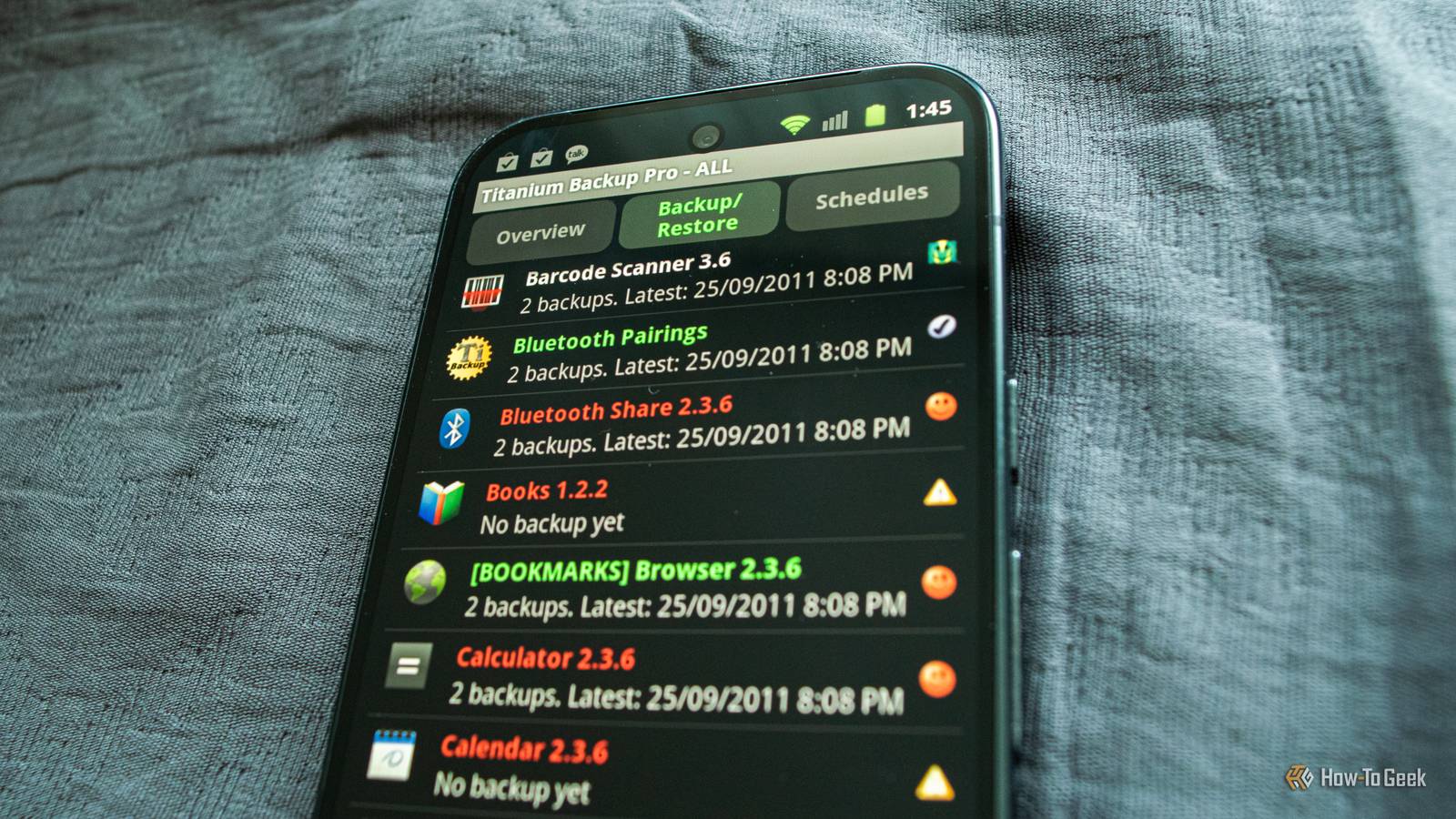
Published Nov 18, 2026, 9:00 AM EST Ever since he got his first smartphone, the legendary Nokia 6600, back in 2005, Goran became obsessed with technology. This obsession had only gotten worse after he received his first gaming PC a couple of months later. He fell in love with video games in the early '90s, shortly after embarking on his gaming journey with the Sega Master System II and SNES. Since then, he has built dozens of PCs, played thousands of games, and authored hundreds of articles about PC hardware, gaming hardware, and video games. He knows everything there is to know about the PC gaming and PC hardware space, and while his console gaming knowledge isn't as comprehensive, he considers himself a console veteran. Goran has almost a decade of experience writing about tech and video games for numerous web publications including TechSpot, TechPowerUp, and EsportsHeadlines. He has been writing for How-To Geek since December 2022. When he isn't gaming or deciding which component of his PC to upgrade next, you can find him strolling around Novi Sad while listening to music and contemplating what to play next. “Before doing anything, make sure to back up your phone with Titanium Backup” or a similar notice that mentioned Nandroid (another legendary Android backup method) was pinned on many how-tos that required a rooted phone on Android forums such as XDA. Thanks to Titanium Backup, you could create a comprehensive backup of your phone that included not only your account and system settings but also every app installed on it, years before Google started offering similar features on stock Android. One of the most important apps during the early days of Android Switching to a new phone, performing a factory reset, or installing a custom ROM on your Android phone was a pain back in the early days of Android because you had to start from scratch. Early Android versions would back up only your Google contacts and some settings. That was an issue for me when I had to factory reset my first phone, an HTC Tattoo, which ran Android 1.6 Donut. Starting from a blank slate was a hassle, and then I had to do it again when I upgraded to an HTC Wildfire equipped with Android 2.1 Eclair. When I decided to root the Wildfire, though, I made sure to also get a then relatively novel app called Titanium Backup, so I could have a proper backup to restore in case I had to reset the phone or install a custom ROM. I still remember the anxiety during the rooting process and the elation after the phone booted up as nothing had happened. I then installed Titanium Backup on it and created my first backup, after which I made a Nandroid backup as well. Now I was ready to explore Android’s custom ROM offerings, and I made a very “bold and original” decision to go with CyanogenMod. The installation went smoothly, and restoring my apps and settings on the new ROM felt like magic, a feeling shared by many other people who used Titanium Backup in the early Android days. Just having all your stuff available again after purging your phone in one way or another was pure alchemy. Back then, the app was arguably the most useful tool for Android power users. But it wouldn’t stay that way forever. Over the years, Google has brought many of the app’s features to stock Android But it never managed to make the app fully redundant Now, Google didn’t just sit on the sidelines and quietly watch the evolution of Titanium Backup. The company had the biggest mobile platform to develop, and the lack of ways to back up your stuff on your phone was one of Android’s pain points. To that end, Google started introducing features that reflected some options found in the best third-party backup tool. Ice Cream Sandwich brought not only full backups via ADB but also a way to disable bloatware apps, and we got automatic app data backup to Google Drive with Android Marshmallow. While these features didn’t match the power of Titanium Backup, they let people who weren’t comfortable rooting their phones manage bloatware and have their app data backed up. But these features were few and far between. Besides, app developers could opt out of backups, and many apps weren’t covered for years. Titanium Backup was still the best choice for backing up your Android phone even after we reached the mid-2010s. Eventually, the app was left to gather dust Until it finally disappeared from the Play Store in 2026 At its peak, Titanium Backup allowed you to easily uninstall bloatware instead of simply disabling it, freeze apps, move apps and their data to the SD card, schedule automatic backups, encrypt your backups and sync them to Google Drive or Dropbox, back up call logs, SMS and Wi-Fi networks, and more. It stayed by far the best and most popular backup solution since it allowed users to easily create backups of not just their apps, but also photos and videos, passwords, app data stored on the SD card, and just about any piece of data they wanted to have a backup of. As the decade was nearing its end, Titanium Backup started to fall further behind new Android versions. Lagging behind wasn’t new, since it always took some time before developers pushed an update for a new Android version, but an update would usually arrive within a few months of a new version of Android landing. But in 2019, Google removed Titanium Backup from the Play Store for violating its policies, since the app linked to instructions that could help users root their phones, which had been frowned upon by Google since 2015 and the introduction of Android Pay. The app was reinstated within days, but it was a sign of things to come. Titanium Backup received four more updates in 2019 before development came to a halt. The app hasn’t received any updates since then, which led to tons of issues with newer Android versions, making Titanium Backup practically unusable for years. It remained handy for people with older Android phones, though. The final nail in the coffin arrived this year, when both the app and its Pro key got removed from the Play Store in early August. While Titanium Backup is dead and gone, you’ve still got a few excellent alternatives You should check out Neo Backup and Swift Backup Modern Android has much more robust ways to back up your apps and transfer your phone’s data to a new phone, and many of us use apps and tools that allow us easy access to our documents, photos and videos, chats, passwords, music, and more on every device we own. Personally, I haven’t had a need for a tool similar to Titanium Backup in almost a decade. That said, there’s still an audience for third-party backup apps that give you granular control over which data stored on your phone you want to back up. If you’re looking for one, the two best options at the moment are probably Neo Backup and Swift Backup. The former is for people who are still rooting their phones. It’s an open-source utility that allows you to back up individual apps and their data, and it’s a fork of another renowned backup tool for Android, OAndBackup. Swift Backup doesn’t require root and offers a much broader set of features. With it, you can back up apps, but also messages and call logs, files and folders, wallpapers, as well as app data, app permissions, and saved Wi-Fi networks. Backing up app data requires root, but you can back up app permissions and Wi-Fi networks with Shizuku installed. Unlike Neo Backup, Swift Backup is a closed-source app that includes premium features such as scheduled backups, cloud backups for apps, custom backup configurations, and more. Titanium Backup is a relic of the glory days of Android that are long gone Titanium Backup was a staple on many a rooted Android phone. At the height of its fame, millions of people had it on their phones, the app embodying the freedom, but also the risks, involved with opening up your phone to the world of community-made software and custom ROMs. While that world has mostly faded, and while modern Android includes many of the app’s features, I still can’t help but look back fondly on that era every time I’m reminded of the best backup solution Android has ever seen.
Titanium Backup was every Android power user’s lifeline until it couldn’t keep up
Full Article
Original Source
Read the full article at Howtogeek →KhanList aggregates and links to publicly available news content. We do not host full articles from third-party sources. Always verify important information with original sources.