
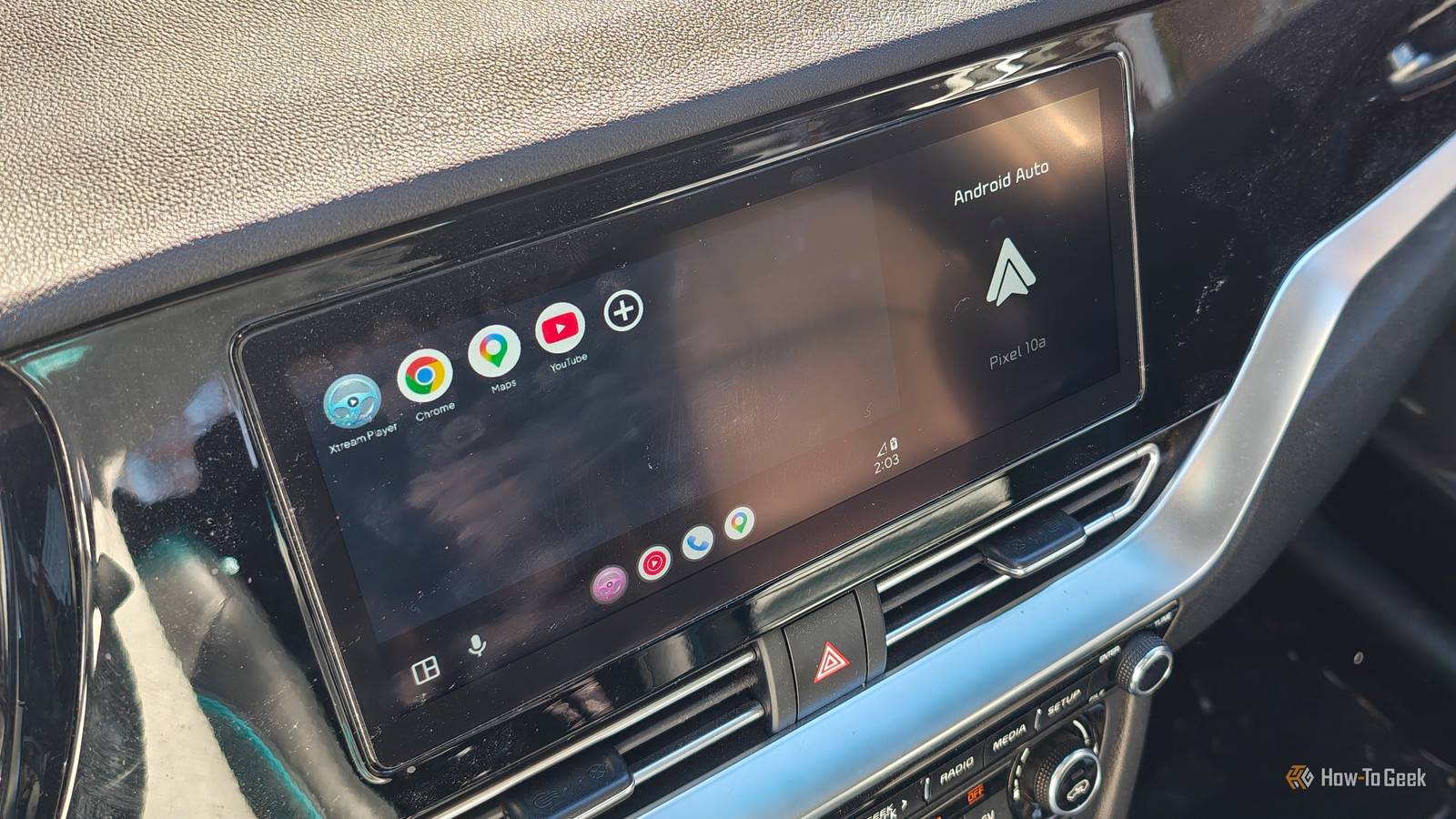
Published Nov 27, 2026, 1:00 PM EST Bertel is a lifelong tech enthusiast with over a decade of experience writing thousands of articles about Android devices, Linux, and more. Before joining the How-To Geek team, Bertel wrote for the likes of MakeUseOf, MakeTechEasier, and Android Police—at the latter he wrote over 3,500 articles. He delights in helping others decide which tech to bring into their lives... and which tech to do without. Bertel graduated from the College of William and Mary in 2012 with degrees in History and Government. He has spent his entire career as a tech journalist covering Android, Linux, wearables, smart home devices, and more. Android Auto could be better thought of as Google Auto, given how it's far more locked down than Android itself. Apps must go through the Play Store to be compatible — no sideloading allowed. But where there's a will, there's a way, and you can now sideload any Android APK with the help of one immensely simple tool. This tool is known as “UnknownAuto.” Both the source code and the APK are available on GitHub. While UnknownAuto itself is very straightforward, it relies on Shizuku, a way of simulating ADB that doesn’t require a PC. Getting Shizuku up and running isn't difficult, but you'll need to follow specific steps. Fortunately, we already have a guide on how to set up Shizuku. Meet me back here when you're done. UnknownAuto lets you install the apps that Google doesn‘t want you to It installs apps with Google Play attribution Android Auto lets you access a limited set of Android apps when you connect your phone to your car. These are not all the apps you have installed, but those that explicitly have Android Auto support. Even among apps that do have Android Auto support, like the open-source alternative to Google Maps, OSMAnd, only the version installed from the Play Store will work. OSMAnd doesn't show up in Android Auto if I instead download it from F-Droid like I usually do. This isn't that big a deal on most phones, but it's particularly frustrating on custom ROMs like LineageOS that enable you to de-Google. UnknownAuto isn't the first tool that is able to work around this problem, but it may just be the simplest yet. After you've made sure you have Shizuku up and running, all you have to do is point the app at an APK that you've downloaded and tap an install button. Then it's just a matter of connecting your phone to your car, and you should see the new app alongside your other installed apps. It really is that simple. The tricky part is finding Android Auto apps that aren’t in the Play Store There are only a handful of Android Auto apps worth sideloading I am going to assume that you don't have a problem with installing apps from the Play Store in order to use Android Auto. In that case, are there any other apps worth sideloading? Unfortunately, the options aren't as plentiful as I would have thought. If you haven't checked F-Droid in a while, or you have never used it at all, you're missing out. The open-source Android app ecosystem is absolutely booming, and a growing number of them are not on the Play Store. So when I went out in search of an app to test with UnknownAuto, I was surprised by the dearth of options. Fortunately, all is not lost! There is a small marketplace of paid Android Auto apps. You can find a handful of good options available through the Android Auto Apps Downloader, such as CarStream for watching YouTube. Personally, I'm a little squeamish about spending money for an app whose installation isn‘t actually sanctioned. I‘d rather try things out with something free instead. So I kept searching, and I came across a free way to get YouTube, a web browser, and just about any other app you want running on Android Auto via a single additional APK. Xtream Player is the secret to getting any of your phone apps onto Android Auto This app mirrors your phone to your car‘s infotainment screen Xtream Player is an app available for download from GitHub. Simply head to the releases page and download the APK. Then install it using UnknownAuto. To get Xtream Player up and running, you will have to grant it access to a long and uncomfortable number of permissions. The app needs permission to appear on top of other apps and to share your screen, to name a few. For what it does, the permissions make sense, so I plowed ahead by saying yes to all the prompts. Once, the app was up and running. It appeared as an icon alongside my other Android Auto apps. Tapping it revealed a handful of app icons available by default to mirror from my phone. The list included Google Chrome and YouTube, with the option to add more. I fired up YouTube since the ability to watch video on my infotainment screen while eating a meal or waiting for my car to charge at a public charging station has long been a desire of mine. Opening the YouTube Android app shows the interface in landscape view. The app responds well to my touch, and the sound is glorious coming out of my car speakers. The downside? The app is simply mirroring my phone screen. If I rotate my phone vertically, Xtream rotates to match. I can't use my phone while watching a video as I could with a regular Android Auto app. This is very obviously a workaround, but it’s one that works. Sideloading Android Auto apps isn’t as useful as I expected Android Auto is quite tiny on my car’s infotainment screen. The resulting video is barely larger than your average phone, and it’s actually smaller than the internal screen on my Motorola Razr Fold. If I had a car with a larger screen and a phone with a smaller display, then there might be a bigger benefit here. For me, it isn't quite worth the effort, but your story might be different.
This tool finally lets me use sideloaded apps in Android Auto
Full Article
Original Source
Read the full article at Howtogeek →KhanList aggregates and links to publicly available news content. We do not host full articles from third-party sources. Always verify important information with original sources.