
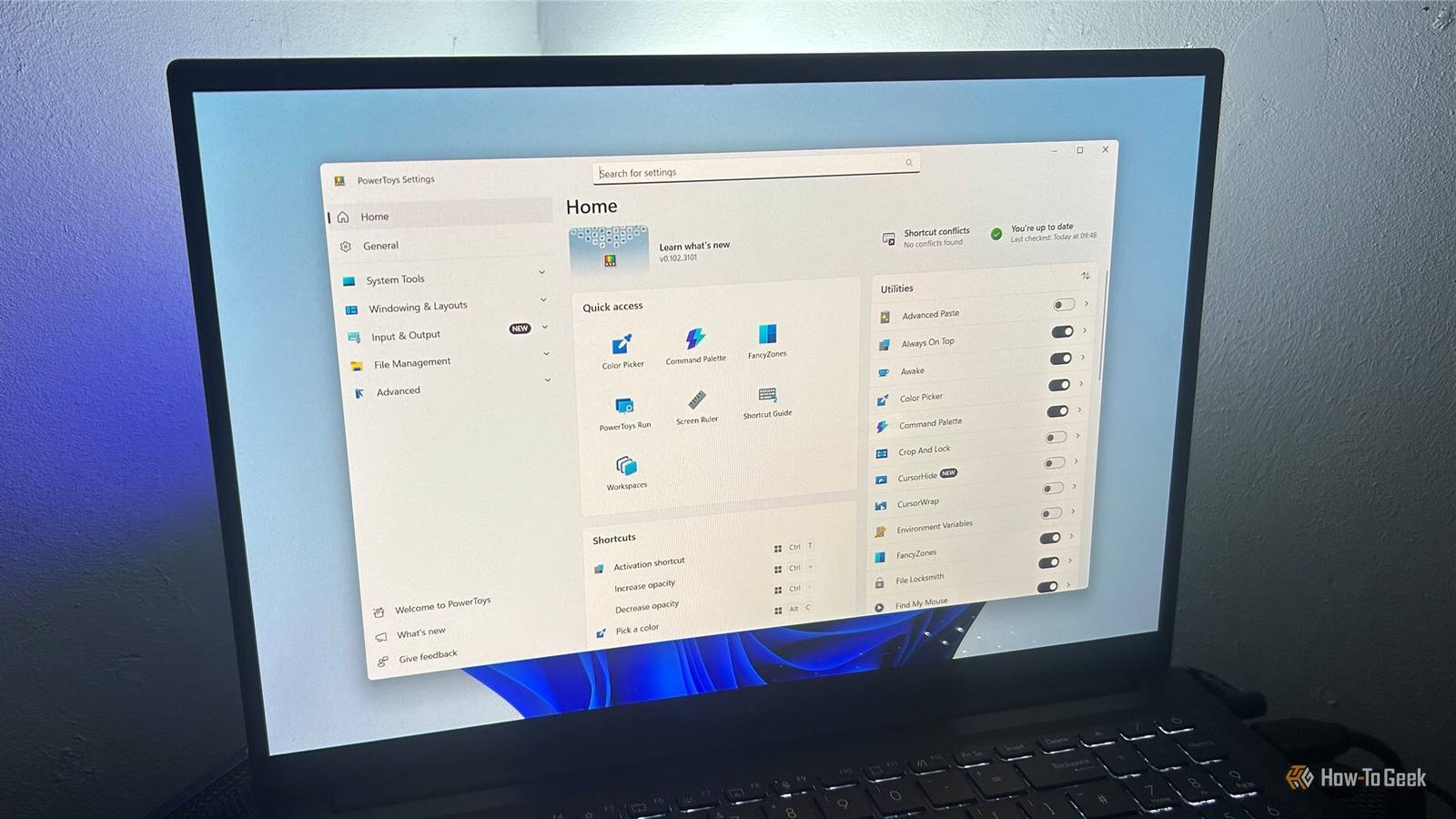
Published Nov 27, 2026, 1:31 PM EST Tony Phillips is a senior author at How-To Geek with over a decade of experience working with documents, data, and digital productivity tools. Holding a dual-honors degree in Linguistics and Hispanic Studies, he combines technical expertise with a passion for making complex topics easy to understand. Before joining How-To Geek in 2024, Tony worked as a document producer, data manager, legal document specialist, and content creator. He has also proofread and edited more than 3 million words of academic and professional writing. While Tony specializes in Microsoft 365, particularly Excel, his interests extend far beyond Office. He enjoys testing software, exploring open-source projects, discovering useful companion apps, and finding ways to customize and optimize Windows. Whether he's building spreadsheets, evaluating new tools, or uncovering hidden features, Tony enjoys helping readers get more from their technology. Outside of tech, he enjoys spending time with his dog, watching football, astrophotography, gardening, and golf. The easiest way to spot a fresh Windows installation is that it immediately starts irritating me. Not in any dramatic way, but through dozens of tiny frictions that add up over the course of a day. A file that's harder to identify than it should be. A window that won't stay where I want it. A desktop layout that needs rebuilding from scratch. PowerToys has become my solution to most of those problems. It includes dozens of utilities for different people and workflows, but six have earned a permanent place in my setup. Individually, they're small improvements, but together they make Windows feel much more like my own. Peek Proper file previews Peek is one of those features I miss almost immediately when it's not installed. I'm constantly digging through folders looking for a particular document, spreadsheet, PDF, or image, and I often don't remember the filename. Opening files one by one just to check whether they're the right ones gets old very quickly. With Peek, I can select a file and press the Spacebar to open a large preview in a lightweight window. Unlike the Preview Pane in File Explorer, it gives me a much larger view of what's actually inside the file without fully opening the associated app. I notice the benefit most when I'm hunting for screenshots. After taking dozens of images during testing, I rarely remember the exact filename I'm looking for. Being able to preview them quickly and move between files without opening Photos over and over again makes the whole process much less frustrating. PowerRename Goodbye, IMG_1234 PowerRename usually earns its place after I've used Peek to find the files I'm actually looking for. After moving images from my phone to my PC, I often end up with dozens of files from different projects mixed together, all with equally unhelpful names. Renaming them one by one isn't difficult, but it's the kind of repetitive task I'd rather avoid. PowerRename lets me add a descriptive word to an entire batch while keeping the existing numbering intact. More importantly, I can preview every change before committing to it, so I know exactly what the results will look like before anything is renamed. What I like most is that it helps me avoid the same problem in the future. Instead of coming back to a folder full of generic IMG files months later, I can immediately see which photos belong to which project. FancyZones Layouts that Windows doesn't offer FancyZones is one of the main reasons I install PowerToys in the first place. Windows Snap Layouts are fine for general multitasking, but I often need windows to be a very specific size and position. That's especially true when I'm taking screenshots, where consistency matters far more than simply snapping a window to the left or right of the screen. I realize that's a fairly niche use case, but FancyZones isn't just for creating nice screenshots. You might want Outlook and Teams stacked on one side of the screen, a browser taking up the center, and a notes app tucked into a corner. If Windows doesn't offer the layout you want, FancyZones probably can. Rather than resizing the same windows over and over again, I can create custom zones once and reuse them whenever I need them. One of the first things I did when setting up my most recent PC was recreate those layouts. Once you've built a layout that works for you, manually resizing and arranging windows starts to feel like unnecessary busywork. Workspaces All the apps in their proper place Workspaces solves a problem that FancyZones doesn't. Even after I've decided where windows should go, I still find myself opening the same apps and rebuilding the same setup every day. Before I started using Workspaces, I'd spend the first few minutes of each morning launching apps, moving them to the correct monitor, and arranging everything the way I liked it. My setup is probably more specific than most. I have one workspace for writing and another for weekends. The writing workspace opens the apps I use most often, while the weekend version launches a completely different set of apps and websites. The same idea can work for almost anything, though. You might have a work workspace that opens Outlook, Teams, and a browser, a study workspace with your notes and research materials, or a gaming workspace that launches Discord alongside your favorite apps. What I like most is that Workspaces doesn't just launch apps. It remembers where they belong. If I've spent the day moving windows around, minimizing apps, or closing things I don't need, I can relaunch the workspace and have everything return to its usual place. Always On Top Less Alt+Tab, more focus Always On Top is one of those features that sounds trivial until you start using it. It lets me pin a window so it stays visible above everything else on my desktop. Modern PCs are perfectly capable of handling lots of open windows, but that doesn't necessarily make them easier to work with. Once I have enough apps open, I often find myself jumping between windows just to check information I've already looked up. I'll admit that I didn't immediately get along with it. At first I pinned far too many windows and ended up creating a completely different kind of clutter. Over time, though, I've learned which windows genuinely benefit from staying visible and which are better left alone. These days, I use it much more selectively. A calculator when I'm working through numbers. A timer when I'm testing load times. A Slack conversation when I'm discussing a piece of software while using it. In those situations, having the information permanently visible is much more convenient than constantly reaching for Alt+Tab. Mouse Utilities Two solutions to opposite problems Mouse Utilities might be the strangest entry on this list because the two features I use most often solve completely opposite problems. Sometimes I lose track of my cursor, especially when moving between multiple screens. Other times, the cursor is exactly where I left it and gets in the way while I'm reading or typing. Find My Mouse solves the first problem by highlighting my cursor when I double-tap Ctrl. CursorHide solves the second by automatically hiding the pointer after keyboard input. On paper, those features almost seem to contradict each other. In practice, I've found they work surprisingly well together. I tend not to think about either tool very much until they're missing. Then I find myself hunting for the cursor on one monitor or wishing it would get out of the way on another. Neither feature dramatically changes how I use Windows, but together they make my mouse feel much smarter. The little things add up I'm not trying to reinvent Windows 11. For the most part, it's perfectly fine. These PowerToys utilities simply fix the little annoyances that would otherwise keep cropping up throughout my day. On their own, they're easy to overlook, but together they make Windows feel less like the version Microsoft ships and more like the version I actually want to use.
6 PowerToys tools I enable on every Windows PC
Full Article
Original Source
Read the full article at Howtogeek →KhanList aggregates and links to publicly available news content. We do not host full articles from third-party sources. Always verify important information with original sources.