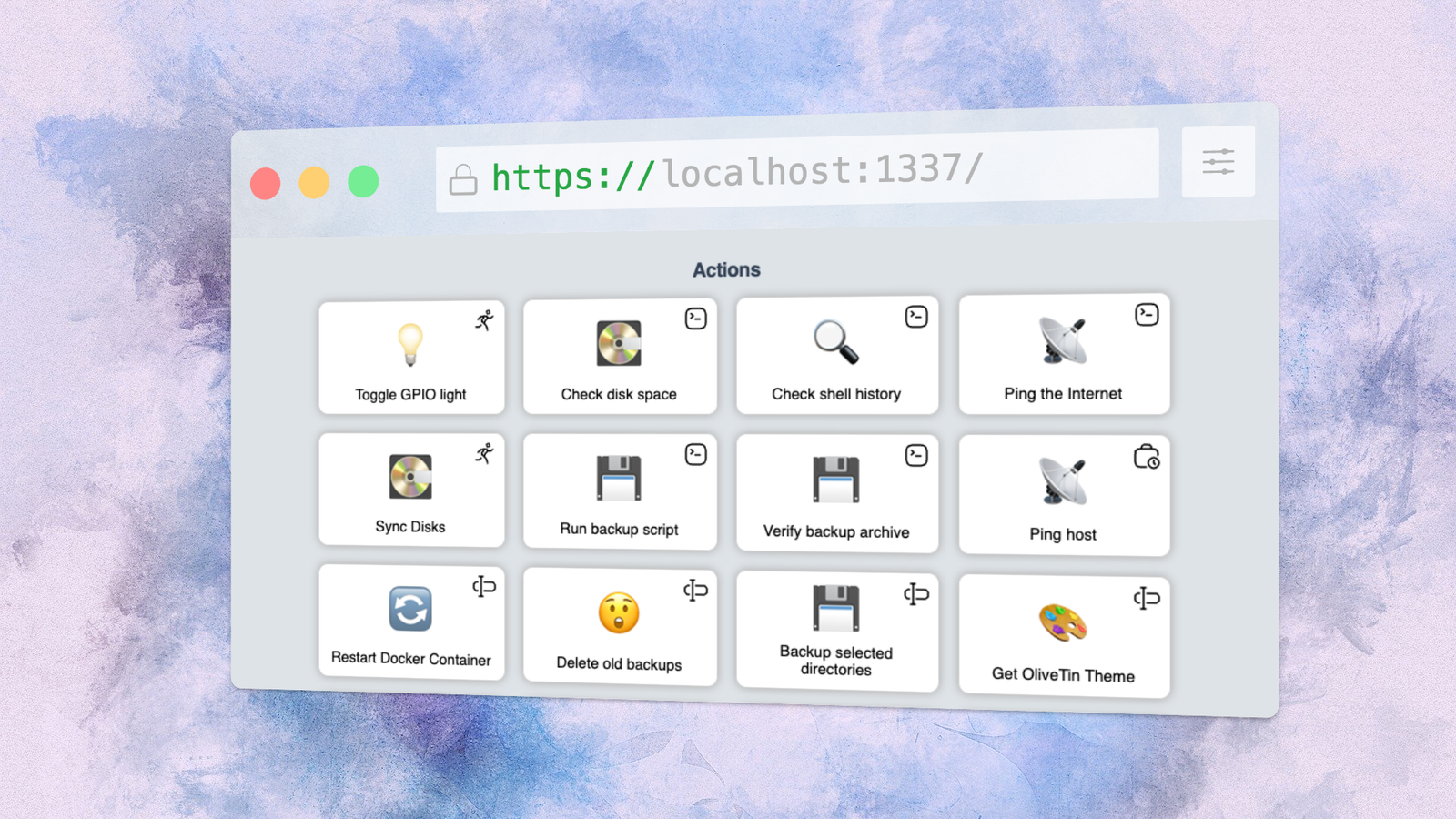
Published Aug 3, 2026, 9:30 AM EDT A technology enthusiast, Bobby studied Computer Science at the University of Southampton before working in a number of roles across industries, from the private sector to the charitable one, at multinationals and startups. He’s helped maintain backend Java servers, designed databases and front-end interfaces, and created a bespoke content management system. Bobby also enjoys video gaming, and has written for several outlets, including a stint as Editor-in-Chief at Switch Player Magazine and contributions to online magazine, SUPERJUMP. Bobby uses a Mac for day-to-day work and an Android phone for distractions. For programmers, shell scripts offer a perfect combination of power and simplicity. With a simple script, you can run any program, pipe its output to another program, carry out basic logic, and store results in files. Most common tasks that you might ever repeat can be automated with ease. But shell scripts aren’t too friendly for non-programmers, and they’re not that simple to run outside a terminal. OliveTin solves these problems, with an accessible web interface to control and manage all sorts of common actions. OliveTin is a web UI for your shell scripts This local app gives you control over a machine using just your browser At its core, OliveTin solves a very simple problem: how can I run a shell script with an HTML button? Although this is a pretty simple challenge for anyone who’s done it before, it takes quite a bit of setup: you’ll need a web server running on your computer, and some intermediate code in a language like PHP or Python. Alternatively, you can use the Common Gateway Interface (CGI) protocol, but this is a niche, older technology that few people use for new projects today. OliveTin provides an out-of-the-box solution, with a single application that includes its own web server and a front-end interface to scripts. You can configure it using YAML files and, once you’ve set up the scripts you want to run, you can just leave it alone and forget about the underlying details. Anyone on your local network can run tasks, so OliveTin is great for letting non-technical users run scripts, to troubleshoot problems or reboot a Plex media server, for example. It’s also a very convenient way of accessing your scripts from other devices, like a mobile phone—or anything else with a web browser. Installing and running OliveTin is a straightforward process A simple installation for Linux, macOS, Windows, and more I installed OliveTin on macOS, but it’s also available for Linux and Windows. It’s very quick to try out as a one-off, although setting it up as a permanent service requires a bit more configuration on macOS and Windows. Whatever your approach, you’ll need a simple config file to start. Your version may come with a sample config, which shows off many of OliveTin’s features, but I recommend starting with the simplest possible configuration to get your bearings: actions: - title: "Hello world!" shell: echo 'Hello World!' Save this as config.yaml in the relevant path for your system. Run OliveTin and navigate to the default URL in a browser: http://localhost:1337/. You should see the main interface with the single action defined in config.yaml: Click the button, and you’ll see it change briefly to display a green background and the message "[Success!]". Note that, because of the simple configuration, you won’t see any output from your script. You can change this later but, for now, check out the Logs section from the left-hand navigation. You’ll see one entry for each action you’ve run since you started OliveTin. Click on the link in the Action column to see the output of your command: Configure your dashboard with plenty of options Make it your own with custom styling, flexible logging, and advanced behaviors Once you’ve got this simple hello world action set up, the world is your oyster. You can now expose any existing shell script as an OliveTin action and write new scripts for custom functionality. But OliveTin offers plenty of flexibility beyond this, letting you customize the dashboard experience and the details of what runs in the background. For a start, you’ll probably want to differentiate several actions using icons, and that’s a simple config setting using the name "icon:" actions: - title: "Hello world!" shell: echo 'Hello World!' icon: smile This uses a Unicode character as the icon for an action button, but there are options to use Iconify or any image you prefer. In theory, you can make changes to config.yaml and OliveTin will pick them up using live reload. In practice, I found this wasn’t 100% reliable, so be prepared to manually restart the service when changing configuration. Another simple setting lets you display action output when an action runs, not just in the logs: actions: - title: "Hello world!" shell: echo 'Hello World!' onclick: execution-dialog This will immediately display the same page that you get when you click through logs to view output. You can also use a value of history for onclick, which takes you to a view that’s very similar to Logs, just for that specific action. You can set actions to run at other times than on explicit request. For example, you can have OliveTin mimic cron—the command-scheduling daemon—by using a familiar syntax: actions: - title: "Hello world!" shell: echo 'Hello World!' execOnCron: - "*/5 * * * *" # Every 5 minutes Alternative triggers include on startup, on a file being created in a given directory, and after a main command finishes executing. OliveTin’s default config file is heavily commented with explanations of its contents. It includes many examples of different actions, showcasing what you can use the app for and exactly how to do it. OliveTin can be overkill, but the simplest case is invaluable OliveTin can act as a front-end to even more powerful tasks. You can define arguments to shell scripts which will display as HTML form fields, replicating simple web apps. But this may be too much for your everyday work. The simplest cases, however, are quick and easy to set up, then straightforward to use. For management of your home network, there’s maybe no better way to grant family members easy access.
This self-hosted dashboard lets me trigger shell commands without typing anything
Full Article
Original Source
Read the full article at Howtogeek →KhanList aggregates and links to publicly available news content. We do not host full articles from third-party sources. Always verify important information with original sources.